This tutorial will cover adding custom content to a module in the form of new 2da files, models, textures etc.
It assumes you know the basics of making a module such as what a placeable is.
Your basic module will include lots of different base game content, such as tilesets to create areas, creatures with models, soundsets, and portraits, placeables, sounds, music, visual effects, classes, spells, and feats. Most if not all of this can be either replaced, tweaked or added to.
To do this there are two main things to do:
Curating only what you use is a very good skill to learn and can help you fix issues and keep your module hakpack files lean and mean.
There are big content packs such as CEP which include a wide array of content; with the caveat that not all of it might suit your own module, and that adding to the CEP files is much more laborious and error prone with the changes CEP has made to base 2da files and included models.
Some helpful tips on NWN Custom Content:
Before other content is covered, one of the easiest things to add is a new placeable. Placeables simply consist of a model and texture and a single 2da line.
First of all you want to get the source 2da files the game uses. The best way to do this which maintains getting the latest version of the files from the game data itself, and is good practice in case you want to edit some existing thing the game has and want the source (eg; an icon file, or to find a model to edit).
Use the latest nwnexplorer to search base game files for the 2da you want.
In this case we want placeables.2da - so press CTRL + S to search and type placeables.2da in the search box. Once found extract it somewhere useful like a working directory for your custom content.
If you want to add a placeable you first need a model to use - for instance a new statue. You first of all need to figure out the statue you want - in our example we'll use the Torm statue. In a general pack of files most people will include an already modified 2da file with lines you can copy to your 2da, but in this example we'll be doing this from scratch to show what you need to do.
The model files are:
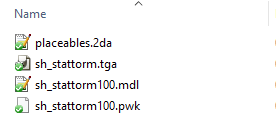
Once all the files are in one location you can then open placeables.2da. This is a text file, and for simple edits an editor like Notepad++ or similar is recommended - this will preserve the lines properly and display the text correctly. If you edit 2das a lot then using Excel can be a good idea (a basic tutorial on that may follow at some point).
You only need a few columns for it to work in the toolset. The reference for all the columns is on the placeables.2da reference page, we specifically need:
Basically apart from the Label and SoundAppType the other options tend to be defaults. All other columns are stars (ie; not filled in).
The line would look something like this assuming we use line 1000, a line past the default placeables/reserved lines. In NWN:EE the placeables.2da is extended quite significantly. The columns do not need to match the others in width but there must be one whitespace character between columns (thus the quotes around the label column entry).
1000 "CC: Statue of Torm" **** sh_stattorm100 **** **** **** **** 26 1 0 **** **** 1 |
Save the placeables.2da file with the same extension (again Notepad++ is good at this).
To test this in your module, or in a new blank module preferably (and remember to keep backups before adding any custom content in case it is hard to remove later) you don't need to add the files to a hakpack yet. Instead you can use either the override or development folders which are in your documents, eg: C:\Users\NAME\Documents\Neverwinter Nights\override
We'll use the override folder in this example. This will, by it's name, override the base game placeables.2da file and load instead your edited one. Place the files in the folder:
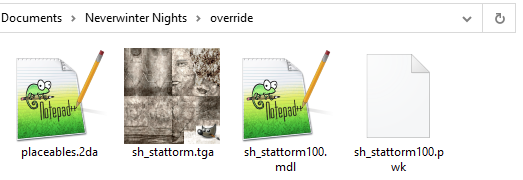
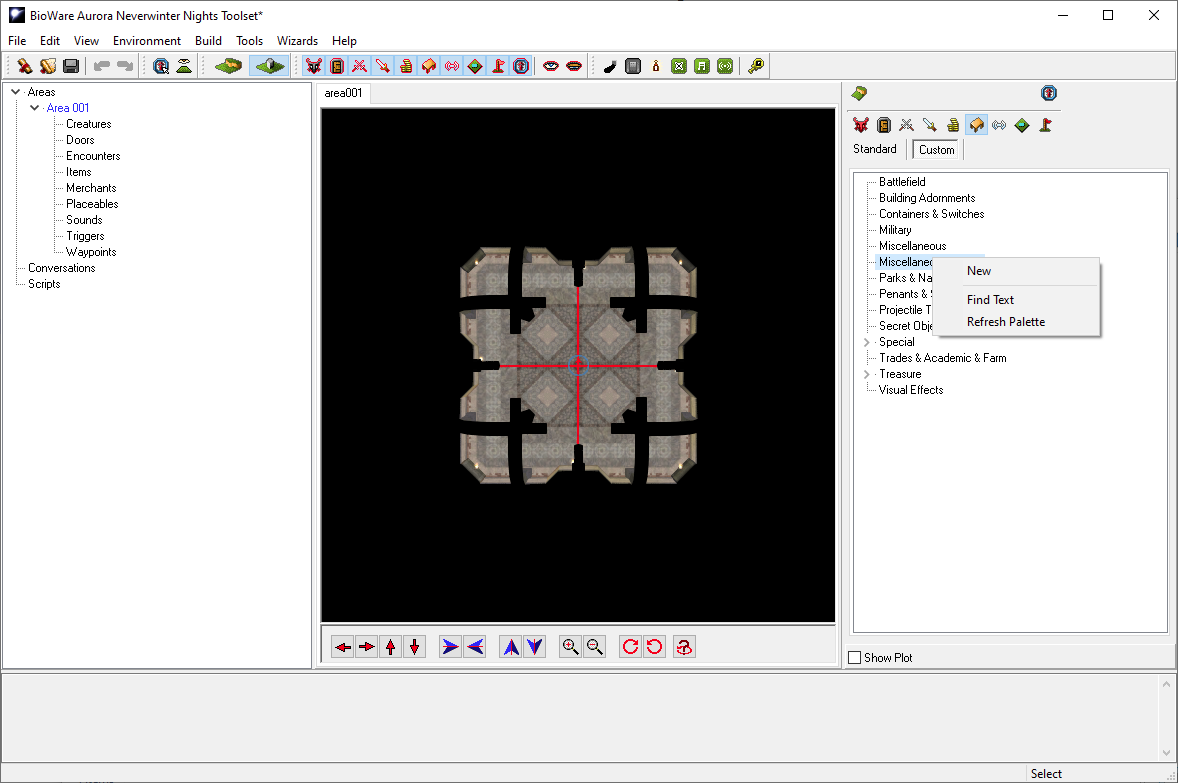
Then start a new module, open the initial area and start the placeable wizard on the right hand pane when you select the Placeable tab and the Custom option:
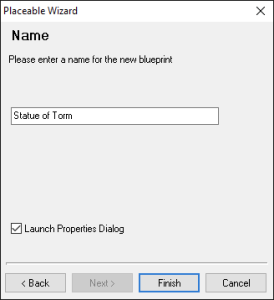
Name the placeable Statue of Torm or something else to your liking and select Launch Properties Dialog for easier access to edit it:
In the open properties of the placeable blueprint you want to select Appearance Type and go down to your statue. In this case the CC: part helps identify it clearly. On the left hand side you should see the model load - if it doesn't something has gone wrong, double check the placeables.2da line. If nothing named CC: appears then it hasn't even loaded the placeables.2da file, and it is worth checking it.
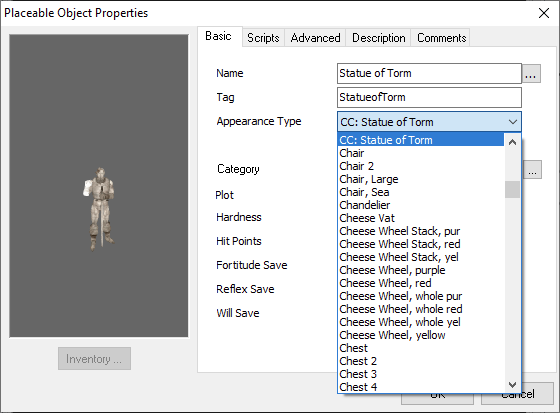
Since this is usually a non-selectable static placeable (if that check box is ticked the placeable acts as part of the terrain when placed). The portrait doesn't matter but you can change it to a statue if you so wished.
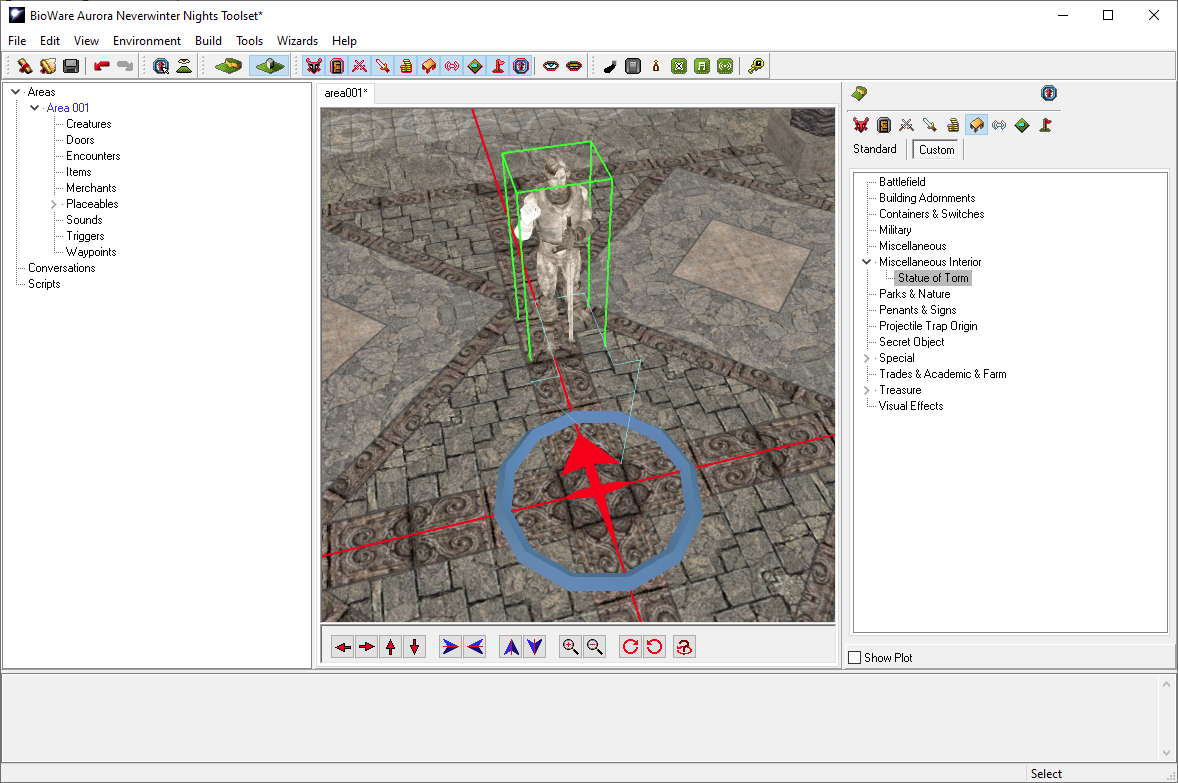
Place it in the area:
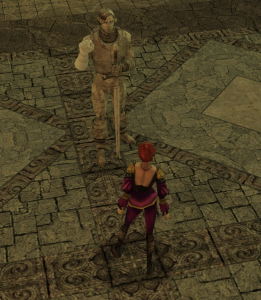
You can save and quickly press F9 to load in and make sure it doesn't crash in-game and looks fine:
Now you should put the files in a hakpack (HAK file) and attach it to your module.
If you need the final files used in this tutorial download them here: Statue of Torm.7z
Notes:
Congratulations on adding your first bit of custom content! There will be a Hackpack (HAK file) creation tutorial written in the future and linked here.
To add other types it is a similar process. Some key ones:
Some of these will be covered in future tutorials but find information on the lines information you need to add in the links above.
Some which are different to the above:
These require much more complex tutorials for all the various advanced options.
Remember though: Save often, keep backups of older versions of hakpacks and content as you add new ones, and always test, test, test!