-
Created by
 Jasperre, last updated on Sept 21, 2026
9 minute read
Jasperre, last updated on Sept 21, 2026
9 minute read
Area Lighting is a combination of several different types of lights, as well as player-led item or spell lighting on top. This page should give an overview of some of this plus directions to more details if required.
Lighting - Enhanced Edition and Client Options
Before starting it is worth noting that this is all based off the Enhanced Edition with default Best graphics settings.
Generally the Lighting Enhanced options improve the reflections, occlusion and other things. The original mostly-baked-in lighting can still be reverted to by toggling this off, but the assumption is that clients will use the new (default) enhanced lighting in this guide and with the screenshots.
The client also has control over some settings such as Lighting Max Lights (3 - 128, default 32), Lighting Cutoff Range Multiplier (default 2.0), Lighting Max Intensity (default 1.5), Lighting Intensity At Range (default 0.2), the amount of Shadow Casting Lights (0 - 3) and General Shader Quality (High Quality).
General Area Lighting
You can set a general set of visual (lighting) options in the Visual tab of the area properties. The list here is defined by the environment.2da file. All of the settings can be changed once a default is applied, with Reset To Black having everything be 0, or black, as lighting on tiles and for the area. Since many of these presets will alter the tile specific light colours at random (the Main Lights and Source Lights) if you want to do it all very specifically the Reset to Black might be a good option to use when creating an area.
To select a new area-wide setting choose one from the list and select Apply.
Note that the default selected on creating an area is controlled by the areag.ini file, so custom tilesets may not have anything other than default settings (generally black).
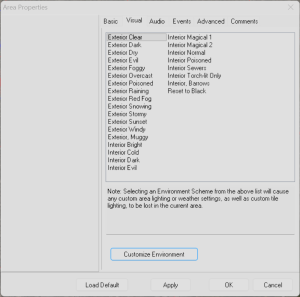
The area properties have Environment Options by clicking Customize Environment.
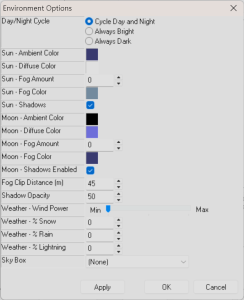
This section can change many of the general area lighting settings.
You might want to read up on the Phong model used in OpenGL for where some of these names come from: https://learnopengl.com/Lighting/Basic-Lighting
NOTE: The PC always generates some kind of "light" either darkvision or something similar even for non-Darkvision characters. This may look a little weird in some of the example screenshots with ambient lighting set to black.
| Setting | Values | Exterior Clear Defaults | Notes and Examples | Example 1 | Example 2 | ||
|---|---|---|---|---|---|---|---|
| Day/Night Cycle | Cycle Day and Night Always Bright Always Dark | Cycle Day and Night | The first option cycles between Sun and Moon settings depending on time of day. The other two force Sun or Moon - these differ slightly in how shadows are assigned, it assumes the sun is overwhelming any local light sources while the moon would be complementary / secondary to the local lights. This cannot be edited with nwscript later although other values can be set so it basically isn't used (ie making both sun and moon settings identical). | ||||
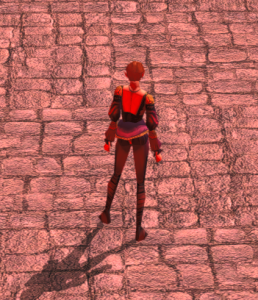
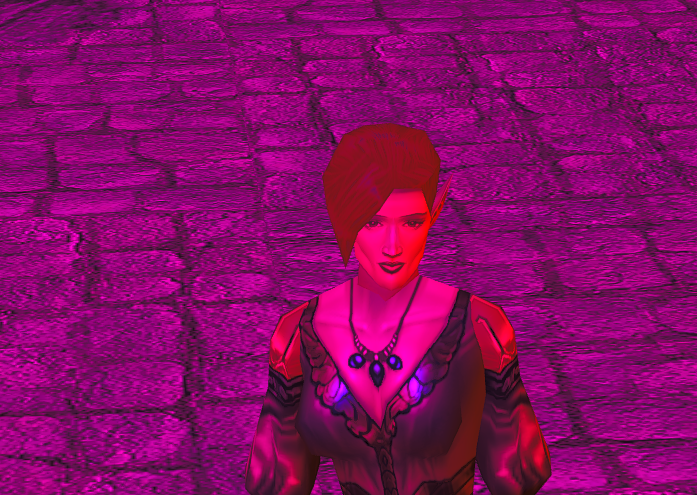
| Ambient Color | RGB | 50 / 50 / 100 (darker blue) | Ambient colour is the general light that the sun or moon produces and tints everything. The sun isn't perfect white so it is rare you'd use this. As the default is a blue colour this gives you an idea about what a scene outside would look like. Can be get/set with GetAreaLightColor and SetAreaLightColor. | Ambient red (255/0/0) / Diffuse white:
| Ambient red (255/0/0) / Diffuse blue (0/255/0):
| ||
| Diffuse Color | RGB | 255 / 255 / 255 (white) | This is the colour of lighting that diffuses across a scene. It mixes with the ambient colour as seen in some example screenshots, but if extremes of white and black are used it can get a bit much - although all black for both is used when you want proper darkness (inside a dark cave for instance). Can be get/set with GetAreaLightColor and SetAreaLightColor. | Ambient white / Diffuse black:
| Ambient white / Diffuse white:
| Ambient black / Diffuse white:
| Ambient black / Diffuse black:
|
Fog Amount | 0 - 200 | 0 | Basically how much more fog is there from the fog clip distance to the character. If you're using the default 45M distance, which includes a few meters of fog already, putting 50 will overlap the character. A more reasonable 10 might make it lightly foggy and 20 heavily foggy. | ||||
| Fog Color | RGB | 104 / 126 / 145 (blue/grey) | Can be set for Sun/Moon/both using SetFogColor. | ||||
| Shadows | Yes / No | Yes | Whether or not this light generates shadows, it overrides the "local" light ie a PC carrying a torch in daylight won't generate shadows from their torch as well. | ||||
| Fog Clip Distance | 30 - 9999 | 45 | Distance in meters until the fog clips, ie fog is at 100% and cannot be seen through and geometry stops being rendered. By default creatures won't appear past 35M and non-static placeables past 45M anyway, so it stops you seeing further "empty" parts of the map geometry. It can add ambience if kept to the standard amount, especially in interiors, but is extended by the Sky Box setting and fades into the bottom of the skybox in more wide open areas by another 90M on top of this setting. | ||||
| Shadow Opacity | 0 - 100 | 50 | This applies to both Sun and Moon, making the shadows darker or lighter. 50 is a good middle ground here for a normal sun since shadows in sunlight are not necessarily very dark negative areas where the sun directly can't reach, since light bounces around. | ||||
| Sky Box | Dropdown from skyboxes.2da | (None) | If added this extends the fog clip distance (90M), and can change depending on the time of day so the sun/moon settings make more sense. |
For Weather see separate pages on those settings.
The Sun and Moon
The Sun and Moon are in fact the same thing really! They just have different settings during the day and night in the lighting properties window.
The sun is in fact an in game MDL that generates light called gidy_sun.mdl. This mdl file is placed at coordinates x = 4000, y = 4500 and z = 7000. The radius of the light is 100,000 meaning it projects it fully over the area to generate shadows and light from that direction.
The mdl defines 2 light sources, it looks like one is for ambient light colouring of everything and one is to cast shadows. If you remove the gidy_sun mdl by blanking it or removing the light definitions this will crash the game. You can "remove" the global sun in the MDL by setting the radius to be low - eg; 1, instead of 100000.
Sun and Static Geometry Shadows
The sun is special since it is, apart from the player model, the only thing that can generate shadows on static geometry (tiles, and placeables set to static). We've tried applying this MDL to other things like placeables, visual transforming it into the sky etc, and sadly this doesn't do static geometry shadows. You can edit the MDL file to alter the amount of light and technically you can alter the position but you can't dynamically change the position (eg doing time of day shadows that shift).
You can attach the same effect (with an EffectVisualEffect transform of location) and see the sun shadows do work fine if rotated - since it follows the players facing sadly this also cannot be used to change the shadow geometry angle.
The way the sun and moon shadows work is dependant on the player having a light:
- If daytime
- If the sun shadows are enabled, use the sun only for static shadows
- If sun shadows are disabled, use the PC's light source (eg; interiors, their torch would light up geometry)
- If night time
- If the player has a light (eg; a torch) use that to cast static shadows
- Else if moon shadows are enabled, use the sun to cast static shadows
Tile Lighting
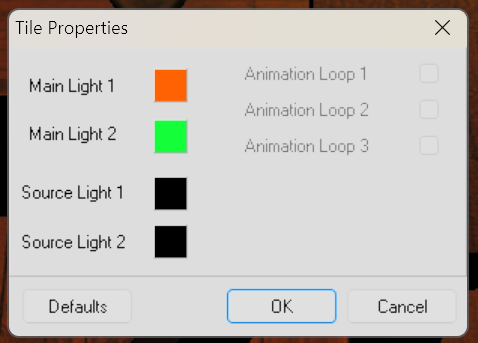
Main Lights 1 / 2
These are defined as a light node on the model. They vary tileset to tileset, with there being 0, 1 or 2 available and the positions and strength of the light determined by the MDL.
The properties of these are:
- Do not cast shadows
- Strength (radius) set in the MDL
- Color set by tile properties
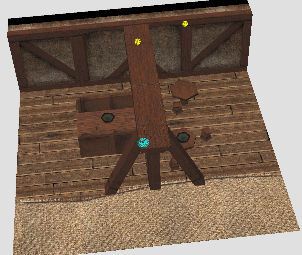
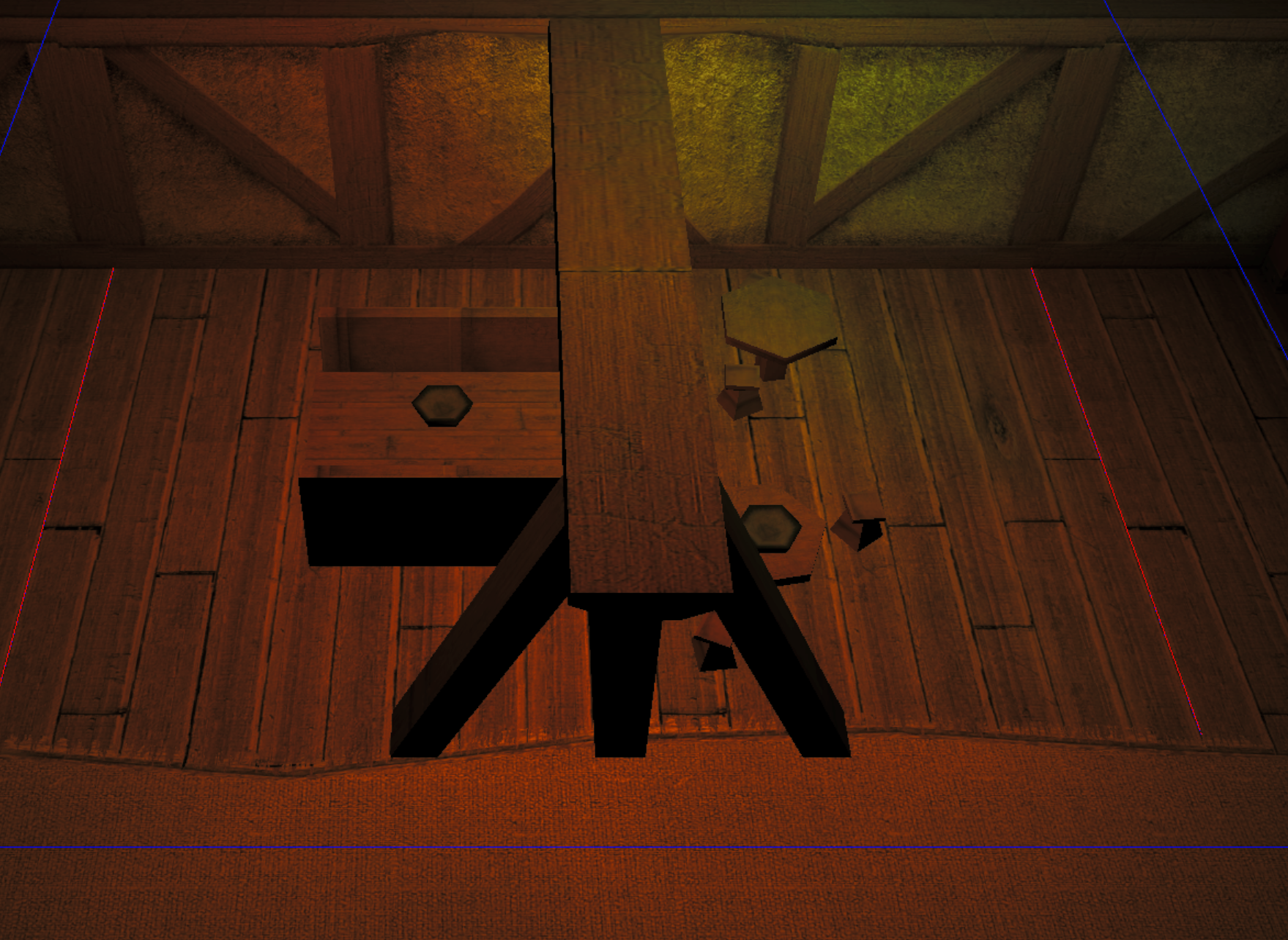
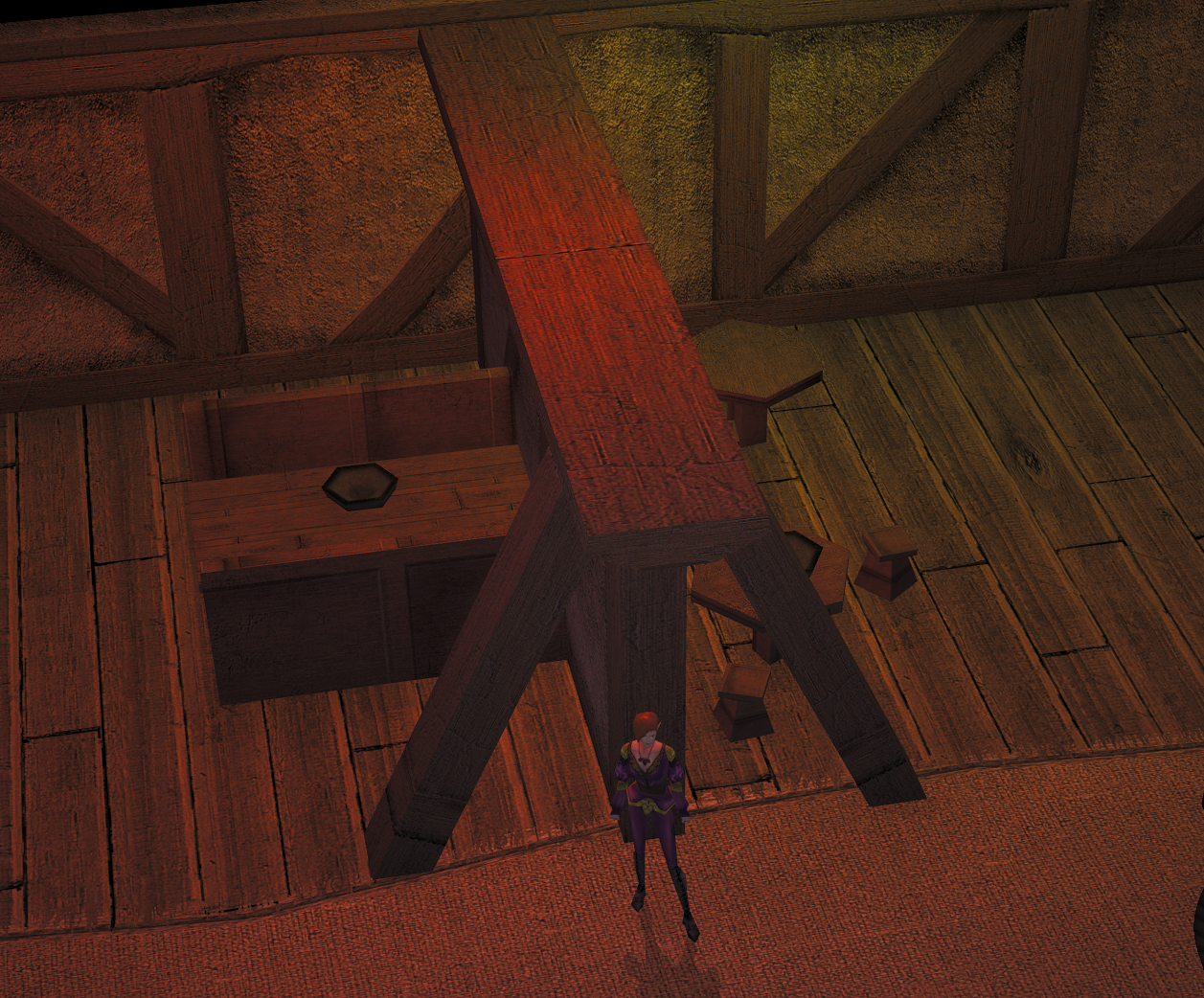
For instance these are the two positions on this tile for main lights. The middle one (red) is a lot brighter than the secondary one (green), which is generally the style in Bioware tilesets. The second screenshot is the toolset, the final one is in game.
Source Lights 1 / 2
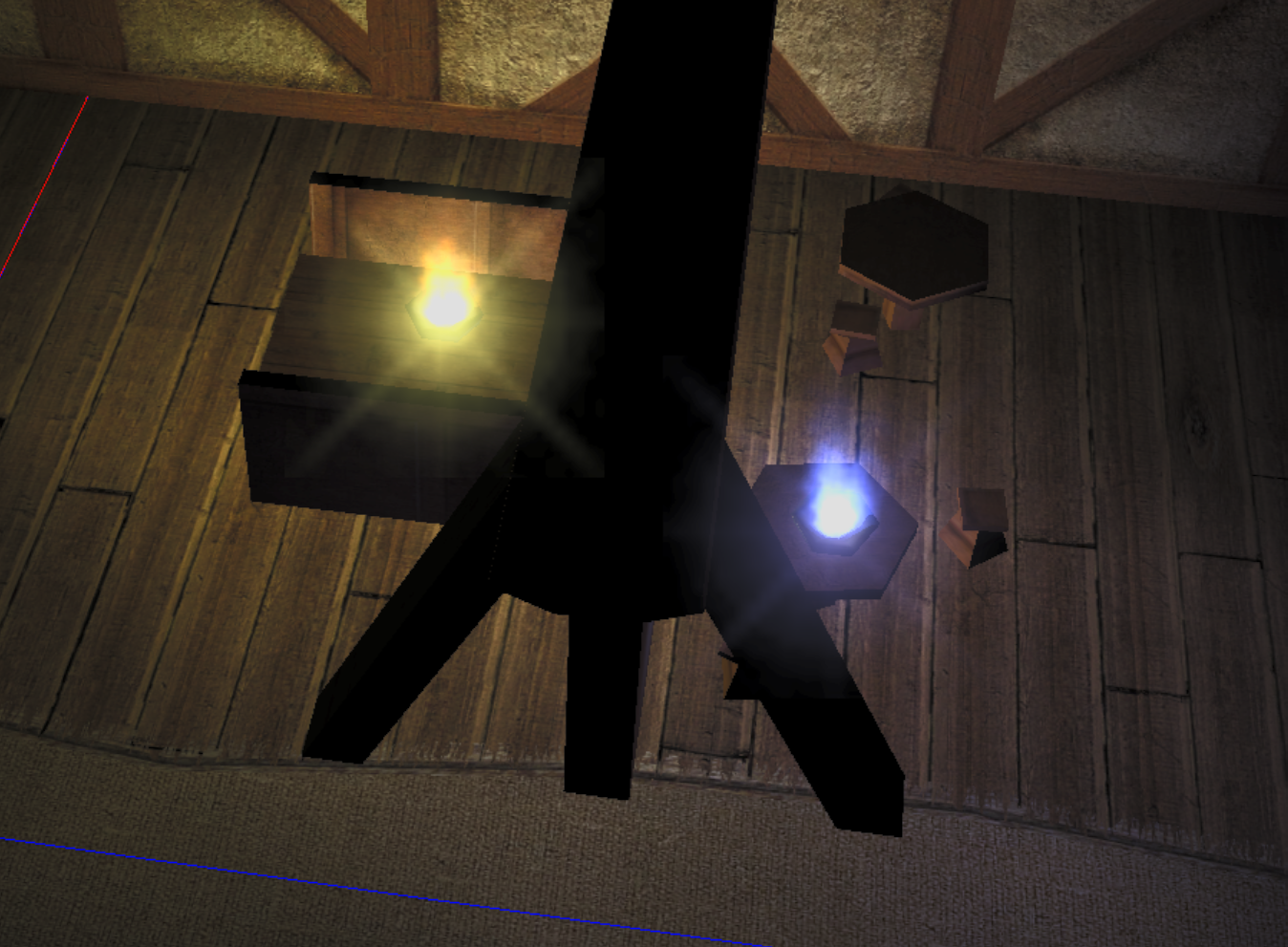
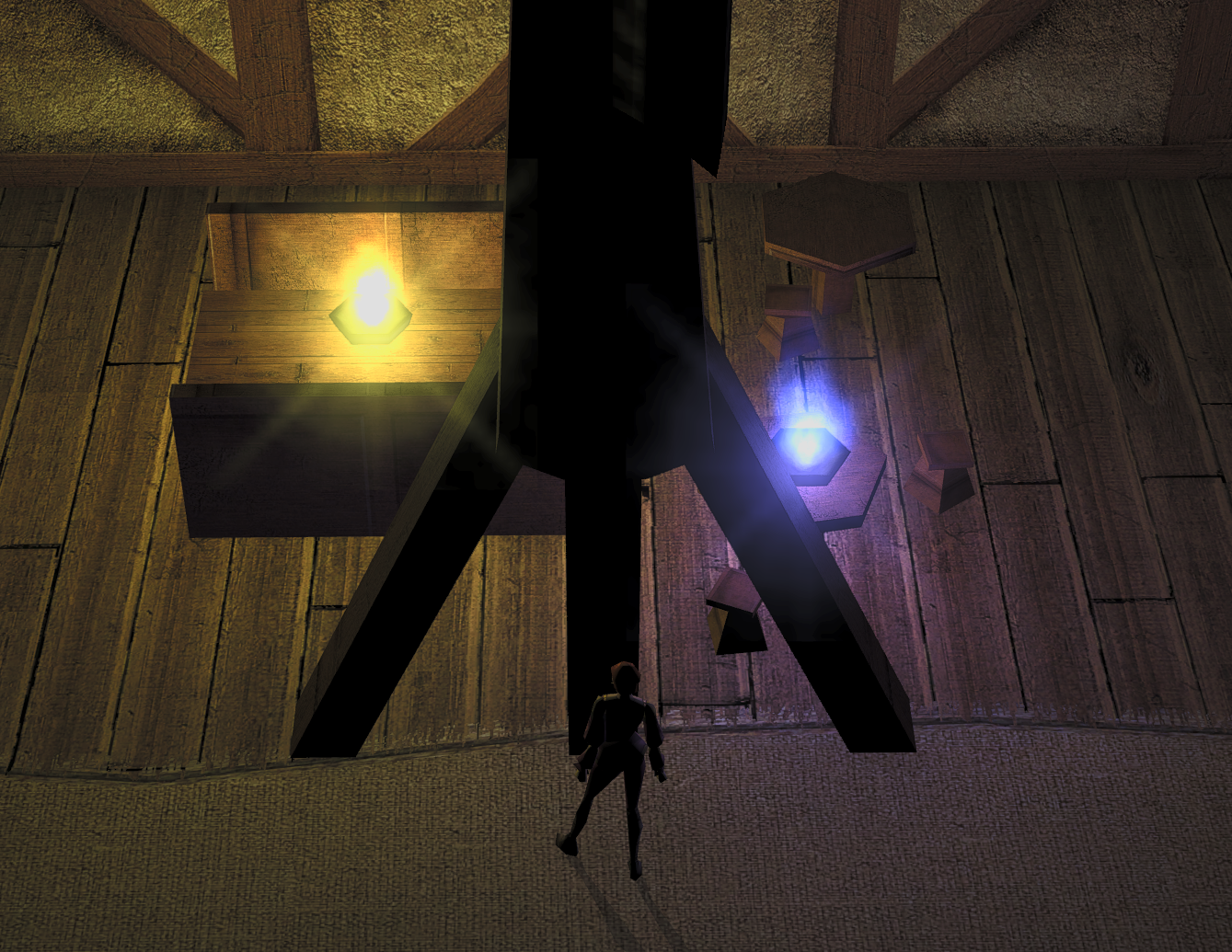
There can be up to two source lights on a tile. These are very basic - they will load a the MDL file fx_flame01.mdl where the dummy position is set, coloured to what is set on the tile. See Model Special Nodes for more information on setup/naming.
In the same tile example, with no main lights, and two different colours you can see how it differs. Toolset left, in game enhanced right.
Animation Loops
These are sometimes used to toggle on and off other "lights" (as well as animations like spinning windmills etc.).
Visual Effect Lighting (Dynamic lights)
There are several sources of dynamic light emitters (visual effects) in the game.
Player Lighting
The player by default has one light attached to them at all times, determined by different progfx.2da entries that the game uses for darkvision, low light vision, blindness or "default light" if no others are present (giving even humans some light in very dark areas). This isn't very apparent unless you look for it, and the relevant MDL can be edited to remove or change the colour.
If the player casts a spell involving a light component (eg Light) or equips an item with light attached (eg a torch), the "highest priority" light then applies (determined by the radius of them). Ones that are at least 10M bright will also cast shadows.
Visual Effects
EffectVisualEffect can just create light on any object - a player/creature, a placeable or a door. It cannot create it on the ground but EffectAreaOfEffect could do this, although attaching a light effect to an invisible placeable might be easier (and more resource efficient).
Placeables
Placeables can have visual effects - see placeables.2da for full details, but fx_placeable.mdl is spawned if the placeable is given a Light colour number. The placeable must be "active" (usually a flame from a fire or light from a lamp or similar) and can be controlled by scripting with SetPlaceableIllumination allowing you to turn on or off it on use or some other case.
Since fx_placeable.mdl is a proper light node, it acts like visual effects with light nodes.
Weather
Subtopic on weather:
- Lightning (and effect on lighting)
- Wind effects on visuals
Missing Nwscript Things
You have more options in later versions of EE to change the sun/moon direction/location with SetAreaLightDirection. This can be used to do a proper day/night cycle and an example is included in the game to do this.
However these things are still hardcoded:
- Shadows and what casts them (ie the sun/local torches), and how they look