-
Created by
 Lucky on Dec 16, 2020
5 minute read
Lucky on Dec 16, 2020
5 minute read
Any tile can have multiple doors. The process for custom doors is the same from standard doors.
The tile model itself does not contain the door object itself, naturally, so you must leave a gap for the door you are going to add
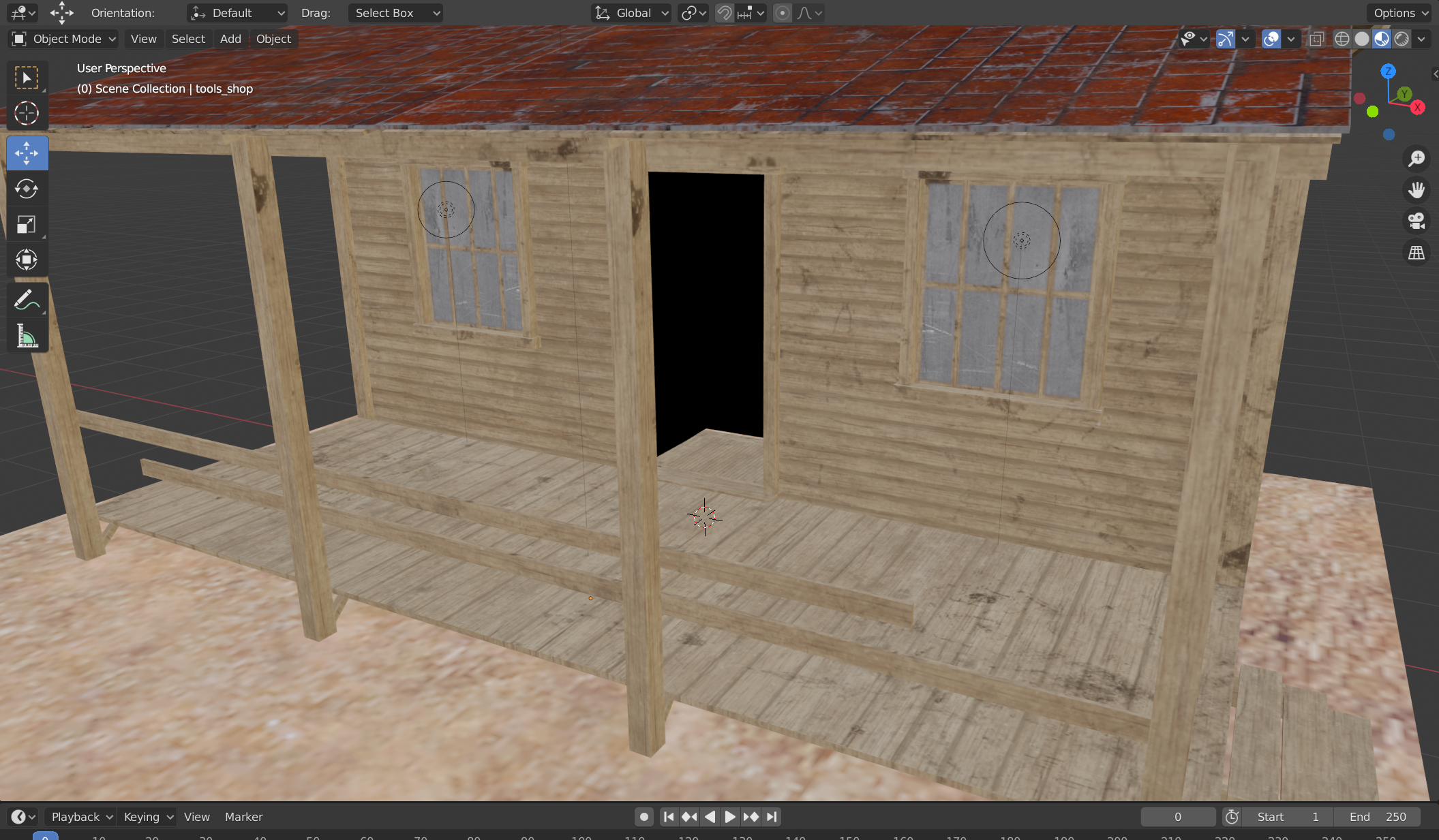
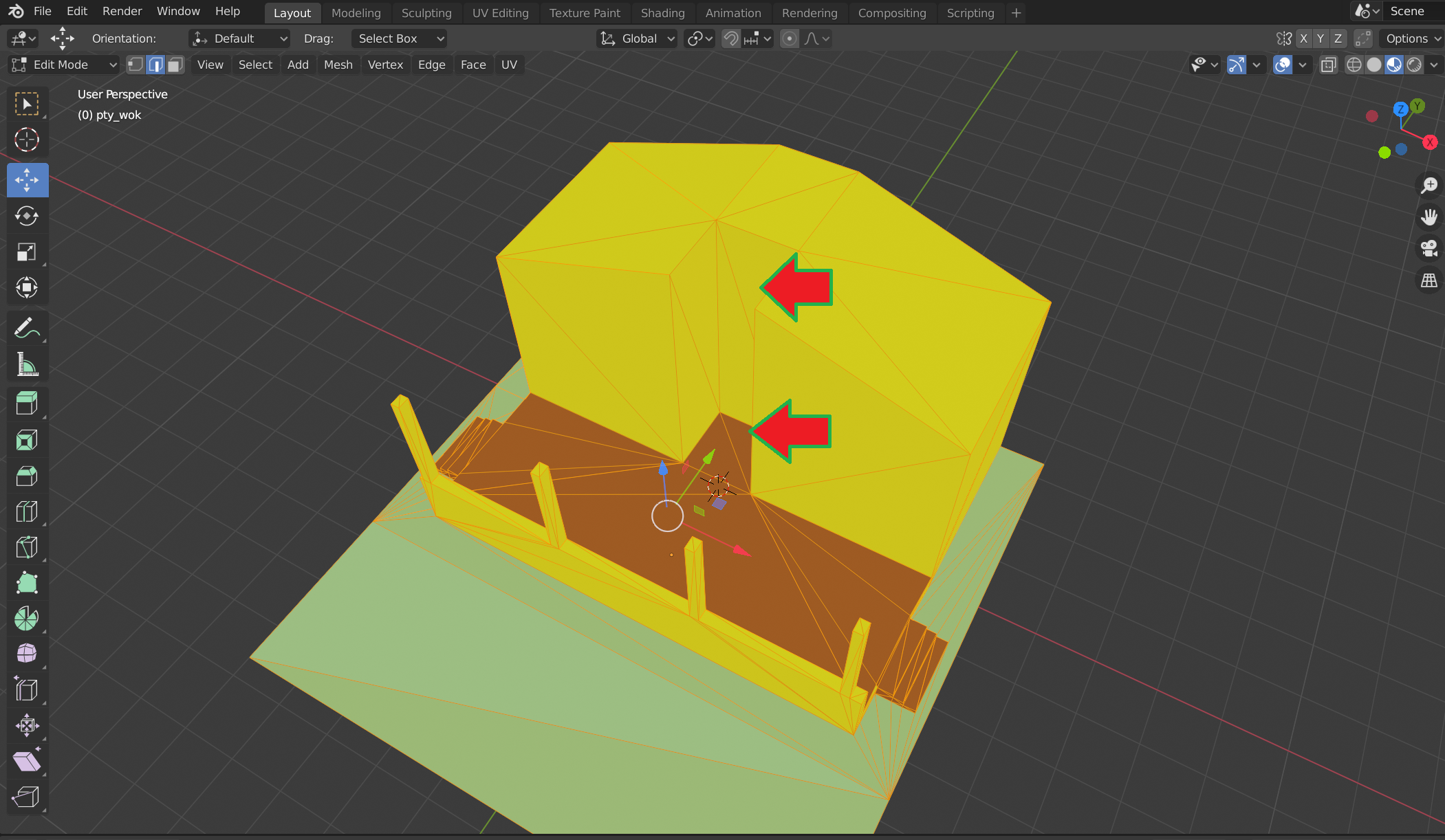
It's critical in the tile model that the walkmesh must be at the creature' s feet and there is complete clearance above, regardless of how high the actual door is going to be. So leave a gap. It must be open if you expect a creature to walk through to select it. You don't want to obstruct a creature
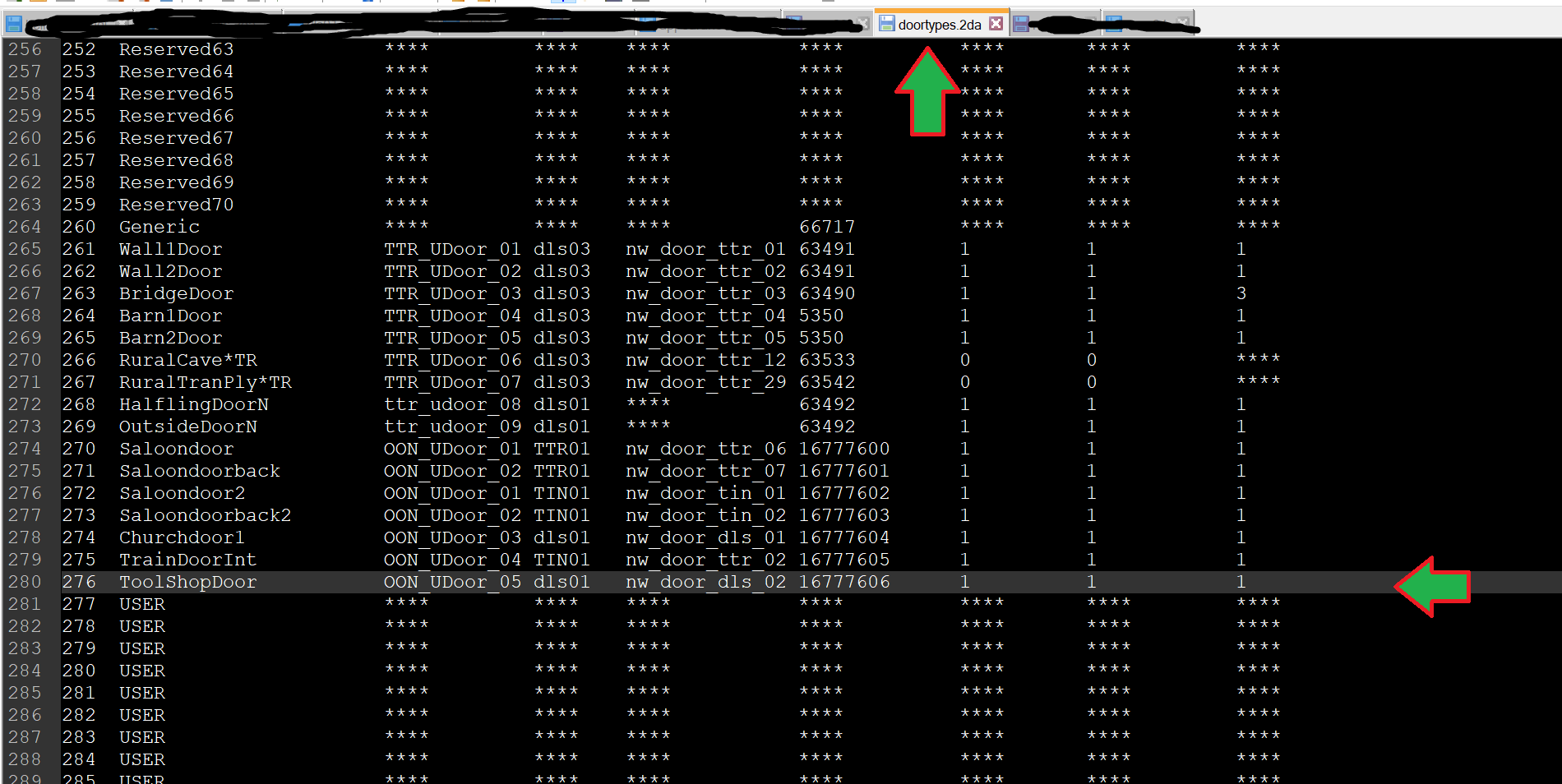
Note: this entry only be required if you want to set the resref on the door to your specific value by default (something that can also be done by editing a copy of an existing door entry).
To add the door to the standard palette, extract the doortypes.2da file using NWNExplorer and edit it with your favourite text editor. This is the list of tileset specifc doors but all door types are now able to be used in any tile regardless. The SET file entry overrides whatever model is used anyway. The TemplateResRef entry appears to control how it's displayed on the palette - Label, Tileset, and StringRefGame entries are ignored. It uses that entry to autogenerate the resref and gives it the resref's corresponding name. There appears to be a minor bug (or this is the feature) where it doesn't use the Label or StrRef to populate the name of the Door or the Tag for it so any custom resref you enter there will show as a blank entry on the toolset. Just remember where you put it. Again, regardless of what door you use, it's SET entry overrides it.
To add doors you must do it in a tile's SET file. See the previous entry on SET files on how to extract them.
Open your SET file with your favourite text editor then scroll down to the tile entry. There will set the Doors setting to how many doors the tile will have. This can be set to -1 I believe to prevent doors from showing. Setting it to 0 will allow for any of the generic doors found in genericdoors.2da instead of doortypes.2da
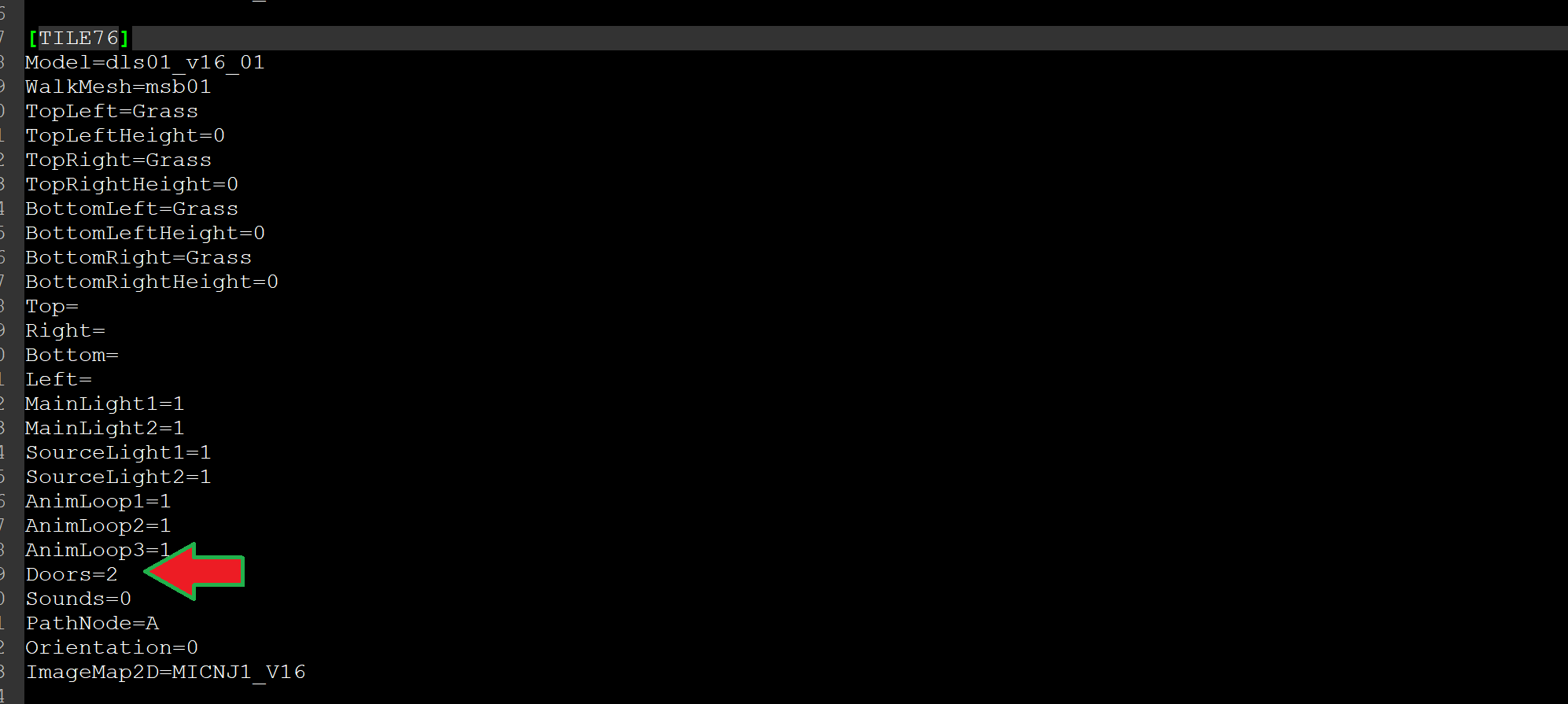
You will add entries for every door you want in the tile
[TILE76DOOR0]
Type=0
X=2.50
Y=3.00
Z=0.00
Orientation=90.0
The format of the door entry is as follows
[<TILE#><DOOR#>] - no spaces. In brackets the Tile the door corresponds too and the keyword door with the unique index starting at 0
Type= - this is the entry for the row in doortypes.2da (see above) for the specific tile door you want displayed. Leaving this at 0 will allow for one of the generic types
X, Y, Z - the vectors of where the door is placed relative to the tile in floating point values. This is vital if you want your door to line up with your door frame in the model. Confusingly, x0.0, y0.0, z0.0 on a door corresponds to x5.0, y5.0, z0.0 on any tile not the bottom left hand corner as tiles use. (this is same as the model itself as seen inBlender). See below for tips on calculating this.
Orientation= -float for the direction the door is facing based on degrees. If your tile orientation is set to 0.0, setting your door to 0.0 here will have them both face in the same direction. If you door is at the back of the tile you may want to set to 180.0 to face the other way. On the sides 90.0 and -90.0 both work.
Use Location in the Toolset to find the right vectors for the door
Getting the right position for a new door on the tile can be a pain if you trying to eyeball and guess at it through trial and error directly in the SET file. Instead, you can adjust any door's location.
After placing a door on your best guess in the SET file you find you are off
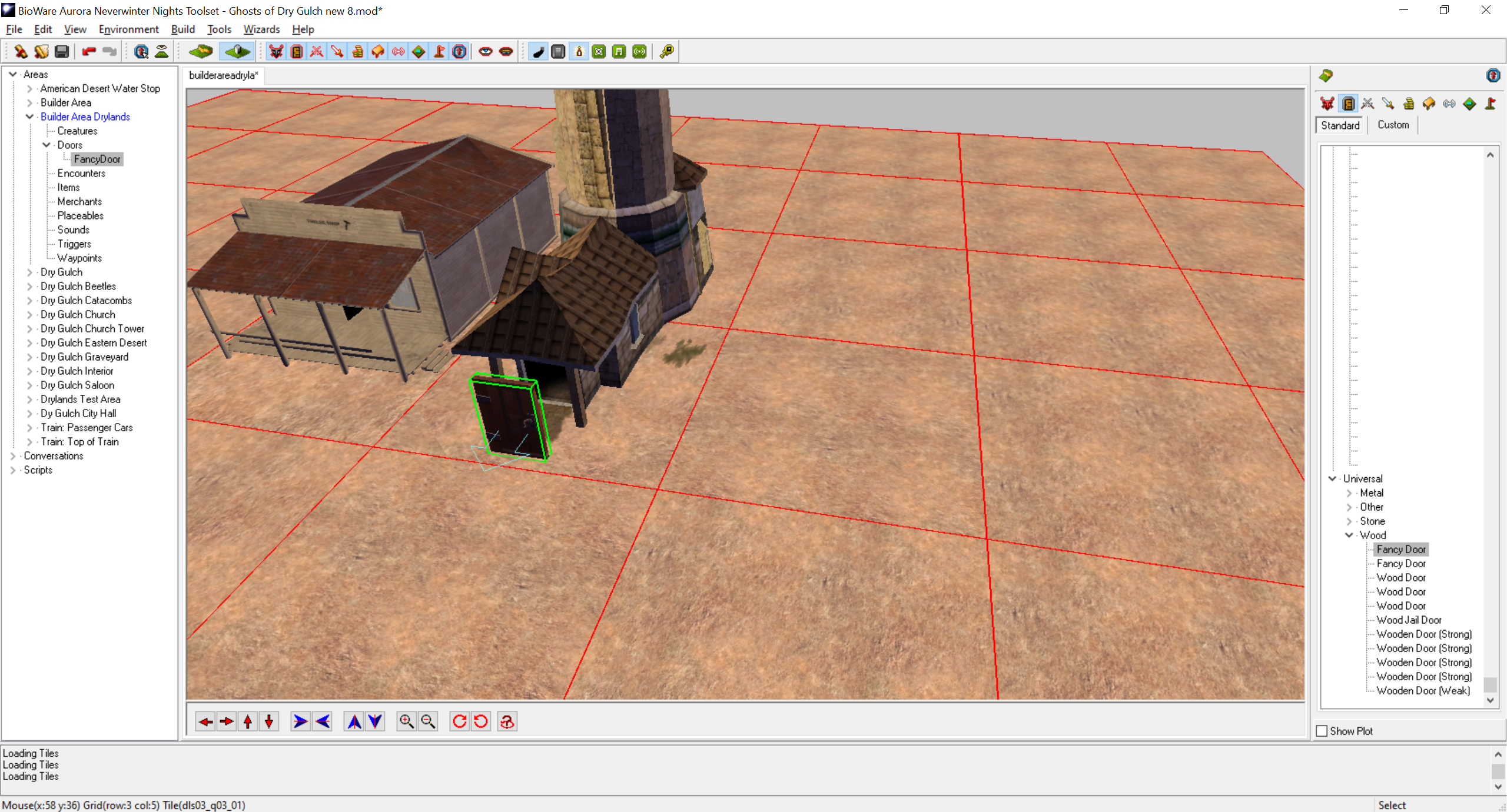
Select the door and right click on the Door's entry in the Areas menu to select Location. Right clicking on the object in the editor itself does not have a Location entry unfortunately.
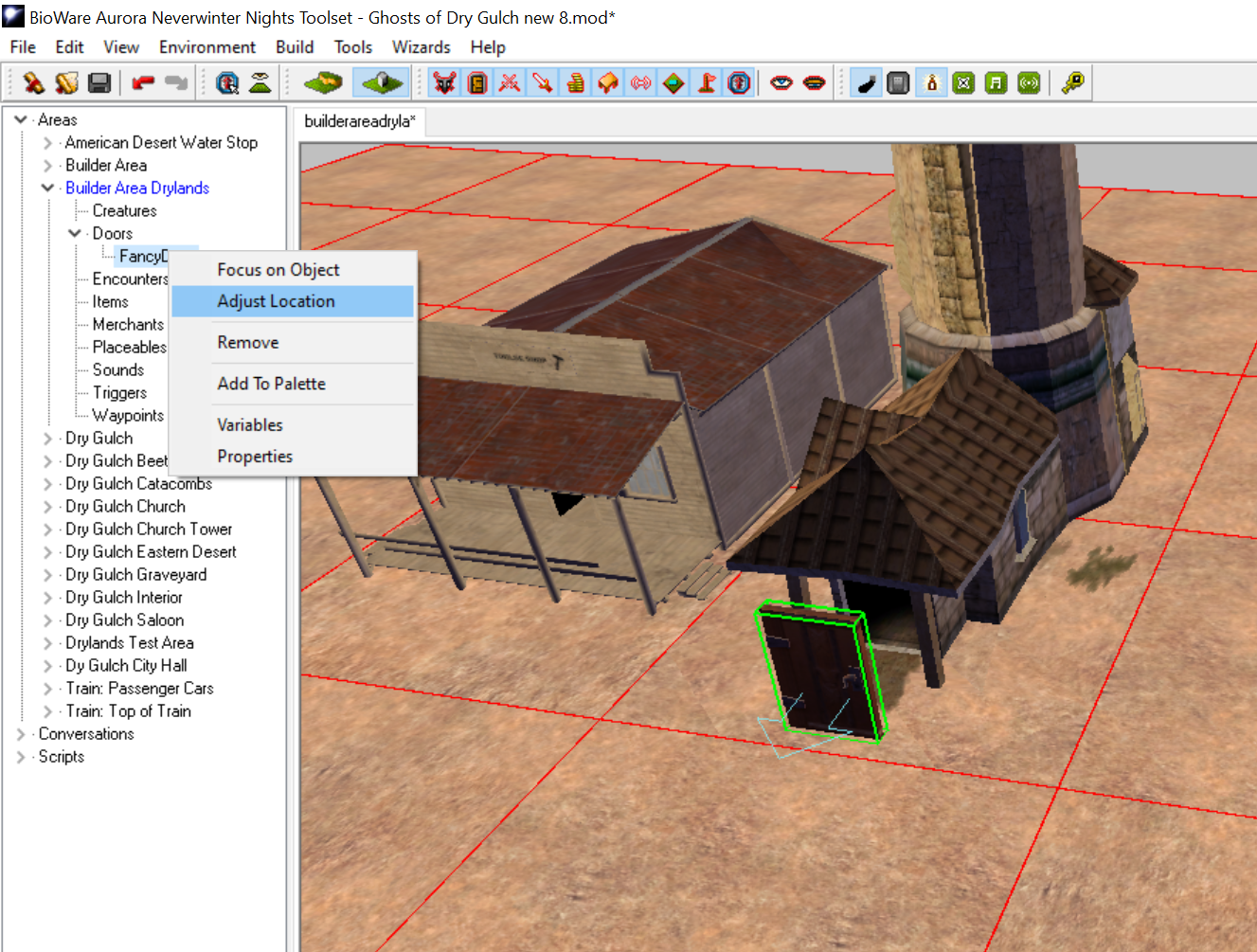
With the values displayed you can tweak the positions to get it right
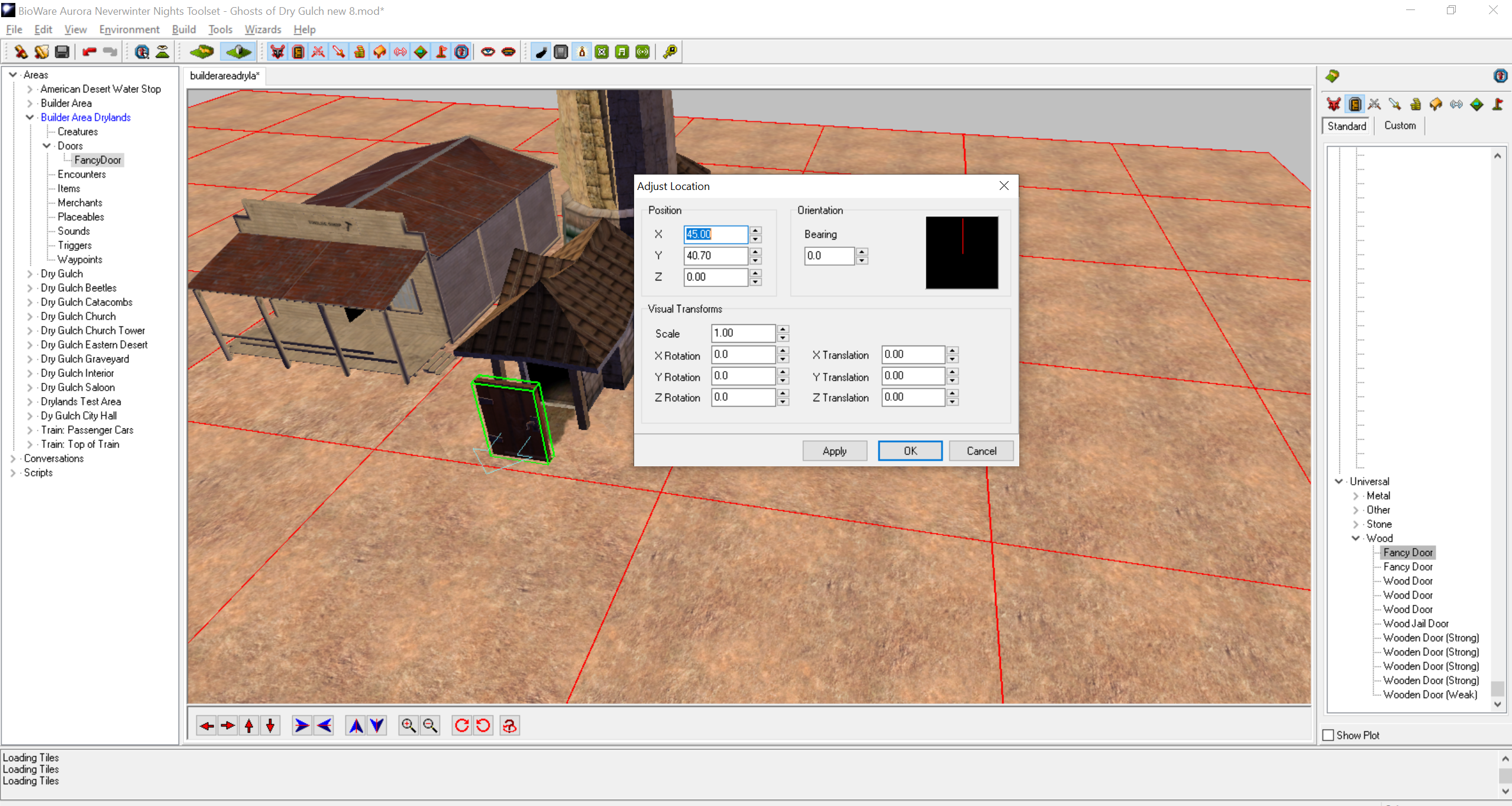
The X and Z appear to already be correct. Z is at 0.0 and X is at x5.0, 45.0 in this case. With some adjusting we fix Y from 40.70 to be 43.70 instead.
With some simple math, we know that 45.0 is the center of this particular tile so 45.0 - 43.70 gives us 1.30
We want 1.30 less than the center Y position in the SET which 0.0. Our value for Y then should be Y=-1.30
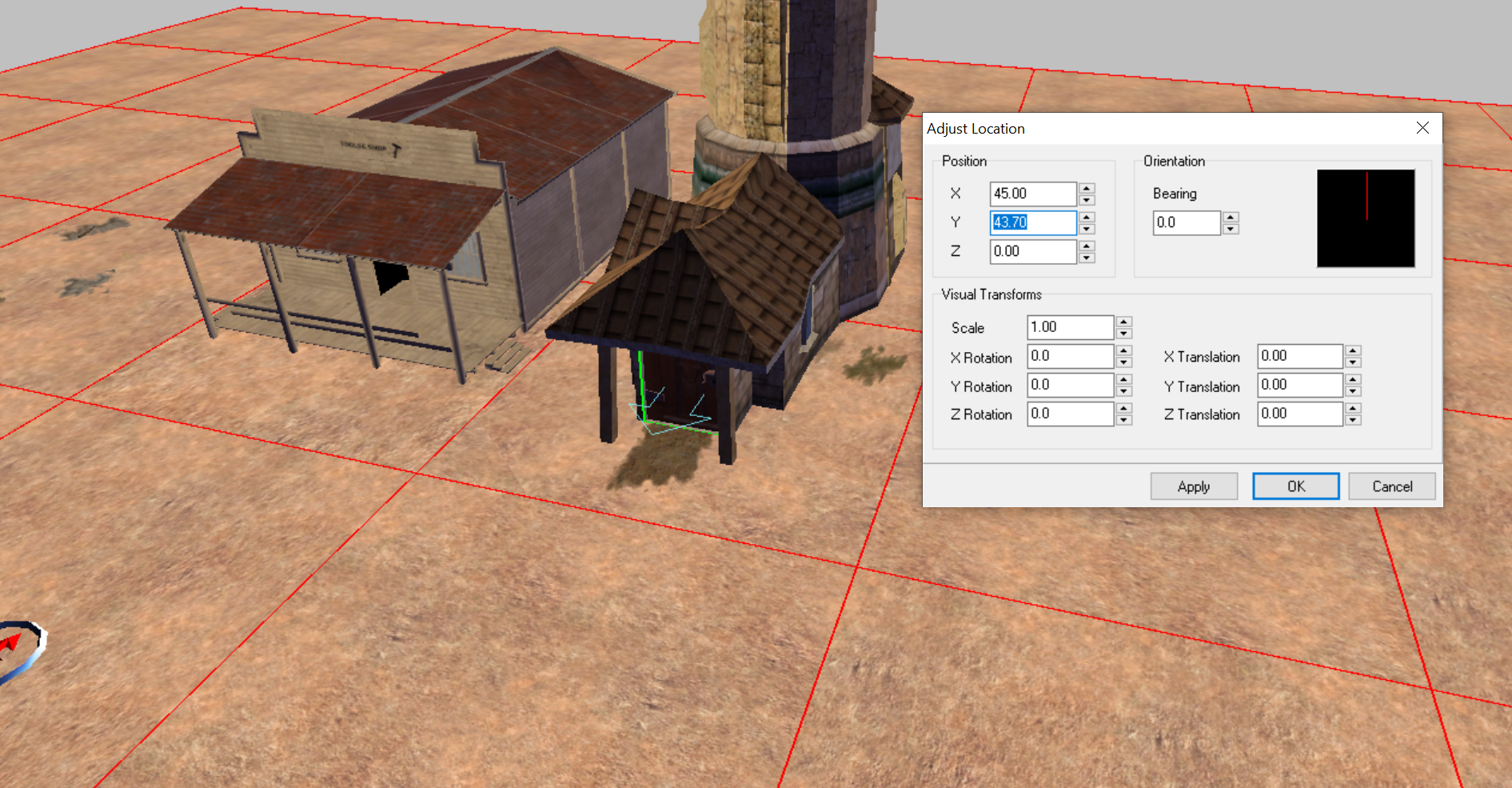
Our final entry for the door tile should look something like ths
[TILE##DOOR0]
Type=0
X=0.0
Y=-1.30
Z=0.00
Orientation=0.0