-
Created by
 symmetric, last updated on Aug 18, 2018
4 minute read
symmetric, last updated on Aug 18, 2018
4 minute read
Startup
After starting Blender you'll be greeted by a splash screen. Close it by clicking anywhere outside of it or pressing ESC. After that you'll be greeted by something like this.
At factory settings the scene contains three objects:
- Cube
- Light source
- Camera
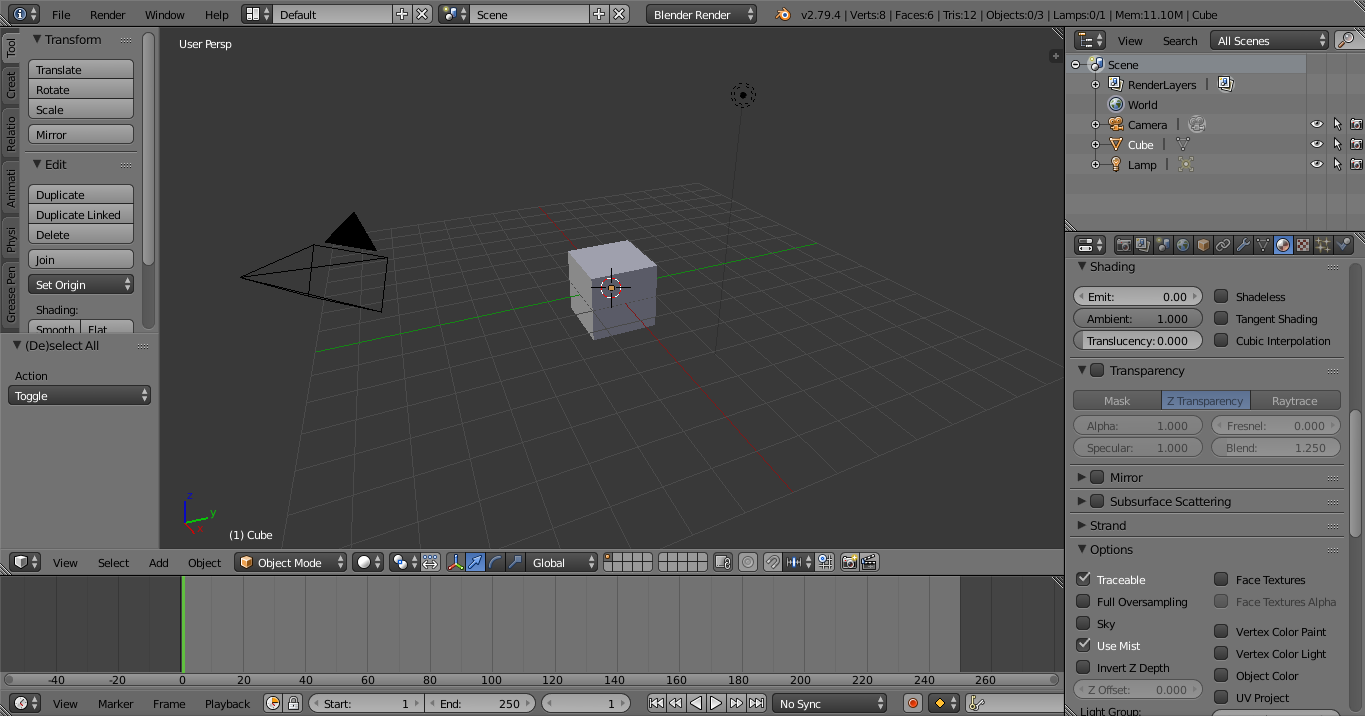
Default Screen Layout
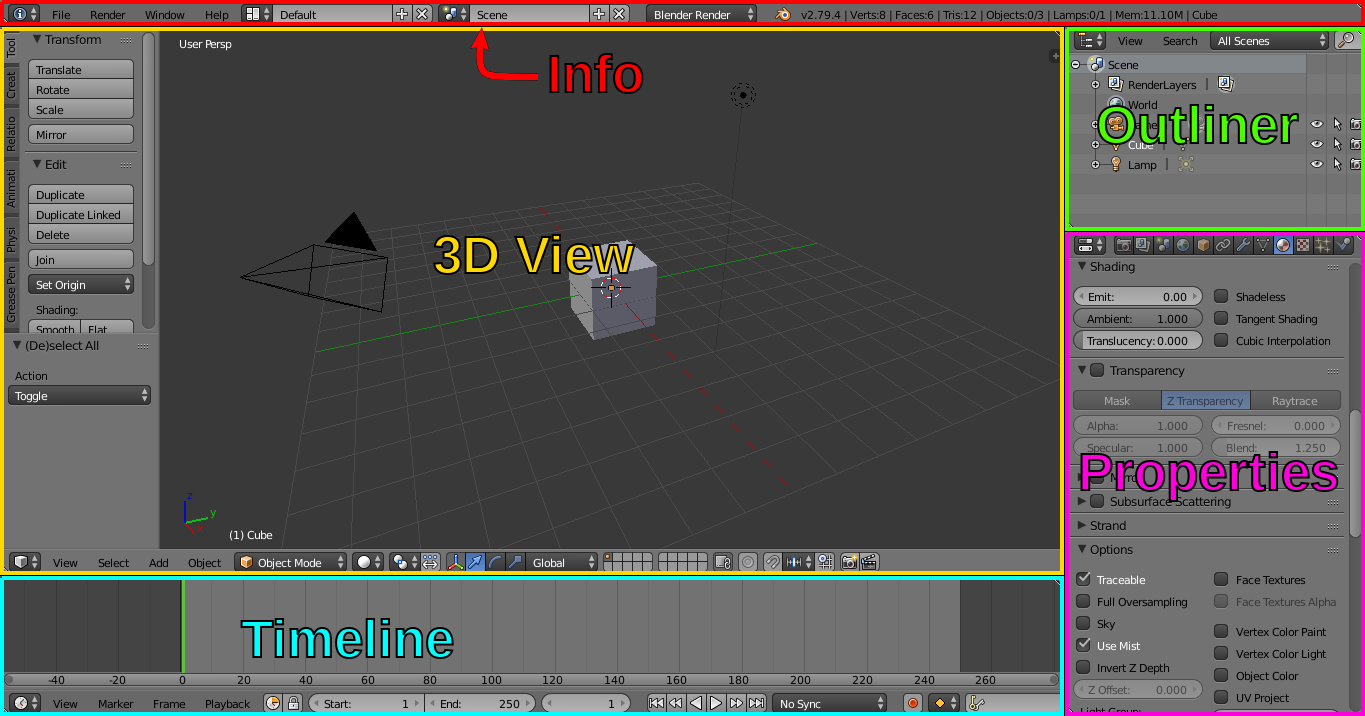
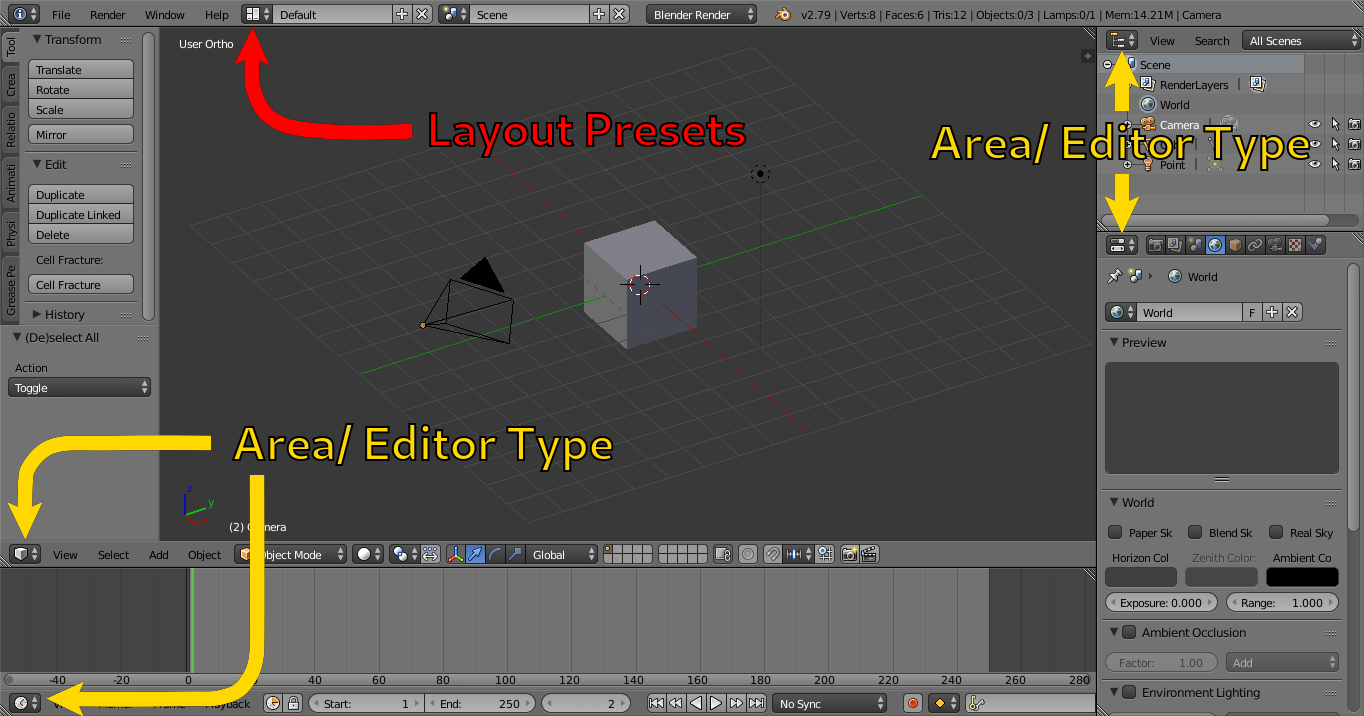
Blenders user interface is separated into different areas. They are customizable, meaning you can add new areas or change the type of existing ones. The default layout consists of:
Info Bar at the top offers access to file handling, rendering and layout switching among other things.
3D View is used to interact with scene. This is where most editing takes place.
Timeline is used to view animation data and control playback.
Outliner provides a way to organize data. It also offers an alternative way of selecting objects.
Properties containing object properties, like materials or textures. NeverBlender adds several panels here which hold additional properties needed for the Aurora Engine.
Adjusting Screen Layouts I
Splitting
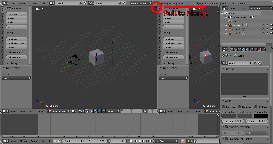
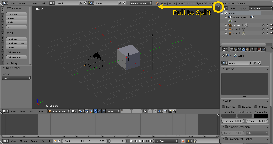
Areas are created by splitting existing ones. Click in the top right or bottom left corners and holding the mouse button to drag it towards the inside of the area.
Joining
Areas are removed by joining. Clicking into the corner and drag the area back to the outside.
Resizing
Areas can be resized by
You can reset the layouts with either File » Revert or even File » Reload Factory Settings in the Info Bar, should you at any point find yourself unable to restore the default layout.
|
|
|
|
Adjusting Screen Layouts II
Area/ Editor Types
Layout Presets
3D View: Navigation
Navigation
- Rotation: Middle Mouse Button (
MMB) - Zoom: Mousewheel or
CTRL + MMB - Move:
SHIFT + MMB
Selecting Objects
- Select objects with the Left Mouse Button (
LMB).You can select multiple objects withholding SHIFT - The last selected object is the active object. Some operations only affect the active objects. Only One object can be active.
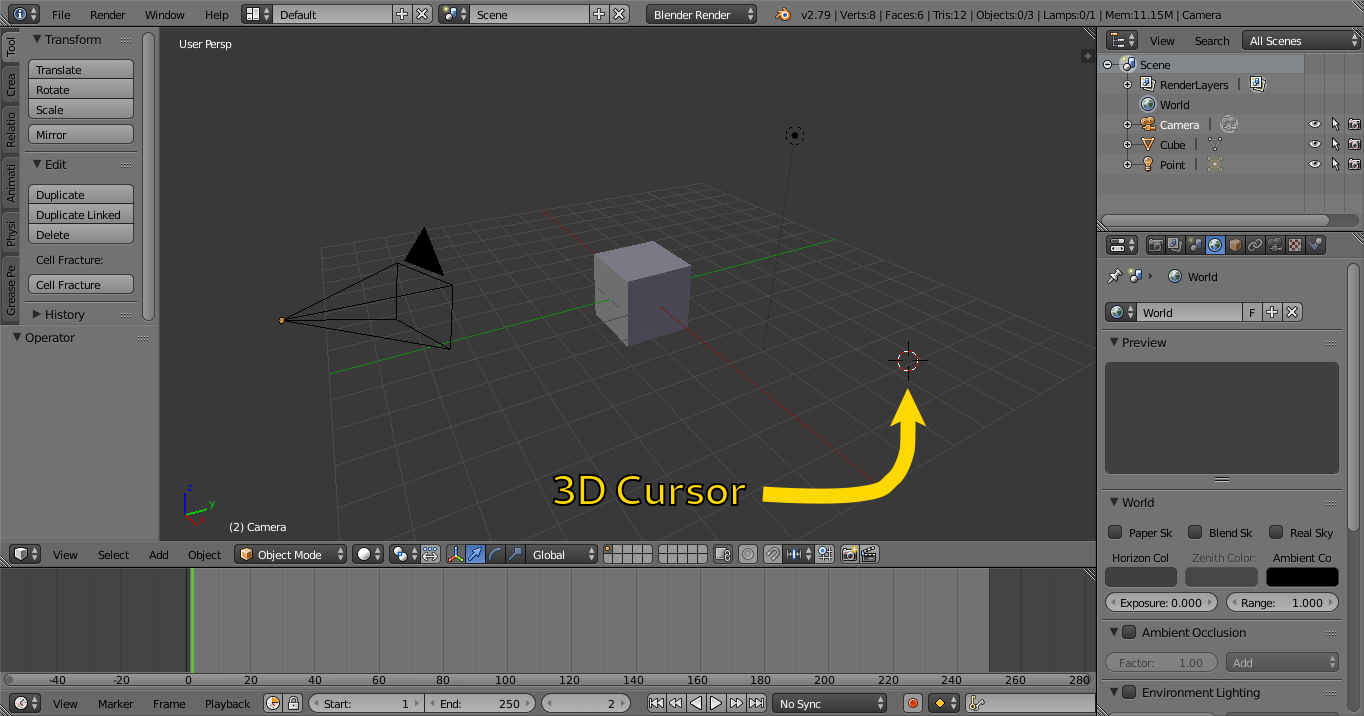
3D Cursor
The 3D cursor is a point in space used for different purposes. It's location can be set by clicking with the Right Mouse Button (RMB)