-
Created by
 symmetric, last updated on Jul 09, 2021
16 minute read
symmetric, last updated on Jul 09, 2021
16 minute read
Installation
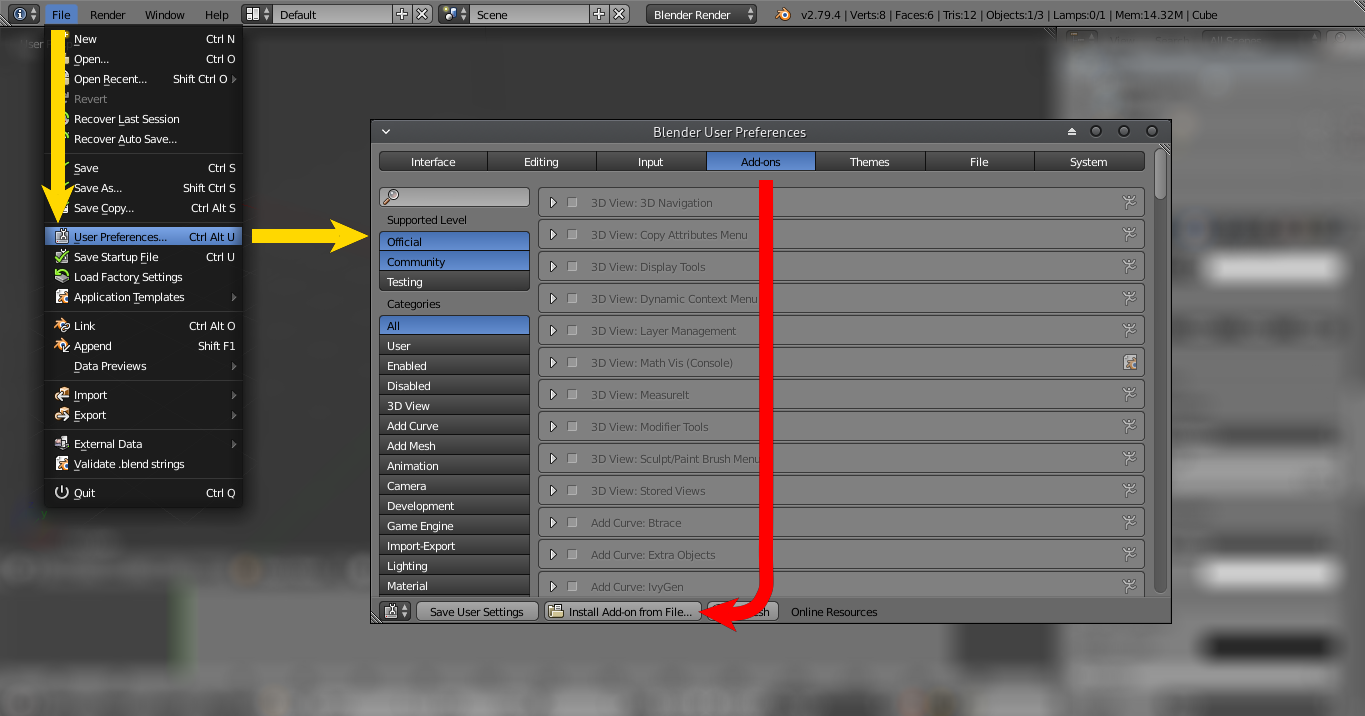
NeverBlender can be installed like any other add-on:
Open the User Preferences editor by going to
File » User Preferences.- Select the
Add-Ontab in the User Preferences editor. - Click on
Install from Fileand select the downloaded zip file.
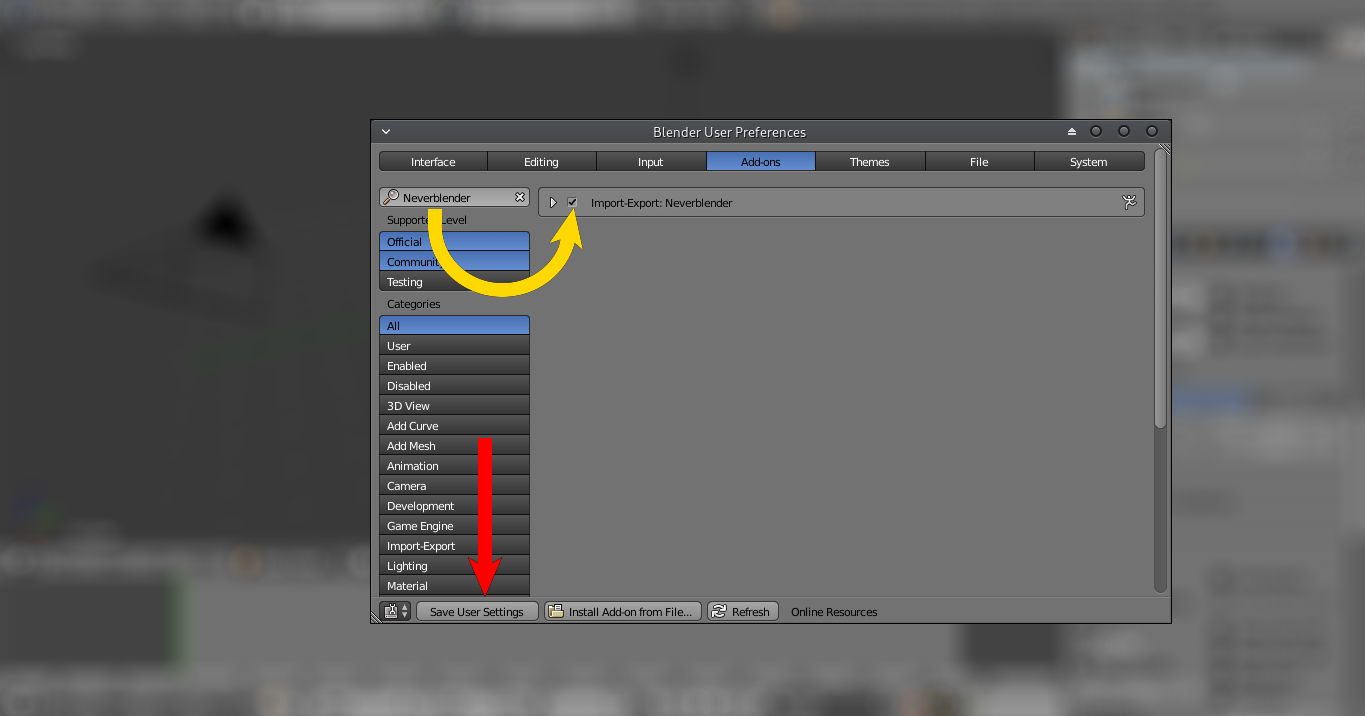
The add-on will now be installed, but not automatically enabled.
- The search box will be set to the add-on name after installation - otherwise type in NeverBlender.
- Enable it by turning on the checkbox next to its name.
- Make sure to click
Save User Settings, otherwise the add-on will be disabled again after restarting Blender.
Import
Neverblender adds a menu entry at File » Import » Aurora (*.mdl). The imported model will be added to the currently active scene. Neverblender only loads mdl files in ASCII format. Binary MDL files have to be converted to ASCII MDL first.
Import options can be saved to operator presets which persist across sessions. Clicking on the + button will add a new preset with the current options, whereas the - button will delete the currently selected preset.
Multiple MDLs may be imported by holding SHIFT. They will be placed in a spiral pattern to prevent overlapping.
Miscellaneous Settings
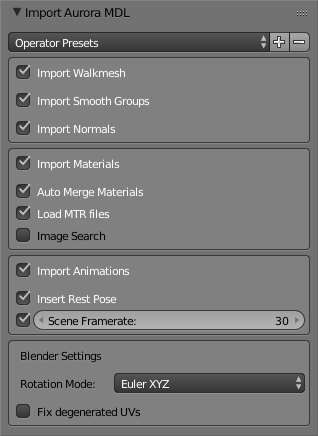
Import Walkmesh
Import placeables walkmeshes (*.pwk files) and door walkmeshes (*.dwk files). The import script will search the directory for files with the same name as the mdl file. If both types of walkmesh are present, both will be imported.
Import Smooth Groups
This options will import smooth groups (shading groups) by converting them to sharp edges. They will appear as cyan edges in the imported model and can be converted back to smooth groups during export.
Import Normals
Import normals from the mdl as a set of Custom Split Normals. Tangent import is currently not supported, they will be (re)created during export using the normals and the uvmap
Material Settings
Import Materials
Controls whether to import materials or textures at all
Auto Merge Materials
Materials with the same textures and parameters (ambient, diffuse, specular and alpha) will be merged into a single blender material. If this option is disabled every mesh will get its own material even if they have the same values, which may result in a large number of duplicate textures.
Load MTR files
If a mesh contains a reference to a mtr file, material and texture information will be read from there. Values from mtr file will overwrite the values in the mdl. The mtr file must be located in the same directory as the mdl file. MTR files can be imported later as well, i.e. after a model has been imported.
Image Search
Search for images/textures in all sub-directories. This allows for better organization of textures, but depending on the number of files and directories this may be slow.
Animation Settings
Import Animations
Controls whether to import animations at all.
Insert Rest Pose
Insert a keyframe with the rest pose before each animation.
Scene Framerate
Set the framerate of the currently active scene to a custom value before importing. This is only relevant for animations, as they need to be converted to Blender frames. This conversion uses the scene's framerate and depending on this setting the animation speed in Blender will vary.
Care must be taken if animated objects are already present in the scene.
Blender Settings
Rotation Mode 
Determines the format the rotation parameters are imported as:
- Euler XYZ (default setting)
- Quaternion
- Axis Angle (native format for MDLs)
Fix Degeneratd UVs 
Fixes degenerated uv-faces, i.e. faces with two or more tverts having the same coordinated. Such faces will be given a default uv-face of (0.0, 0.0), (0.0, 1.0), (1.0, 0.0)
Export
Neverblender adds a menu entry at File » Export » Aurora (*.mdl). Neverblender exports MDL files in ASCII format.
Export options can be saved to operator presets which persist across sessions. Clicking on the + button will add a new preset with the current options, whereas the - button will delete the currently selected preset.
Miscellaneous Settings
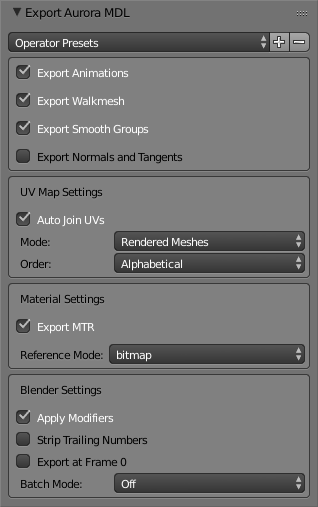
Export Animations 
Whether to add animations to the mdl. When disabled animations are never exported regardless if they are present or not.
Export Walkmesh
Create a pwk file (placeable walkmesh), dwk file (door walkmesh) or wok file (tile walkmesh) with the same name as the mdl file. The type of the created walkmesh depends on the models classification:
Classification: Doorresult in dwk fileClassification: Tileresults in wok files- Everything else results in pwk files
Walkmeshes will only be exported if they are correctly set up and contain data, i.e. no empty files will be created.
Export Smooth Groups
Controls the creation of smooth groups. The way smooth group are generated can be specified separately for every mesh. When disabled no smooth groups will be created regardless of the setting in the mesh.
Export Normals and Tangents 
Add normal and tangent data to each mesh when possible. Normals and tangents can only be generated if the mesh has an active UV map and either:
- Is fully smooth
- Has properly set up Custom Split Normals
UV Map Settings
Auto Join UVs 
When enabled UV vertices with the same coordinates and belonging to the same vertex are exported as a single UV. When disabled three separate UV vertices will be created for each face, resulting in an enormous number of tverts in the mdl file. This may be necessary if multiple UV maps are used.
Mode 
Controls which meshes get UV coordinates:
- All: All meshes get UVs
- Rendered: Meshes must have rendering enabled
- Textured: Meshes must have a texture assigned to them
This setting is mostly there to save on file size or mimic the behaviors of other exporters. You can safely use all settings. When using a custom shader you might want UV coordinates even when there is no texture.
Order 
This determines the order in which the uv maps from an objects uv map panel are written to the mdl. If a mesh has only a single uv map this options has no effect at all.
Material Settings
Export MTR
Write MTR files to disk. The filename and other options have to be specified in the options for every material.
Reference Mode
Specifies the way to reference MTR files in the MDL:
material myMaterialFile
OR
bitmap myMaterialFile
Blender Settings
Apply Modifiers 
Automatically apply modifiers to meshes before exporting. For further information on available modifiers and their usage see docs.blender.org
Strip Trailing Numbers 
Removes trailing numbers (e.g. ".001") caused by importing duplicate object names. MDL files allow for duplicate names, Blender however requires unique object names and will add trailing numbers when importing such mdl files.
Export at Frame 0 
Sets the current frame to 0 before exporting.
Batch Mode 
When batch mode is enabled multiple MDLs can be exported at once. The names for the files will be generated base on the name of the Aurora Base. Following options are available:
- Off: By default Neverblender will only export the currently active model (or a random one should none be active). It is sufficient to select ANY part of the model, it is not necessary to select the Aurora Root.
- Scene: All models in the currently active scene will be exported.
- Selected: All selected models will be exported. It is sufficient to select ANY part of the model, it's not necessary to select the Aurora Root.
Base Properties Panel
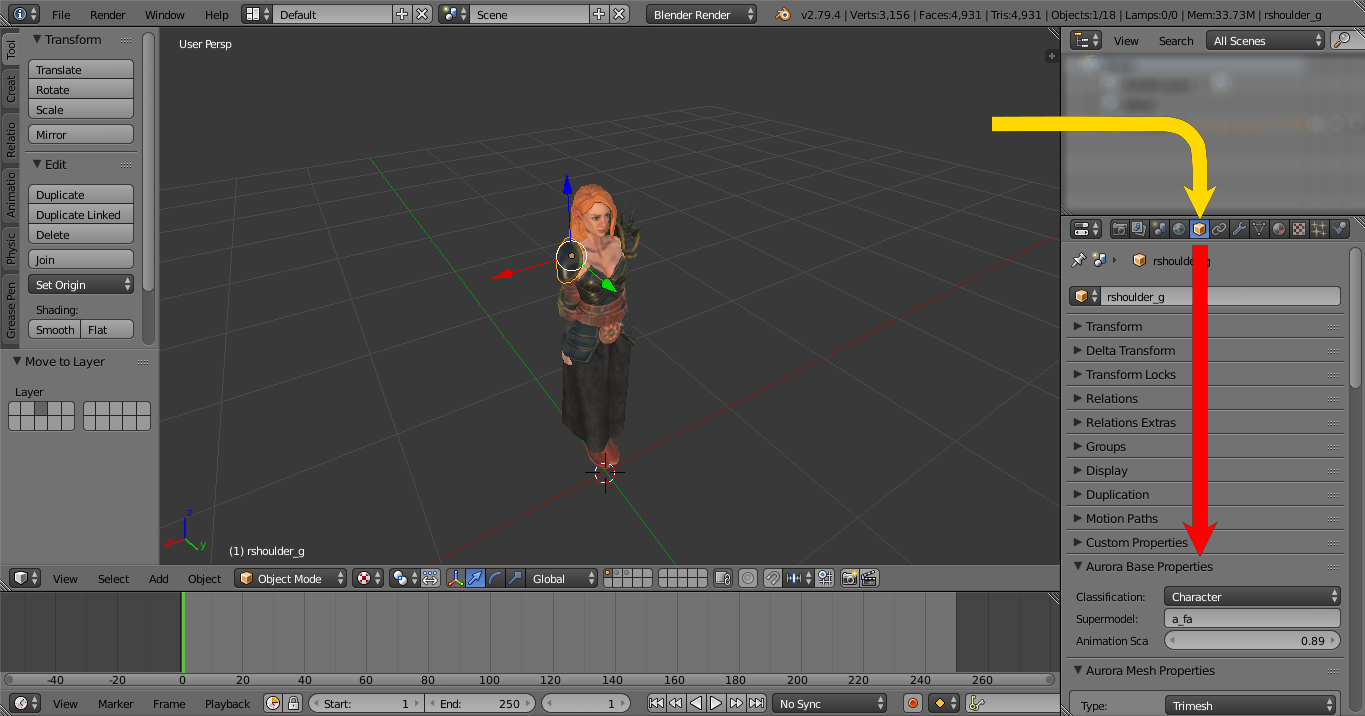
The Aurora Base Properties are located under object properties whenever a part of a valid MDL is selected.
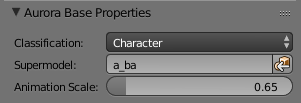
Classification 
Determines the type of models and influences the way it is rendered in game.
Supermodel 
Specifies another model from which animations are inherited. MDLs with a supermodel must have the same structure as their supermodel, i.e. the order of objects in the file must be the same.
The small button next to the input field opens a file selection dialog where an mdl file can be selected and its animations added to the current MDL. Animations already existing on the model can be ignored in the import options.
Animation Scale 
Specifies the scale of this model relative to its supermodel. If no supermodel is used this value has no effect.
Mesh Properties Panel
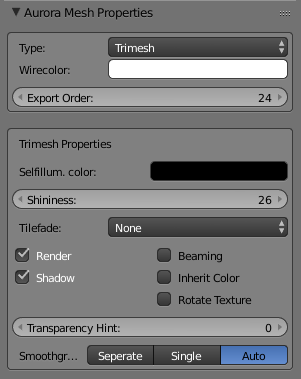
Type: ¶ Specifies the type of mesh. This panel will display additional properties depending on the type of mesh chosen.
Wirecolor: ¶ Unused
Export Order: ¶ Contains the order in which the objects will be placed in the mdl file. By default the objects will be ordered alphabetically, parents before children. This order will automatically be saved when an MDL is imported and restored during export - this is important for supermodels to work correctly.
This only influences objects on a per parent basis, meaning that a child will never be placed before its parent.
Trimesh Properties
Trimeshes are the default type of mesh. Like the name suggests they consist solely of triangles. NeverBlender will take care of triangulation during export. Other types of meshes (Danglymesh and Skinmesh) are sub-types of Trimeshes and therefore posses all properties of Trimeshes.
Self-Illumination Color: ¶ Makes the mesh seem to glow without actually casting light. This property will not be displayed in Blenders 3D Viewport, only in-game.
Shininess: ¶ Used in Conjunction with txi files. Without a txi file this property has no effect.
Tilefade: ¶ Makes the tile fade away when a player character comes close. This property will only be exported when the classification is set to Tile.
Render: ¶ Controls whether this mesh will be rendered in-game. No effect in Blenders 3D Viewport.
Shadow: ¶ Controls whether this mesh is casts shadows in-game. No effect in Blenders 3D Viewport.
Beaming: ¶ Creates beams of light like in the Bioware forest tileset.
Inherit Color: ¶ Unused.
Rotate Texture: ¶ Rotates textures back, when a tile is rotated to ensure seamless edges. This property will only be exported when the classification is set to Tile.
Transparency Hint: ¶ Gives the engine a hint which object to render first, with regards to transparency. Use this, when problem with transparent textures occur.
Smoothgroups: ¶ The way NeverBlender should create smooth groups (shading groups)
Animations Panel
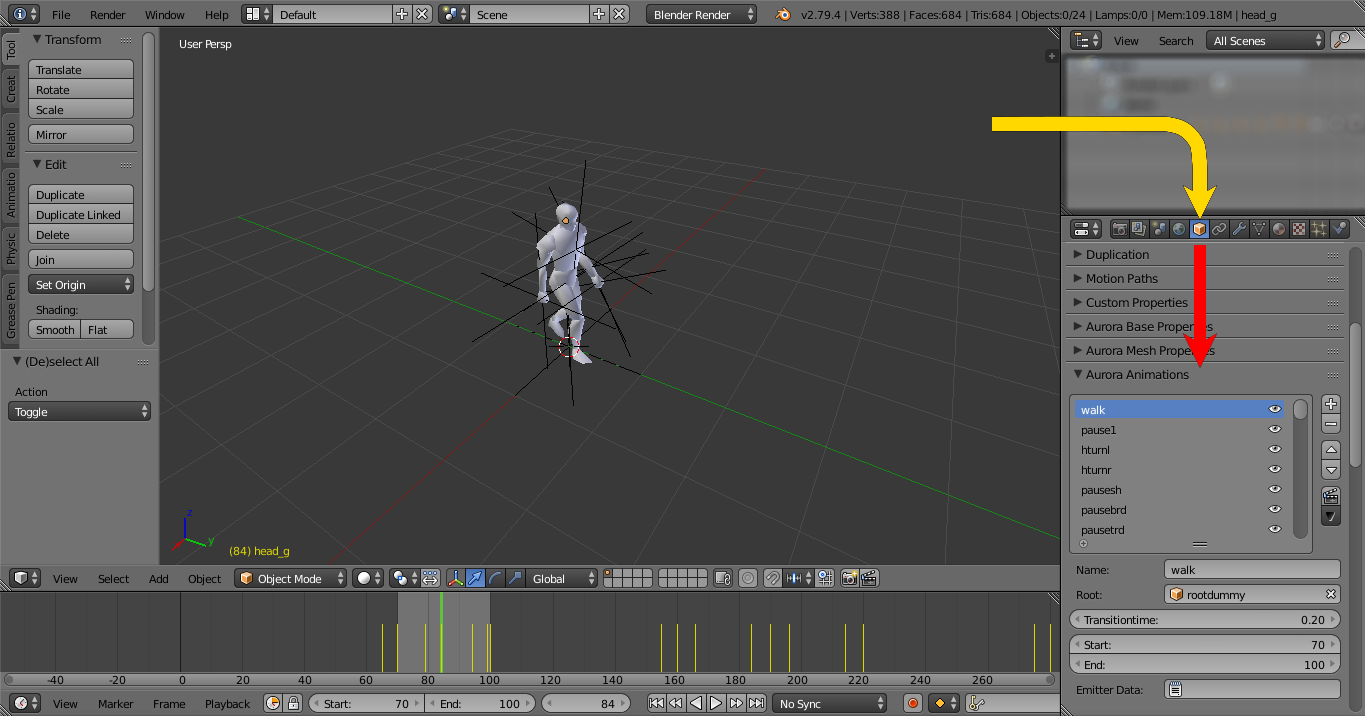
The animations panel is located under object properties and is displayed whenever a part of a valid MDL is selected. It contains a list of animation in the the MDL.
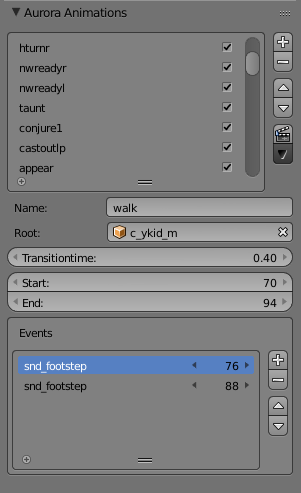
The first box contains a list of all animations in the MDL. Every animation consists of:
Name: The name of the animation, which is used by the engine to determine its usage.
Root: The root object where the animation start. This opens up the possibility to add in animation to only part of the models. An example of this is the torch holding animation, which only changes the player characters left arm - the rest of the models keeps playing the animation for walking, running or fighting. However, most of the time the Root is the Aurora Base.
Transitiontime: Time used to blend two animation together to ensure a smooth transition between animations.
Start/ End: Starting and Ending frames of the animation in Blenders timeline. Multiple animations may use the same (key)frames.
The checkbox next to each animation name toggles the export of that particular animation to MDL.
To the left of the animations list a sidebar with a number of tools is located:
Add/ Remove Animation: The +/ - buttons add a new animation or delete an existing animation and its keyframes.
Change Position: The arrow buttons change the animation position in the list and MDL file (but not the keyframes)
Toggle Focus: The Clapperboard button sets the frame range of the timeline to only the play the current animation. Pressing the button again will reset the timeline.
Pad/ Crop: Removes or adds a set amount of frames at the beginning or end of the animation.
Move Back: Move the animation and its keyframes to the back of the timeline for easier editing.
Scale Animation: Scales the animation and its keyframes up or down, resulting in in increased or decreased animation speed.
Clone: Add a new copy of this animation to the end of the timeline.
The box at the bottom contains a list with all events for this animation. Values can be edited by double clicking on the property.
Name: Purpose of the event, e.g. playing a footstep sound (snd_footstep) or an explosion (detonate)
Frame: The frame at which the event is occurring. This needs to be within the frames during which the animation is active.
Utilities Panel
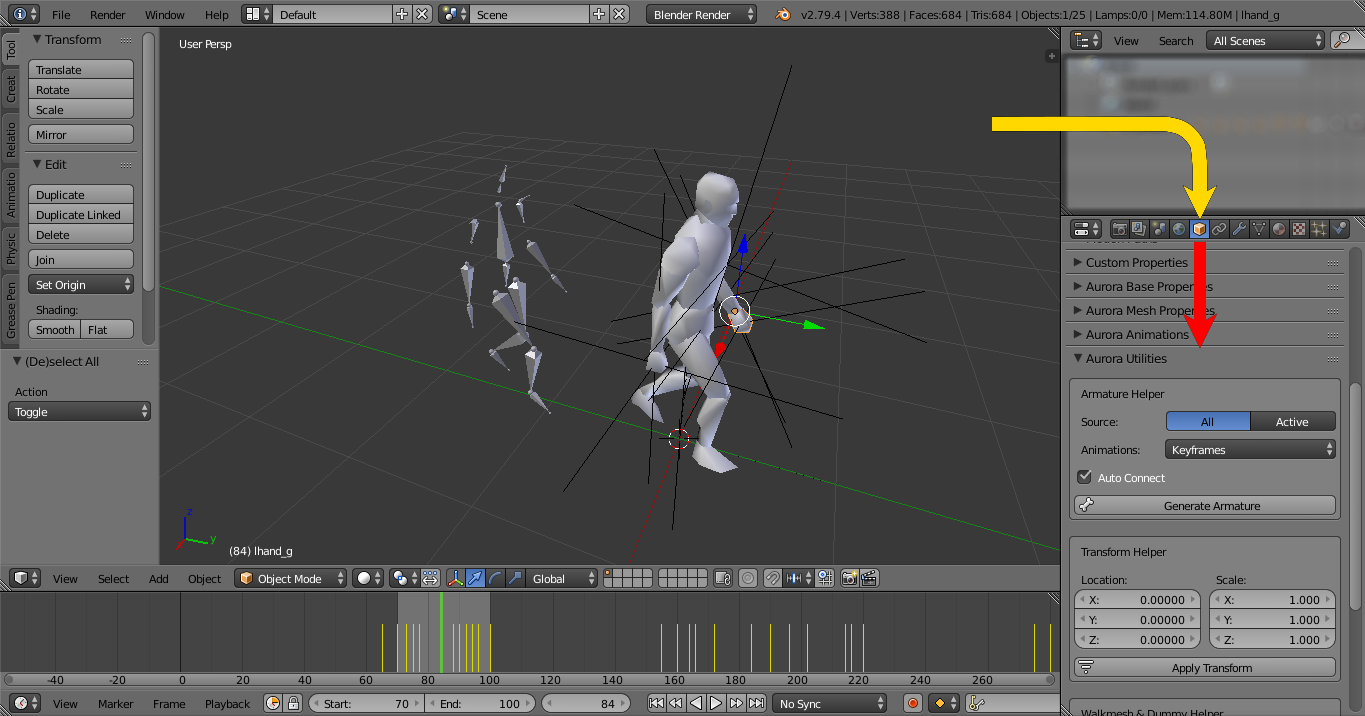
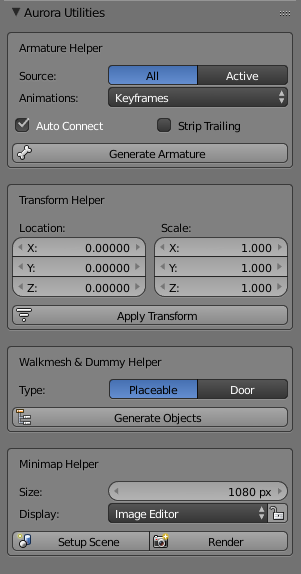
The Aurora Utilities panel is located under the object properties. As most of them operate on the whole model, they are only available if part of a valid MDL is selected, i.e. an Aurora Base has to be present.
Armature Helper 
Blender doesn't support using meshes for bones to deform a mesh - it requires an armature (skeleton). This tool will create an armature from the currently selected model, which can then be used for proper rigging and weighting.
Source: You can choose whether all objects in a model should be used to create the armature or only the active object and its children. Certain special objects like impact nodes will always be excluded when creating the bones for the armature.
Animations: How to transfer animations to the newly created armature:
- None: Animation will not be transfered.
- Keyframes: Copies all keyframes to the armature. The default setting.
- NLA-Strips: Splits animations into separate actions, then re-combines them using NLA-strips.
- NLA-Tracks: Splits animations into separate actions, then re-combines them using NLA-tracks.
- Constraints: Creates constraints to tie the movement of the bones to the meshes they were created from.
Auto Connect: Automatically connects bones where possible, i.e. the translation/ location is not animated and they are close.
Strip Trailing: Strips trailing numbers from meshes (a result from non-unique naming in mdl). Useful when working on multiple skeletons from different races or genders
- Armatures cannot be exported directly. Should you wish to export armatures you'll need to convert them to meshes with the Pseudo-Bone Helper under Armature Properties.
- Care should be taken when re-exporting these generated armatures if they were not created in Blender before: They might be incompatible with their supermodels. This only affects models with supermodels though.
Transform Helper 
MDL format only support uniform scale (X = Y = Z). This tool will apply all non-uniform scaling factors across the whole model - including to animations. It can also modify the location, i.e. add a translation to the whole model - including to animations. This might come in handy when changing the height of an animated creature, e.g. bird.
- The non-uniform scale is only applied TO animations, not FROM animations. If the scale is animated with non-uniform values that particular animation will be ignored on export.
- This tool behaves similar to Blenders own Apply Transform Tool, except it operates on the whole model including animations.
Node Setup Helper 
This Helper will add all missing walkmeshes and other objects required by placeables, doors or tiles. It will also rename existing objects based on the model name, if not already named correctly. Select the type of model you want to set up:
Placeable
Creates nodes and walkmeshes for placeables. The names of existing objects will be adjusted to the name of the Aurora Base.
Mode: Defines the shape the walkmesh will have.
Detect Islands: Detects islands in the model and create separate meshes. This is useful for geometry with holes as it will enable characters to pass through them.
Door
Creates nodes and walkmeshes for doors. The names of existing objects will be adjusted to the name of the Aurora Base.
Mode: Defines the type of door. Dummys and walkmeshes will be created as necessary.
Tile
Creates lights and walkmeshes for tiles. The names of existing objects will be adjusted to the name of the Aurora Base.
Minimap Helper 
This will set up camera and lighting for rendering tile minimaps. This is intended to be used in conjunction with the provided batch script to automatically create minimaps for a whole tileset. It can be used from within Blender as well, but one has to save the rendered images manually.
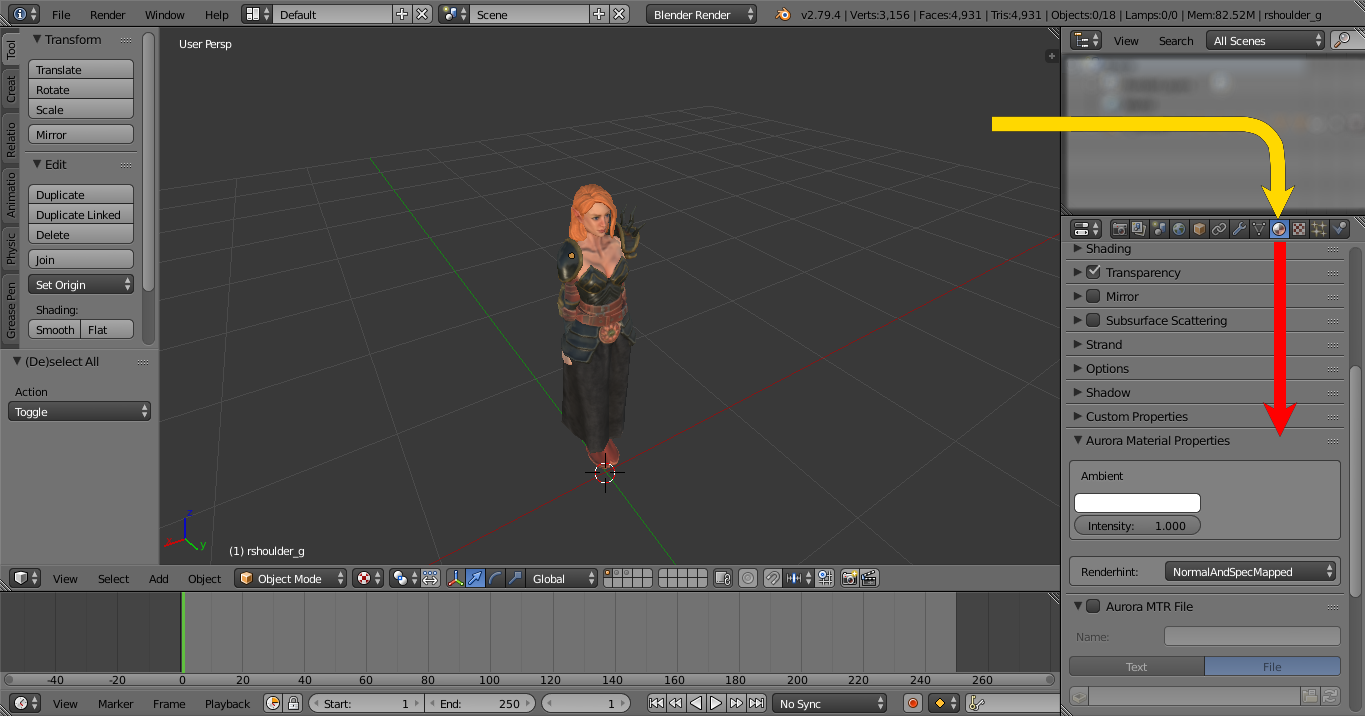
Material Panels
Aurora Material Properties
Ambient 
Ambient color of the material. Neverwinter Nights uses per object ambient light, whereas blender uses per scene ambient light. As such this properties will not be displayed in Blenders 3D Viewport.
Renderhint 
Renderhint indicating the render path:
- None: No renderhint. The Engine will use the old renderpath - no support for normal or specular maps.
- NormalAndSpecMapped: Enhanced Edition renderpath - supports normal and specular maps.
- Auto: NeverBlender will decide based on the number of textures a material has.
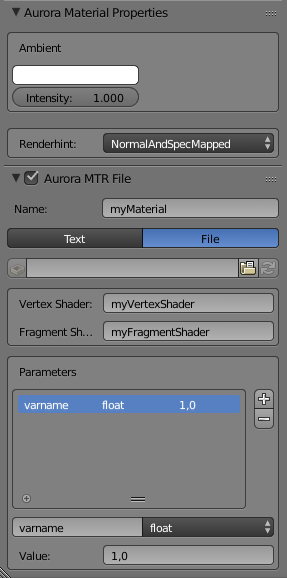
Aurora MTR File
An active checkbox indicates that this material uses an MTR file. NeverBlender will write the material data to an MTR file during export (if specified in the export options). The panel is only active if the checkbox is.
Name: Name of the material file minus the file extension (*.mtr)
Source: The source the MTR file can either be external file or a text object embedded into Blender.
- File: If the MTR is an external file its path will be shown. It's possible to reload the current file or load a different file replacing the current properties of the material. External files can be edited with any text editor (including blenders own)
- Text: Blender internal text object. These text objects can only be edited with Blenders text editor. It's possible to automatically generate a new text object based on the materials current properties or write one by hand. It is also possible to (re)loading the properties from the internal MTR.
Vertex Shader: Name of the vertex shader minus the file extension (*.shd). May be empty.
Fragment Shader: Name of the fragment shader minus the file extension (*.shd). May be empty.
Parameters: A list of parameters from the MTR file.
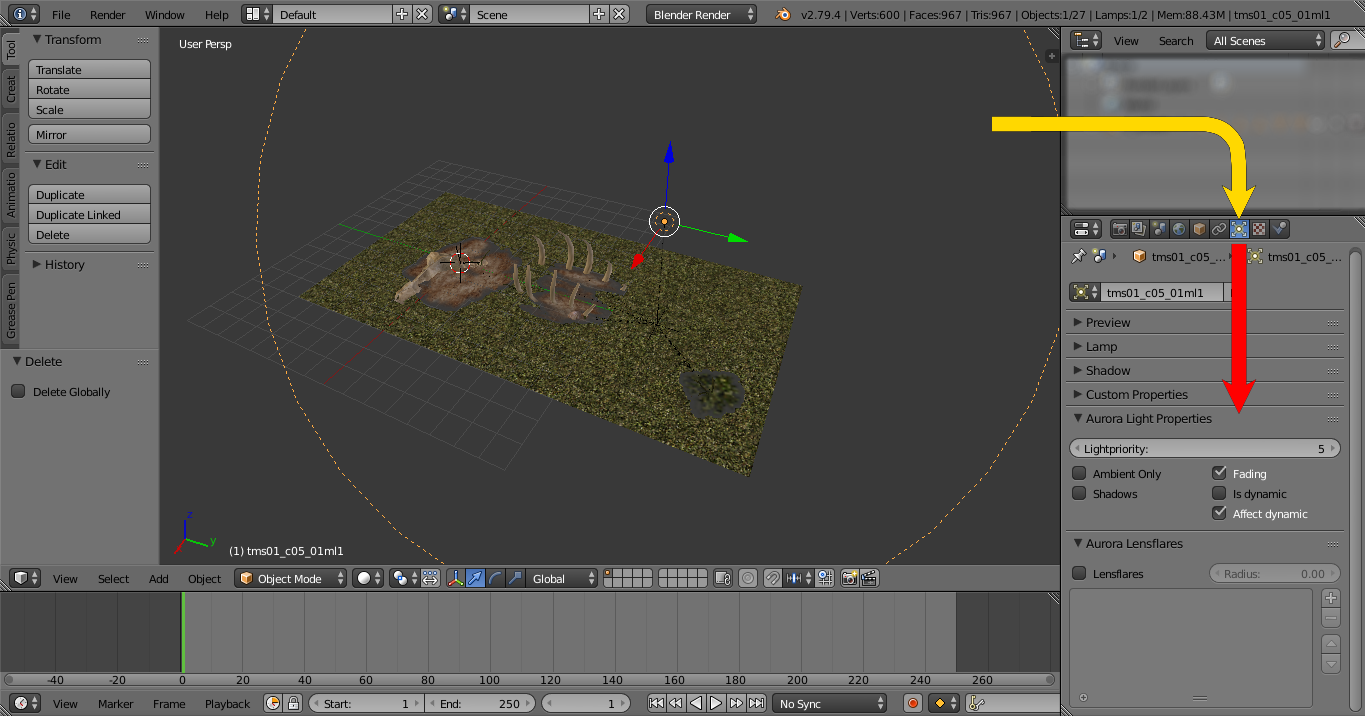
Light Panel
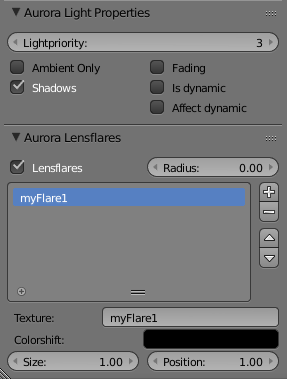
Aurora Light Properties
Lightpriority: Used by the engine’s light manager to prevent using too many lights that affect dynamic objects. This is related to the light count setting in the game. In order for the manager to know which lights can be culled first, a priority is assigned to each light, ranging from 1-5, 1 being the highest priority:
- Global Lighting
- Torches & light spells
- Spells, general lights
- Un-needed tile lights
- Other un-needed lights
Ambient Only: This controls if the light is only an ambient light source or if it is directional as well.
Shadows: Controls whether this light is capable of casting shadows
Fading: When a light is loaded or dropped from a scene, the light will ’flick’ on and off. If this is enabled, the light will take a moment to fade on or off.
Is Dynamic:
Affect Dynamic: This controls whether this light affects dynamic objects, i.e. characters. Disabling this will prevent this light from producing shadows with dynamic objects, but will in turn improve performance. This is a less strict version of the Shadows setting.
Aurora Lensflares
Add a series of lens-flares for this light. Lens-flares are unavailable for Mainlights or Sourcelights. The flare radius is global for all flares of this light source and is in cm (as opposed to meters in other distance values)
Radius: Radius for all flares of this flight source
Texture: Texture for this flare
Colorshift: Color difference from the light color.
Size: Size of the flares. This will scale the texture.
Position: Distance from the lights origin. Values from -1 to 1.
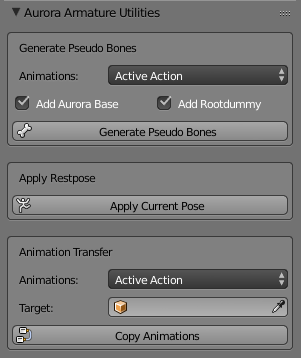
Armature Utilities Panel
The armature utilities are located under in the properties panel under an objects armature properties. They help with maniplating an already
Generate Pseudo-Bones 
Armatures/ skeletons cannot be exported directly to MDL - only meshes are supported. This tool creates meshes from the bones of an armature and copies the animations, which can then be exported.
Animations
Copy animations from the armature to the generated pseudo-bones. Note that this only copies keyframes. Drivers, constraints and physics have to baked to keyframes before conversion.
- No Animations: Animation will not be copied.
- Active Action: Copies keyframes from the currently active action. This is the default setting.
- NLA-Strips: Takes keyframes from all strips of the active NLA track and creates animations based on the strip names and lengths. Muted strips are ignored.
- NLA-Tracks: Takes keyframes from all NLA tracks and creates animations based on the track names and lengths. All strips of a track will be incorporated into a single animation. Muted tracks or strips are ignored.
Add Aurora Base
Add an empty serving as the Aurora Base. If Animation Mode is set to NLA Tracks or NLA Strips this will automatically be enabled and will be used to hold information about the animations: Name and frame range.
Add Rootdummy
Add an extra empty/ dummy as parent for the generated pseudo-bones. If Add Aurora Base is enabled as well, the Rootdummy will be a child of the Aurora Base.
Animation Transfer 
This tool works similar to the Generate Pseudo-Bones tool. The difference is it does not create new bones, but copies animation onto already existing ones. A valid Aurora Base must be selected as the target.
Set File
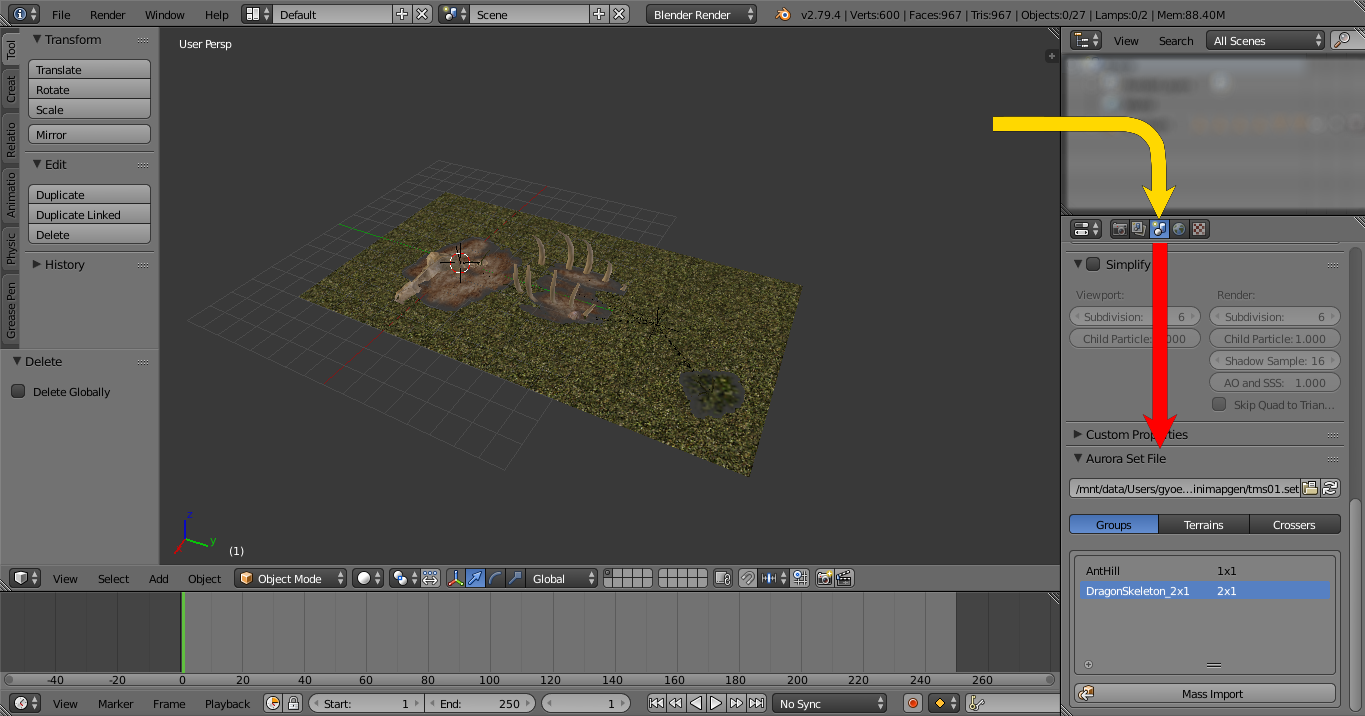
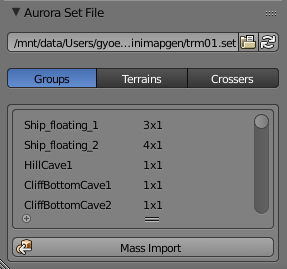
This panel is located in the property window under scene properties. It allows loading the contents of a set file: Groups, crossers and terrain types. All MDLs belonging to a certain category can be batch imported to the current scene. Tile groups will be placed correctly, as they would appear in game.
After loading a set file the contents will be listed with their names and dimensions (for groups) or number of tiles (for terrains and crossers). If the mdl files are in the same directory as the set file they can be mass imported into the current scene.