-
Created by
 ElGrillo, last updated on Mar 23, 2022
8 minute read
ElGrillo, last updated on Mar 23, 2022
8 minute read
Introduction
Danglymeshes are surprisingly easy to set up and can be a very effective means of adding a feeling of presence and life to your models.
What is danglymesh?
Danglymesh is a category of NWN mesh, just like Trimesh, Skinmesh and the others.
Use context
Danglymesh can be used on placeables, doors, creatures, tiles and probably other varieties of model.
The effect of setting an object as danglymesh
Danglymesh objects' geometry deforms in a physicalised way which is simulated based on a number of possible simulated forces that can act on the object; most notably, wind (as per your area settings), direct contact with creatures or other objects, movement of the object itself and/or its parent object, and other effects which exert a physicalised force (possibly explosive spells etc. - not confirmed by this author).
How to make danglymesh
Black Rider's step-by-step PDF tutorial on how to make danglymesh is probably the best starting-point: https://neverwintervault.org/article/tutorial/danglymesh-aurora-flex-blender-279-28-tutorial-nwn1-models
There have been some UI changes to Blender since that tutorial was written but all the names of options, menus and settings appear to have remained the same as of Blender 3.0 (at date 23/02/2022).
However, that tutorial does not explicitly state how vertex weights work, presumably because the author believed it was obvious. There is a more detailed explanation and mini-tutorial on how vertex weights and weight painting works, below (see 'Vertex Weights').
In brief, the process for creating danglymesh is:
- change your mesh type from (trimesh/skinmesh/animmesh/whatever it may be) to Danglymesh (in Blender this is done via a dropdown menu in the Object Properties - Aurora Mesh Properties - Trimesh Properties rollout)
- select all the verteces of your object (you will need to use Edit Mode if using Blender), and assign them to a vertex group (this is done in the Object Data Properties rollout in blender)
- set the weight of your vertex group to 0.0, in order to set yourself up properly to start painting verteces - in Blender make sure to click 'assign' so that the weight is applied to your vertex group
- paint your vertex weights; in Blender this is done in the Weight Paint mode
- after having painted your vertex weights, make sure you have set the object-wide danglymesh properties (Period/Tightness/Displacement) as you wish them to be set (in Blender this is done in the Object Properties - Aurora Mesh Properties - Danglymesh Properties rollout)
- that's it!
A note on danglymesh collision animations (aka what to do if your danglymesh is flying everywhere when a character is near it)
Danglymesh is animated not only by the wind in an area, or the movement of the danglymesh object itself or its parent, but also by collision with creatures and possibly other in-game objects (perhaps even placeables; not known by this author), as well as by explosions and other such forces.
This can cause issues; for example, you may find that if a creature runs into a placeable or tile object, or door, that has danglymesh, then the danglymesh starts flapping around wildly when the creature's bounding box makes contact with the mesh.
You need to be aware that NWN seems to work out whether something is colliding with a danglymesh based on where that danglymesh object's pivot point (or in Blender terminology, Origin) is located. Whether the pivot/origin is just taken as the centre point of a bounding box of some sort, or whether it only detects when a creature or object intersects with the actual position of the origin/pivot, I do not know.
For example, if you have a curtain door which uses danglymeshes for the curtain objects, but the origin/pivot point of those danglymesh curtains is not within the curtain meshes themselves somewhere but is instead sitting at the central point of the entire door object (i.e. on the floor in the middle of the doorway space)... you will probably see the danglymesh curtains flap around wildly any time a creature passes through the open doorway. Why? Because the creature is making direct contact with the origin/pivot of the danglymeshes, so NWN believes the creature has essentially crossed through the danglymesh.
How to avoid creature collisions causing wild flapping danglymeshes
I have found that with a door I made, I could simply put the origin/pivot of the danglymeshes up at the top of the danglymesh objects - the locations of the origin of all the danglymeshes for the door were all therefore some height above ground level; at least 2.3 metres in fact. This seems to prevent the danglymesh going wild even if a creature runs directly into the danglymesh door objects. This may be because the origins are not on the ground so a creature could never be standing on top of/be essentially in the middle of or surrounding the pivots/origins of the danglymeshes. Or it could be because no part of the bounding boxes of the creatures I tested with were ever able to actually come into contact with the pivot/origin of the danglymeshes. In any case, making sure the pivots/origins were not on the floor where a creature could walk over them or into them, seemed to prevent the problem.
Object-wide danglymesh properties
There are properties set at the object level for a danglymesh, namely (in NeverBlender terminology) 'Period', 'Tightness', and 'Displacement'.
The effects of these properties are described in the tutorial linked above.
Note that these properties do have a very great effect on how your danglymesh behaves. You will want to experiment by adjusting them to see their precise effects on your mesh. With a little tweaking of these properties, and of your vertex weights (see further below), you can create some incredibly naturalistic animations (considering how ancient and basic this system is).
Vertex weights
You can paint vertex weights in Blender using the 'Weight Paint' mode, as described in Black Rider's tutorial linked above.
The way vertex weights work in practice for danglymesh might seem obvious, but is worth stating anyway:
The rule is essentially that the lighter the weight of a vertex, the more that the portion of the model surrounding that will be affected by all the forces described above - subject of course to the effect of the object-wide properties described above.
A vertex with a weight of 1.0 will not be moved at all by any danglymesh-affecting forces. Use a weight of 1.0 if you want a vertex to be a 'fixed point'.
A vertex with a weight of 0.0 will move the maximum extent possible within the constraints of the object-wide properties set for the danglymesh object.
In Blender, when painting vertex weights in 'Weight Paint' mode, blue colouring indicates lighter vertex weight (down to a minimum weight of 0.0). The colours shade through green to yellow and on to red as weights increase. Red colour means high or highest vertex weight (up to weight of 1.0).
Example - vertex weight painting
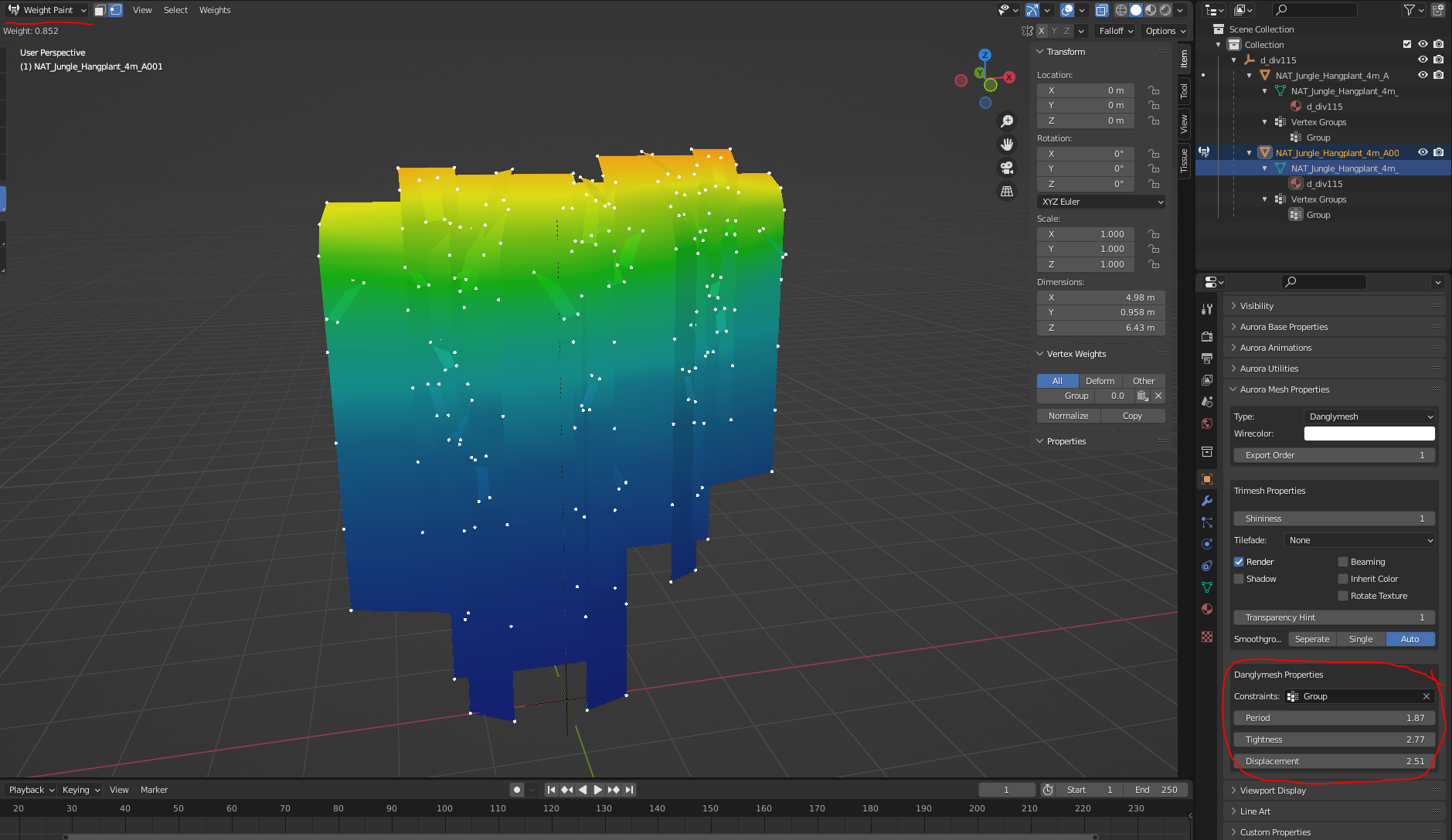
The above image shows a placeable's mesh whilst in Weight Paint mode in Blender. This mesh was for a set of hanging vines. The top of the mesh therefore needed to stay fixed, whilst the trailing bottoms of the vines should be free to blow in the wind or animate appropriately if the vines are moved or touched by another object.
You can see that the top of the mesh is shaded to red; the verteces have been assigned heavier weights. This means that the top will stay fixed in position (in actual fact it is not quite full red, as you can see, which indicates that the verteces aren't set all the way up to 1.0 weight, therefore they will move a little bit, which was acceptable in this context).
By contrast the middle and bottom of the mesh have a gradient rapidly shifting in the spectrum away from red/yellow through green and towards a deep blue. This shows that much of the mesh has a light weight, almost reaching a weight of 0.0 at the very bottom of the mesh where I wanted the light ends of the dangling vines to be able to move around a lot.
Here is how the above looks in-game when the placeable (and another, slightly different one behind it) is moved using SetObjectVisualTransform:
https://thumbs.gfycat.com/WhirlwindQuarrelsomeCollardlizard-mobile.mp4
How to quickly paint your vertex weights
I achieved the above using Blender's handy gradient tool in Weight Paint mode:
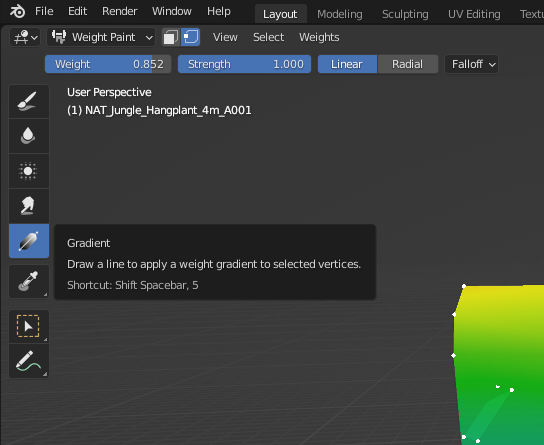
Set the Weight you wish to start at (where your mouse position is), the strength with which you want the gradient to overwrite any current vertex weights, and the manner of gradient (linear/radial and the falloff curve) then simply click and drag across your mesh, and you'll see a nice gradient of weights being applied. This is an extremely quick way to apply a good and smooth range of weights, I have found.
Applying a uniform weight to all verteces (painting the primer!)
You may also at times find it helpful to apply a certain weight to all your verteces, perhaps to set a baseline minimum weight for them all before then applying the gradient you want. You can do this by selecting all your verteces with the 'Select' menu (see the buttons at the top of the above screenshot) (click 'Select' → 'All'), and then using the 'Weights' menu (next to 'Select') option called 'Set Weight' to apply the current Weight you have (see top-left of the above screenshot where you can see the Weight slider) to all your verteces.
Note on how verteces of different weights vs. verteces of identical weights interact with one another
If you set all the verteces in your mesh to weight 0.0, you will notice in-game that the entire mesh will probably wobble about rigidly, as if it were completely solid but dangling on some kind of bizarre invisible spring. This is a demonstration of what happens if you have multiple verteces adjacent to each other which have the same weight; whilst (as long as your settings allow) they will move when a force is exerted on the mesh, they will move identically and uniformly, i.e. they will appear to be rigidly attached to one another.
This is why the gradient tool, the use of which I have described above, is such a good way to paint your vertex weights - if, that is, your danglymesh is for an organic or fully flexible type of object such as hair, loose leaf foliage, loose rope, or flowing cloth. However, if you wanted to have, for example, a chain that was mostly in-flexible and only flexes in specific places, you could do that by having uniform weights for all the verteces in each rigid section.
Problems with danglymesh
Performance
Note that Clippy warns on the Vault discord on 22/02/2022 that danglymeshes are handled inefficiently by the engine, so can be very performance-heavy. Be cautious in your approach to how many danglymesh objects you will have in an area.
Crashes
Note that if you set an object as danglymesh but do not set a vertex group under the 'Constraints' field in Blender (in the NeverBlender 'Danglymesh Properties' part of the Object Properties rollout) then you are liable to experience NWN client crashes when you try to load into an area with your danglymesh object. Follow Black Rider's tutorial to quickly set up your vertex group, then sort out your vertex weights and object-wide attibutes. You should no longer experience any crashes if your danglymesh is set up properly.