-
Created by
 symmetric, last updated on Apr 07, 2025
10 minute read
symmetric, last updated on Apr 07, 2025
10 minute read
PLT files - Packed Layer Textures - offer support for multiple layers and are used for tintable armor/body parts for multipart complex models (player characters), tail models and wing models. They can be interpreted as 10 grayscale textures, which can then be tinted separately.
This is a solution circa 2002 for the problem of easily editable colours on items / armor etc. Because of this it might seem archaic in the present day and there may be other options nowadays with shaders.
File Format Heirarchy
Note that PLT files are loaded over the top of TGA files, but under DDS files (ie a DDS file is the first one checked for). Only certain objects can load PLT files in the first place as noted below: creature body parts/armor/helmets/cloaks and their icons, and tail/wings.
Tools
Some PLT tools:
- PLT Plugin for Gimp 2 - Python plugin for saving and loading in GIMP 2
- PLT Plugin for Gimp 3 - Python plugin for saving and loading in GIMP 3
- Bioware PLT Photoshop Exporter
- Merricksdad PLT Tools - convert to/from PNG allows batch convert
- PLT Editor - Basic editor for PLT files, can batch convert to/from BMP
PLT Files Basics
You basically have a standard TGA-like image, but with a number of "layers" - these layers don't really overlap they merely represent which colour option affects which pixel.
The easiest way to edit them is likely the GIMP plugin where the layers for each colour selection can be generated, and thus cutout portions of which part of the image should be tied to which layer can be done.
They can only be applied to:
- Multipart creature appearances (usually just the default player races, eg Human, Elf, Dwarf etc.) and items held/worn by creatures:
- Armor on these appearances (and their icons) replace limbs and torso but not the head
- Helmets (replaces the head object) - although you can actually swap shields to using it, and can likely for any other held item (albeit at the loss of 3 item parts where used) for instance you could make slings use it since they are otherwise simple objects. See Overhaul Items - Shields for examples and testing.
- Robes (slightly different - it replaces the shoulder body parts of the current armor/body) and their icons
- Tails - see tailmodels.2da
- Wings - see wingmodels.2da
- Visual effects - as of 1.81.8193.15 you can have PLT textures loaded - presumably with similar limits like having the texture named the same as the MDL file - which inherit from the parent object (ie applying them to a creature gets theirs, if applied to the ground or other model such as a placeable presumably will mean they simply default to the first colour in each palette). This is useful when combined with progfx.2da to generate VFX that attach to certain parts of the body, such as adding a scabbard, or something on the back, or some pouches that are coloured to the armor model.
- Tutorial: Player and Creature Accessories Using ProgFX Type 12
- Note you might want to add a TXI file with myenvmapname default in it for the textures to apply shiny instead of transparent PLT colours.
- Shields and other single-part items (eg; "Book" item icons) can be converted to PLT (with some caveats to get them working in game and toolset), while sadly multi-part items (eg a Longsword) cannot.
You cannot apply PLT files to multi-part items, non-phenotype creature appearances, placeables, tiles or the like.
PLT File Usage
You can use PLT files to define the colours in the toolset (or via. scripting) of an object. For instance a specific armour piece could have a red breastplate with one appearance and blue with another.
Since it applies to complex models, meaning a lot of different little models for each race / gender, it can be quite time consuming to make them. Robes have some shortcuts (although a lot of file duplication).
For non-complex models you might be able to workaround this by using tailmodels.2da or wingmodels.2da. The tail.models.2da may be easiest since it already uses a lot of existing model appearances there (used pre-EE to scale certain monsters) so should be simple to replicate and already have a set of "invisible" appearances to attach to properly with the right orientations.
- Note with this method the PLT textures do not show up properly in the toolset only in the game
You can't apply PLT files to simple models even with script commands, the engine just doesn't like it.
Creating your own PLT files
There are some handy tools for this for GIMP and Photoshop to import and export PLT files: Custom Content Tools#Gimp
The files themselves are, essentially, 0 values (black) for well, completely black, and 255 (total white) for full transparency no colour. The middle values tend from black through the main colour choice to more and more alpha or lighter versions to near white. Try and avoid either completely black or white if you want colours to show up correctly (unless you want black or transparency/full shiny).
A demo for how to convert a simple shield DDS file to a PLT file is available here: Converting a Texture to PLT
Palette limitations
The palette itself used for PLT files is a specific set of options, not a simple RGB number. Some of these options are quite odd looking in certain situations!
There are always 176 (0 - 175) options in the palette (relevant for script commands).
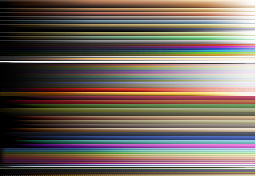
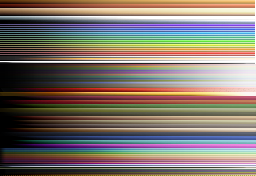
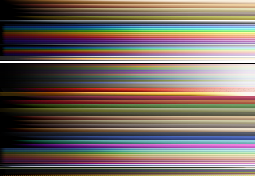
Each layer has different options - well, a choice of 4 as noted below. The texture names used by the game to replace the colours is hardcoded - ie no more than 176 entries and the file is loaded in a particular way. The "pal_xxx01.tga" files are 256 x 176, with presumably each colour option being a line. The X axis appears to be the amount of alpha applied - for presumably environmental maps and other shiny/matt purposes.
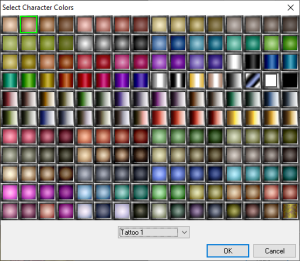
Due to how they are loaded please fill in this section if you've tried to replace them; they might be loaded at client load thus not available for use in Hakpack files. For sure there is a selector texture loaded by the game used in character creation - gui_pal_xxx.tga - which may need also changing to match changes to pal_xxx01.tga files.
Palette Function
How does the game use the palette textures eg "pal_cloth01"?
It looks up the colour you've got selected on the object (defaulting to 0), eg; your armor equipped may set a cloth colour to "5".
Then it goes and matches line 5 values to the 0-255 values on the PLT file on that particular layer.
- The 0 value is the left most (ie "black") and 255 value is the right most pixel (ie more "white") however this isn't uniform - some colour selections especially hair will just use the colour consistently just getting lighter towards 255.
An example PLT pixel may be at value 100, this means it goes and replaces that pixel with line 5, row 100 of pal_cloth01 texture.
Default Palette Files
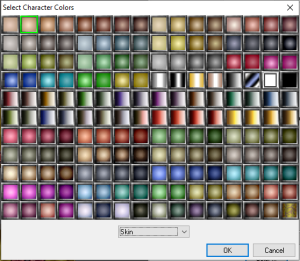
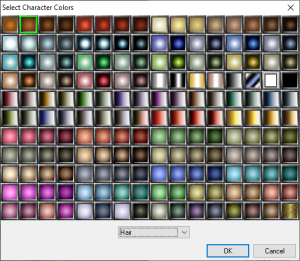
The BMP files are only used by the toolset. The in-game selectors are limited since you can only select the skin, hair and tattoo in-game (at chargen). The BMP files could be converted to TGA/DDS to be used in game if necessary.
| Layer Name | Toolset Options Picture | Palette Texture | Palette Texture Name | In Game Selector Texture | Toolset Selector Texture | Notes |
|---|---|---|---|---|---|---|
| Skin |
|
| pal_skin01.tga | gui_pal_skin.tga | mvpal_skin.bmp | Not sure if selector texture is for in-game as well as toolset |
| Hair |
|
| pal_hair01.tga | gui_pal_hair01.tga | mvpal_hair.bmp | |
Tattoo 1 Tattoo 2 Cloth 1 Cloth 2 Leather 1 Leather 2 |
|
| pal_cloth01.tga pal_leath01.tga pal_tattoo01.tga | gui_pal_tattoo.tga | mvpal_cloth.bmp mvpal_leather.bmp mvpal_tattoo.bmp | pal_cloth01 and pal_tattoo01 are identical, but it might be you could use different colours in each. |
Metal 1 Metal 2 |
|
| pal_armor_01.tga pal_armor_02.tga | Note there is no gui_pal_armor01.tga file For NUI you'd have to include a PNG/TGA version of mypal_armor01.bmp if your hakpack. | mvpal_armor01.bmp | pal_armor_02.tga seems to be a lightened version of 01. Presumably that PLT layer is a bit lighter / brighter in game even if the toolset shows the same options. |
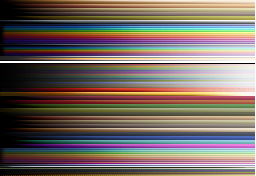
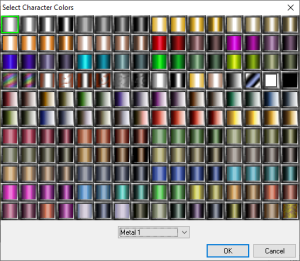
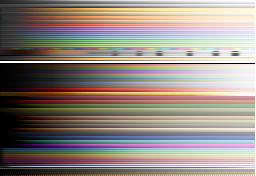
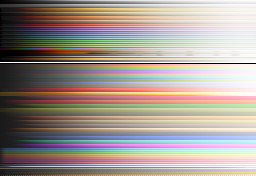
Engine Usage
The engine will load the PLT files in and convert them to a texture for the GPU using the CPU, with whatever colours were selected for the given object. Since this is all client side there is nothing special on the server side for it.
File Format Information
PLTs are binary files consisting of a 24 byte header and an image data block. The image data consist of 2 bytes per pixel, each representing a (color, layer) tuple.
Example File
Byte | Value | |||
|---|---|---|---|---|
0 | "PLT " | 50 4C 54 20 | File type |
|
4 | "V1 " | 56 31 20 20 | Version | |
8 | 0A 00 00 00 | Unused | ||
12 | 00 00 00 00 | Unused | ||
16 | 64 | 40 00 00 00 | Width | |
20 | 128 | 80 00 00 00 | Height | |
24 | (255, 1) | FF 01 | Pixel 0 | Data |
| 26 | (120, 9) | 78 09 | Pixel 1 | |
| . . . | ||||
| 16404 | (255, 2) | FF 02 | Pixel 8191 | |
Valid layer Ids
ID | Label |
|---|---|
0 |
|
1 | Hair |
2 | Metal 1 |
3 | Metal 2 |
4 | Cloth 1 |
5 | Cloth 2 |
6 | Leather 1 |
7 | Leather 2 |
8 | Tattoo 1 |
9 | Tattoo 2 |
Overriding Palette Colors
It is possible to override the application of palette colors by use of a material file. As an example, let's consider a dynamic kobold foot – we want the scales to pick up the skin color, but we want the toenails to always stay black.
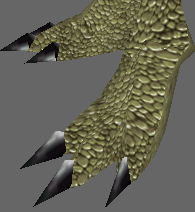
The hierarchy of this part is the main mesh for the foot and the toenails are a subordinate, separate, mesh.
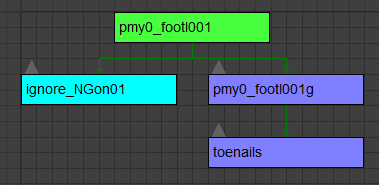
Because it is a phenotype part, the game will automatically apply pmy0_footl001.plt to both meshes if left to its own devices. Note that it will default back to pmh0_footl001.plt if the race-specific file is missing. HOWEVER, if you apply a material file name as the bitmap for toenails, you can then use the associated .mtr file to override application of the plt. Our model file looks like this when set up properly:
node trimesh pmy0_footl001g
parent pmy0_footl001
position 0.0 0.0 0.0
{SNIP}
ambient 1.0 1.0 1.0
Diffuse 1.0 1.0 1.0
Specular 0.0 0.0 0.0
shininess 26
bitmap pmy0_footl001
{SNIP}
node trimesh toenails
parent pmy0_footl001g
position 0.0 0.0 0.0
{SNIP}
ambient 1.0 1.0 1.0
Diffuse 1.0 1.0 1.0
Specular 0.0 0.0 0.0
shininess 26
bitmap kobparts
Note that the mesh toenails is calling for bitmap kobparts. We then create a material file that has that same name (kobparts.mtr), and use that to call our plain diffuse texture in place of the palette file. The contents of kobparts.mtr are:
// Specify it is normal and spec mapped
renderhint NormalAndSpecMapped
// Define textures
texture0 kobparts // Diffuse
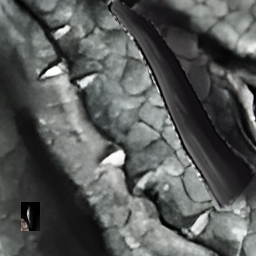
The .mtr file calls a texture of the same name, but it could use any name here. In the case of dynamic kobolds, we use this "override" texture for teeth, horns, toenails, and fingernails which you can see in the picture of the diffuse (kobparts.tga) below.
Palette Checker Tool
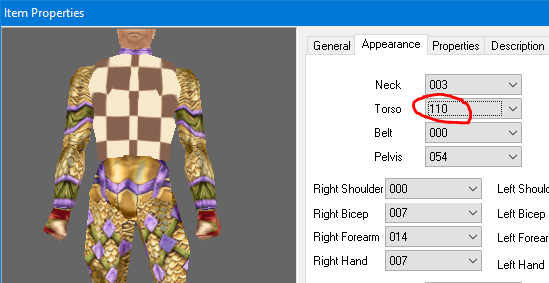
When working with phenotype parts in the toolset, the Appearance tab for clothing items lists parts sequentially from 000 to 255, based not upon model number, but upon order and AC value in parts_[bodypart].2da. When looking for a specific model that you've added to the game content, it can be useful to use a palette checker in your development folder. Below is a checkerboard pattern that when named the same as the body part you seek allows you to find it more easily on the Appearance tab of a clothing item.
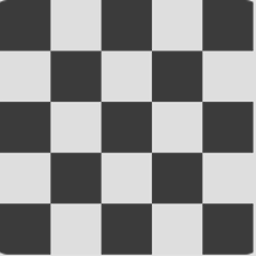

For example, say you made a new chest for human males. You named it pmh0_chest064.mdl and you've made sure you've enabled it in parts_chest.2da; however, you're not sure what part number it is on the appearance tab of a clothing article. Simply rename the file above to pmh0_chest064.plt, drop it in development, and open a fresh session of the toolset.
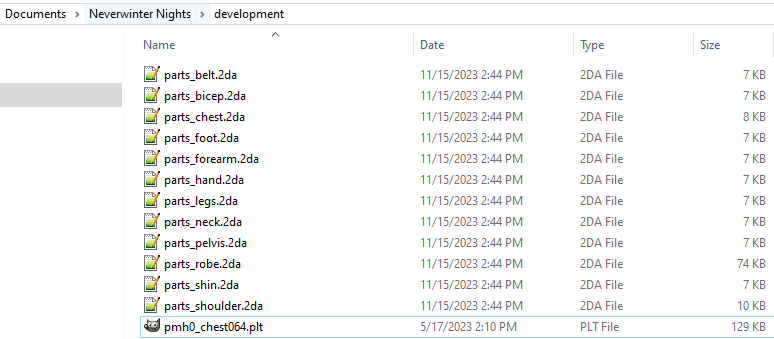
Open a clothing item, scroll through the torsos, and you can rapidly locate which number is your part and confirm it is showing in game. Once that's done, you can simply replace the palette checker file with the actual plt for that part.