-
Created by
 dafena, last updated on Jun 02, 2024
4 minute read
dafena, last updated on Jun 02, 2024
4 minute read
Yeah, there's no better way to describe having a transparent texture in NWN than "find a way to deal with it". There are few factors when using one to take into consideration:
- Is it a bit transparency?
- Is it an additive image?
- Is the model a skinmesh?
- Remember there's no automatic alpha sorting.
Depending of these you'll branch into two different workflows. This guide is assuming you know what a TXI and MTR file are, in case you don't, you can read them on their respective pages, TXI and MTR what it Let's tackle them down.
Additive
An additive transparency is where the black will be treated as the transparency. An example of an additive image will be something like the follow:
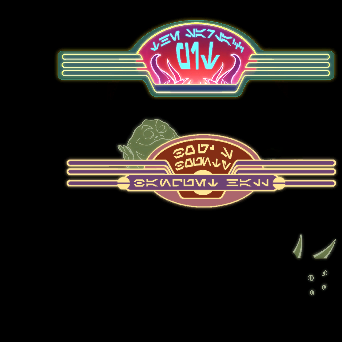
The black color in that image will become transparency, even the "blackness" inside the color, this will make it so we'll be see through. In this case, it will give an holographic result.
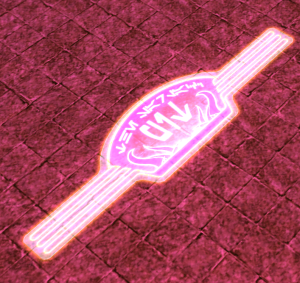
The transparency won't be opaque, ever, and it will always render last having no alpha sorting issue unless there's more transparency and those might not be shown, once again, depending exclusively on how the other transparency is rendered. To use this method we need a txi file named exactly as our texture with the information changing the blending to additive.
"Other" blending
Now, let's say the texture is a "normal" texture with transparency. Depending of the model and how we want to tackle the issue, you can go the punchthrough or the manual sorting method. Let's see them on detail:
Default BlendingThis one is the default behavior the game will go if there's no TXI file. It's the one where the transparency is a normal gradiant. The issue with it is that Neverwinter Nights doesn't sorts them and any non-static object will be ignored when rendering what's behind the transparency. An example of just dropping the texture as is and seeing the problem in action is the following image:
As we can see, the transparency doesn't sort itself and it doesn't "stack" but ignores anything behind it and goes directly to render the tileset since it's a static mesh. It's very important to remember that the rule of rendering static doesn't apply to itself if, let's say, the model was set as static. The solution if we want this type of transparency is to have the transparency detached from opaque mesh and start to sort it by hand. We can sort up to nine (9) meshes with transparency utilizing the transparencyhint value inside the MDL. The way transparency works is to go from 0-9 where we increment from the inside to the outside. The latest layer of transparency can be up to 9. | PunchthroughThis one is a bit transparency. That means that the game sees the texture and says "This is opaque, anything beyond this % will be transparent" and there's no middle ground, no gradient between them. Depending on what is being used it can look just fine or pixelated since it goes from showing to not showing. An example of a comparison between them both is the following:
As we can see, the gradient is lost, but since there's no gradient, the order is correct as nothing needs to be "sorted" between several meshes. The best use case is for hair or grass and the only solution for skinmeshes. |
|---|
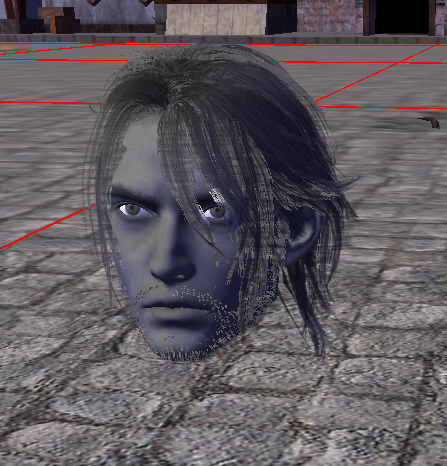
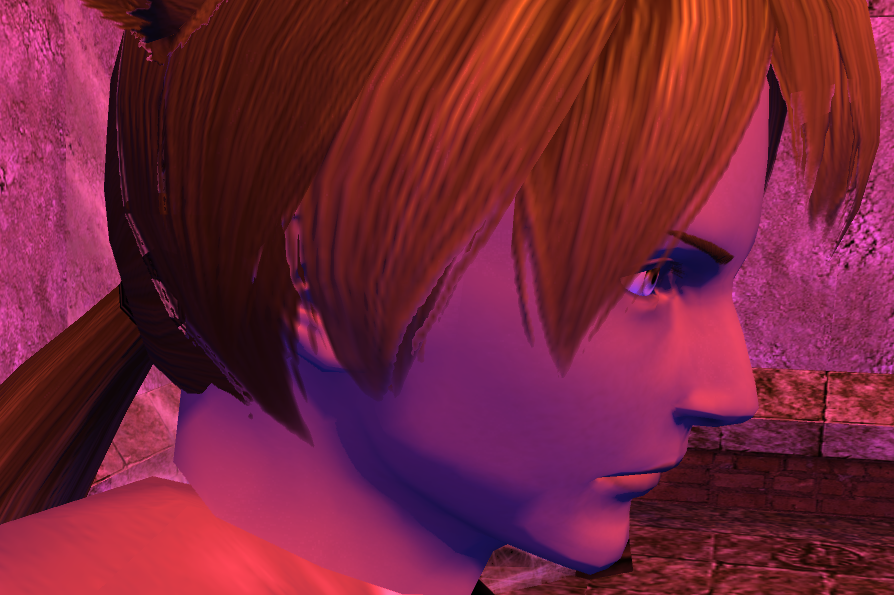
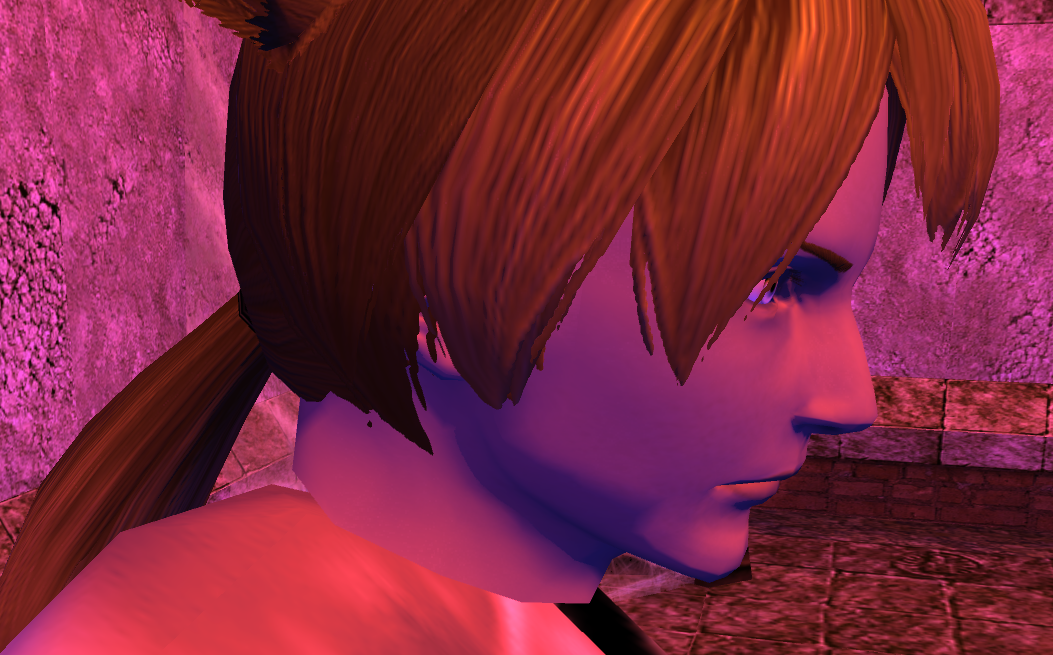
It's very important to know what's the look you want. Unless you actually need it to be a binary solution, you should stick to default blending since it will give you the best visual result. Using punchthrough you save yourself the pain of having to sort it but at the cost of quality. The more complex the transparency is the more you're likely to use punchthrough.
How do I use them?
To apply any of these to your models, you need to create a TXI file and a MTR file with the same name as your texture. You'll need to have them filled as:
TXIblending punchthrough/default/additive Alphamean [decimalvalue to be discarded] | MTRtransparency 1 |