-
Created by
 jakkn, last updated by niv on May 10, 2024
6 minute read
jakkn, last updated by niv on May 10, 2024
6 minute read
Tracy is a builtin profiler inside the game. This profiler allows you to answer performance and profiling questions on both clients and servers; like:
- Why does my server lag? Where are these lag spikes coming from?
- Which script is running most often?
- Which one takes the longest to run?
- Why does this particular scene have so high frame times (e.g. low FPS)?
- Why does FPS tank when I look at this particular model?
- Why does my area take so long to load? What is is even doing?
- And much more.
Tracy is a frame profiler. This means you will see each individual frame broken up into what the application is doing in a hierarchical fashion (e.g. "3ms spent preparing shadows on the CPU" will show up as a block both on the timegraph, and in global statistics). It can be a daunting experience if you see it for the first time; but trust it will be very clear soon.
NB: Currently, the functionality is only available on Preview builds 37-1 onwards. This feature is still in development and using later preview patches will give you updated and improved functionality, such as more tracepoints.
Tracy enables directed profiling. It is not always active; instead, you use it to look at specific scenes or events you want to know more about. To make best use of Tracy, you need to have a testcase in mind that you want to improve.
The intent is to give module authors and server admins more autonomy in self-diagnosing problems with their server, and also to support collection of traces for analysis by the dev team for problematic scenes.
On clients
This is the recommended low-cost way to try out Tracy first.
It will allow you to profile any singleplayer and multiplayer module - both as the hosting party, and during connection to any server.
Enabling Tracy
To enable Tracy on your game client, go to Main Menu → Options → Input "tracy" in the search bar and check the respective checkbox found. It is important to restart your game after this, as Tracy is initialised on game start.
Note: Tracy has a small runtime impact, but only while the Tracy.exe application is connected to your game. Leaving Tracy enabled, but unused, is fine. (The functionality needs to be enabled once by the player, because it opens a localhost-only listening port, and the player should knowingly opt-in to this.)
Note: The server cannot access the Tracy profiler on clients. The player is in control of running the profiler.
Using Tracy
Once you have the game running with Tracy enabled, simply navigate to your NWN installation directory → bin → tracy → and run Tracy.exe for your respective platform (on Windows, this would be bin/win32/tracy/Tracy.exe).
Once the Tracy client is up, click "Connect" and it will default to connecting to the game you have running. The timegraph will immediately start populating with frames as they are rendered inside the game. Go back to the game and play around a bit in a module.
Once you have performed the activity to investigate, switch back to the running Tracy.exe, click the Connect icon ( ) in the top left, and click Stop. The timegraph will finish populating, and you can start navigating the UI.
Analysing the trace
Understanding the collected data will require some basic understanding about how the NWN game engine works. Understanding how each frame is constructed and displayed is helpful.
Do not let this discourage you! This is fairly approachable and can be sussed out simply by looking at a collected trace display.
For the full technical manual, please see the official Tracy documentation: tracy.pdf
The UI has a few major components:
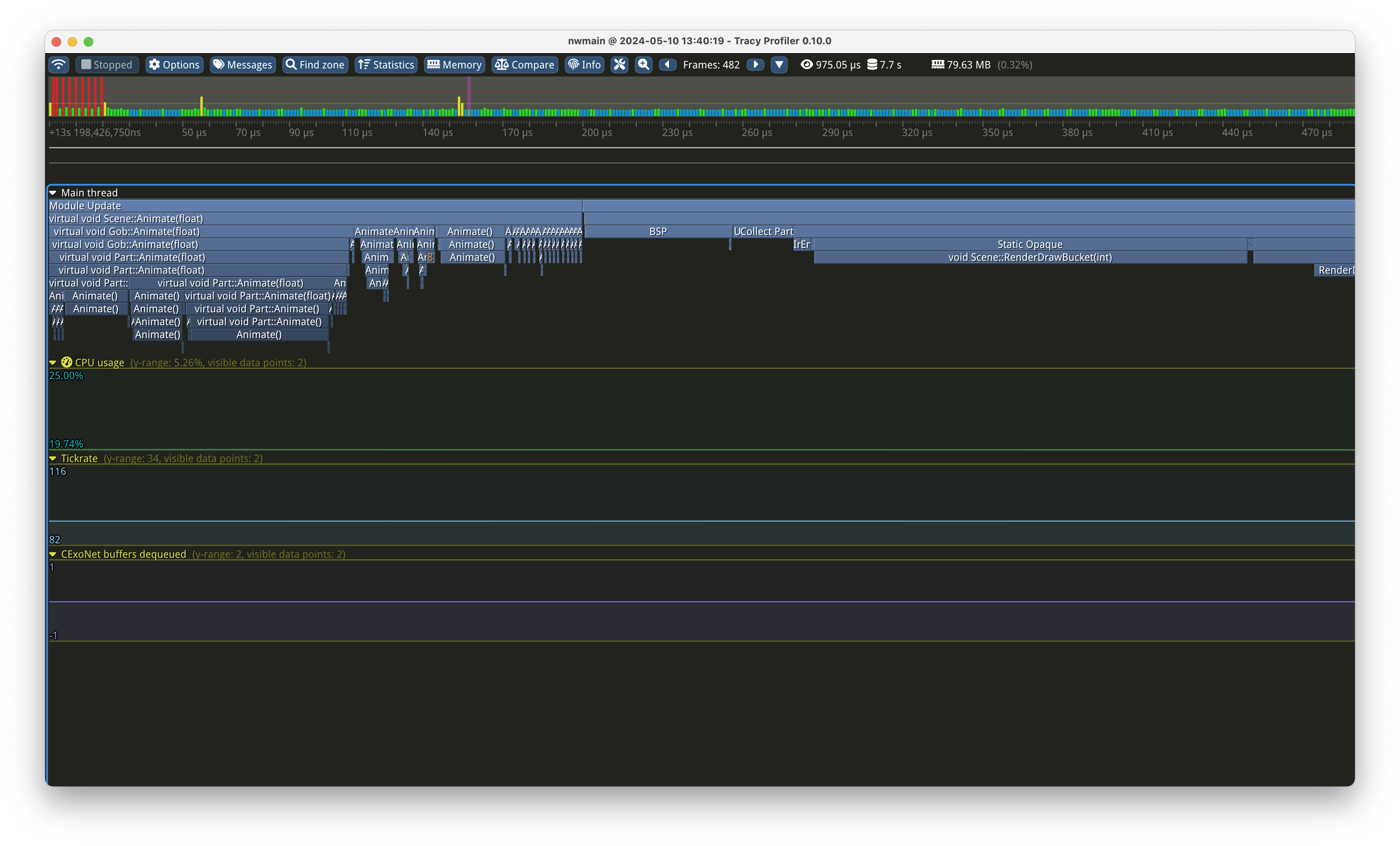
The timegraph
.. is the big per-frame display in the middle of the screen. It is best navigated with the WASD keys to scroll and mouse wheel to zoom. It is grouped for each frame that has happened during your capture; and each frame is split up in a tree-like hierarchy into all the tracepoints that have been hit.
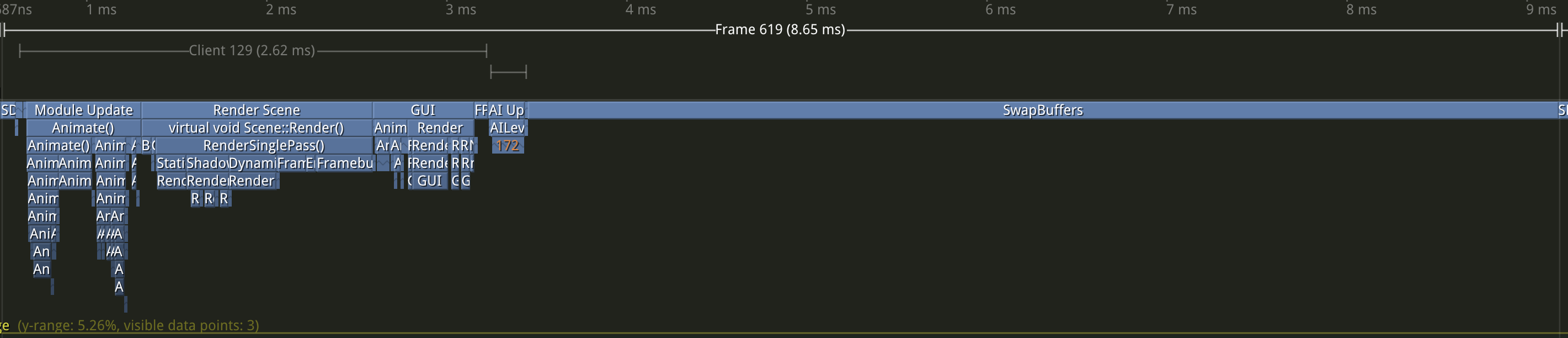
This is what a single frame on a client tracy run looks like. You can zoom into each frame individually (this is very useful if you see "lag spikes" or bad FPS):
You can even zoom into individual zones to see exactly what is being spent time on:
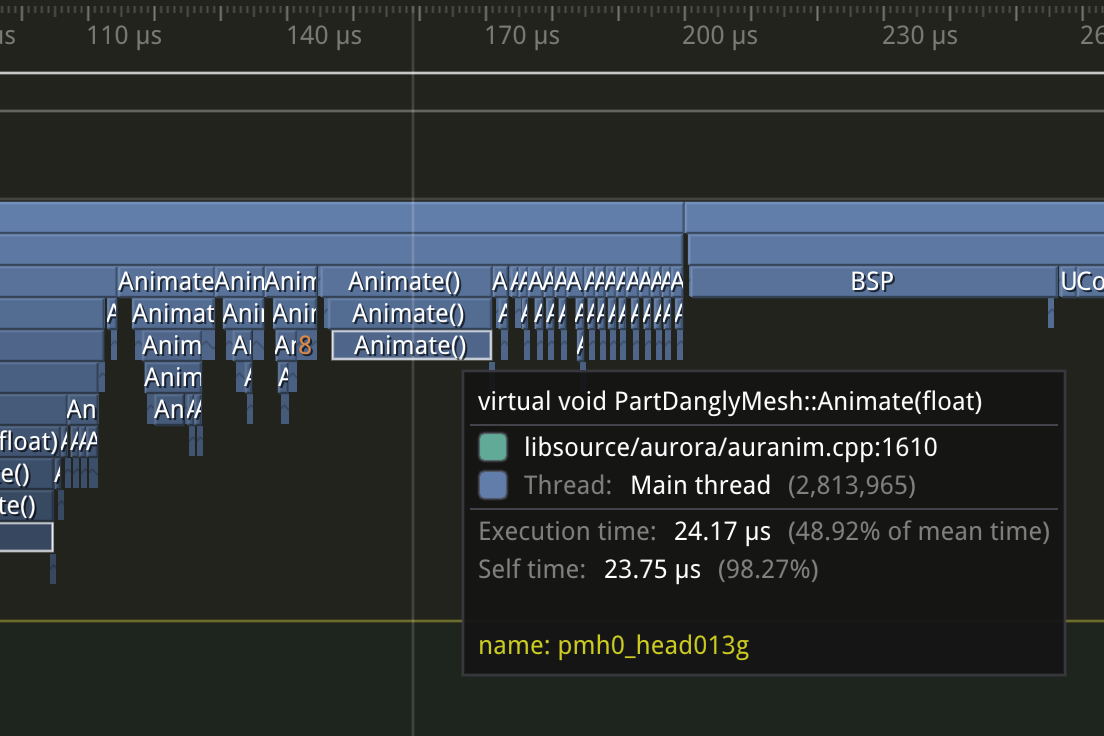
Clicking individual zones (e.g. a box in the timegraph) brings up the statistics for that zone. You can see all invocations of it, and optionally group it by various factors such as user text.
Messages
These text messages are fed from the log file (nwenginelog.txt). They are also shown as chevrons on the time graph where they occurred.
Statistics
.. at the top allow accessing overall statistics, and searching for specific trace points.
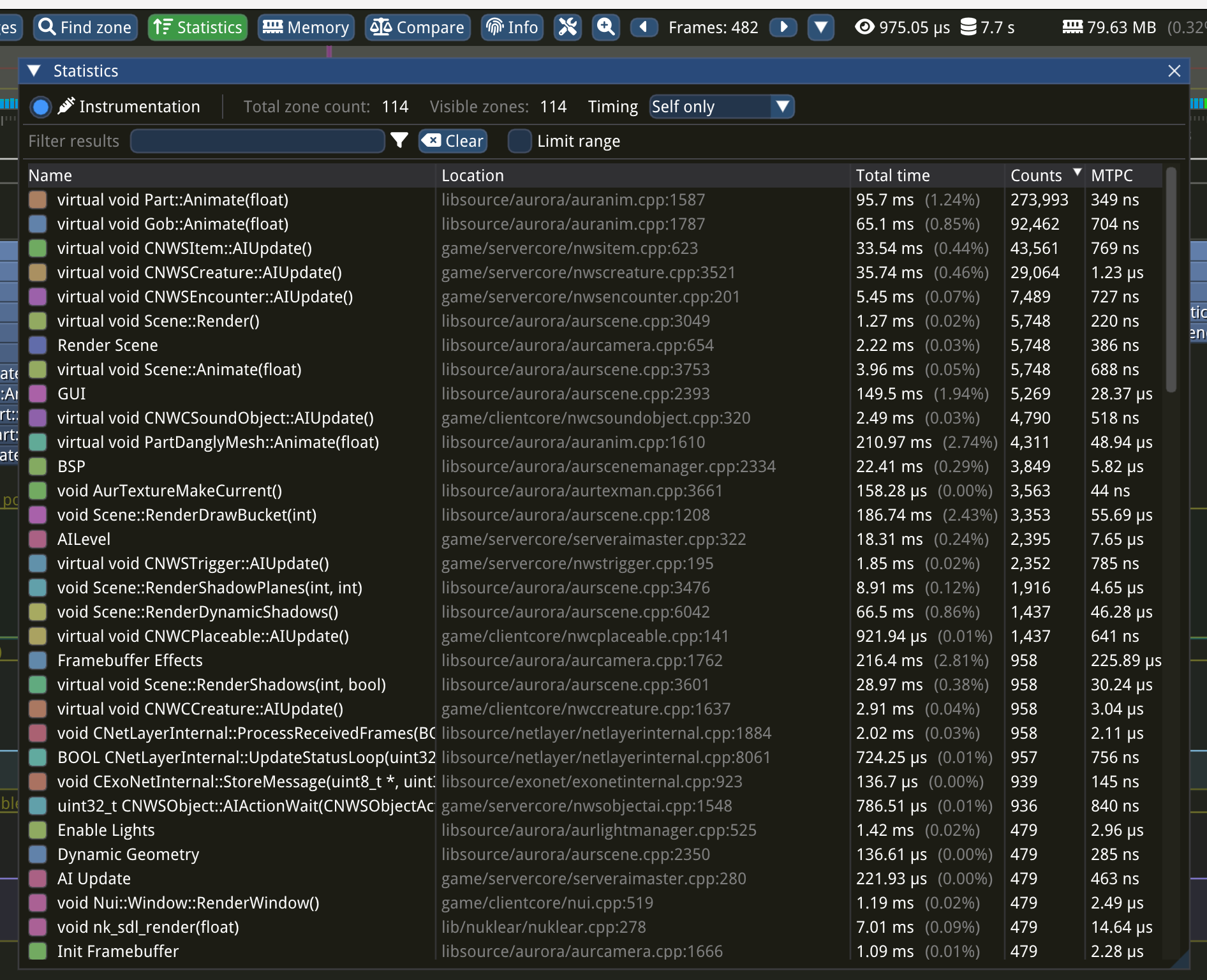
For example, if you want to find all NWScript runs, you would click Statistics and then look for "RunScript" in the search box.

You can see both "Run Script" and "RunScriptSituation".
This is the part where some knowledge about how the game engine works is beneficial (though not required). Knowing that "RunScriptSituation" refers to DelayCommand is not obvious, unless you are already familiar with the technical details.
Clicking the zone "Run Script" will bring up details.
At the bottom of the Statistics panel, for each zone, you can group by User text. This is text provided by the game engine and usually contains the object or file the zone event is related to.
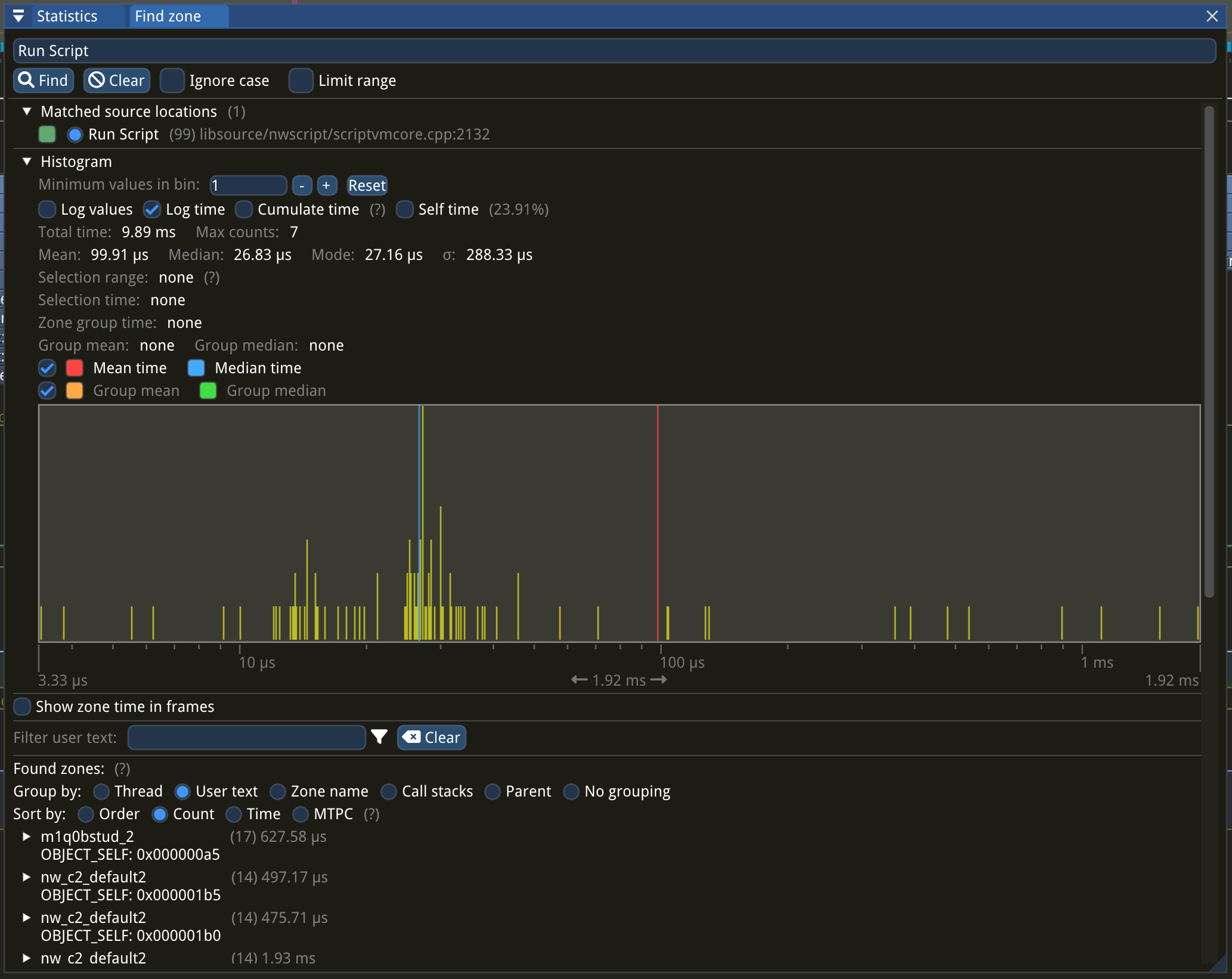
Memory
Memory and allocator statistics are not yet implemented.
Exporting data for analysis
NWN developers might ask you to perform the above steps to collect analysis data. Once you have collected such a trace, just click the Connect icon again, and click Save trace. Save your trace to a file and pass is to the developers.
When saving the file, it is recommended to name the file after the scenario you have profiled so you can identify it easily in the future.
Exported data might contain personal information such as running module names, models displayed, local filesystem paths, your multiplayer username, IP addresses, and so on. It will not contain secret cryptographic information such as private CD keys.
On dedicated servers
Tracy can also be used to collect data on dedicated servers.
This will obviously only contain server frames - not client data. Some scenarios will require collecting traces on both the client and the dedicated server to more fully understand.
Enabling Tracy
For dedicated servers, you need to edit settings.tml:
[instrumentation]
    [instrumentation.tracy]
        enabled = true
        port = 8086
Tracy always binds to the local interface. If you'd like to access your device remotely, please use SSH port forwarding or similar. Do not expose this port to the internet: It is entirely unauthenticated and it's security has not been designed to be publicly accessible.
Collecting data
Collecting data on a dedicated server is a bit different to a game client, as the server usually runs on a separate computer (in a datacenter maybe).
You have two options:
- You can port-forward the tracy port via SSH.
- You can use the bin/tracy/collect.exe binary to immediately collect a tracy file on the server side; then copy it down to your machine and analyse it locally in Tracy.exe.
Analysis and forwarding of captures is the same process as with clientside-collected data: Just deal with the collected tracy file as you would on a client capture.