-
Created by
 Jasperre, last updated on Mar 16, 2022
13 minute read
Jasperre, last updated on Mar 16, 2022
13 minute read
The Conversation Editor is used to make files that allow dialogue with the player through a basic set of options. However you can do relatively complicated and interesting dialogue trees and even menus and other things a module may need. There are also uses for creatures to shout particular things in as combat starts or randomly when selected without a full blown conversation.
NWN:EE enhanced the editor with script variables, which will be delved into with an example here. However some features of the Conversation Editor like the spell checker are non-functional which can make actually writing properly edited and correct text rather cumbersome.
You can have more than one conversation open at once, allowing nodes to be copied between them.
See also the Conversations page for some more advanced information.
Dialogue Tree Basics
The dialogue editor at it's core is a tree based set of selections for players to go through, going between NPC dialogue and then PC choices of what to say (although you can just have a single option like "Continue" which it will wait to be selected before moving on).
It has the ability to loop back on itself, jump from one part of the tree to another and display a different thing based on conditions that must be met using Text Appears When... options (see further down).
Dialogue Tree Layout
The tree layout is, when opening a dialogue you created previously, entirely compressed.
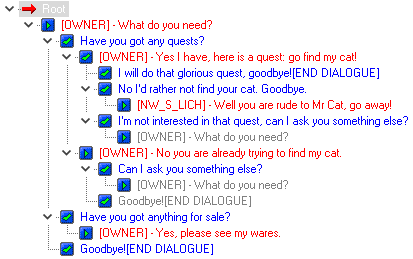
For the basic layout in the window, and what each colour means
| Item | Default Text Colour | Description |
|---|---|---|
| Root | Black | This is where the game will start when it loads the conversation but you can't link to this node. |
| NPC Nodes | Red Text | The NPC nodes always start with square brackets containing who is speaking, defaulting to [OWNER]. If the Speaker Tag is set it will be the tag of the creature (attempting to) speak. See below for more on speaker tags. |
| Player Nodes | Blue Text | The player nodes are blue and are in order of appearance in the games conversation box. |
| Link Nodes | Grey Text | Both NPC and PC nodes can be linked to, and are in grey. You select a node and copy it, then "Paste As Link" when right clicking a parent node it can go under, this means you can loop back to earlier parts of the conversation or link to phrases without having to repeatedly type them out (eg; "Goodbye fair maiden!"). |
| Nodes which have only a single option below them (all [END DIALOGUE] nodes will be this | |
| Nodes which have multiple options underneath them, for either PCs to choose or that will be limited by conditional scripts. |


Dialogue Tree Navigation
To navigate the tree, there are a few methods:
- Arrow keys - this can quickly expand down a tree by holding right, or going up/down/right as needed. Left collapses at the current node.
- Mouse clicking
- Double click a node - this will open or close it
- Click the arrow next to each node - this will open or close it
- Expand All
 and Collapse All
  buttons - Does what it says on the tin.
When collapsing a node with lots of things underneath it, it does remember what was open under it if it is expanded again unless you used the Collapse All button.
Dialogue Tree Highlighting Special Nodes
There are a number of options to highlight some kinds of nodes that you might find useful, their icon appear as outlined in Red:
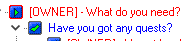
It's...not very visible especially on larger monitors which is a shame (better would have been to highlight the background of the text of that node).
| Command | Button | Notes |
|---|---|---|
| Highlight Comments |
| Nodes which have a comment on them under "Comments" in the bottom right. |
| Highlight Actions |
| Nodes which have a "Actions Taken" script assigned. Sadly you can't highlight ones with Text Appears When... (conditional) scripts. |
| Highlight Quests |
| Nodes which have a Journal set under Other Actions |
Highlight Animations |
| Nodes which have a Play Animation selected under Other Actions |
| Highlight Sounds |
| Nodes which have a Play Sound file selected under Other Actions |


Adding and Editing Dialogue Nodes
There are several buttons to use the conversation editor, and several keyboard shortcuts, as below. Note that anything done to one node will usually affect the entire tree underneath it unless specifically noted.
Note: With nodes there is no option to undo/redo. Instead this is reserved for text being edited into the edit boxes.
| Command | Button or Menu Option | Keyboard / Mouse | Notes |
|---|---|---|---|
| Add Node |
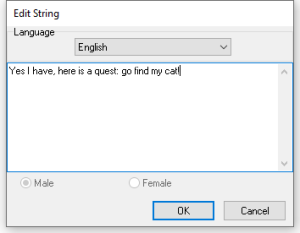
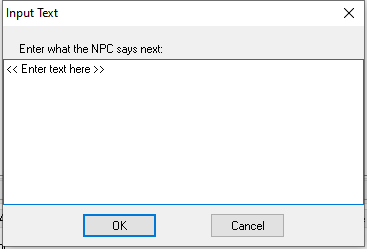
| Ctrl + A to add new node under current node | By default this pops up the box to input text:
If the option is off it'll add a node with << Enter text here >> in it you can edit at the bottom. You can have a blank node. It will appear as (Continue) with no dialogue assigned, which is useful when you have the NPC saying a lot over several boxes of text. Note that while you can have a lot of text in this box, in game it might start to get a bit dodgy with too much and eventually stop showing characters. |
| Copy Node |
| Ctrl + C to copy current node | |
| Cut Node |
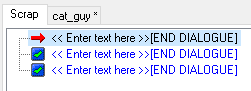
| Ctrl + X to cut current node | This has a special property; anything cut (rather than deleted) gets put into the "Scrap" tab, making it easy to recover:
Scrap nodes are lost when the conversation editor is closed. |
| Paste Node |
| Ctrl + V to paste at current node Right click node → Paste | |
| Paste As Link | Right click node → Paste as Link | By default this will create a link and not copy the entire tree, with Link Destination to Source, very useful for looping back on options as most dialogue trees will. See the Conversation Editor Options for how to toggle this and the option to have Link Source to Destination, which instead adds a link node to the original one you copied. This may be rarely useful to use. There may be a keyboard shortcut so please edit this in if it is found. If there isn't that's a bit of a pain. | |
| Drag As Link | Hold Ctrl and left click and drag node | This will act similar to Paste as Link but instead defaults to Link Source to Destination. You can change it to be identical to Paste as Link using the Conversation Editor Options. | |
| Move Node (and reorder) | Left click and drag node:
| This will move the entire tree underneath it as well. You can't move an NPC node where a PC node would be, or vice versa, so it drops it in the nearest available spot upwards when you do. | |
| Delete Node | Press Delete key | This deletes everything under the selected node. | |
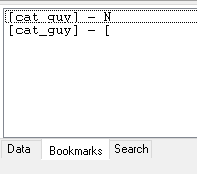
| Bookmark Node | Right click node → Bookmark | This will add the node to the list of bookmarks available as a tab at the very bottom of the editor, although it seems to be bugged and only shows the first letter of the node for some reason.
Bookmarks are lost when the conversation editor is closed. |




Testing Dialogue
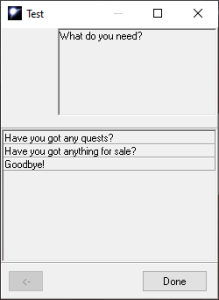
Right click any node and select Test to open up a very basic version of the conversation which looks similar to in game; this allows a quick traversal without the colours and so forth and with the PC dialogue options laid out perhaps better than the editor has.
Of course this test does no starting conditional Text Appears When... checks, instead of all options both PC and NPC are shown in the window (which can be a bit confusing).
At least NPCs who are tagged to do dialogue are noted under the window but not on the dialogue option choices alas.
Conversation Editor Options
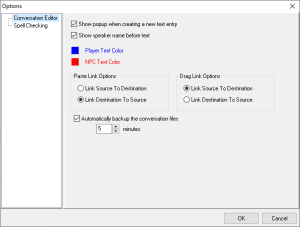
The options in the conversation editor are accessed using the Options button: 
| Conversation Editor | Default | Description |
|---|---|---|
| Show popup when creating a new text entry | On | |
| Show speaker name before text | On | When enabled it adds the square bracket [OWNER] or NPC tag to the NPC nodes. If disabled it removes it which may make it cleaner. |
| Player Text Color | Blue | Is bright blue not your thing? Change the colour here. |
| NPC Text Color | Red | Is bright red not your thing? Change the colour here. |
| Paste Link Options | Link Destination to Source | When you right click a node and do Paste As Link it by defaults links the destination to the source, but it can instead link the source to the destination. |
| Drag Link Options | Link Source to Destination | When you hold Ctrl and left click and drag node this occurs, which makes the source (you dragged) link to the destination (you have dragged to). You can toggle it to be the same as Past Link instead. |
| Automatically Backup the conversation files | On with 5 minutes | This auto saves the dialogue file (filename.dlg) to the module temporary directory. If the toolset crashes you can recover your work from this directory (by default called temp0 in the /module folder) |
| Spell Checking | ||
| All | The toolset doesn't seem to be able to load a spell checker file/this functionality is disabled, meaning this section might as well be ignored. |
Data Panel
The Data panel at the bottom contains the bread and butter text editing, scripting and actions the conversation can do:

Conversation Node Text Editor
The left hand side is always the conversation text editor panel. It has a few additional things worth noting however:
| Item | Screenshot | Function and Notes |
|---|---|---|
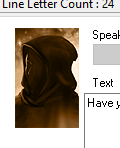
| Portrait |
| This default "unknown PC" portrait appears for PC nodes. The NPC nodes never seem to have this filled in which is a shame, presumably it was a planned feature which got cut from the toolset. At least it does make it more clear which person is speaking however. |
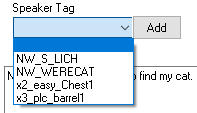
| Speaker Tag Dropdown |
| This is only available on NPC nodes, and will let a different NPC (which could technically be a placeable, door, or creature) speak a node of dialogue, useful for multiple NPCs conversing with themselves and the PC. Left blank it defaults to [OWNER] which is the object initiating dialogue. Note: There is a distance limit to conversations, around 20M or 2 tiles (from the PC), and so checking the NPC is nearby or moving them to be so would help this work correctly. The dropdown will auto populate with tags of objects in the objects current area, and any speaker tags on other nodes in the given conversation, but if you click Add you can select any blueprint in your module to act as a tag in case you're editing it without the creature being pre-placed in the world. |
| Editing Box |
| This basic area can input plain text. The format NWN uses is UTF-8. There are no text formatting options (eg bold, underlined, italics) but you can change the text colour; you can right click anywhere to Insert Token which is detailed below. You can use a basic undo (Ctrl + Z) here, although it only seems to save one thing - and if you undo something that becomes the thing to undo. If you want to use TLK strings instead, put a number in this box. |
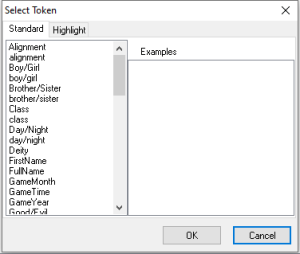
| Insert Token |
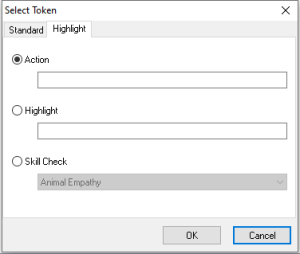
| This will allow tokens to be added where the current cursor position is in the text. These can be standard ones, such as "Hello <boy/girl>" under Standard, or more advanced ones that alter the text colour under Highlight. See also Conversations which goes into detail on all the tokens and how to do arbitrarily coloured strings. Note that you can just type the text in by hand - this is just a selector to make it easier. |
| Edit String in particular language |
| This allows text editing in different languages for the given conversation. It is quite clunky and really a better option is to supply a translated TLK file with your module. For multiplayer it's also limited to having the servers language be used. This won't need a TLK string number being put in since it's meant to replace that kind of usage. |
| Text Appears When... |
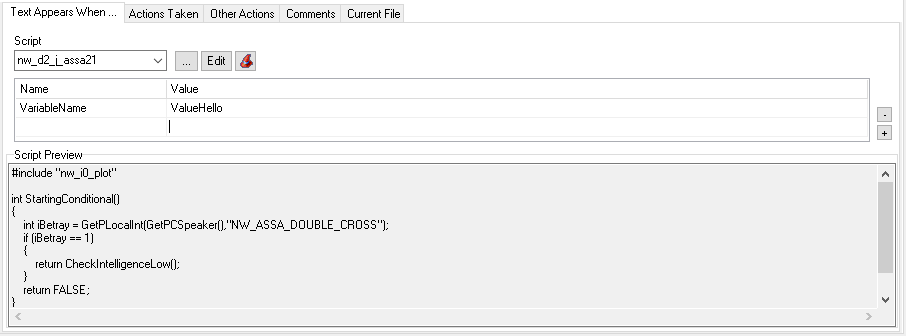
| This selects a script that starts with int startingConditional() which returns a True or False value. The script is run when evaluating whether or not to show this particular node. The two main use cases are:
NWN:EE added Script Parameters as well which allows arbitrary text script parameters to be added. A tutorial on this will be put elsewhere since it can get a bit in depth and but save you a lot of time reusing scripts. |
| Actions Taken |
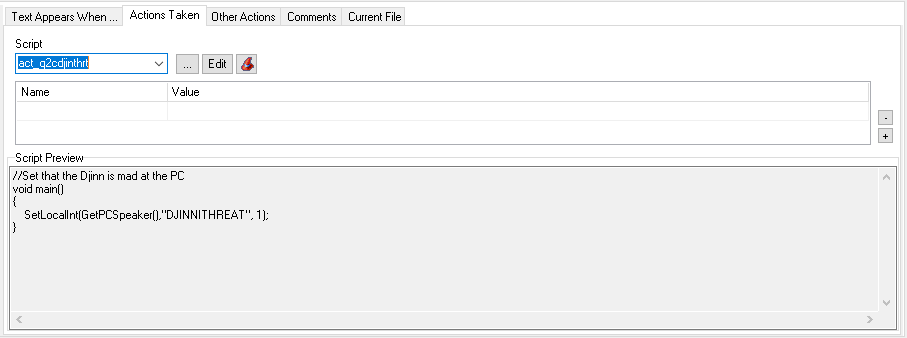
| This selects a script that is a usual void main() script that does an action when the node is said. When it is on an NPC node it will instantly fire when that node is loaded and text displayed to the player. When it is on a PC node it will fire it only if that particular choice is chosen. |
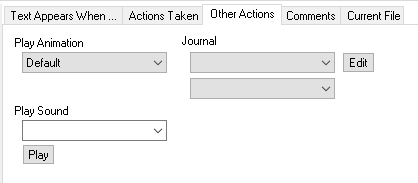
| Other Actions |
| These 3 options are time savers and bypass the need to use scripts for doing basic things in the conversation. Play Animation This will, for the current node owner (if it's the PC, the PC will do it), play the given animation. One off animations will go back to talking when the NPC starts talking again, and persistent ones can be changed back to talking using Talk Normal (the default one). Default just "keeps the current animation". Journal This allows you to select a journal entry and the state it should be set to. The Edit button opens the Journal Editor. Play Sound This will play a mono sound effect from the current node owner. This means NPCs can play dialogue files and PCs can play sound effects. If the node is quickly skipped the sound stops playing. |
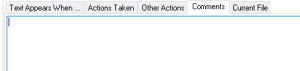
| Comments |
| A basic comments field for the current node. Describe what should be going on, put developer notes in, etc. - this will not be displayed to the player. |
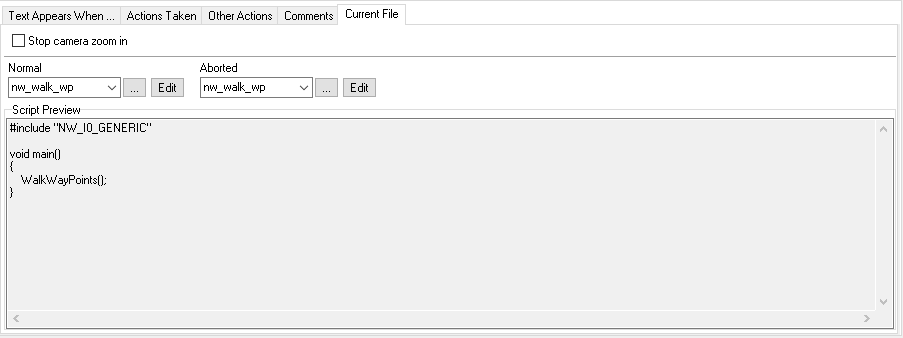
| Current File |
| These are options that affect the entire conversation as a whole. The tickbox for Stop camera zoom in allows you to stop the camera zooming in. Players can disable this themselves game-wide but it helps to disable this in many situations. The Normal and Aborted script options - which default to the nw_walk_wp file - are the scripts that fire when the conversation ends normally, and when it is aborted. Aborted states occur when the player unnaturally exits the conversation;
You can force a PC to stay in a conversation with cutscene mode, which disables escape (which goes instead to the "Cancel Cutscene" script which can also ignore it) and stops movement. The usage of each script event can differ on the situation:
|