-
Created by
 Jasperre, last updated on Apr 25, 2024
5 minute read
Jasperre, last updated on Apr 25, 2024
5 minute read
Some notes on editing icons for the NWN style. Shouldn't need general/DM/Emote icons.
Existing Icons Info
| Name | Icon | Rough Colour Codes | Notes |
|---|---|---|---|
Feat Domain |
| 7da8d1 | White and black contrast White fading into blue Domains are similar although just a different more square design with a rounded black border and the background is two toned blue. |
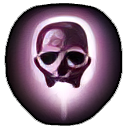
| Spell |
| 8b7486 (more drab) or 7c5574 To convert seems 3d2439 works well (61.4/35.8/57.2) | Similar contrast to feats Purple-ish colouring |
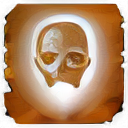
| Spell Scroll |
| White version applied to the scroll icon | This is the spell icon but made into a white form. Black is transparent. |
| Skill |
| Green similar to Good Effects | |
| Good Effect |
| 2dca25 or 45/201.6/37.5 when converting other icons with colorize | Project hasn't made these transparent (yet) |
| Bad Effect |
| Pure red for converting is fine | Project hasn't made these transparent (yet) |
| Class |
| Golden yellow |

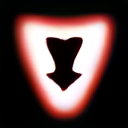

Colouring Icons
To edit a image to a certain colour first greyscale it (Colours → Desaturate → Mono Mixer).
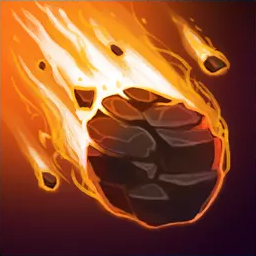
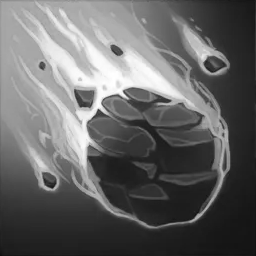
Then a rough 60% opacity Burn use of the Fill tool. You set to foreground colour with the right colour option as per above. Tweak to fit.
Alternatively you can use the Colorize option although sometimes the blacks change excessively with using it.
Then add the border ala Overhaul Icon Drop Shadow Workflow after removing bits with the magic wand. This may be easier done when black and white. Remember you can add areas to the existing selected ones to do two separately coloured but still relevant areas.
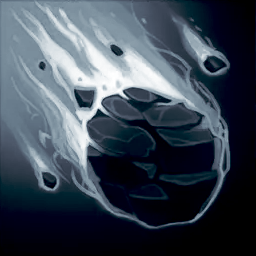
To get a version with a black alpha layer export with no background colours and set the background colour in the selector to black. https://www.gimp-forum.net/Thread-Change-transparent-color-to-white
Making Icons Transparent
Some notes above - magic wand and so forth. This is also a potentially useful method from here:
- Opened file with GIMP, Zoomed at it to see pixels better, Right-Clicked on Image, chose Layer, chose Transparency, Added Alpha Channel.
- Then pressed Shift+O to choose pixels by color, clicked on darkest pixel I could find, and Deleted the dark area that cropped up. Selected by color another dark color pixel: if you think it'll still be too dark, remove the area again via Delete (and so on until you think they are transparent enough); if you want it to have a darker aura on the background, then stop at that.
- Either way, chose the darkest pixels that you do not want to remove, then proceed to Filter, Blur, Gaussian Blur and see how blurry you'd like it to be (I opted to have both numbers by 2.00).
- Save and use.
Spell Scrolls
This is based off only having a purple spell icon. For a new icon I'd expect there to be a suitably white source file used to generate it and the spell icon so they're identical.
| Icon | Step Actions | Notes |
|---|---|---|
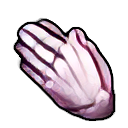
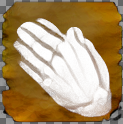
| Start with normal icon (transparent of course since we have them already like this) | |
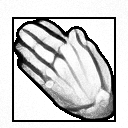
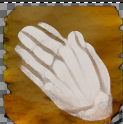
| Convert the purple icon to white, with Color → Desaturate → Colour to Grey | |
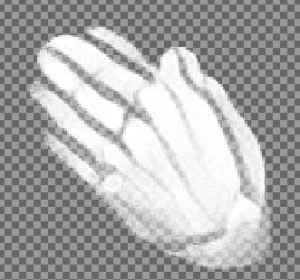
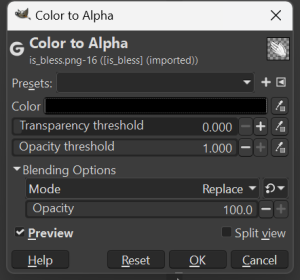
| Make all the black/grey left over into alpha with Color → Color to Alpha selecting the Color as pure black.
| |
| Get the blank scroll background. | This was upscaled previously/separately: iit_scroll_001.png This scroll icon is slightly different tone to the actual spell scroll icons so need to remedy this (Also there is an erroneous upscaling error in the bottom right). |
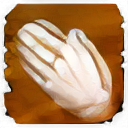
| Add the now white image to it. Note to make it fit better lowering the opacity of the layer with the scroll icon on it might be a good idea. At 60% it looks a bit better and more in line with the Bioware icons. Might need to tweak to look semi-similar. | As a comparison here is the upscaled Bless spell scroll. Note the slightly different texture - evidently some tweaking may be needed for better results.
|