-
Created by
 Jasperre on Apr 02, 2022
6 minute read
Jasperre on Apr 02, 2022
6 minute read
The latest version of Cleanmodels EE has a "scale" option. While perhaps not as perfect as editing the model in blender or 3DSMax, epsecially if you have the original source, it is a great way to do simple model changes with little to no effort.
For this tutorial we require:
- A decompiled ASCII model - Cleanmodels can actually decompile things but do this step first and have the MDL file somewhere handy
- The model should use animations from another model - ie has a valid setsupermodel line - this process has only been tested when having such a line and setanimationscale is used to scale the animations
- If the animations are embedded it might work still feel free to edit this if so!
- Your copy of appearance.2da will need editing so get that loaded since we are editing a Dragon!
- For placeables you'll also need to rescale the walkmesh aspect if necessary, and add a new placeables.2da line - a little simpler at least
You can skip the decompile step below if you already have the model in ASCII.
Source Model Preparation - Decompilation to ASCII
First of all you need a text ASCII model to use which is safest for this process - most models in the game are compiled however.
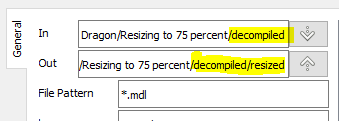
Once you have the ASCII model, open the folder it is in using the Input button, and set the output folder to something different, in our case adding a "/resized" folder. Your model should appear in the bottom panel.

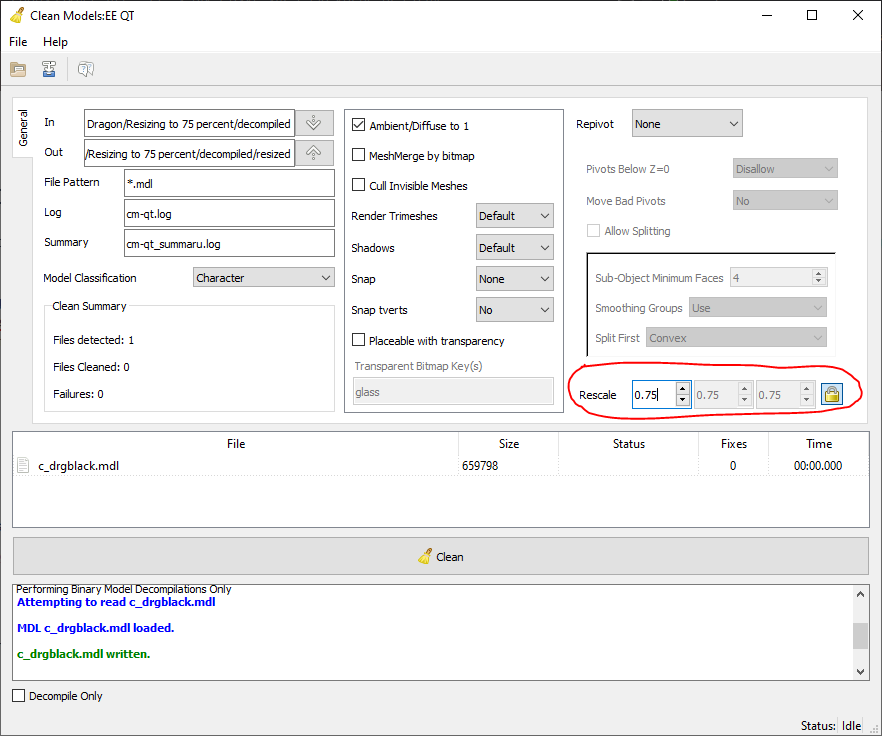
Now select the right rescale option, in this example we'll use 0.75 scale. This can be larger (eg: 1.5) or smaller, but smaller you go you might get issues with it being a complex model at a tiny scale, while the larger you go textures will become blown out and animations potentially wonky.
 2
2
Note I have made sure the middle section is mostly left as-is although I have "Cull Invisible Meshes" unticked. Note that even with that unticked and the rest set as default it will still do some kinds of "cleanup" on the model; due to lack of documentation this might cause issues and will say so usually in the log if so.
The left hand side also has a "classification" option - we're rescaling a dragon so it's a character. Placeables and Item models are also characters, but Doors get their own classification. You can leave it on Automatic or force it to be one of the options like I have.
Now you can hit Clean at the bottom and watch the log output which should say in green the file is written fine:
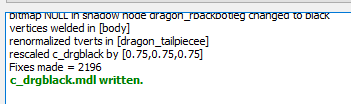
Now you have a valid MDL file. This one will need renaming and then we can try it out with a new appearance.2da line.
Rename the MDL
You should usually rename the model - we have called the new one c_drgblack_l.mdl to designate it as "large" - don't have this name be more than 16 characters.
Then open the file in Notepad++ or similar and do a find/replace to update the model name, specifically we search for "c_drgblack" and replace it with "c_drgblack_l", so it looks at the top something like this:
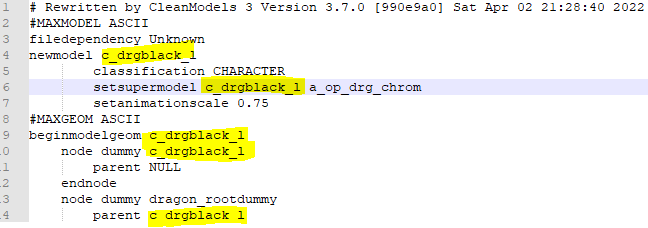
NOTE: You might replace bitmap references (eg: "c_drgblack" might be referenced in my example (it isn't but it might be)) therefore be careful to double check and revert any changes to the bitmap or texture0 lines as needed (go through each change one by one if necessary).
Basically: if you did rename it the model may appear white in game making it obvious, either duplicate the texture (maybe more appropriately scaled) or rename the references back.
Save it and close the file. You can also note the "setanimationscale" has been auto-adjusted to 0.75 by the program.
appearance.2da edits and Testing
In our case the 75% scaled Dragon needs a new appearance.2da line.
This is important since we're basically scaling it down one "size" from Huge to Large. This means altering the hit box and attack distances so it functions properly (you're not too far or too near it in combat). The example should show however that altering these values isn't scary and you can adjust them later if need be. Without it you get this where the dragon in my example is far away even with long attacks! looks very silly.
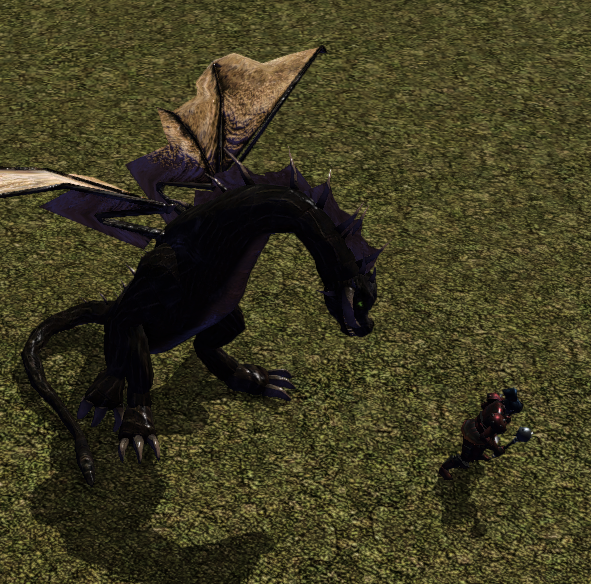
If you follow the basic introduction to adding custom content there is a second on 2da file extraction - use it to extract the appearance.2da file.
For now put this appearance.2da file along with the new resized mdl file into your Neverwinter Nights\override folder
First fine your original model line, in our case it's line 41, "Dragon_Black": The 5th column is how you'd find it - c_DrgBlack is the model name.

We copy the line then go somewhere else, eg I've used line 900. We start by editing the first few columns to represent the new model reference and name of the appearance - by blanking out the column which had "2023" in it (the STRING_REF column) you can use the Label column instead. Finally we can edit the comment field (just adding _large) and the model reference - the most important part - to c_DrgBlack_l

      LABEL                                    STRING_REF NAME                      RACE
900   "Dragon, Black (Large)"                  ****       Dragon_Black_large        c_DrgBlack_l
Next we need to edit in the changes to the combat and walking/movement parts. If you want to know what does what here see appearance.2da for more details. Note the Height value can usually be left alone, since this is a huge dragon "1M" for height is fine.
Since we reduced the size by 75% we can just take the original values and multiply them by 0.75. The "MOVERATE" can be altered as well to "NORM" for a slightly slower rate (see creaturespeed.2da for references).
Note 0.75 * value isn't exactly perfect but hey, give it a try and then adjust by hand as needed.
Original values:
MOVERATE WALKDIST RUNDIST PERSPACE CREPERSPACE HEIGHT HITDIST PREFATCKDIST
FAST     3.33     6       1.1      2           1      1.1     3.3
New values:
MOVERATE WALKDIST RUNDIST PERSPACE CREPERSPACE HEIGHT HITDIST PREFATCKDIST
NORM     2.4975   4.5     0.825    1.5         1      0.825   2.475
Finally we alter the "SIZECATEGORY" column and set it to a lower value, these reference Creature Size values of 1 through 5 only - 5 being huge, 4 large, 3 medium, 2 small and 1 tiny. We want 4 - large.
SIZECATEGORY
4
The final line copied into code is as below:
900 "Dragon, Black (Large)" **** Dragon_Black_large c_DrgBlack_l **** G S **** 1 1 1 NORM 2.4975 4.5 0.825 1.5 1 0.825 2.475 H 1 5 1 1 po_DrgBlack 4 10 2 22 0 60 30 Dragon_head 3 1
We now load the toolset and find the appearance to test it:
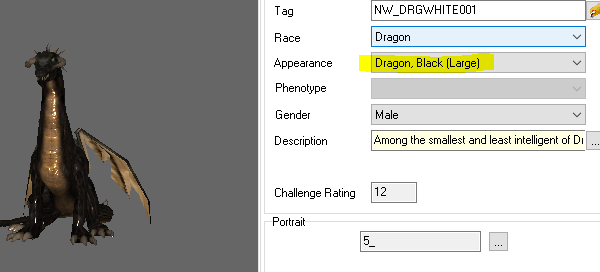
If you can't find it then, check the appearance.2da line entries and make the label column unique (eg; add your initials or some other identifier). Since the model in the viewer is resized to fit it won't really show much of a difference until we place it down:
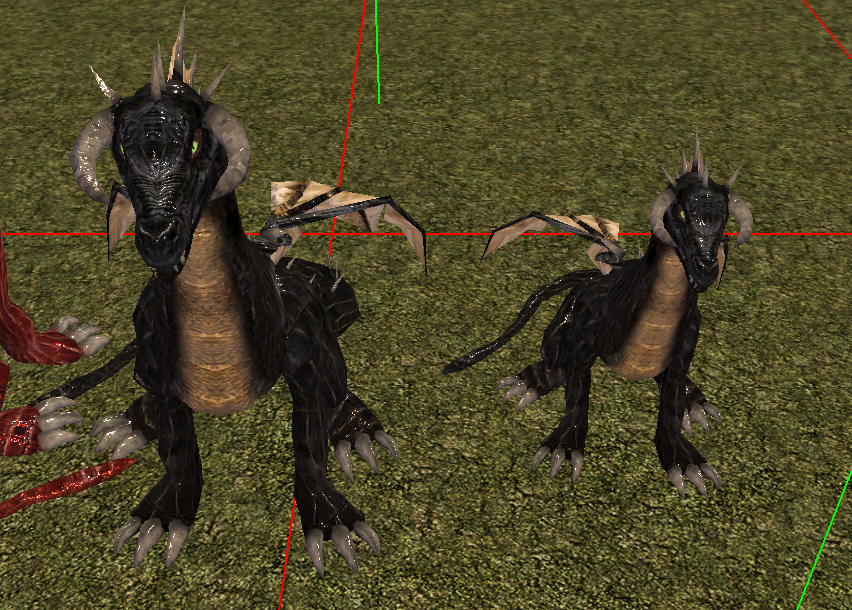
Finally test it in game and check the animations look ok and the sounds like footsteps sync up properly: