-
Created by
 Jasperre on Mar 06, 2022
7 minute read
Jasperre on Mar 06, 2022
7 minute read
This follows on partially from Introduction to Adding Custom Content to a Module. You should at least understand what files are involved in custom content before reading this.
Introduction to Hakpacks
The game has 3 core ways for you to develop your module with new custom content; the initial tutorial details how we use the Override folder to test a new placeable. The Development folder is similar, but for more interactive custom content edits (eg testing new textures, models or scripts). This tutorial won't cover those folders.
The third way are Hakpacks which have the extension hak (detailed information here), which are generally how custom content is supplied to users - or if using nwsync then how it is generated for the nwsync repository.
Hakpack Content
These contain almost any kind of custom content the game has (in NWN:EE which this focuses on) however it is recommended that anything in a module file is left out of hakpacks due to them being loaded as a higher priority. IE: don't add scripts, dialogue, areas, or blueprints of things to hakpacks.
Therefore the main content in hakpacks should be things like models, textures, 2da data files, sounds, music and tileset files.
Hakpack Limitations
The main limitation you should be aware of is that each hakpack must be no more than 2GB in size (2048MB). However you can have more than one hakpack attached to a module. The order may be important since only one file of the same name will be loaded by the game or toolset at once.
There used to be a limit to the amount of files but this is now in the millions so not really ever going to be reached - generally this limit affected moduels more than hakpacks, which had tends of thousands of blueprints, scripts, etc. If you do have a lot of small files you might need to use alternative tools to create or read the hakpacks.
Creating a Hakpack
If you have some hakpacks you want to just add to your module you can skip this section.
To start with make sure you locate the nwhak.exe file in your game directory - this will be the most up to date and allow newer formats to be added. It is located in the path install path\Neverwinter Nights\bin\win32
Secondly you need some files to add. The example files from the previous tutorial will work fine, move them to a folder somewhere outside of the Neverwinter NIghts folders first:

Make sure your files all have lowercase names! you could otherwise accidentally add two of the same file - and you won't know which one will be loaded.
It is a Windows only application but should run under WINE fine on other operating systems. Opening it looks like this.
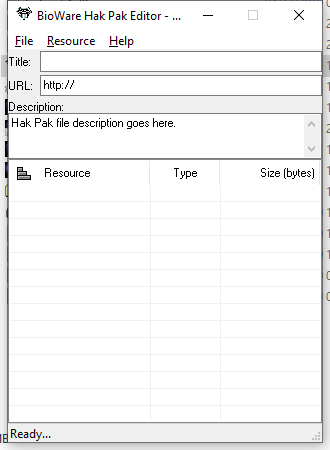
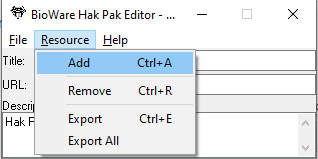
You can optionally add a Title and URL - these are not used by the game - and then add the resources to your hakpack by drag and drop or Resource → Add.
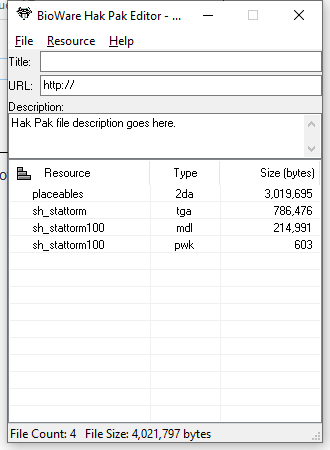
This results in this view:
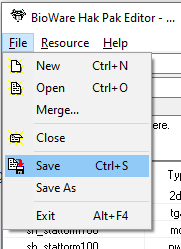
Now you can save this hakpack using File → Save or File → Save As.
You must have a file name which is 16 characters or less (excluding the extension). It is also recommended to make the hakpack name all lowercase so operating systems like Mac and Linux don't have 2 versions of the same hakpack available.
We'll save it as statue_torm.hak into the Documents hak folder:

You also should note at this point that hakpacks are uncompressed. If you distribute a Hakpack with your module be sure to zip it all up (7zip being recommended).
You should close nwhak.exe since this will keep the hakpack file "open" and locked.
Loading Hakpacks in a Module
Now you have a hakpack! So now what?
Well the module needs to reference this hakpack to load it in the toolset and in game.
Open your module (making sure to close nwhak.exe) and go to the Edit → Module Properties and the Custom Content tab, which should be blank:
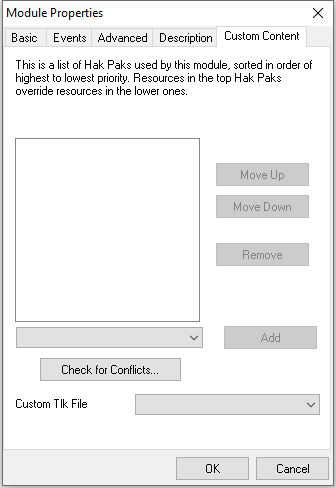
You need to add a Hakpack using the drop down selector. If you have lots of hakpacks in your hak directory it might be worth removing them temporarily if the dropdown doesn't work well. In our case we have one hakpack available so we select it:
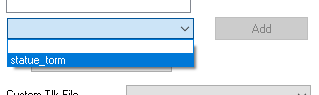
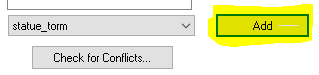
Once selected you can hit Add:
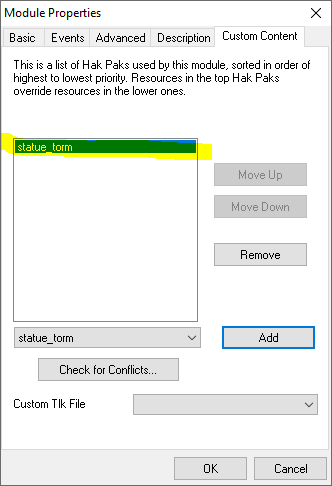
It now has appeared in the list:
Now you will be asked to save and build the module to access the new content:

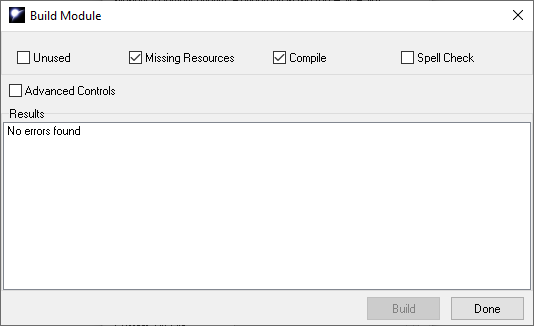
The build should show no errors:
You can save your module, and check it has worked. In our example module - making sure the override folder is now empty, you should be able to find the statue appearance:

Place it down and test in game and it should also work:
Now
Advanced: Removing Hakpacks
Advanced: Hakpack Conflicts
If you've added more than one hakpack from different sources you can use the Check for Conflicts... button which will list what files are in more than one hakpack and what files override base game content.
Since a lot of hakpacks intentionally override the base game content (especially 2da files), that part may not be very useful, but in the bottom left is a more useful "conflicts" panel. Testing with our new statue hakpack it properly says only one file overrides a default game file and since we have only one hakpack no files conflict. If you have conflicts this might cause issues - eg; an expected model appearance is wrong, or some appearances for placeables or creatures are not appearing due to more than one 2da file.

Editing Hakpacks Later
So you have a hakpack but want to make some changes, what do you do?
There are a few options:
- Create the hakpack again from scratch using a nice safe source folder you keep up to date (which could be your override folder even) which safely means the files are already unique and you've made all the merges (eg 2da edits) you need safely
- Update the existing hakpack by simply opening in in nwhak.exe and dragging over new files onto it. This will override (irrevocably) any clashing files so be careful and this is not a recommended way to do things.
Make sure you always back up your work to somewhere external to your Neverwinter Nights files regularly. Zipping the module file and hakpacks onto Dropbox, One Drive or Google Drive is the best idea unless you make a larger module in which case consider source control and tools like Nasher.
Merging Hakpacks
Another thing that might occur is you have more than one hakpack that you want to combine, into your own custom one. There are two options:
- You extract the hakpacks you want to merge into a folder, and generate a new one. The nwhak.exe program has an option under Resource → Export All. Then you create a new hakpack with the files from each hakpack you want to use.
- You use the nwhak.exe File → Merge command to open a second hakpack to merge with the currently open one. If any files clash they will be overriden irrevocably so this is a fairly risky way to do it and may break things so it is not recommended to use this option.
Note that in most cases you will have to manually merge 2da files together. These are large text files as discussed in Introduction to Adding Custom Content to a Module and if any lines conflict you'll have to manually update them.
End of Tutorial
This covers the majority of work to do with hakpacks. Advanced topics can include using hakpack files