-
Created by
 Buddha on Nov 02, 2023
6 minute read
Buddha on Nov 02, 2023
6 minute read
This tutorial will step you through the workflow I use in 3ds Max to resize existing cloak models for new Custom Dynamic Races. The steps listed in the workflow below should apply in any modeling program, though terminology in Blender and location of options may vary.
Anatomy of a cloak
There are 7 base game cloak models that each can use multiple PLT files, (unlike other phenotype parts) meaning that effectively you get all 16 options in cloakmodel.2da at the cost of resizing 7 models. This works because cloaks are textured via a plt file called from the TEXTURE column which is applied to the model in the MODEL column.
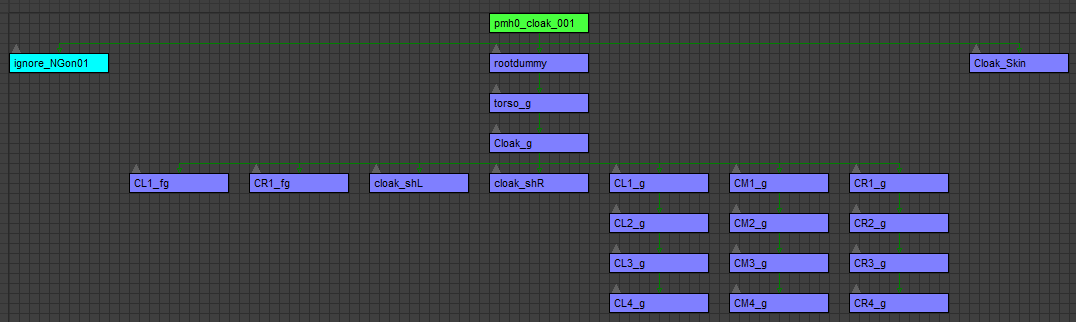
The cloak model consists of a structure of 17 bones and one skinmesh that includes the torso_g and rootdummy in the hierarchy. It has no unique animations and has an animation supermodel of the basic phenotype model for the race it is intended for use by. So for a human male cloak model, the animation supermodel is set to pmh0. This means that there isn't a way to add new bones to a cloak without also adding them to the supermodel chain or creating all game animations for them in the cloak model itself.
Workflow & considerations
Knowing how the cloak is put together allows us to develop a workflow to make them for any new Custom Dynamic Race. If you're lucky, your new custom race is simply a straight scaling factor away from human. But let's assume you're me instead and pick something slightly harder. For science. Here are the overarching steps, hopefully agnostic to modeling program, that you'll do once for each of the robe models:
- Import the human version of the cloak model.
- Human is typically the standard to start with unless your custom race has longer arms or torso; fortunately with cloaks that is not really an issue.
- Select the skinmesh and save the envelopes/weights.
- The stock Bioware weights of bone to skinmesh are pretty good and don't need tweaking, so let's keep those.
- Delete the skinmesh modifier from the actual cloak mesh.
- Deleting the skinmesh modifier deletes the envelopes and weights from the actual mesh, allowing us to scale it properly.
- If you don't do this, the weighting will "remember" the old scale and you won't be able to resize it properly.
- Scale the whole model by the anim scaling factor or adjust it by hand.
- The quick way is to grab the animation scale from the base model if it uses pmh0 as the supermodel.
- If you don't have that, write down the first one by hand and use those scaling values for the remaining 6 cloaks for consistency.
- Adjust the bones if they clip your model.
- If your modeling program didn't preserve the IK chains, add them from the top to the bottom to keep the bones positioned well relative to each other.
- Adjust at the vertex level to get the fit.
- In the case of kobolds, the digitigrade lower legs make it so that the legs clip through the cloak when it is positioned properly on the neck, so some adjustment is required at the vertex level.
- Don't delete or add vertices or go too crazy on moving so that vertices swap positions in any axis.
- ResetXForm or apply transforms when you're done with this.
- Add the skinmesh modifier and load the envelopes you saved.
- This is why we don't want to delete vertices in the step above – we want to reuse the stock asset skinmesh envelopes and weights.
- Select the model base, rename it to your phenotype, and change the supermodel to the correct phenotype model.
- The phenotype model you create must have the 17 cloak bones with animations for it to work properly.
3ds Max example
- Import the human version of the cloak model.
- In NWMax+ rollout, expand NWN MDL Loader, Browse to pmh0_cloak_001 and select it, then click Import.
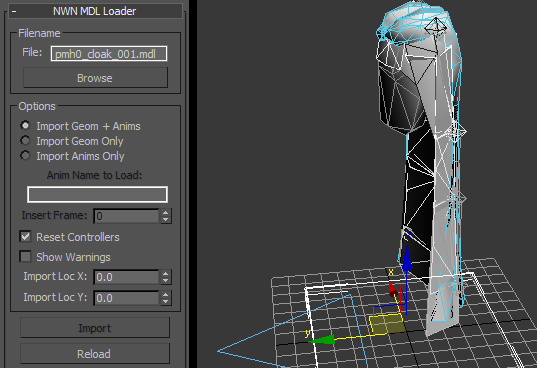
- Select the skinmesh and save the envelopes/weights.
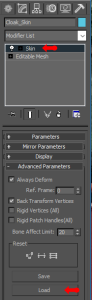
- Select Cloak_Skin, click on Skin in the Modifier stack, and expand the Advanced Parameters rollout. Save your envelope as pmh0_cloak_001.env. This saves the weights that are already applied to all vertices.
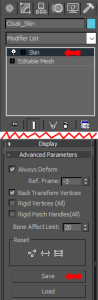
- Delete the skinmesh modifier from the actual cloak.
- Right-click on the Skin modifier and select delete. This leaves you with a standard Editable Mesh that is simple to resize.
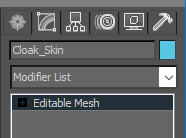
- Scale the whole model by the anim scaling factor or adjust it by hand.
- In 3ds Max, this is most easily done with the NWMax+ Scale Wizard under the General Utils rollout. For kobolds, the animation scale to human is 0.58, so we select the model base and in Scale Wizard we set the value to 58%, then hit the Scale button.
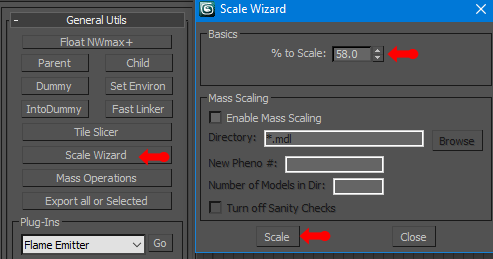
- Adjust the bones if they clip your model/Adjust at the vertex level to get the fit.
- The best way to do this is to import your new creature's meshes in the default pose using Import > Merge from an existing .max file so that you can "shape" the cloak around it properly and substitute your new creature's torso for the one in the model (making sure it is not set to render or cast shadows). There will likely be naming conflicts, so rename your new creature's base meshes on import – you can change them back when you're done.
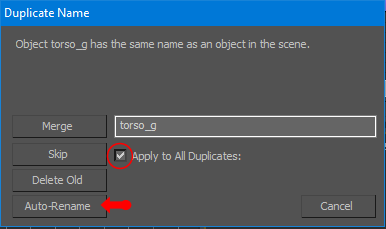
- To get the alignment right, import the whole chain from the model base > rootdummy > torso. Delete the old torso, break your new torso out of the hierarchy of your model, and put it in the place of the old one, relinking all the cloak bones. After swapping your creature's torso in for the old one, it should look like this:
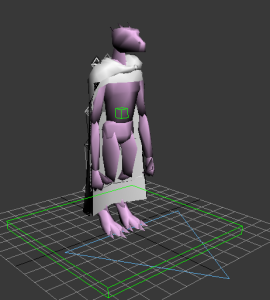
- Note that the rest of the body meshes for the kobold are still in the scene, but they aren't in the hierarchy. They're just there for us to model around.
- Because of the digitigrade legs, scaling isn't enough here – the bones and the cloak mesh clip the legs. I select the row of bones second from the bottom (CL3, CM3, CR3) and move them back; they cause the cloak to "swing" backward from their top edge because the IK chain is intact.
- With the bones out of the way, I then adjust the actual mesh of the cloak backward by moving some vertices. This is done by selecting the Cloak_Skin mesh, expanding Editable Mesh in the Modifier stack, and selecting Vertex.
- Once done, select all bones and the mesh and ResetXForm on the NWMax+ Mesh Tools rollout. The result (with the bones hidden) looks like this:
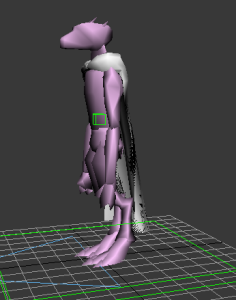
- Add the skinmesh modifier and load the envelopes you saved.
- Select the Cloak_Skin mesh and in the Modifier stack, select the dropdown and pick Skin.
- Under the Advanced Parameters rollout, select Load and load the .env you saved back onto the cloak mesh.
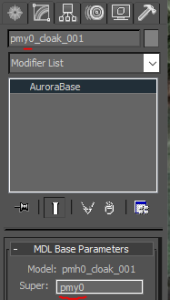
- Select the model base, rename it to your phenotype, and change the supermodel to the correct phenotype model.
- In this example, the base phenotype model with cloak bones and animations is pmy0.
- Export, test, and profit.