| Table of Contents |
|---|
Tracy is a builtin profiler inside the game. This profiler allows you to answer performance and profiling questions on both clients and servers; like:
...
Once you have performed the activity to investigate, switch back to the running Tracy.exe, click the Connect icon ( ) in the top left, and click Stop. The timegraph will finish populating, and you can start navigating the UI.
...
The UI has a few major components:
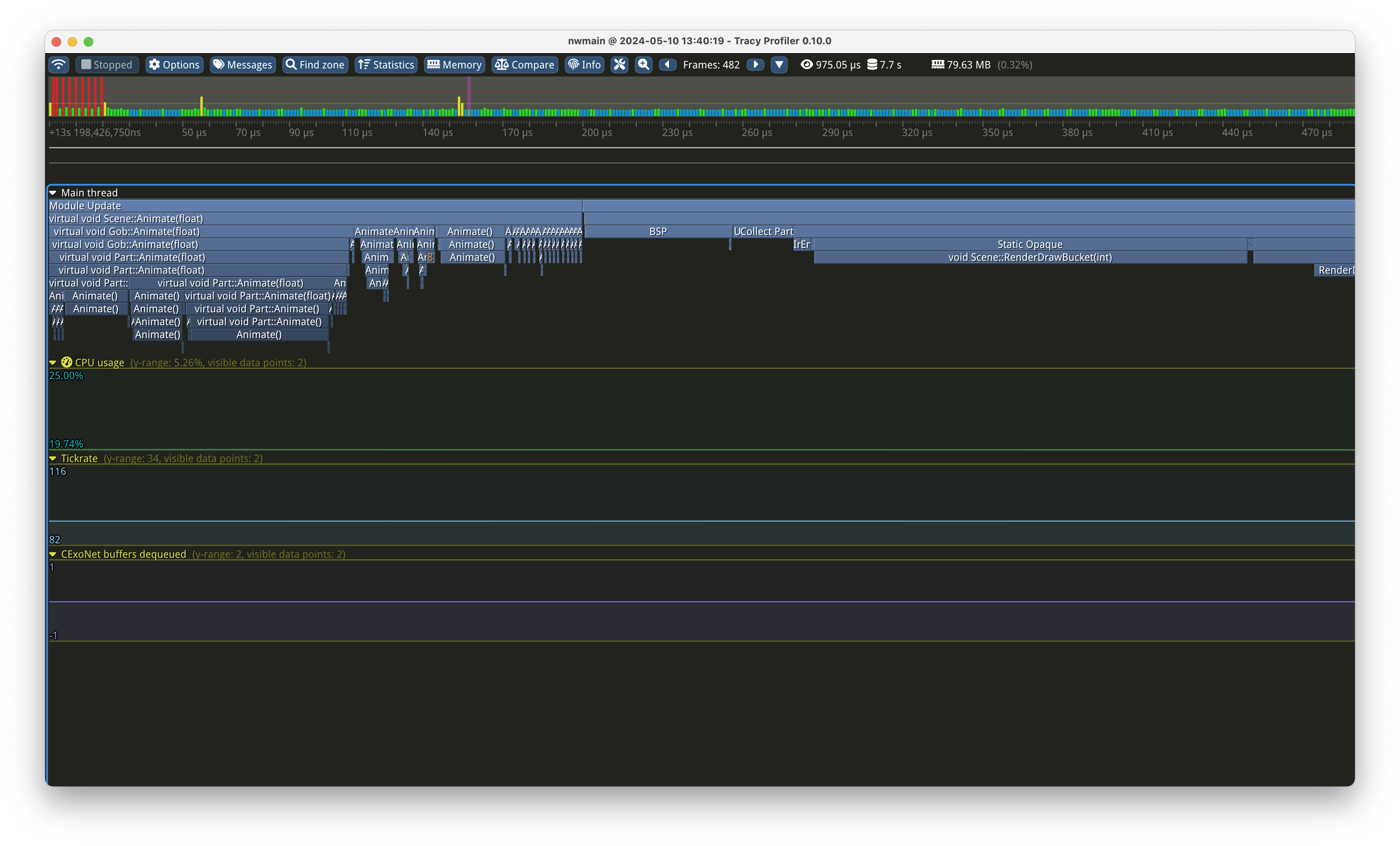
The timegraph
.. is the big per-frame display in the middle of the screen. It is best navigated with the WASD keys to scroll and mouse wheel to zoom. It is grouped for each frame that has happened during your capture; and each frame is split up in a tree-like hierarchy into all the tracepoints that have been hit.
...
You can even zoom into individual zones to see exactly what is being spent time on:
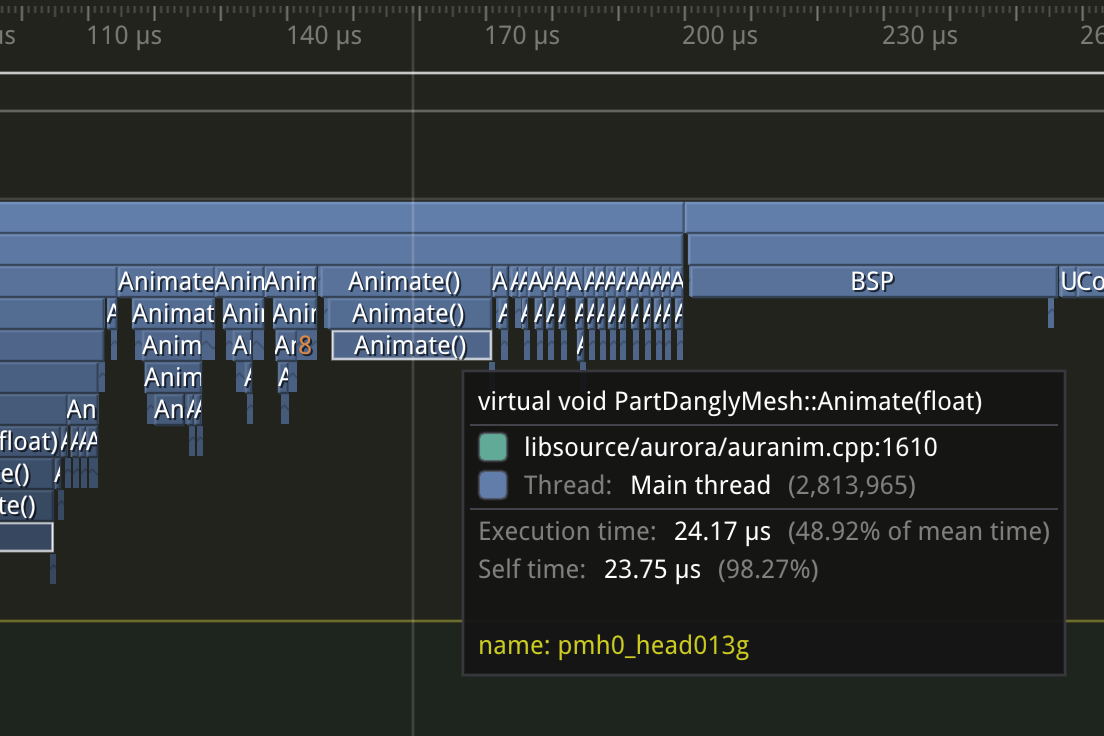
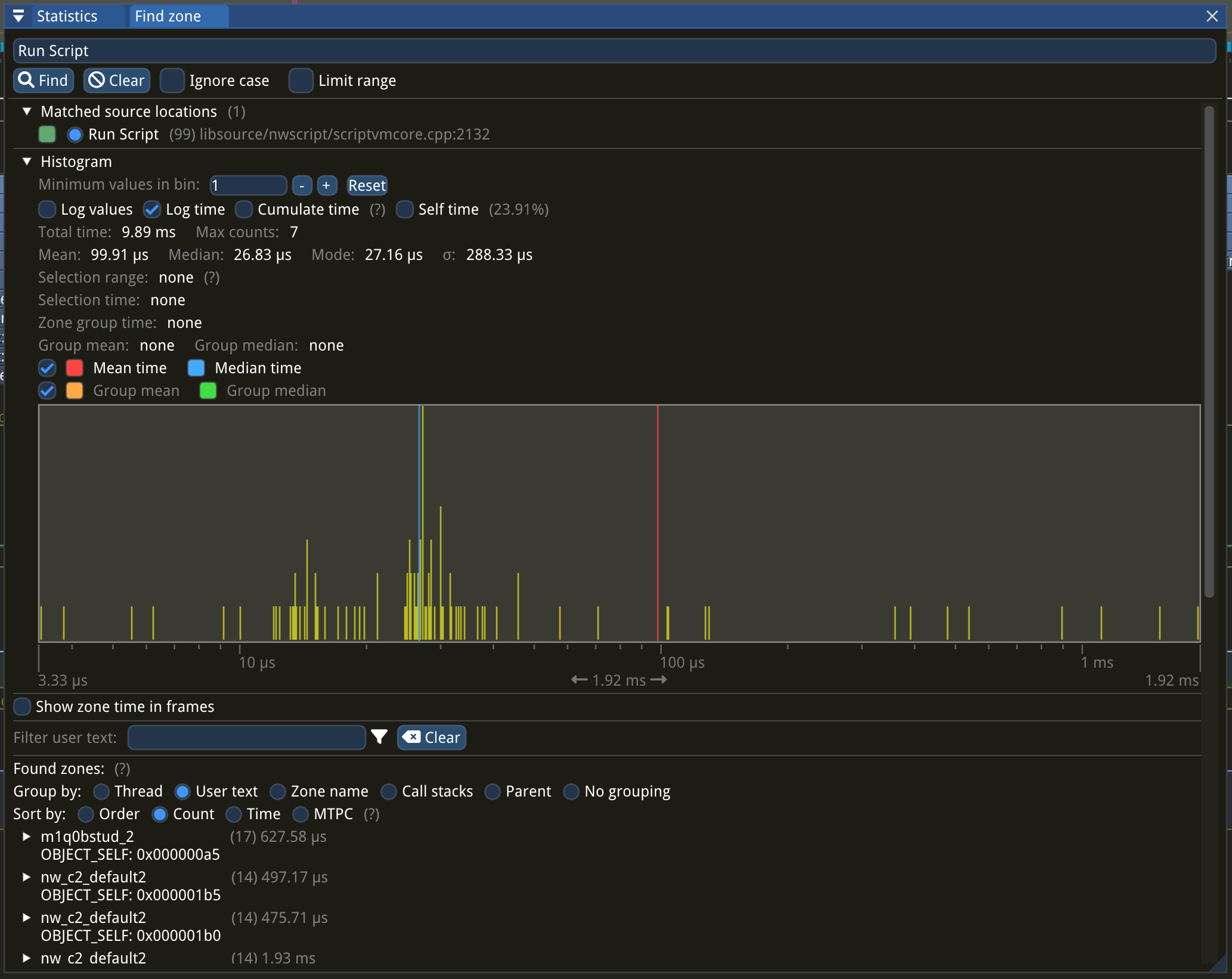
Clicking individual zones (e.g. a box in the timegraph) brings up the statistics for that zone. You can see all invocations of it, and optionally group it by various factors such as user text.
...
At the bottom of the Statistics panel, for each zone, you can group by User text. This is text provided by the game engine and usually contains the object or file the zone event is related to.
Memory
Memory and allocator statistics are not yet implemented.
...
NWN developers might ask you to perform the above steps to collect analysis data. Once you have collected such a trace, just click the Connect icon again, and click Save trace. Save your trace to a file and pass is to the developers.
...