This Toolset User Manual is a brief overview of the controls and usage of the toolset with controls, shortcuts and toolbar explanations.tocintended to cover what each part of the Toolset does, with a full list of documentation on commands, shortcuts, and anything that is broken/to be wary of. See the subpages for specific coverage of different Toolset topics.
| Table of Contents |
|---|
Toolset Notes
The Aurora Toolset runs primarily on Windows. However some users have success running it through WINE on Linux and OS X.
Note that even with NWNE:EE the toolset is a rather older 32 bit application compared to the updated game itself (which is 64 bit and had several revisions of tooling on it), so some tips for using it:
- Save often and make use of tools like Nasher to save revisions of modules and the ability to working versions
- Using F9 to launch the game can sometimes cause issues, so if it does, use noted alternatives
- Windows 10 and 11 introduce GUI scaling, however the toolset tends to prefer increments of 50% so 100%/150%/200% etc. else icons disappear and other oddities may occur. If you need to use some odd amount you can override it in the EXE properties ("Override high DPI scaling behavior. Scaling performed by: " set to "Application").
- Even though it is older it does use a compatible renderer that NWN:EE uses thus supports some shaders and the updated amount of model bones etc. however it might not work correctly on the non-primary monitor.
Toolset General
The toolset is a Windows 32bit application located in Install Path\bin\win32\nwtoolset.exe - it runs an old school Windows GUI (this mainly means you can't, for instance, open two creatures properties at once, or have the journal and conversation editor open at the same time). You can run it under WINE or similar applications on Linux but it is not full proof; always make constant saves.
...
For instance, create a new module called "my_mod" it generates a new temp0 folder, a my_mod.mod and my_mod.BackupMod file when it is saved. If you rename the temp0 folder to be exactly "my_mod" and go to Open it again, it will popup with a prompt; "A directory with the same name has been found. Do you want to open this directory as a module?" answer Yes and it doesn't need to unpack the .mod file. This option can be set as the default way to open a module in the Toolset Options.
New Modules
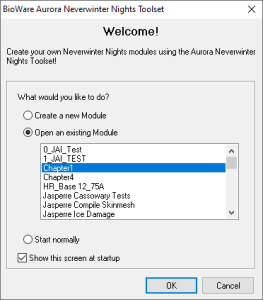
By default the first menu popup contains options to create a new module, open an existing module or "start normally" which basically does nothing. Select the Create a new module option or when in the toolset usually press the Create a new module icon on the toolbar  or go File → New or use the keyboard shortcut Ctrl + N.
Any of these opens the Module Creation Wizard.
...
Open Modules
The menu which opens by default is a good way to open modules usually. Alternatively use the Open Module toolbar icon  or go File → Open or use the keyboard shortcut Ctrl + O.
You can pass the full path and name of a module file and it will load it directly, useful for shortcuts to the main module you want to open: nwtoolset.exe "C:\folder\module name.mod"
Saving Modules
To save your module press the Save toolbar button  or go File → Save / Save As, or use the keyboard shortcut CTRL + S. The keyboard save command is the top left "save" icon or CTRL + S. This save shortcut is the same in the Conversation Editor and Script Editor.
...