...
The UI has a few major components:
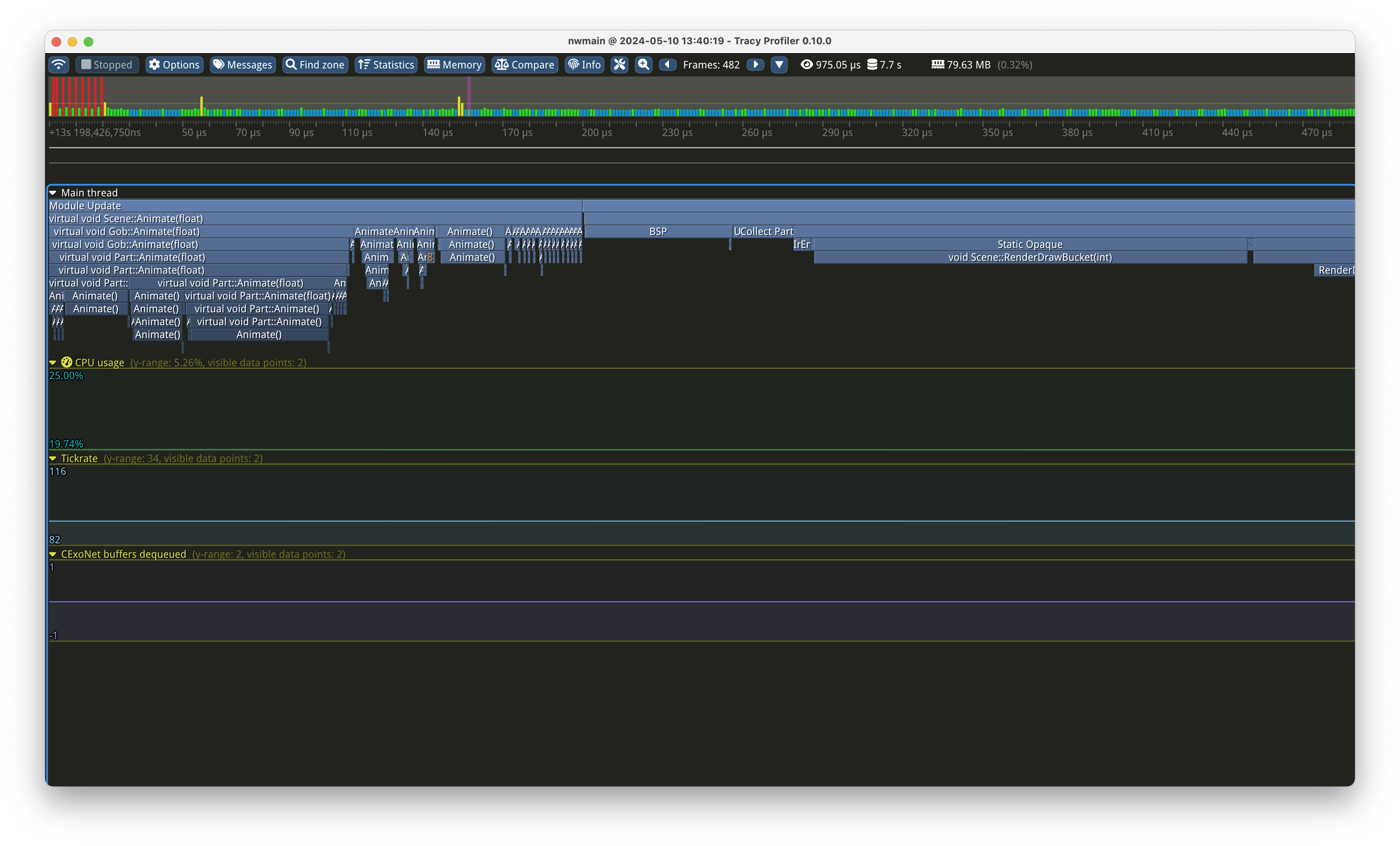
The timegraph
.. is the big per-frame display in the middle of the screen. It is best navigated with the WASD keys to scroll and mouse wheel to zoom. It is grouped for each frame that has happened during your capture; and each frame is split up in a tree-like hierarchy into all the tracepoints that have been hit.
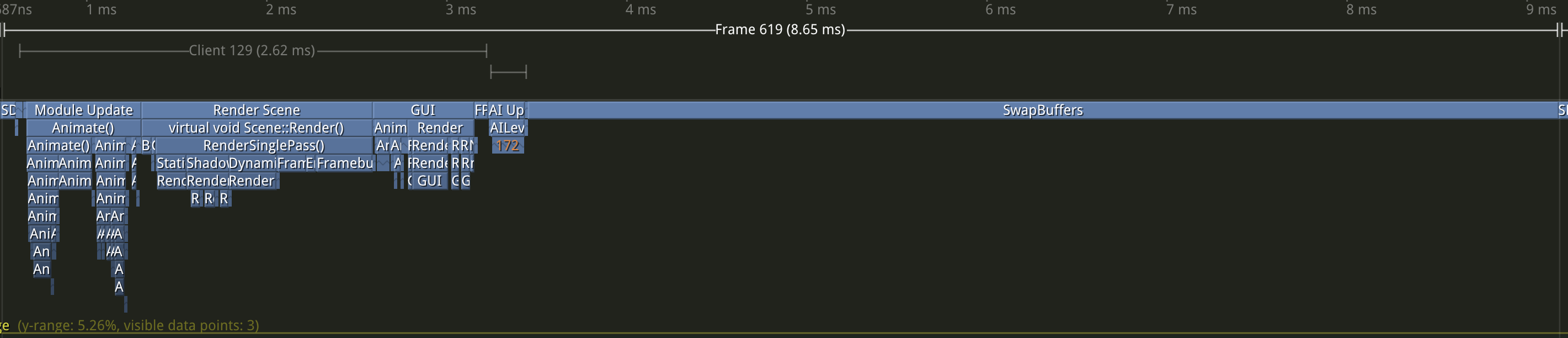
This is what a single frame on a client tracy run looks like. You can zoom into each frame individually (this is very useful if you see "lag spikes" or bad FPS):
You can even zoom into individual zones to see exactly what is being spent time on:
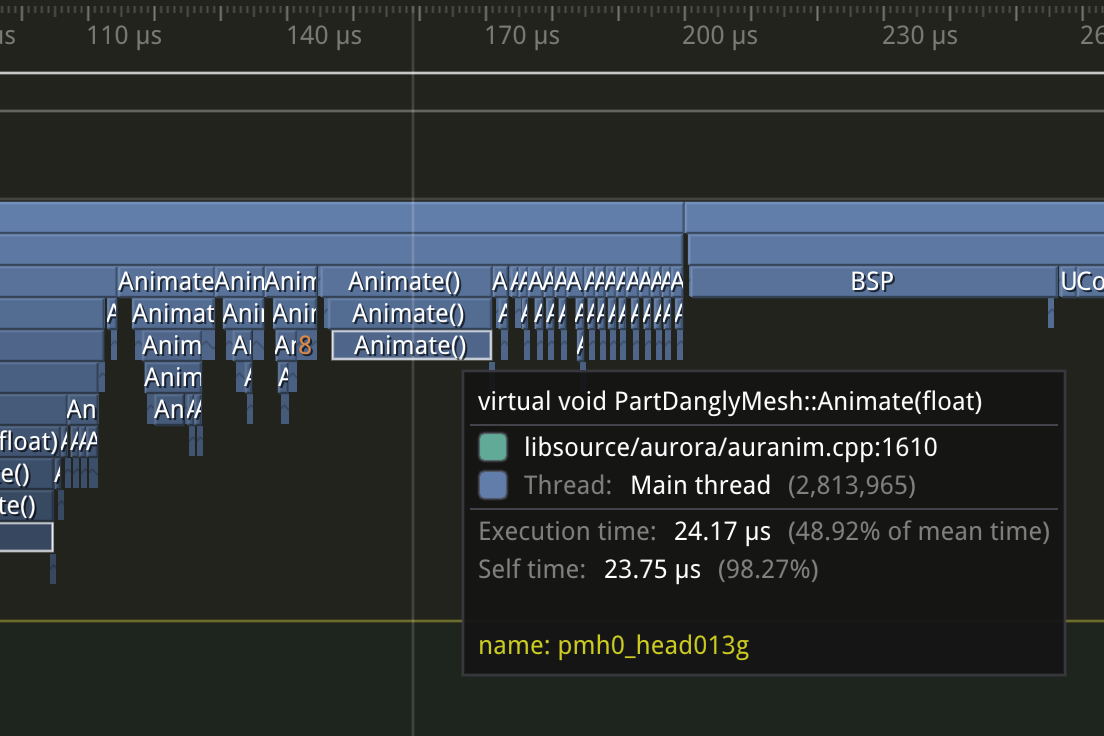
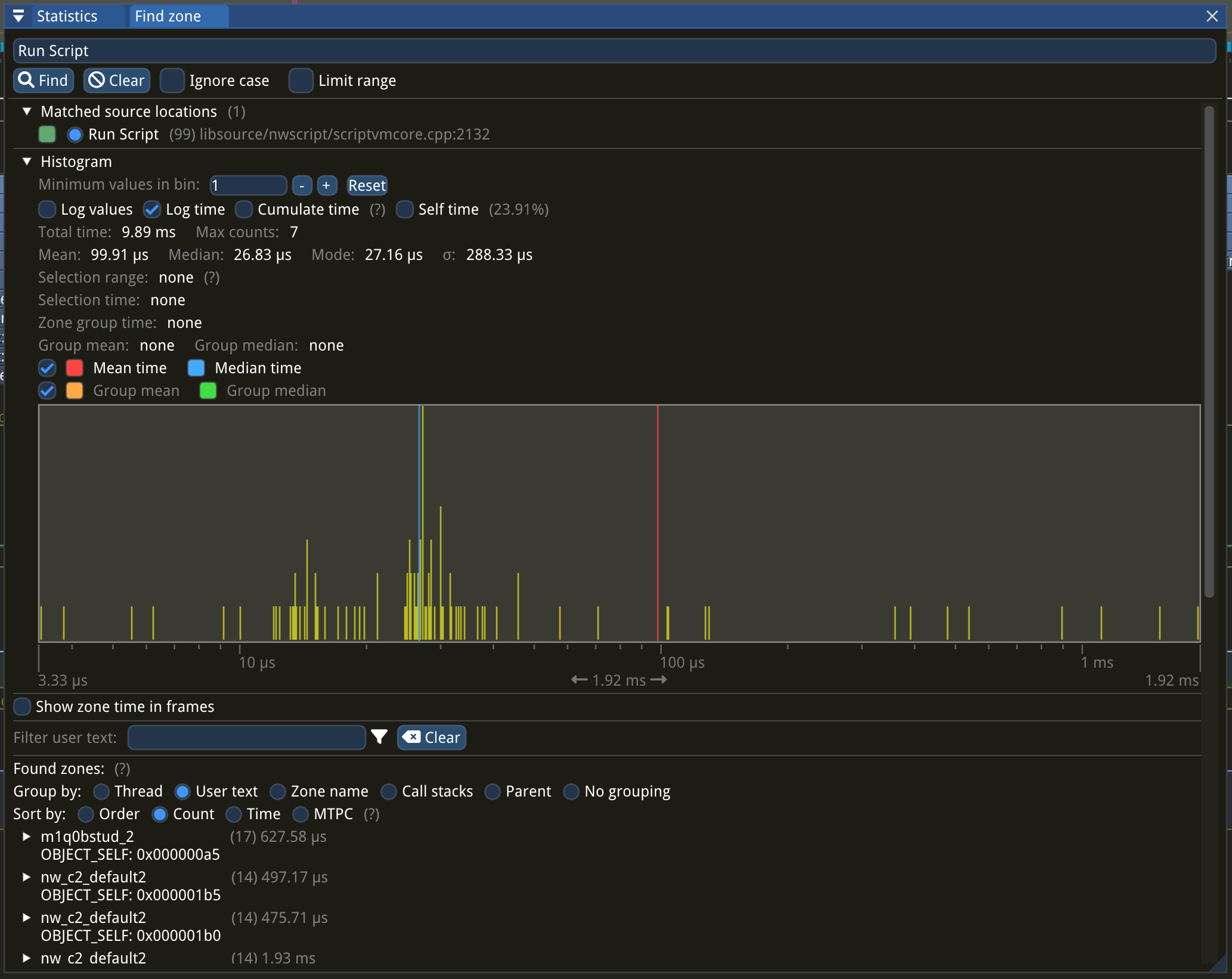
Clicking individual zones (e.g. a box in the timegraph) brings up the statistics for that zone. You can see all invocations of it, and optionally group it by various factors such as user text.
Messages
These text messages are fed from the log file (nwenginelog.txt). They are also shown as chevrons on the time graph where they occurred.
...
.. at the top allow accessing overall statistics, and searching for specific trace points.
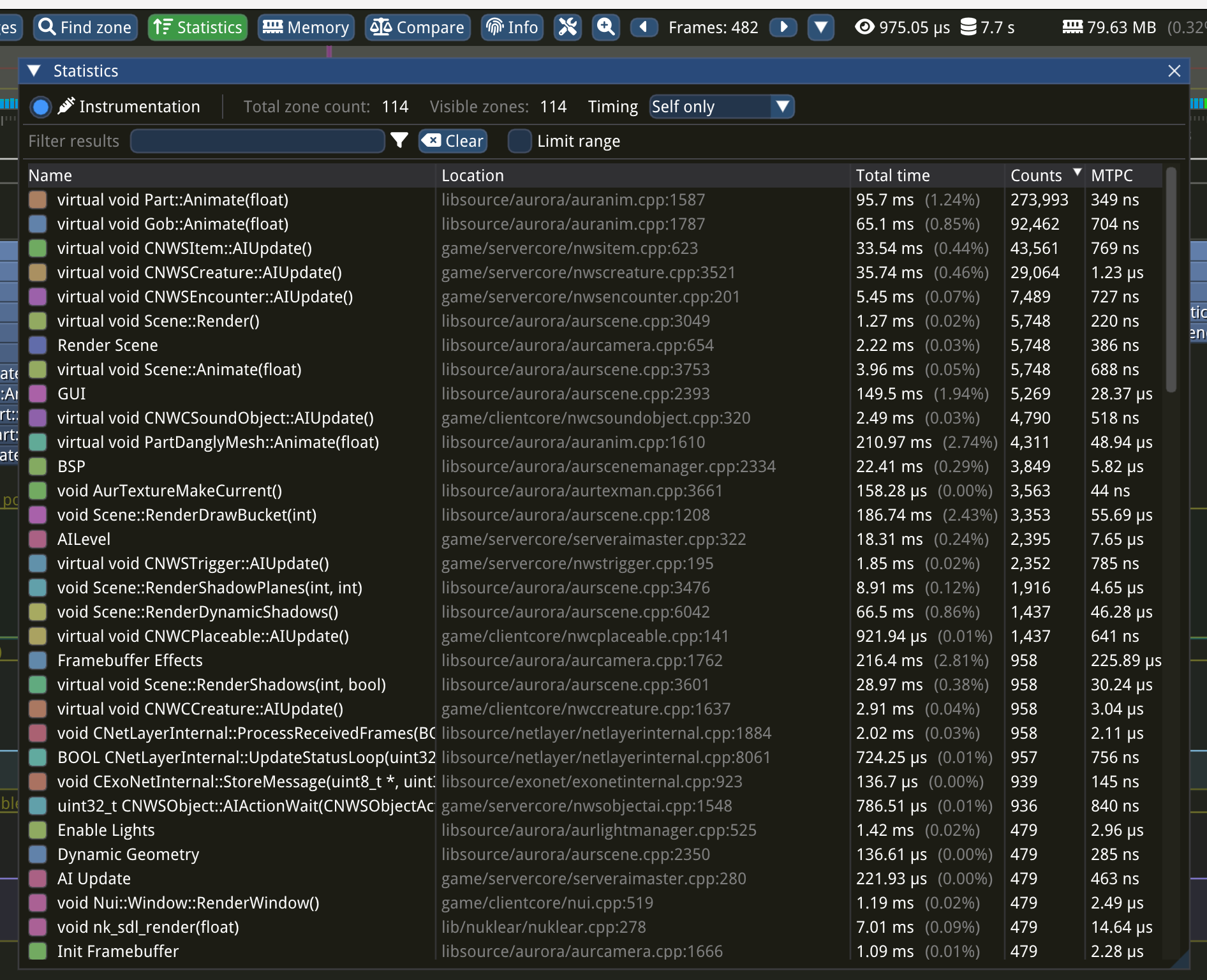
For example, if you want to find all NWScript runs, you would click click Statistics and then look for "RunScript" in the search box.

You can see both "Run Script" and "RunScriptSituation".
This is the part where some knowledge about how the game engine works is beneficial (though not required). Knowing that "RunScriptSituation" refers to DelayCommand is not obvious, unless you are already familiar with the technical details.
Clicking the zone "Run Script" will bring up details.
At the bottom of the Statistics panel, for each zone, you can group by User text. This is text provided by the game engine and usually contains the object or file the zone event is related to.
Memory
Memory and allocator statistics are not yet implemented.
...