

So you want to make a module for NwN EE but don't know how to go about it? If you follow along with what I write here, we'll get you to create your first one. Before I start though I need to point out that there's some knowledge that I do expect you to have - How to use Windows (currently the toolset only works on that OS) and how to extract files from an archive file (a .7z file to be precise). That is it.
Having got that out of the way, I'll explain precisely what I am going to do. First I'll tell you where to get a tutorial and then I will go through the tutorial myself, doing exactly as it tells me and comment on it as I go. I will not actually tell you the steps in this tutorial but rather comment as I go and point out any pitfalls I can see. I will start at the very beginning and do what the tutorial tells you to do. At the end of this process you should have two things. A fully working small module and an appreciation of the amount of work it takes to build a module.
When Bioware first released NwN, there were no instructions on how to use the toolset. Eventually Bioware got around to writing one which they placed on their NwN Bioware site in a number of separate parts. A while later they got around to making the whole tutorial available as a downloadable pdf document complete with the finished module that you should aim for. Anyway, As promised here is the link to where the tutorial is to be found. Go there and download the .7z archive ("Bioware PDF Tutorials"). Extract the contents of the .7z archive to a folder of its own as it contains a number of files, making sure to remember where you put it. As part of this process a few new folders will be created within the one you made.The tutorial that we will be following is in the folder "AuroraToolsetTutorial" and is called (surprise, surprise) "AuroraToolsetTutorial.pdf". You will also see that there is a module in that folder "tutorial.mod". This is an unfinished version of the module we will create, don't use it at all.
One final word before we start. Most, if not all browsers allow reading pdf documents in them so that you don't have to download a separate program to do so. I strongly suggest that you don't use your browser for reading such documents if at all possible. Instead, download a separate program such as the adobe acrobat reader (make sure to untick the pre-ticked boxes before clicking to download) or the Foxit Pdf Reader, both of which are free. There are a couple of reasons for this. These stand alone programs remember where you have got up to in a document, browsers don't. A large number of pdf documents come with bookmarks (you may need to press F4 on the adobe reader to bring these up). These allow you to easily jump straight to a section in a document with a single click. Browsers don't give you access to these. So please get a reader program and use it instead for off-line reading of pdf documents.
So let's get started. First let's open the tutorial and read the introduction. "Hmmm, Title page. Scroll down. Plot summary. Yadah, yadah, yah. Skip that, right?" Wrong, you're so wrong. The plot summary tells us the story that our module is going to tell. "Never mind that! I want to get on and start building!" And what precisely are you going to build? Without the plot summary you've no idea, so go back and read it now! Come back and start the next paragraph only when you've read the whole of the plot summary. "But I'll know how the module ends!" Of course you will, you're building it. Now go and read.
Right, sub-par acting aside, you should have learned your first rule of module building. Have a plan on what you are going to build. It doesn't have to be complex or detailed. Any plan is better than none. Too many modules have been started and abandoned because there was no plan.
Tutorial 1: Fern, the Frontier Town
Right onto the Tutorial proper. Actually this is the first tutorial. The document as a whole is split into a number of separate tutorials, designed to teach you various things. In this document tutorials are structured in the same way. There is a short introduction which briefly sets out what you are supposed to learn in this particular tutorial. After that there is a succinct explanation of the goals of this particular tutorial. Then there is the tutorial proper and this is followed by a section entitled extra credit. In extra credit you are encouraged to use the skills you have learned in the tutorial section to improve upon what you have already built.
So let's get started. Keep the tutorial open and launch the toolset. If you bought NwN EE from BeamDog there is a link on their launcher to make launching the toolset easier. Once the toolset has launched you can switch between it and the tutorial by using the task bar at the bottom of the screen. At this point it is a good idea to maximise the toolset window as it currently always launches in a smaller size. Before you get down to seriously making the area for the tutorial, just practice so as to get familiar with the process. Remember you can always delete what you have done. I personally refer to this as playing with the tools to get used to what you can do. Right, I'm off to make a start on building this module following the tutorial. If I come across anything I think you might have a problem with, I'll add some notes here. Otherwise I'll see you at extra credit.
OK, there were a few things that I thought you should know. I have written those in the right hand column.
Right, that's it for the first tutorial in that document. Please let me know what you think in whatever forum you came here from. If you can post a picture of your area as well, we won't laugh. Just to start the ball rolling here's mine. ->
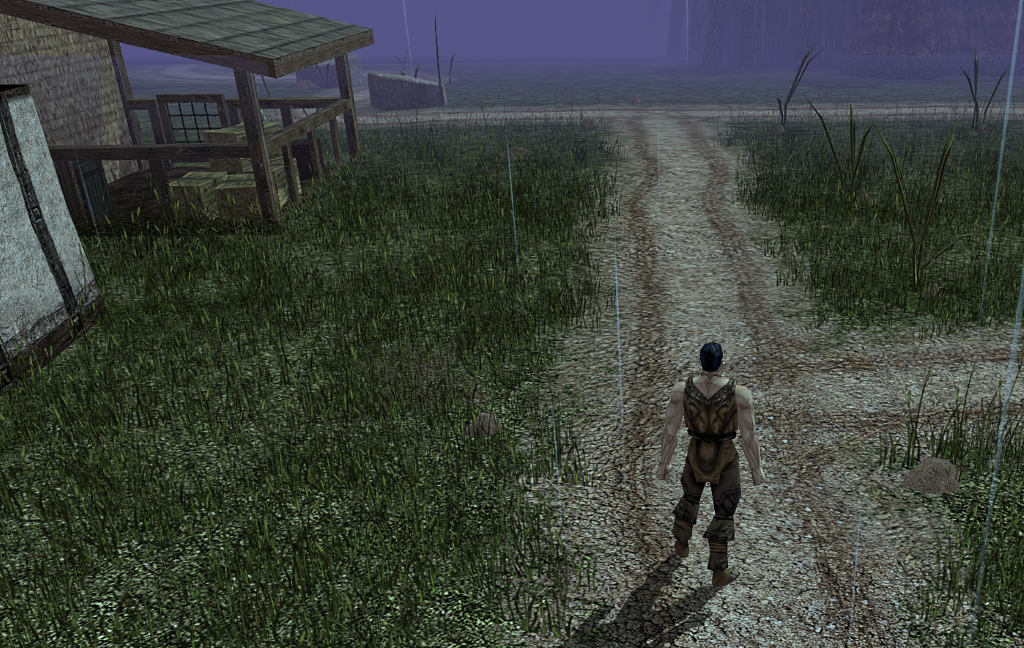
Arriving in the village in the unfinished module.
A few things I noticed that they didn't tell you in that tutorial that they really should have.
- Immediately after you've created your area using the area wizard, save it. From then onwards save often, especially if you've just made a big change. This is mainly because the NwN toolset does not have a periodic autosave feature.
- If you want to dismiss whatever tile(s) are currently attached to your mouse pointer you can. Just press Esc.
- When you go to paint something in an area the tile(s) that you are going to paint are surrounded by box made of coloured lines. When you can paint something at the place you currently have it positioned, the lines are green. When the toolset is not going to allow you to paint what you are trying to, in the current position the lines are red. An example of this from the groups section. It concerns both "Ship Docked 1" and "Ship Docked 2". These can only be painted over water and then only where the dock part reaches land. Trying to paint either of these without obeying those rules will show you a red box.
- Also on the theme of red boxes and not being able to paint something where you want to. Once you have painted one or more tiles in an area, you cannot change your mind and just paint a new tile(s) over it. The toolset won't allow you. What you have to do is to follow the instructions in the tutorial and remove the blocking tile(s) first and then paint your new tile(s) in its place.
- Instead of closing the toolset, you can use the Test Module feature. This is to be found in the menu at the top of the toolset window under build. Just make sure that you have saved since your last edit was made. When you select this feature the toolset is minimised to the task bar and NwN is launched. Your module is automatically launched using the first pre-made PC in the list. Once you have finished testing and exited NwN, re-enable the toolset from the task bar.
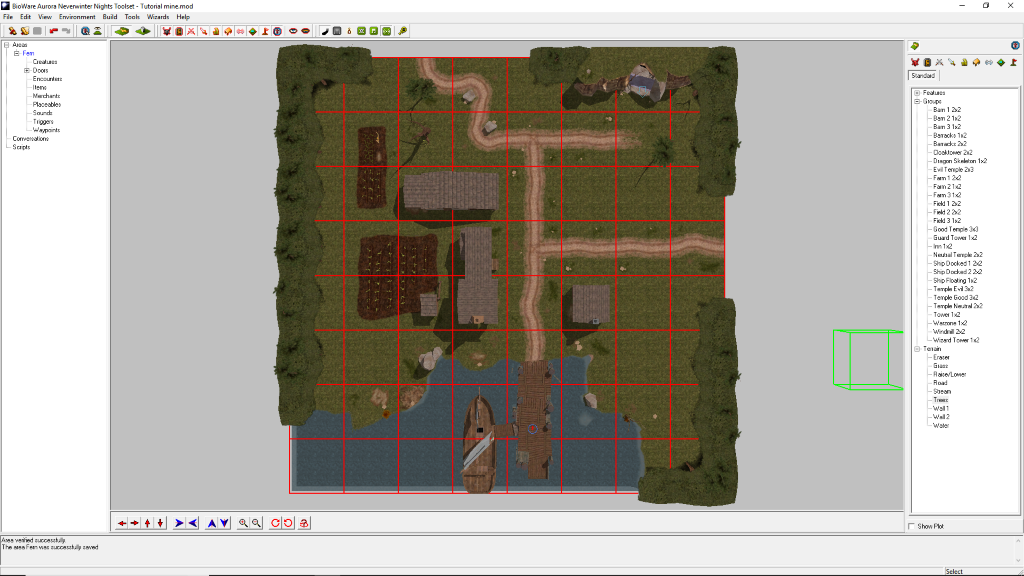
The module so far, just one area.
Back in 2016 I did a series of posts about the Gimp image editing program on the final BSN to feature NwN. Towards the end of the series, we received notification that those boards were going to close. Rather than let this series just vanish into the ether, I saved the page that held it. Unfortunately there is something in the pages that were published for the last few months of the life of those boards that puts a big black lump that covers the top half of the screen. Nevertheless (yes it is all one word in English), I am going to attempt to copy the contents of the original thread (in the original order) here for anyone who might find it useful. I will be skipping the first post as that was just the original introduction to the series.
Post 1
Something I discovered by accident while looking through the menus. Gimp has its own version of layer styles. For those that don't know, in photoshop layer styles allow you to apply 1 or more effects to a layer all at once. I don't know how long the Gimp has had its own version as who looks in script-fu if you don't have anything extra in there? Anyway, it is and it is called 'layer effects'. It even appears to have the same options as PS. It just doesn't appear to work quite the same though. For example the 'Bevel & Emboss' feature appears to be mutually exclusive with a number of others. Also the 'drop-shadow' effect can produce a weird moat-effect. Having said all that, it is still worth a look.
Post 2
Here is something I discovered on deviantArt.
When you go to change either the foreground or background colours in gimp, there is a useful hidden feature of the dialogue box that pops up. If you, like me, have never entered a colour code in hex you probably won't know about this. Instead of entering a code in this box, think about the name of the colour you want. Press the first letter of that name and wait a few seconds. A menu of colour names, all with that first letter will probably appear. You can now either select one of these colours or you can refine your selection by pressing one or more additional letters. Go ahead, try it. For example press 'K' and you will be offered but a single choice - 'khaki'. It is not perfect as there are a lot of missing colours ('ochre' for example) but it is worth exploring.
Post 3
Today I will talk about a little used selection method. We all know the 4 selection tools - rectangle, ellipse, free (aka lasso) and fuzzy (aka magic wand). Quick tip for the fuzzy select - if you hold down Shift, you can select further pixels/areas without losing your original selection.
If you look in the Select menu you will see some others - by color and from path. There is however another method that you might find useful. It is right at the bottom of the Select menu - Quick Mask. In all probability you will never access it through that menu.
Here’s how you use it. Before activating the Quick Mask you need to have one of two tools already activated (brush or eraser) and the foreground/background colours need to be set to black and white. To illustrate how this is used, I have made a quick little drawing. Please be aware that these images are done quickly just to illustrate this method. You can do much better.

And here is that little picture in a gimp window/workspace.
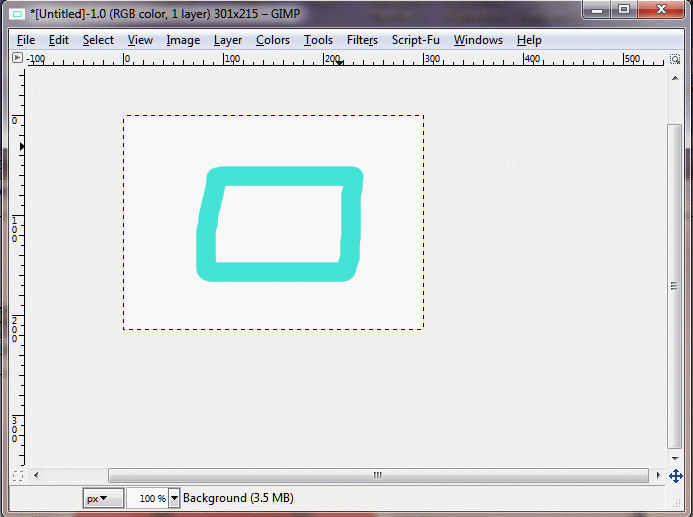
So why essentially show you the same thing twice? Well this second image shows you the way to access a Quick Mask quickly. Look in the bottom-left corner of this window, on the same level as the horizontal scroll-bar. You will see a tiny square made from broken lines. Clicking this square toggles the Quick Mask on (alternatively press Shift+Q).
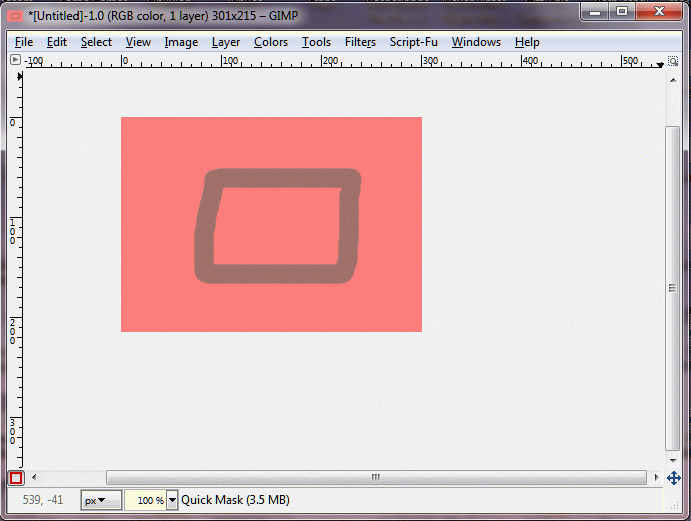
Not only is the Quick Mask now activated but the little square is now made whole and coloured red. Now we will erase some of this red coloured overlay. You can use either the brush tool or the eraser tool to do this. With the brush tool, white erases and black will re-paint the red overlay wherever you paint. With the eraser tool the colours are reversed. In other words you can correct any errors you make. So let’s start…
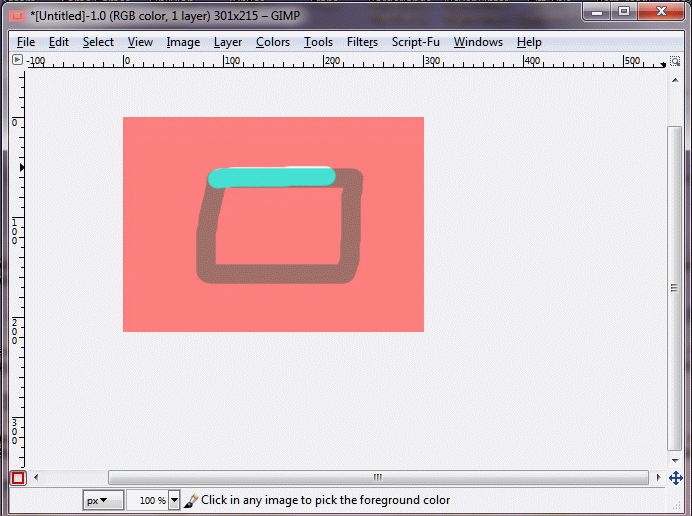
I am using the brush tool but you get the same result when using the eraser tool.

Once you have done it will look something like this. Now we toggle the Quick Mask off…

Voila. The area that you cleared is now automatically selected. The thing is you can clear more than one part of the image at once and you can toggle the Quick Mask on and off at will until you are satisfied. OK, let’s clear the background. First invert the selection.

Now let’s do color to alpha and
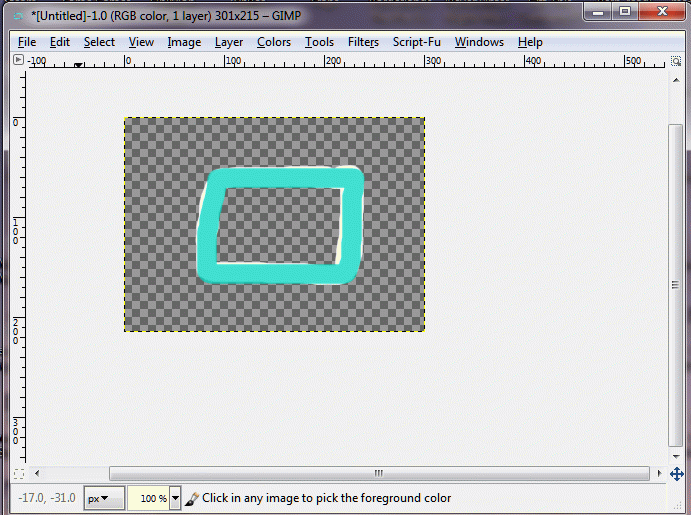
Remember, it may be called a mask but in practice it is a versatile method to select an arbitrary number of areas of an image. Also, this last image does not really relate to the preceding ones (I had an accident and needed to redo quickly).
Post 4
Hidden in plain sight. The Gimp may be versatile for editing images but that is not all that it can do. It can also generate images and overlays for images. These can be found under the Filters/Render menu entry. As some of the entries can be somewhat cryptic here is a list of all but one of them, arranged by category.
Create a new image
A Checkerboard - Filter/Render/Pattern/Checkerboard
A Maze - Filter/Render/Pattern/Maze
Crumpled Satin - Filter/Render/Satin
Use an image to create another image
Circuit - Filter/Render/Circuit
Overlay a pattern on an image
A Grid - Filter/Render/Pattern/Grid
A Jigsaw - Filter/Render/Pattern/Jigsaw
Spirograph - Filter/Render/Spirogimp
Rays Radiating From Image Centre - Filter/Render/Line Nova
Fog - Filter/Render/Clouds/Fog
Maths Based Images
Diffraction Pattern - Filter/Render/Pattern/Diffraction Pattern
Random Pattern - Filter/Render/Pattern/Qbist
2 Colour Pattern - Filter/Render/Pattern/Sinus
Random Coloured Stripes - Filter/Render/Pattern/CML Explorer
Random Zig-Zag Lines - Filter/Render/Lava
Draw Geometric Shapes - Filter/Render/Gfic
Draw a Sphere - Filter/Render/Sphere Designer
Fractals
Flame Fractal - Filter/Render/Nature/Flame
Iterated Function System - Filter/Render/Nature/IFS Fractal
Mandelbrot etc. - Filter/Render/Fractal Explorer
Plasma - Filter/Render/Clouds/Plasma
Clouds (Base image for creating, amongst other things, Starfields)
Difference Clouds - Filter/Render/Clouds/Difference Clouds
Solid Noise - Filter/Render/Clouds/Solid Noise
Please note that some that I've labeled as being random may in fact be based upon fractal maths of a type that I am not familiar with.
Post 5
Following on from that post I was asked about which one I had left out. Here is my response -
I left that particular one out because, even though I have stretched what I consider to be usable for NwN to the limit, I just cannot see it having any use. When I tried it, all it does is to produce a bunch of squares in a grid. If you are really interested (and even my feline curiosity no longer stretches that far) it is called Electronic and is found at - Filters/Render/Electronic.
BTW, a tiny bit extra on the fog (Fog - Filter/Render/Clouds/Fog). From the looks of it, it should be a great basis for making grunge/rust/slime/etc.
Post 6
Consider this post as a bonus entry. The reason why I say this is because what I am presenting here is not really hidden. While it is good, the Gimp 2.8 (as it ships) is lacking when compared to, say, Photoshop. Fortunately we can go quite some way to fixing this. Because it is open source there is a plethora of add-ins and plugins for it. In fact there are so many that it could be a problem in choosing just which ones to install. Just on filters, it is quite easy to end up with as many filters as a pw player has portraits. I hope to address this by listing the 8 that I consider probably the most useful and which I have got installed on my gimp set-up plus 1 I haven't. Please note that I will, in most cases, only give a brief description of each one. I urge you to follow the links to those that interest you, for fuller information. Also remember that plugins, etc. only show up when you load the gimp after you have installed them.
One thing before I go on to describe these add-ons and that is where to install them to. With the Gimp you have a choice of 2 different locations. You can install them in the place where you installed the Gimp itself, but this is not really recommended. Alternately you can install them in the place set aside for user installed stuff - drive:/Users/your user name/.gimp-2.8/ (win7 location, other OS will have a variation on this) - where drive is the drive letter and your user name is just that e.g. Fred. Example - c:/Users/Fred/.gimp-2.8/. This is the recommended location even though Gimp doesn't really care. There is an exception that I will deal with later. Also with a couple of the add-ons there are installers so in these instances the choice is made for you.
I'll start with the one that I haven't installed although I'll give it an honourable mention - GIMP_ilkka_Pack_for_Win32(link is external). This is a large collection of other people's work. The reason that I haven't installed it is mainly that it hasn't been updated in quite a while and I have already installed newer versions of a lot of the contents of it. I therefore recommend that if you want to install it, you do so before installing any of the other things I mention in this post.
In view of the announcement about the impending demise of the Bioboards, the second add-on is slightly less important than before. Having said that I will still include it here. This plugin is called "Save For Web(link is external)" and allows you to intelligently optimise (size vs. image quality) your pictures for posting online.
If you are into animation such as in relation to animated gif files, you need Gimp GAP(link is external). This package comes with some interesting extras. The link takes you to the latest version. Even though it was made for Gimp 2.6 it still works with 2.8.
Do you want to use Photoshop filters (8bf files) with gimp? At one time the plugin that you would have used would have been PSPI(link is external) (link included in case you are using an ancient version of Gimp). It was not perfect and there were quite a few PS filters that didn't work with it. Unfortunately this (at least for me) does not work with Gimp 2.8. All is not lost. The solution is a plugin called "Shellout(link is external)". This plugin allows you to pass an image (or layer) to another program and to automatically reload the altered image when that other program has finished with it. This was originally designed to just work with XNView(link is external) but has since been expanded to work with other editors (and this list is extensible). Given that XNView can directly use 8bf (as can IrfanView(link is external)) filters (and more of them work than with PSPI anyway), this is now the preferred way to use such filters with the Gimp.
Do you ever need to edit a number of files using the same steps with each of them? In order to batch process them as it were? This is where Bimp(link is external) comes in. You can use any gimp command in the list of commands to be carried out (in theory at least, I haven't had a need to test this out). There is one major drawback in that you can only use a command once in any list of commands (I don't know why, it may actually be built into Gimp), so you may need to run this plugin more than once on a set of images to achieve what you want. That aside I still find this useful and TBH I have yet to come across (except possibly using actions in PS) any batch process that allows for asymmetrically resizing of an image.
The last of the single use plugins on my list is Liquid Rescale(link is external). This allows you to intelligently rescale an image. That is you can tell it to assign different levels of quality to different areas of the image being rescaled. You can even remove parts of an image as a function of the rescaling process. I am sorry that this short description doesn't describe it too well. Just follow the link for a much better explanation.
The next entry in this list is Gimp Paint Studio(link is external). Like GIMP_ilkka_Pack_for_Win32, this a collection of brushes, tools, etc. Unlike that package, GPS (unfortunate acronym) is all by a single author (AFAIK). The link provided takes you to an independent review as the download page is very terse in its description. There is a link to the download page included in the review. The only annoyance I have found with this package (so far at least) is that it replaces the default Gimp loading screen with one of its own.
This penultimate entry into my list is a biggy. It adds so much that any short description will not do it justice. G'Mic (short for GREYC's Magic for Image Computing)(link is external) addresses (amongst other things) the Gimps lack of filters. Not only are there 450+ things to alter the image but you can record your own settings for them as additional presets. In addition to that this is entirely open source. Looking around the web this addon is universally praised. To get some impression of its capabilities please follow the link.
This final entry in the list is not last because I consider it the least useful. On the contrary this one adds quite a bit of functionality that is not included in the previous entries on the list. FX Foundry(link is external) is a collection of over a hundred script-fu scripts that once added gets its own entry in the menu that runs across the top of Gimps window. The only thing that is possibly problematic is how to install it correctly. Which is why I left it until last, so that I can tell you how to go about installing it. It is not that difficult, just a little involved.
Download the FX Foundry zip archive
- If the Gimp is already open at this point, close it
- Extract the zip archive into a new folder in a location that you are not going to either move or delete
- Launch the Gimp
- Open Edit/Preferences
- Expand the Folders entry (on the left at the bottom - click on the '+' sign.
- Select Scripts
- Highlight one of the paths (e.g. C:\Program Files\GIMP 2\share\gimp\2.0\scripts) under where it says Folders, by clicking once on it.
- Now press the button that looks like a sheet of paper. It is immediately above where it says Folders and is the leftmost of those buttons. This will create a duplicate entry in the list of folders.
- To the far right of the button that you just pressed is one with a folder icon. Press this button and use the dialogue that pops up to navigate to the folder that contains the FX Foundry scripts.
- Once you have found and highlighted the correct folder press OK to close the folder browse dialogue and now that you have a new entry in the Preferences/folders/scripts dialogue, press OK here as well.
- Close and relaunch the Gimp. Congratulations, you should now have a new entry in the top level menu (just to the right of Filters) and you have installed the FX Foundry package.
Finally, before I finish this post, here are a few more links. A lot of tutorials on Gimp can be found on deviantArt(link is external). In fact that is where I get most of my information. Quick tip - As the vast majority of these are in the form of image files, where possible, I use Foxit Reader to convert them into pdf files as I find them easier to view and manage (and pdf readers tend to remember my view settings). deviantArt also has quite a lot of Gimp brushes(link is external) and Gimp Scripts & Plugins(link is external). The plugins on there tend to be, for the most part but not exclusively, single use for example Layer via Copy/Cut(link is external). My last quick tip for this post - If you like something by a deviant (term given by deviantArt for a contributor) have a look in their gallery - e.g. Slybug dA gallery(link is external) (maker of the previous example.
And that was it.
TR