...
Before starting it is worth noting that this is all based off the Enhanced Edition with mostly default client Best graphics settings.
Generally the changes to lighting Lighting Enhanced options improve the reflections, occlusion and other conceptsthings. The original mostly-baked-in lighting can still be reverted to by toggling this off, but the assumption is that clients will use the new (default) enhanced lighting in this guide and with the screenshots.
The client also has control over some settings such as Lighting Cutoff Rnage Max Lights (3 - 128, default 32), Lighting Cutoff Range Multiplier (default 2.0), Lighting Max Intensity (default 1.5), Lighting Intensity At Range (default 0.2) and some options around shadows and shader quality.
Lighting in NWN has become a bit more nuanced in NWN:EE. There is a better lighting engine as of 2020 and this improves the tile and dynamic lighting and how it interacts with things.
Concepts:
- Area general lighting (such as the "Sun")
- Per-tile lighting colours 1/2
- Per-tile "dynamic lights" such as torches. Note bug if changing dynamically:
- Dynamic lights (such as torch placeables, fires)
- Player lights
- Fog colours
Topics:
Choosing an initial "Preset" in area properties
Day and Night Cycle Lighting
Sun and Moon
Skybox
Fog (Clip distance)
Dynamic Lights
Shadows (Opacity)
), the amount of Shadow Casting Lights (0 - 3) and General Shader Quality (High Quality).
General Area Lighting
You can set a general set of visual (lighting) options in the Visual tab of the area properties. The list here is defined by the environment.2da file. All of the settings can be changed once a default is applied, with Reset To Black having everything be 0, or black, as lighting on tiles and for the area. Since many of these presets will alter the tile specific light colours at random (the Main Lights and Source Lights) if you want to do it all very specifically the Reset to Black might be a good option to use when creating an area.
Note that the default selected on creating an area is controlled by the areag.ini file, so custom tilesets may not have anything other than default settings (generally black).
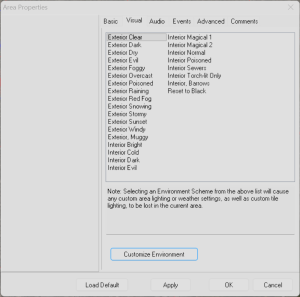
The area properties have Environment Options by clicking Customize Environment.
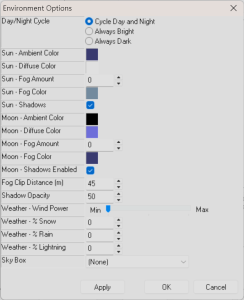
This section can change many of the general area lighting settings:
- Day/Night Cycle - applicable even if it is an interior or underground setting
- Sun and Moon
- Ambient Color
- Diffuse Color
- Fog Amount
- Fog Color
- Shadows Enabled
- Fog Clip Distance
- Shadow opacity - sets the percentage of opacity. Sunny lighting generally looks better with 50% or less
...
The Sun and Moon
The Sun and Moon are in fact the same thing . really! They just have different settings during the day and night in the lighting properties window.
The sun is in fact an in game MDL that generates light called gidy_sun.mdl .This mdl file is placed at coordinates x = 4000, y = 4500 and z = 7000. The radius of the light is 100,000 meaning it projects it fully over the area to generate shadows and light from that direction.
The mdl defines 2 light sources, it looks like one is for ambient light colouring of everything and one is to cast shadows. If you remove the gidy_sun mdl by blanking it or removing the light definitions this will crash the game. You can "remove" the global sun in the MDL by setting the radius to be low - eg; 1, instead of 100000.
Sun and Static Geometry Shadows
The sun is special since it is, apart from the player model, the only thing that can generate shadows on static geometry (tiles, and placeables set to static). We've tried applying this MDL to other things like placeables, visual transforming it into the sky etc, and sadly this doesn't do static geometry shadows. You can edit the MDL file to alter the amount of light and technically you can alter the position but you can't dynamically change the position (eg doing time of day shadows that shift).
...
The way the sun and moon shadows work is dependant on the player having a light:
- If daytime
- If the sun shadows are enabled, use the sun only for static shadows
- If sun shadows are disabled, use the PC's light source (eg; interiors, their torch would light up geometry)
- If night time
- If the player has a light (eg; a torch) use that to cast static shadows
- Else if moon shadows are enabled, use the sun to cast static shadows
Weather
Subtopic on weather:
...
- Sun/Moon Ambient/Diffuse colour options
- Shadows and what casts them (ie the sun/local torches), and how they look
todo:
Concepts:
- Area general lighting (such as the "Sun")
- Per-tile lighting colours 1/2
- Per-tile "dynamic lights" such as torches. Note bug if changing dynamically:
- Dynamic lights (such as torch placeables, fires)
- Player lights
- Fog colours
Topics:
Choosing an initial "Preset" in area properties
Day and Night Cycle Lighting
Sun and Moon
Skybox
Fog (Clip distance)
Dynamic Lights
Shadows (Opacity)
User Lighting Settings