-
Created by
 Jasperre on Apr 22, 2022
7 minute read
Jasperre on Apr 22, 2022
7 minute read
Making icons is a boring but necessary evil in making new item models - else you won't be able to use them in the toolset or in game.
Tools Used
These tools are required:
- The completed model (fancymapped is always better)
- The NWN Toolset
- ttr01_grass02.tga for a "green screen" floor on microset. You can change this TGA to be any colour if you are doing, say, foliage you might want blue or red.
- ShareX or Snip Tool or other screen capture
- GIMP or similar image editor
Studio Workspace Setup
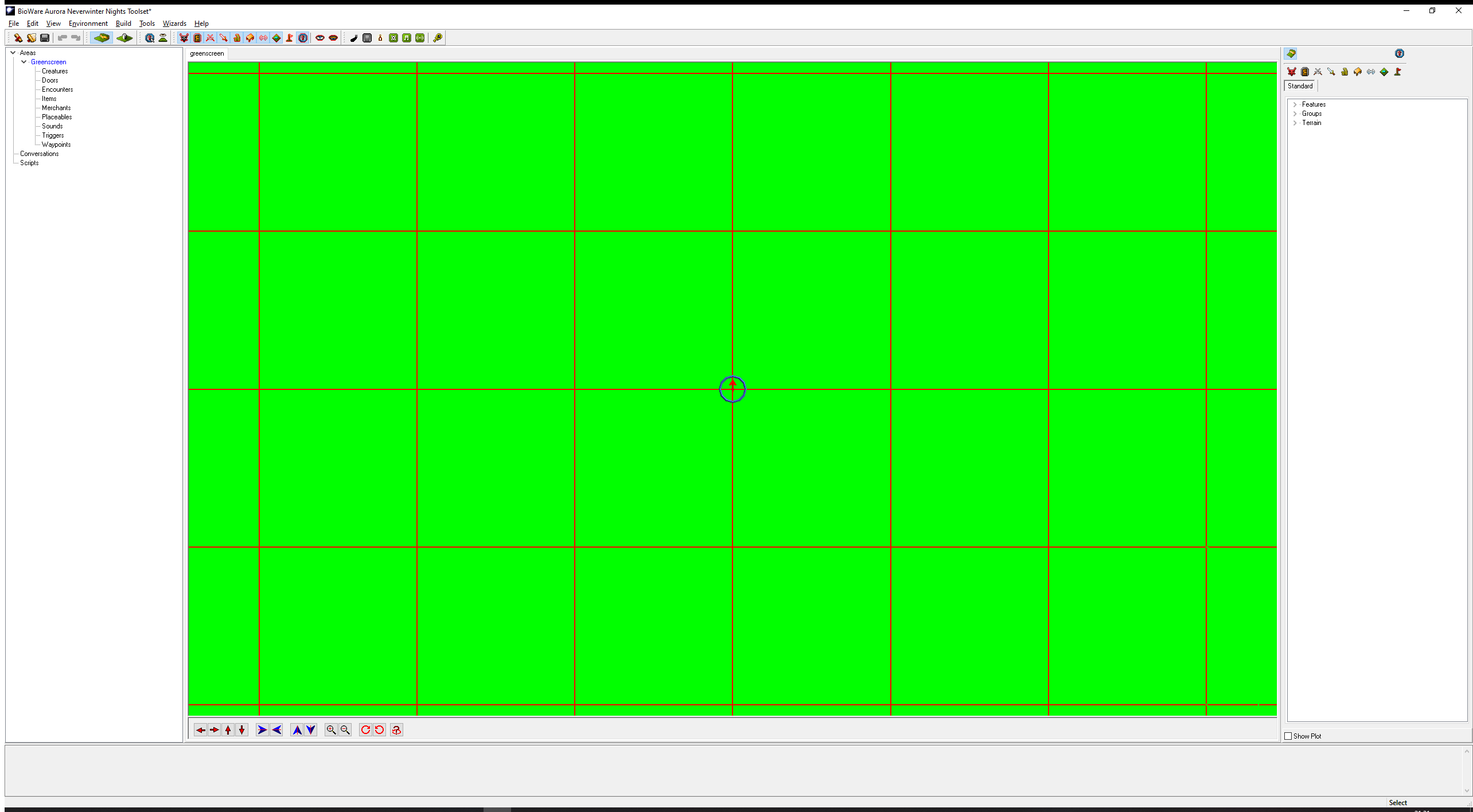
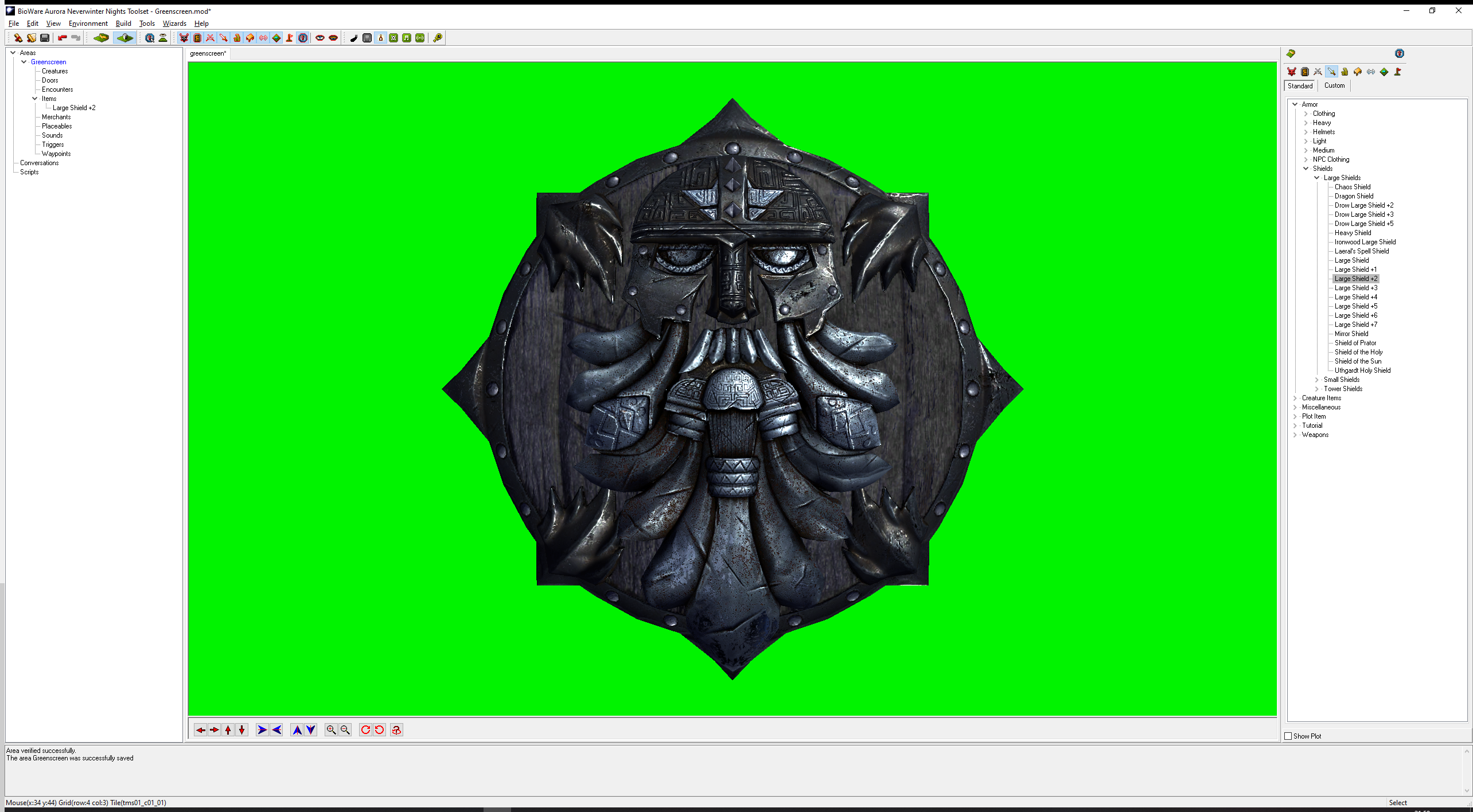
The first step is to get the ttr01_grass02.tga file downloaded and into your override folder. Then create a new module, have an area in it with the tilset Microset and make it 8x8. You can leave the music, and default "Clear" lighting is probably best.
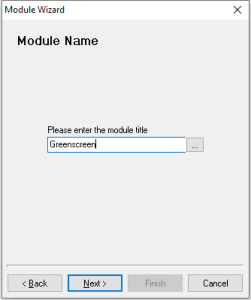
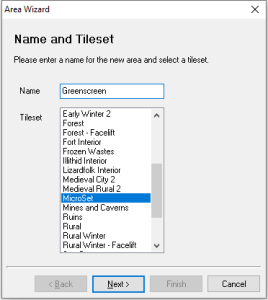
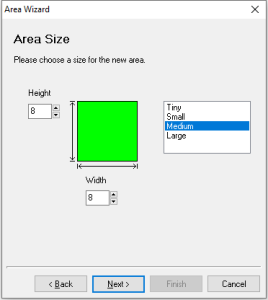
This should load with a big area full of bright green:
Item Setup
Without altering the camera angle, we then place an item roughly in the middle of one of the squares which has the appearance of our new item:
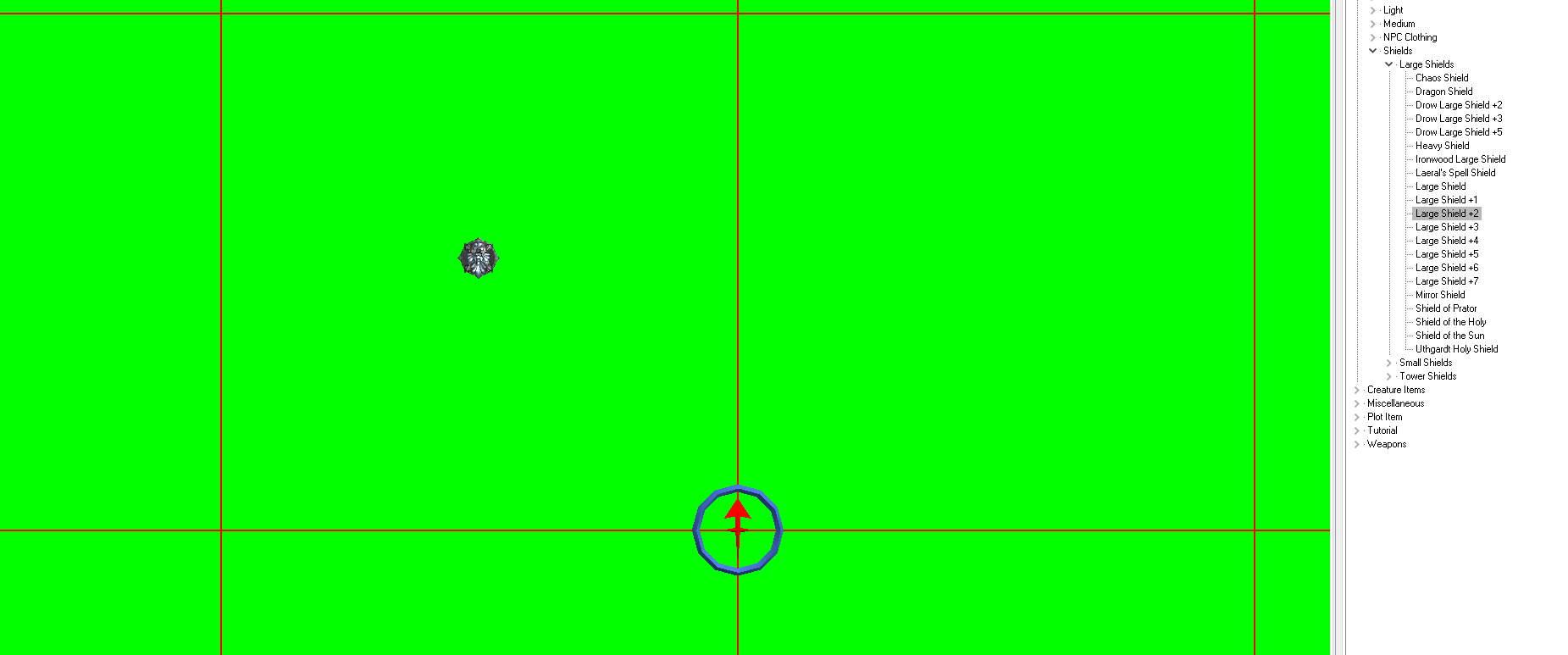
It's tiny even if we zoom in!
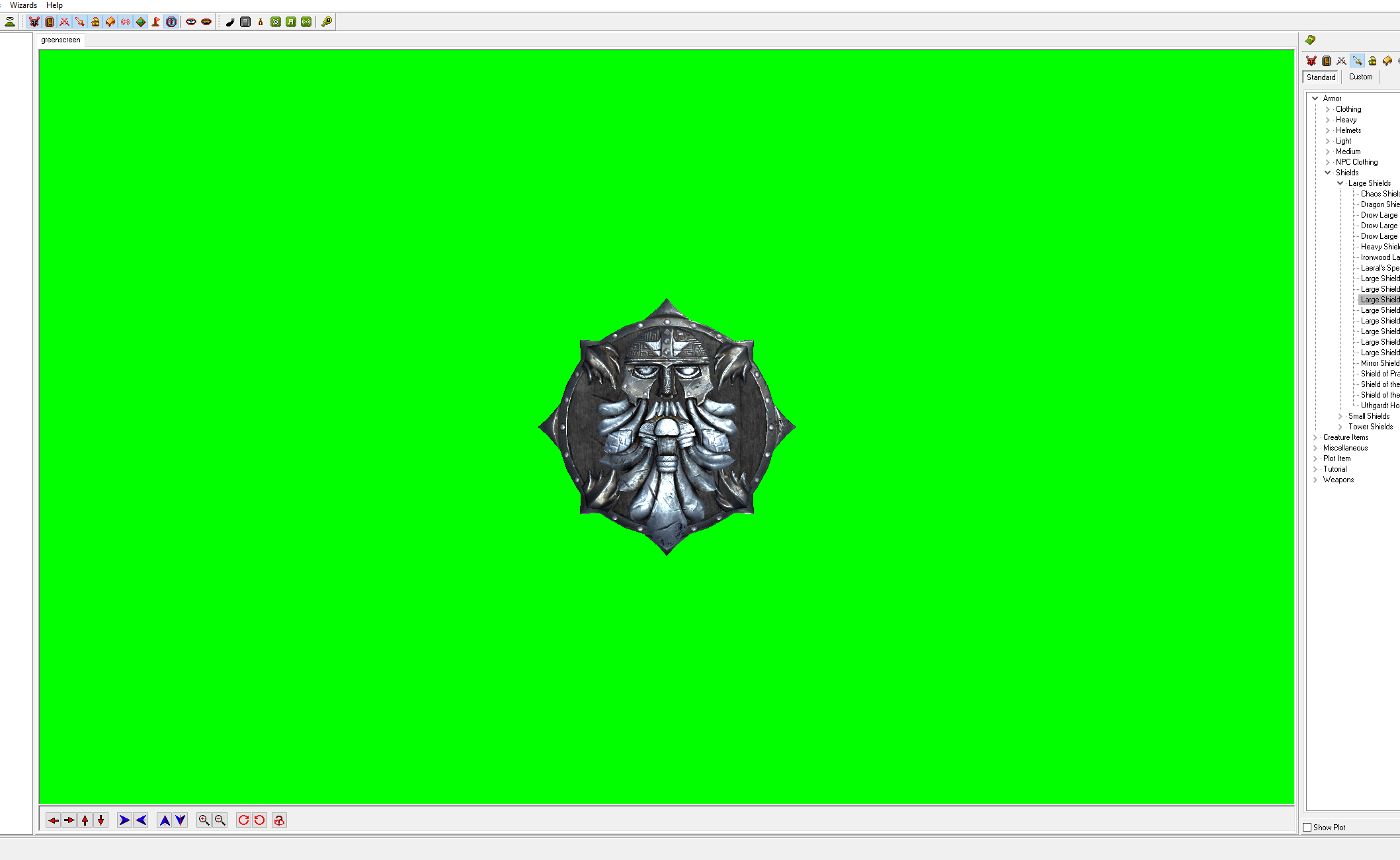
My personal preference now is to adjust the size of the model to be bigger to be a higher quality item capture. Right click it and go Adjust Location.
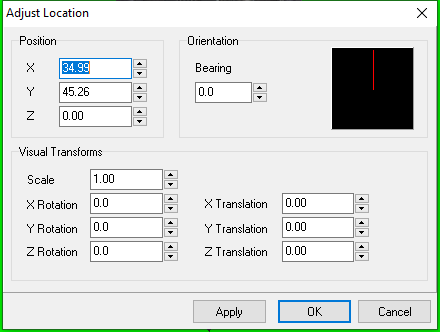
Change the Scale to be something larger - 2.5 might be good for this. The shield then moves randomly onto it's side, odd, but easily fixed with a Z Rotation of 90.0:
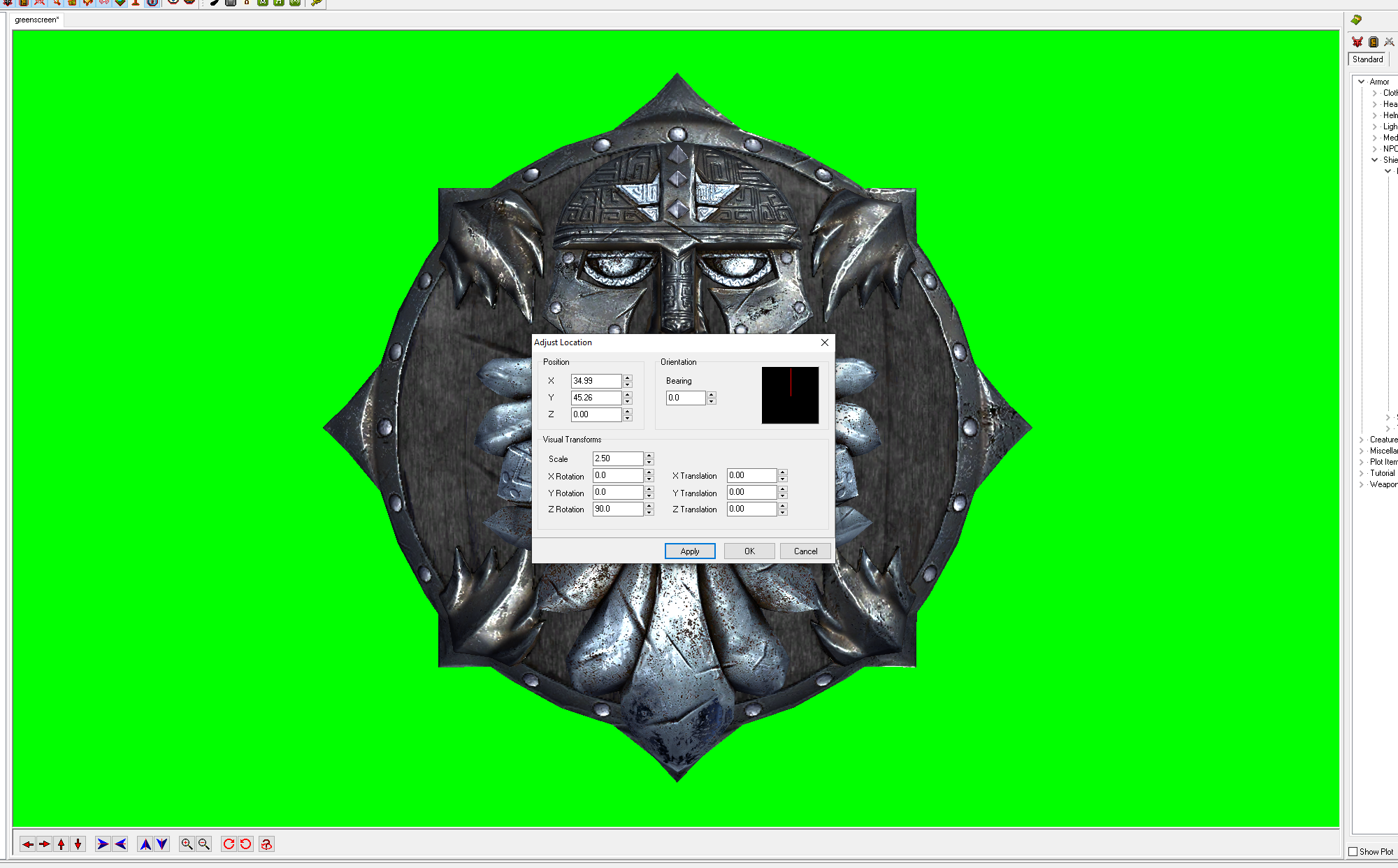
You can close the Adjust Location panel now.
Centre Camera on Item
First you want to make sure you're correctly aligned. In case your camera moved at all select the Reorientate Camera button first:
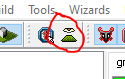
This sets you zoomed out and top down, facing north as we want.
Then focus on the shield in case you're not dead centre; right click the item in the left hand panel for this:
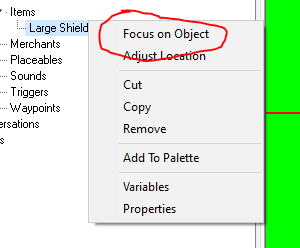
Finally zoom in again to maximum - this may be using the mouse wheel or controls at the bottom.

Now we're ready to capture. We're going to setup ShareX to do the capturing so the same area is captured every time, centered on the middle of the shield so it's easy to crop for a icon.
Lighting
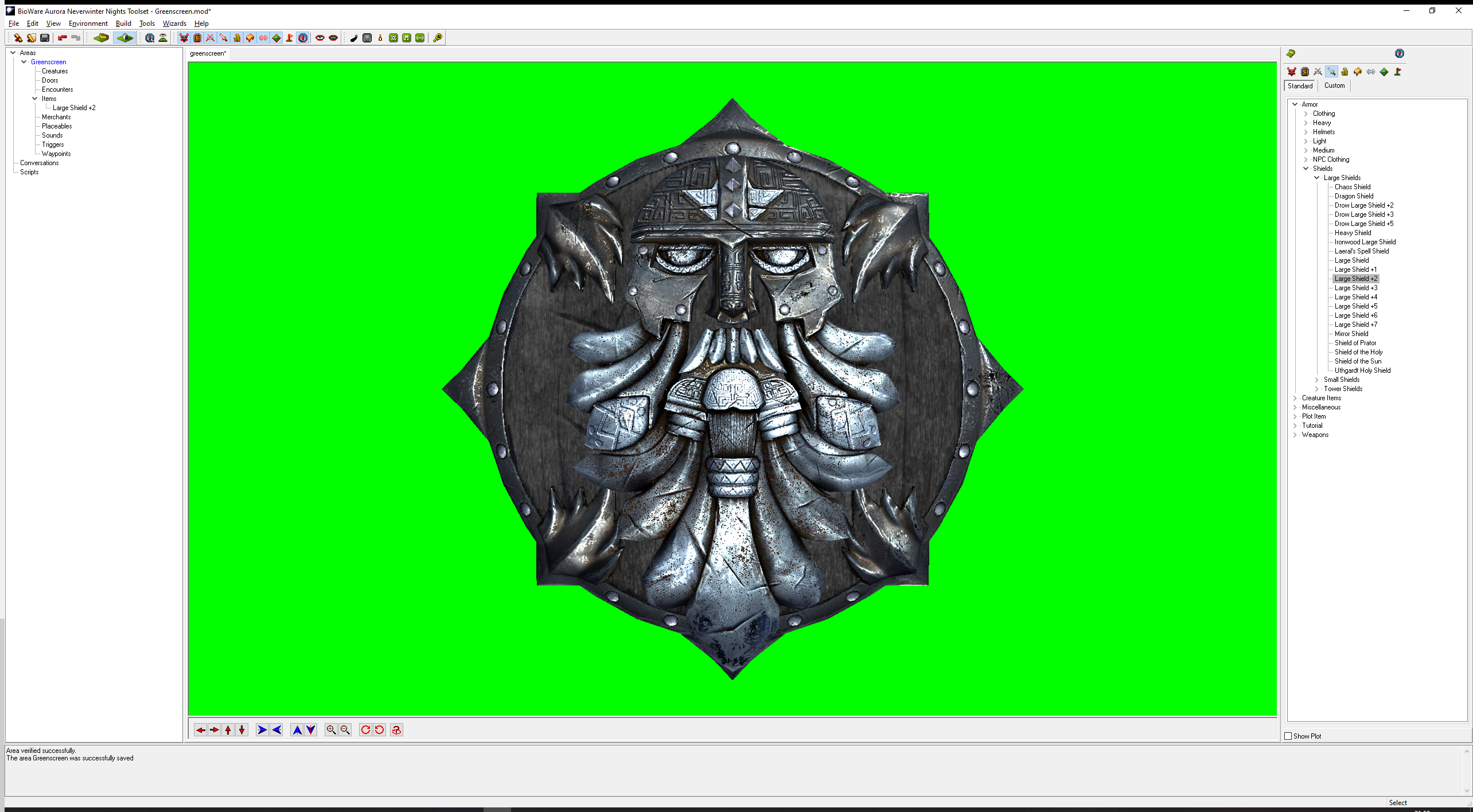
You can use different lighting at this point. I've been using no Area Lighting but you can toggle it on, and alter it in the area properties, if you want to adjust the look. It is not recommended to use shadows regardless however for icons. The left one is perhaps a lot clearer but the right one more accurate to normal outdoor lighting in NWN.
Capturing Icon
We're using ShareX for this tutorial, but if you don't mind re-centring in GIMP you can capture the entire screen or use the Snip tool in Windows to capture a portion of the screen fine. ShareX can be useful for doing multiple items of the same dimensions at once.
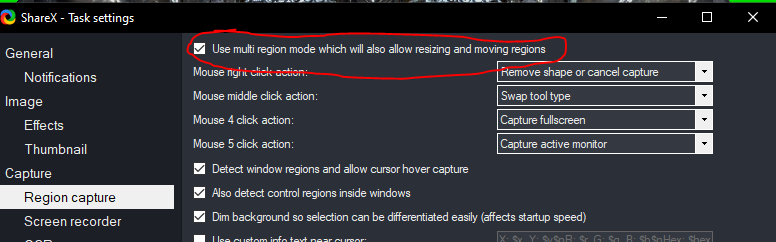
Firstly enable Multi Region Mode we'll be making use of under Task settings:
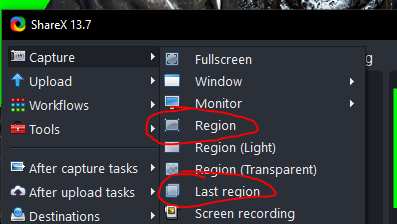
Now we use the Region option (and Last region in the future)
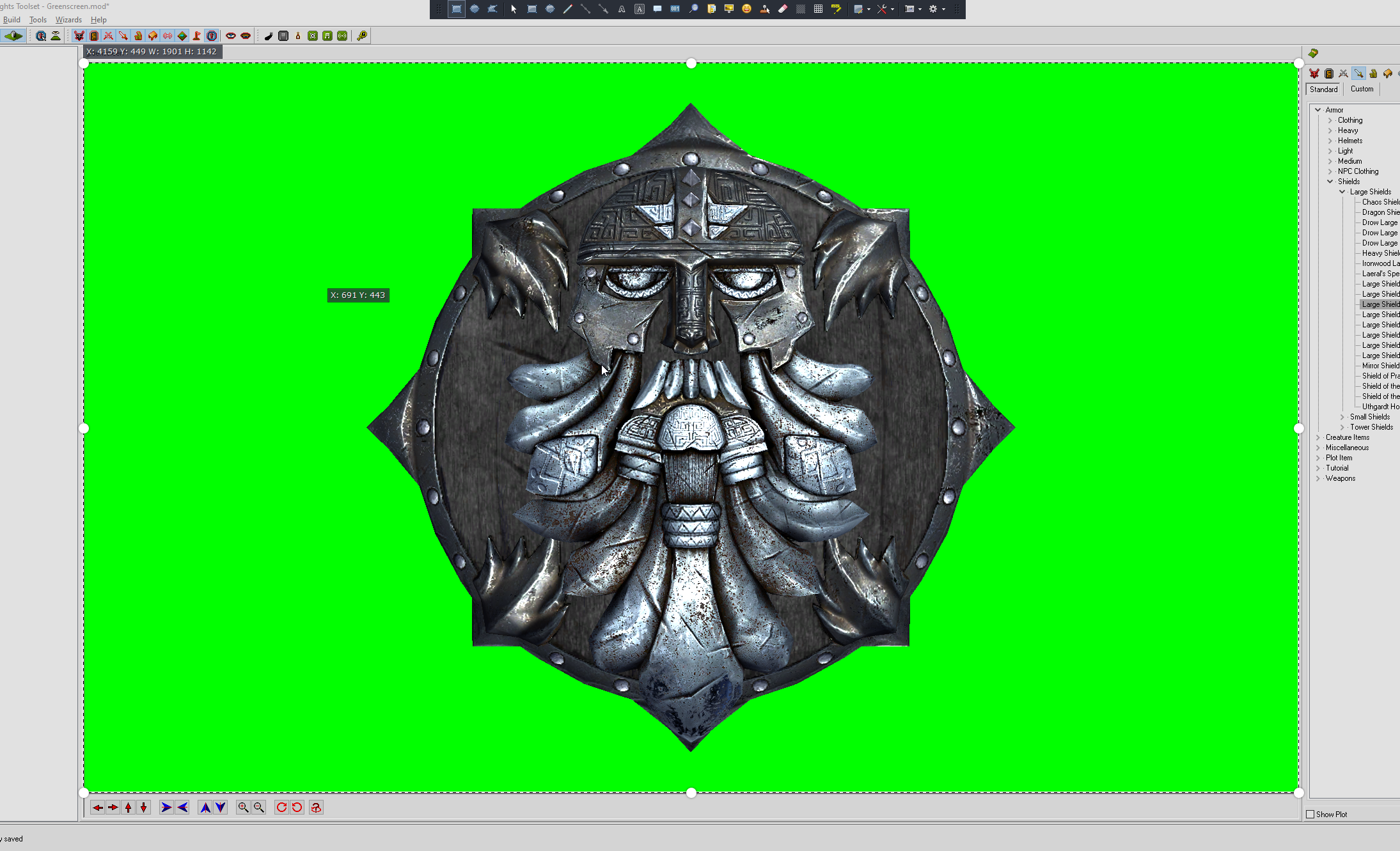
The default selection is an area of a window, we select our green section, then we resize it using the white circles until happy (I usually do Top, Bottom, Right, Left to keep the white dots centred as much as possible), finally double click on the area to save:
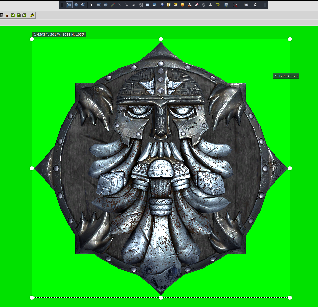
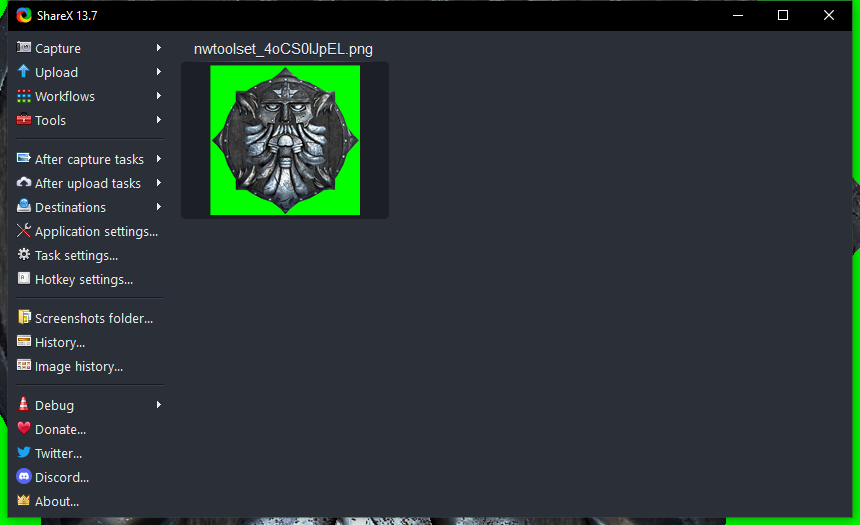
Second Capture and on
Now select the toolset and go the placed items properties, and select your next appearance:
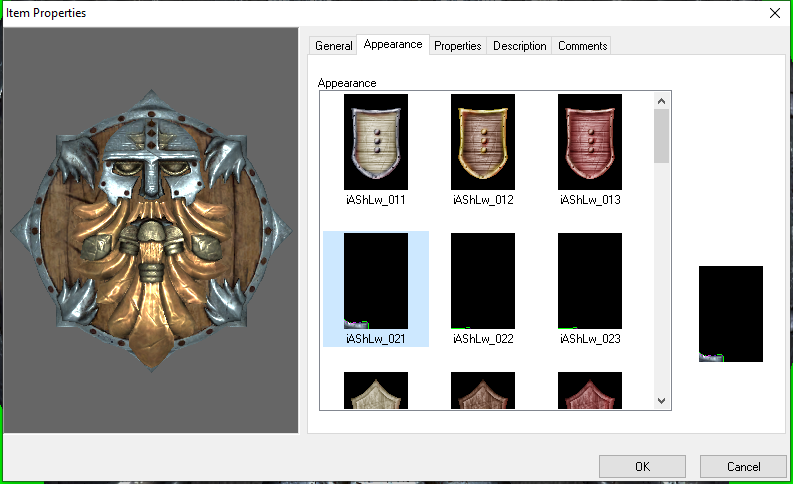
It swaps it out with the same dimensions:
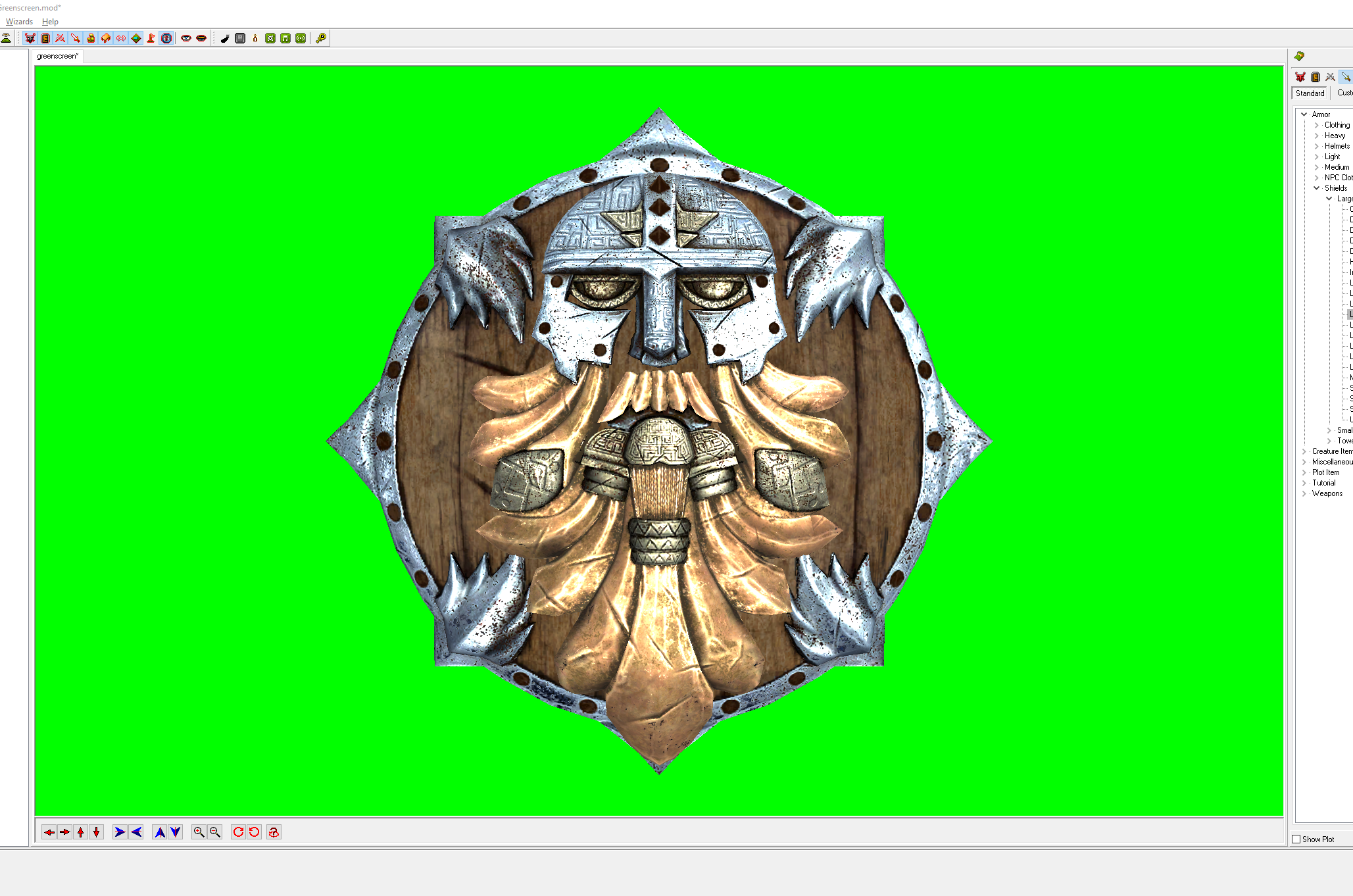
Then go to ScreenX and select Last region and it does a capture of the same area, very useful!
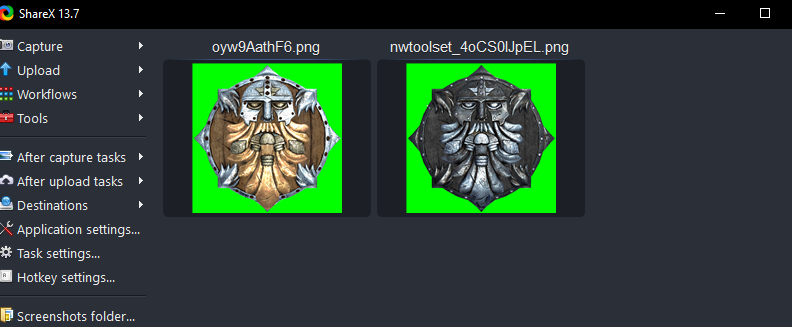
Editing Icons
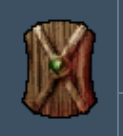
The dimensions of your final icon depends solely on the item you are doing. These shields for instance are actually 2x3 icons, so we'd want a 256x512 for a decent quality of which only the top 75% is used, while the original icons (who's dimensions are hardcoded into the toolset as you can see from the past screenshot of the appearance selector) are 64x128. You can make both sets and use just one in the toolset.
In GIMP load the image and check it for errors (eg your mouse in the middle of it, like I have on one above)
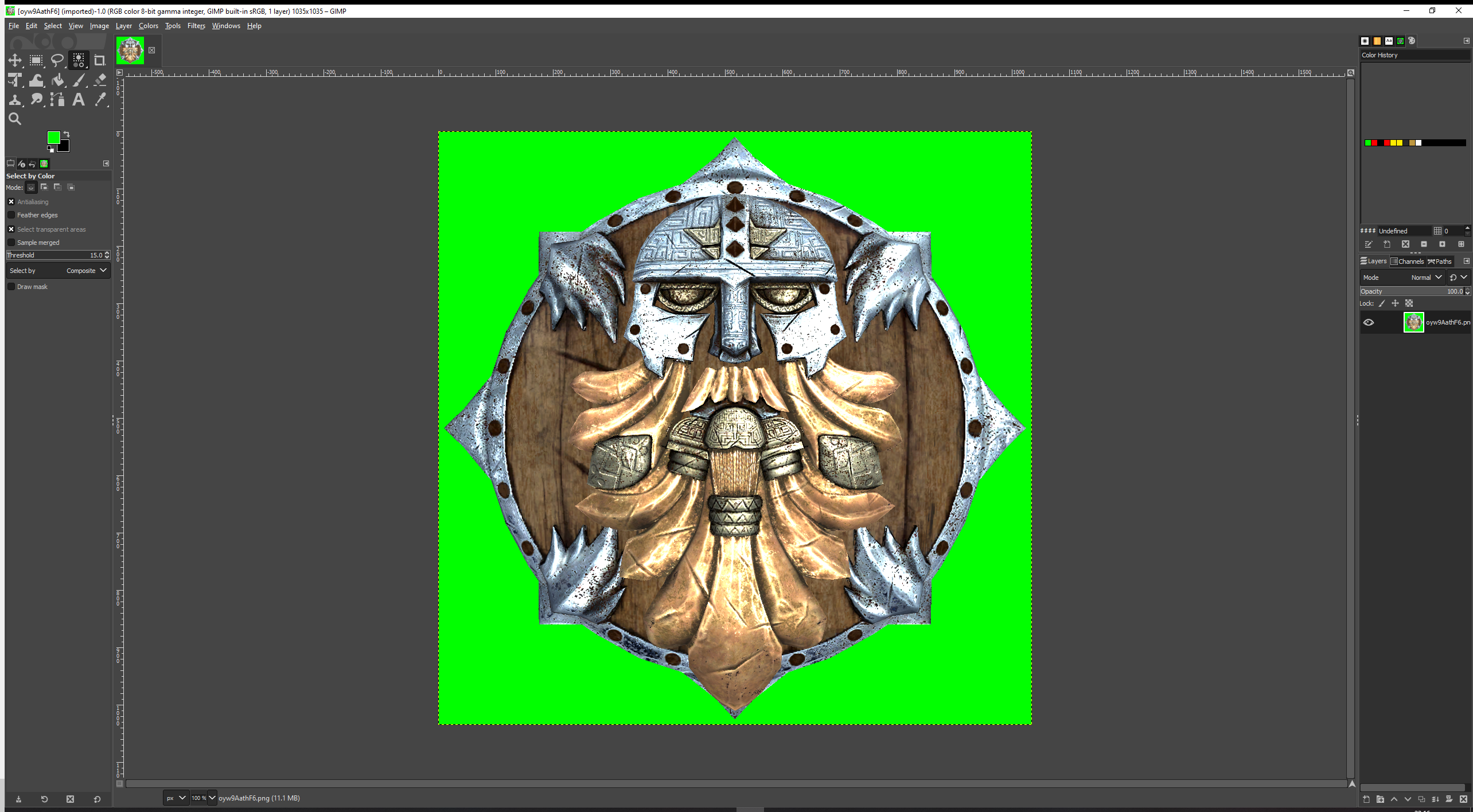
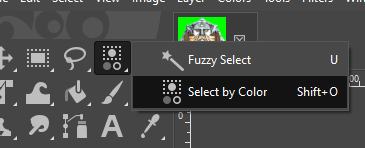
First of all lets get rid of the green - this is important to do first since the hard edges of the green are easier to select! Go to the Select by Color tool:
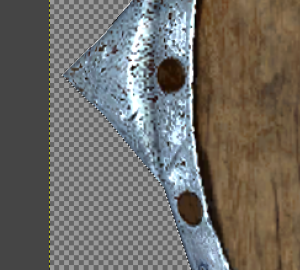
Then select the green, and check the borders if you like:
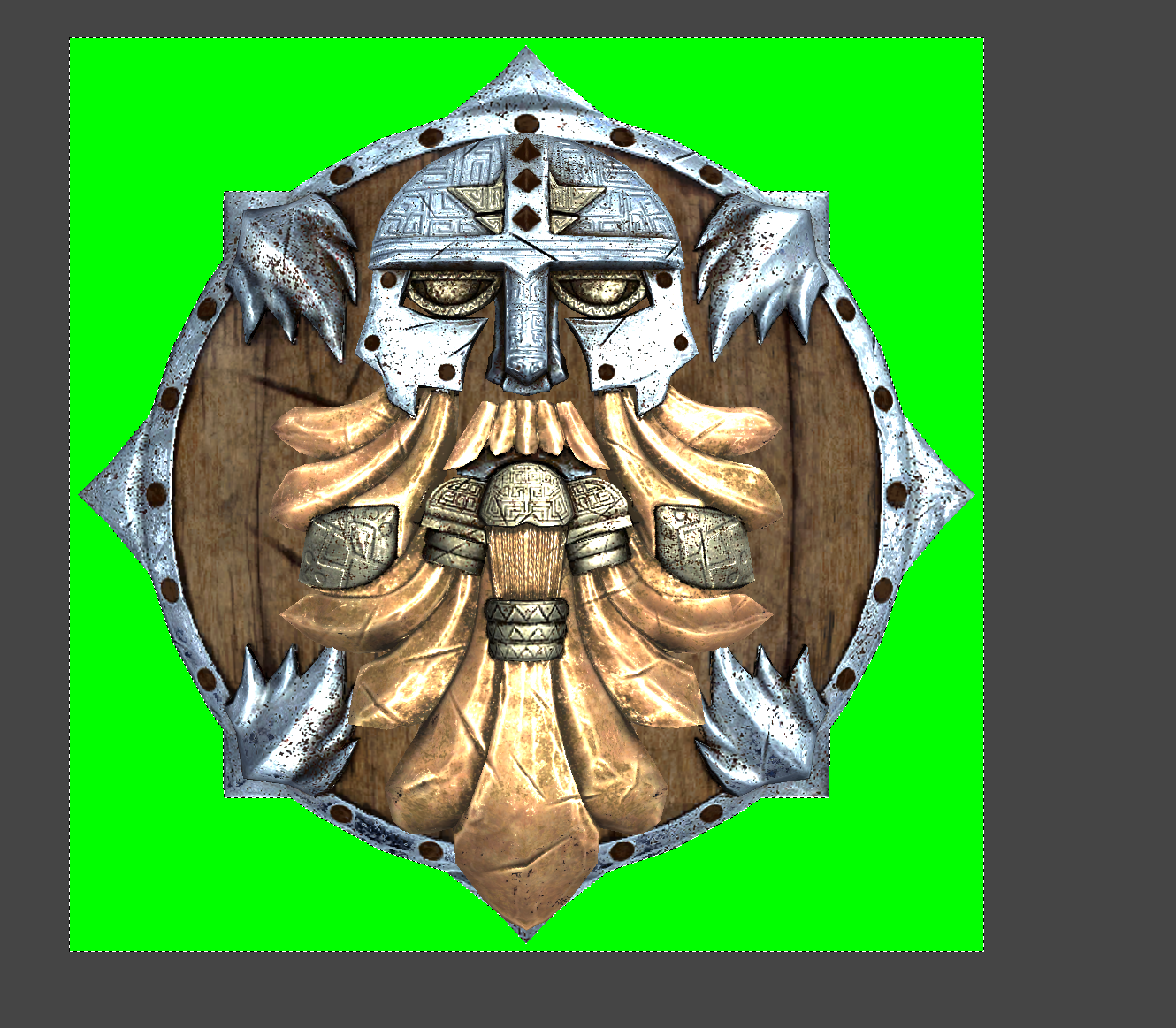
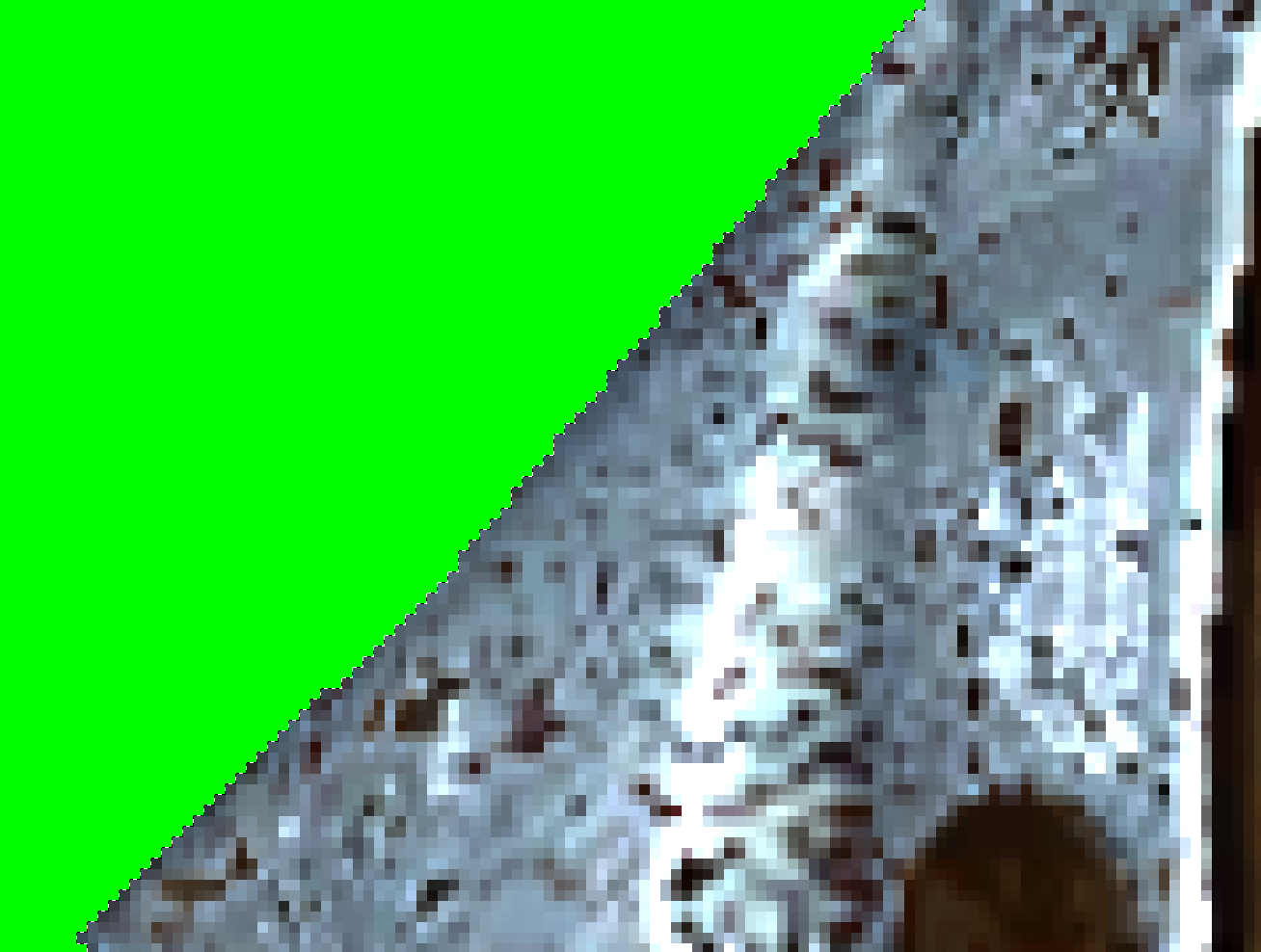
This is perfect - a hard edge, you can delete this for a transparent background now.
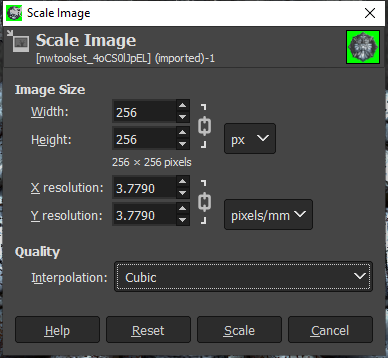
Finally we'll use the menu option Image → Scale Image to do the final 256 width we want; the Interpolation you may want to leave as Cubic which is taking the average colour around the pixel being resized. The reason for the black is we then don't get any weird half-transparent pixels on the edges, instead it takes it from the black.
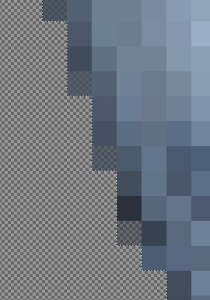
You can zoom in and see the cubic interpolation overlapping the nice edges of our icon we cut out before. There are not many over the "edge" and I've checked and there is no easy solution - the cubic interpolation simply does add transparency.
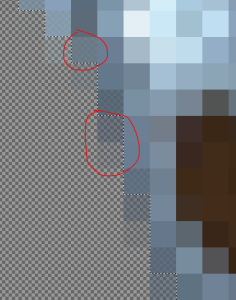
We can fix this mostly with Anti erase; this will make the icon very slightly larger, in this case it won't affect it much. You can also, if you don't mind it, have the background be black when you scale.
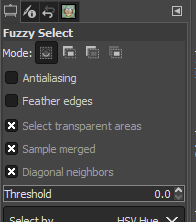
First select the fuzzy selector with these settings, select the transparent part of the image then go to the menu option Select → Invert. This should select all non-transparent pixels in the image.
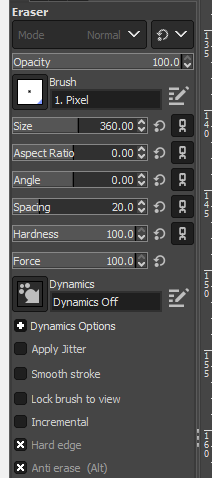
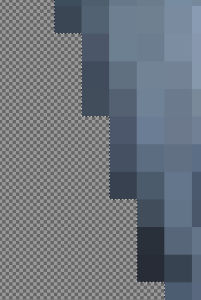
Next use Anti Erase, which is under the Eraser tool, with these settings (the Size can be higher, just spam it over the entire image), then use it on your image to remove all the alpha transparency on those pixels in one go. You do get some artefacts - eg the very dark pixel in the bottom right of the example area shown, but it's the best we can do without capturing at 256x256 directly (which is doable but very fiddly!).
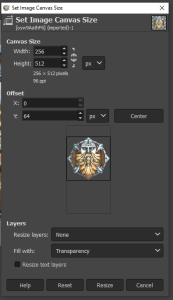
Now we can do do Image → Canvas Size and set the final dimensions. Since we have a square 256x256 image, we can move it down 64 pixels to be exactly centred in the top 3/4th of the 512 pixels (middle of the 384 pixels). If we had a 256x300 image we'd move it 42 pixels down. etc.
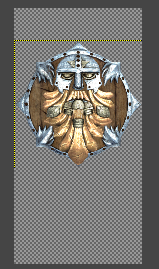
Now your icon is ready for exporting - you can at this point also add a bit of a outline if you wanted.
Example of original game icon with black outline (although this doesn't always occur - helmets, armor and cloaks which are PLT icons tend to not have the outline):