-
Created by
 Jasperre on Oct 12, 2023
9 minute read
Jasperre on Oct 12, 2023
9 minute read
The Script Editor edits script files (nss - Neverwinter Script Source) and can compile them.
Notably in EE you can now load a separate editor, such as VSCode, from the toolset, instead of using the built in editor. See Toolset Options.
Script Editor
To open the editor right click on the Scripts list on the left hand side, to edit or create a new script, or hit edit on any script event which will put that script back into that event slot if it was blank.
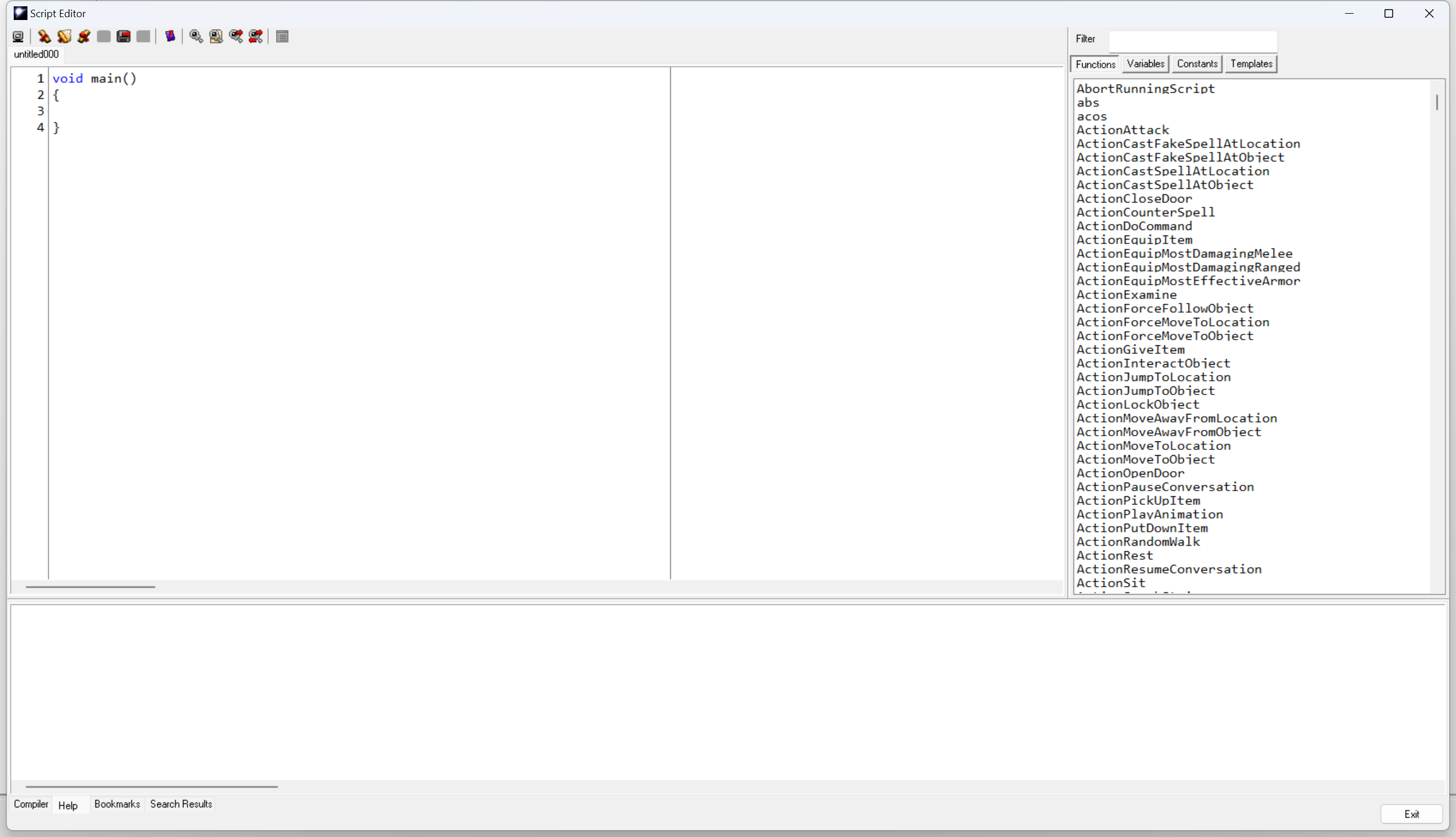
Note there are a number of Toolset Options to alter colours so you can make some changes to the font and colours.
Toolbar and Basic Functions
| Item | Toolbar Icon | Shortcut | Function |
|---|---|---|---|
| Save and Compile |
| F7 | Will save then compile the script. See further down on how the compiler works. If you enable Automatically Compile Scripts on Save in the Toolset Options this is functionally the same as Save Script |
| Create a new file |
| Ctrl + N | Creates a new blank script. Most of the time it will be the general void main() {} scripts. If editing a Conversation Conditional script it will instead be an int StartingConditional() blank script. |
| Open an existing file |
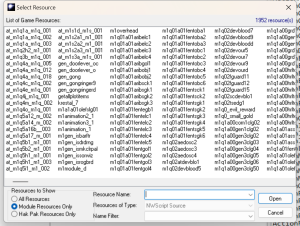
| Ctrl + O | Opens an existing file. It will open as a tab along the top of the window. You can filter by name, and show different types of scripts available:
|
| Close the current file |
| Ctrl + F4 | Closes the currently open file. |
| Save the current file |
| Ctrl + S | Saves the currently focused file. If you enable Automatically Compile Scripts on Save in the Toolset Options this is functionally the same as Save and Compile. If a script of the same name already exists in the base game resources it'll warn you about this. If a script of the same name already exists in a hakpack it'll warn you, while you can save, it will take no effect since the hakpack file takes priority. |
| Save As |
| Ctrl + Alt + S | Saves the current script under a new name, useful if you use another script as a basis for your new one. |
| Save All |
| Saves all files open in the current script window. | |
| Bookmark |
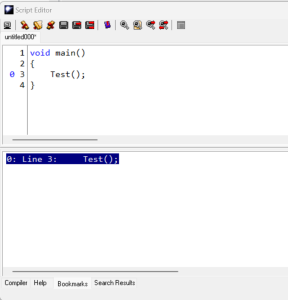
| F5 Ctrl + Shift + # (1-9) (add) Ctrl + # (1-9) (jump to) | This creates a bookmark at the current line. Doing it again removes the bookmark if present on that line. The bookmarks tab at the bottom show the current bookmarks and you can click on them to quickly visit a particular line. You can jump to bookmarks 1 through 9 with Ctrl + # (noting for some reason ctrl + 0 doesn't work, and also is the first bookmark added with F5!)
|
| Find Text |
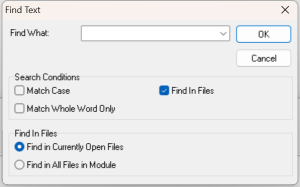
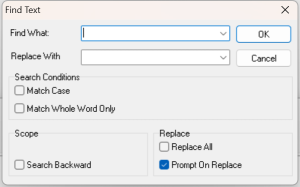
| Ctrl + F | Finds text in the current file. It also has the Find In Files checkbox available to search all files in the currently open window, or the entire module (you cannot however search all hakpack or default game scripts, annoyingly).
|
| Find In Files |
| This just opens the Find Text window as above with Find In Files automatically checked. | |
| Find Next |
| F3 | Finds the next thing in the current file, after you have clicked Find Text and entered a search query (else it searches for nothing and finds nothing). |
| Replace Text |
| Ctrl + R | Can replace text in the current file only with similar options to Find Text.
|
| Options |
| Opens the Toolset Options panel. |








Editing Window
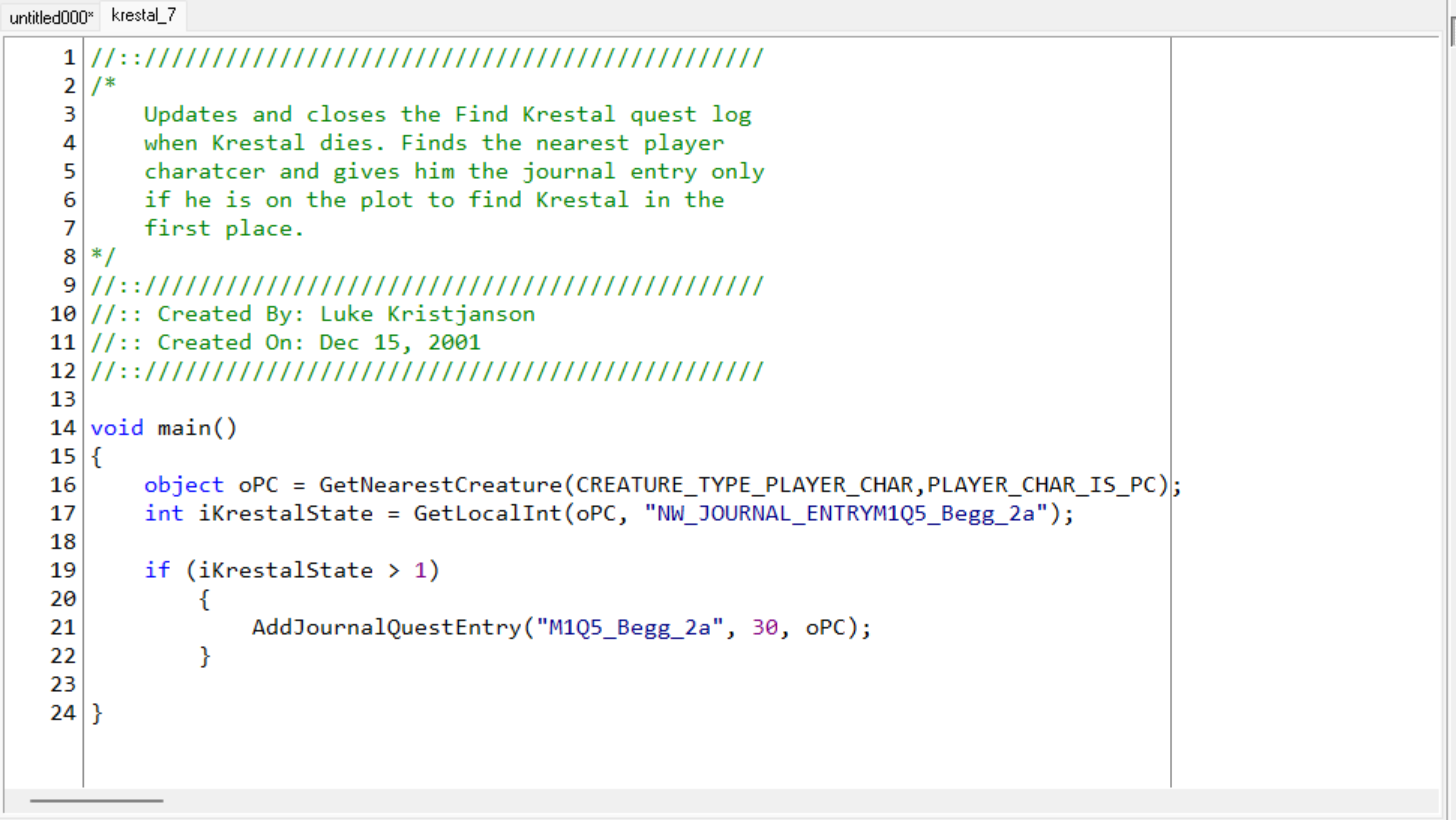
This window is the way to enter new script text. You should read our sister wiki the NWN Lexicon if you do not know how to script, which includes a number of tutorials.
New functions, include files, prototypes and the like can all be added and used, you can check the Bioware scripts for examples.
You can alter in the Toolset Options all the colours, fonts and the like.
Line number are on the left, allowing you to more easily see compiler error locations, and the vertical line that's present in the Window is exactly 80 characters in - which in the heady days of 2002 was being ignored as per the example so not quite sure why they added that without a toggle!
Beyond typing you have a other shortcuts and actions to help you, most of which are normal text editor conventions (but there's no toolbar buttons for, for whatever reason). This might not be a complete list, the toolset never had a very good manual from Bioware!
| Item | Shortcut | Function |
|---|---|---|
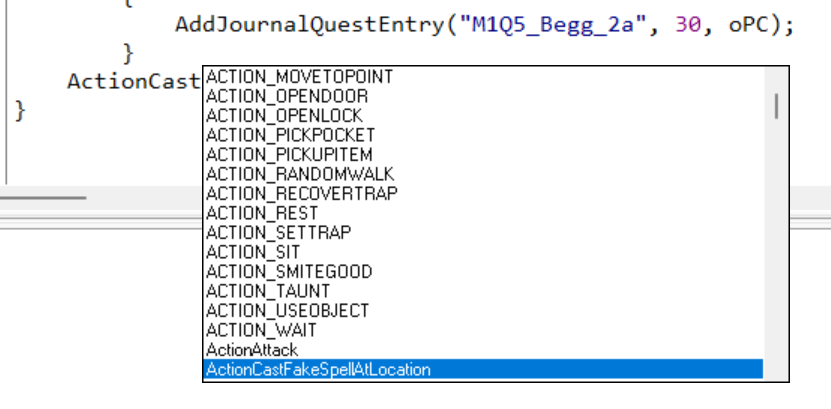
| Autocomplete | F2 | This provides at the current caret location an autocomplete box. This box by default shows all items (Functions, Variables and Constants) available starting at the first matching one (sadly they all look identical, which can make custom and normal functions sometimes difficult to differentiate). Press Enter to choose one and the arrow keys to change the selection If it is a function it'll add a ( automatically as well. It is not case sensitive either. Sometimes when you've used the filter in the top right it kinda gets confused and lists a random assortment of things, probably a bug.
|
Bookmark Add/Remove Bookmark Jump To | Ctrl + Shift + # (1-9) Ctrl + # (1-9) | As per Bookmarks above creates and jumps to bookmark locations. |
| Indenting | Tab | Tab adds adds enough spaces to the next indent, in 4 space increments. For instance if you're 6 spaces in, and press Tab, it'll add 2 more and end up with 8 spaces. Selecting text allows you to indent a block at once onto the next indent location. |
| Move Back | Shift + Tab | Without selection this does not remove indents instead it moves the carat back to the previous indent. For instance if you're 6 characters in and press Shift + Tab you'll go back to being 4 characters in. Having text selected does move the text back to the previous indent. |
| Check Help | Double Click Function | See Help function panel below. |
Copy Cut Paste | Ctrl + C Ctrl + X Ctrl + V | Basic copy/cut/paste works fine. These are also available by right clicking. |
Undo Redo | Ctrl + Z Ctrl + Y | Redo sometimes messes up when it's pasting things back in but undo works reasonably well. Undo is available by right clicking. |
Jump Forwards/Backwards | Ctrl + Left/Right Arrows | This moves through the code to the end of function and variable names. |
Scroll Up/down | Ctrl + Up/Down Arrows | Moves the screen but not the current caret location |
Select All | Ctrl + A | Selects all the text in the file. Also available by right clicking. |
Mass Select | Ctrl + Shift + Arrows | Allows larger amounts of selection jumping reasonably well to quotes and ends of parts of the code. |
Functions, Variables, Constants List
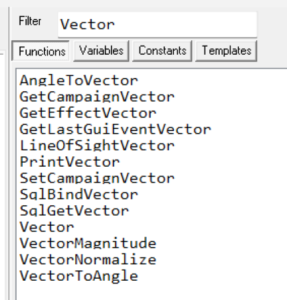
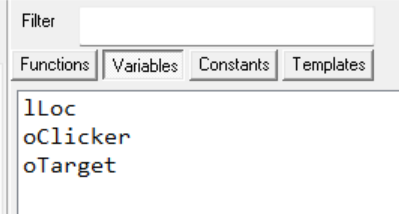
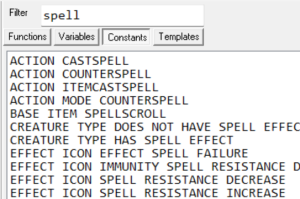
These are all able to be filtered to find items you need to insert. For instance don't remember the constant for a certain VFX? Type it partially in the filter to find it.
Double click something to add it at the current caret location.
It also helpfully bolds custom Functions and Constants not included in the base nwscript.nss file making your custom code more obvious.
Clicking on an item will update the Help Window box as well, and it can be worked through with the arrow keys.
Templates List
This will load entire code blocks from pre-existing files. For instance you could have custom file headers or common functions.
It will load them based on the option set in the Toolset Options. By default this is scripttemplates which even if created in your Neverwinter Nights documents folder won't load anything (the game used to have this folder in the base game folder, it no longer exists). So make sure you select a folder for this, the game install folder has some by default; see steamapps\common\Neverwinter Nights\data\scr for them, example: user defined events.txt contains:
So you can add whatever text files you want with code, and once selected it'll insert it at the current carat position.
Since they're not copied into the game files the txt files can have any name, any length and with spaces even, yay!
However the filter does not work on the Templates tab.
Compiler Window
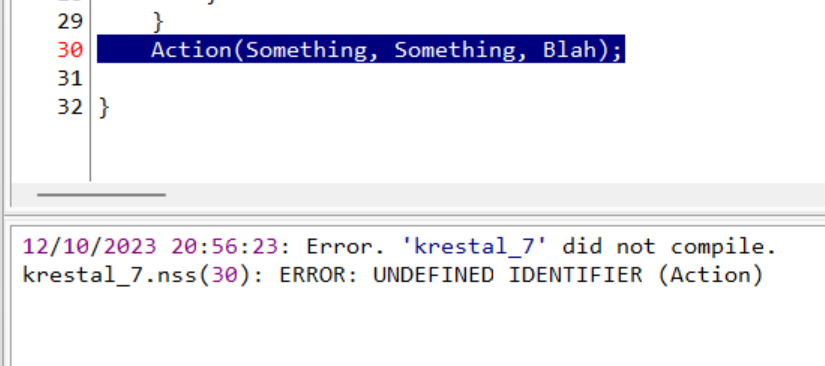
The compiler window is run on save usually, which is when syntax is checked, and the first error found is reported back. It will jump and highlight the affected line.
You can find more about error messages on the Lexicon. Note that commonly an error is actually on the line before where the compiler has stopped.
It also will not check for any kind of logic - so if you have if (x < 0 && x > 0) which is never able to be true, it'll just happily compile it.
Note that code that is never called is never compiled into the final NCS file but it will still be checked for syntax.
Help Window

This panel provides help for a function or constant when double clicked in the edit window or selected in the right hand Functions/Variables/Constants/Templates window.
Functions can have prototypes which contain normal // comments above them they'll be shown as above.
Constants tend to just show their real value, no comments. You can add custom constants with the keyword const.
Variables don't show much - just the type of variable they are, and no context or even the full line they're defined.
Bookmarks Window
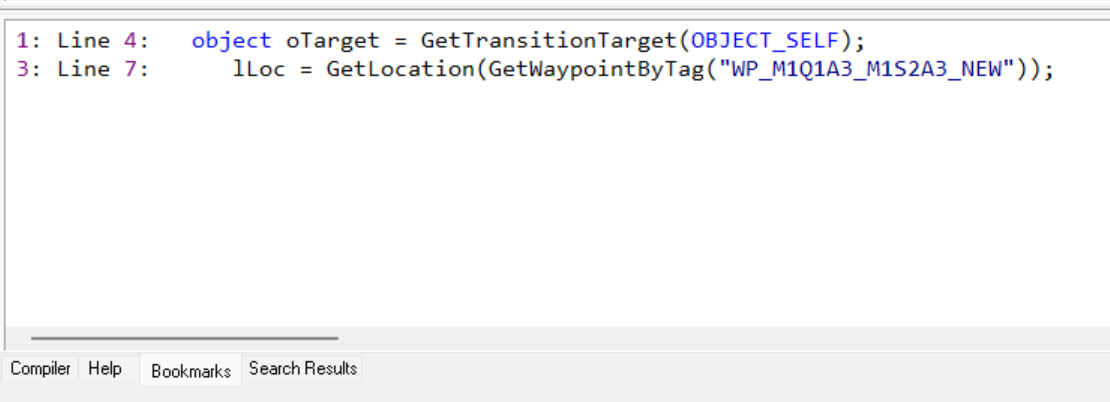
See further up for the shortcuts to using bookmarks. The view here can be used to access them by the mouse by double clicking on one.
Search Results Window
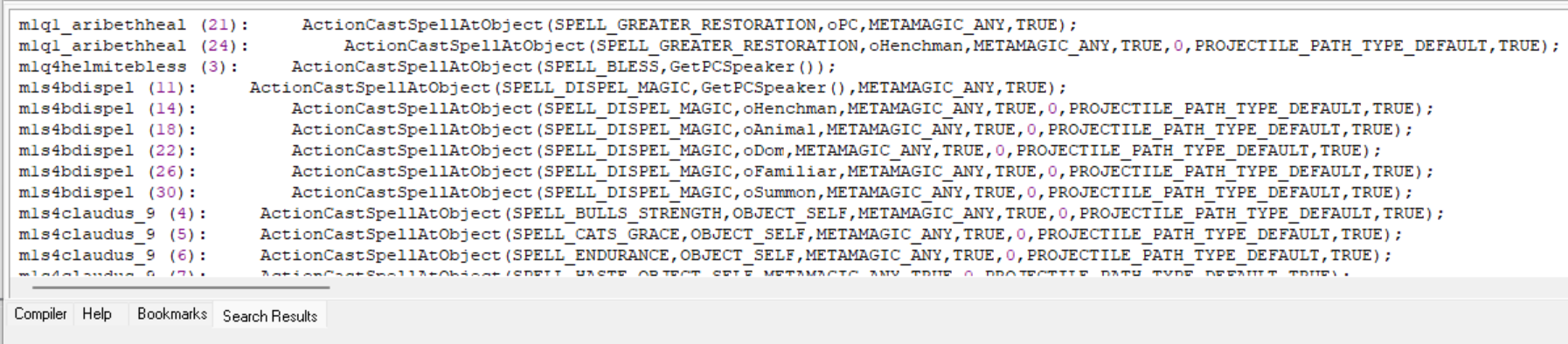
If you "Find All" you'll get all the results here which can be useful you can then double click on them to go to the file and line where it's defined.