-
Created by
 Jasperre, last updated on Feb 17, 2024
3 minute read
Jasperre, last updated on Feb 17, 2024
3 minute read
When you have an issue with Neverwinter Nights EE there are some very simple methods to do some basic troubleshooting and check if there is custom content or other issues with your installation.
Follow this top to bottom checking if your issue is resolved each step.
Patching
Your game should stay up to date on Steam but might not on other platforms. Make sure you're running the latest stable build of the game for all the latest fixes. If there is a bug fixed by a preview or development patch those are only available on Steam.
Verification of Game Files
In Steam and other platform you can validate your game files. This will re-download any files that have been altered or deleted. In Steam, go to Properties of the game and select Installed Files tab to find the Verify Integrity of Game Files button. Press it and it will revalidate and download any files it needs to.
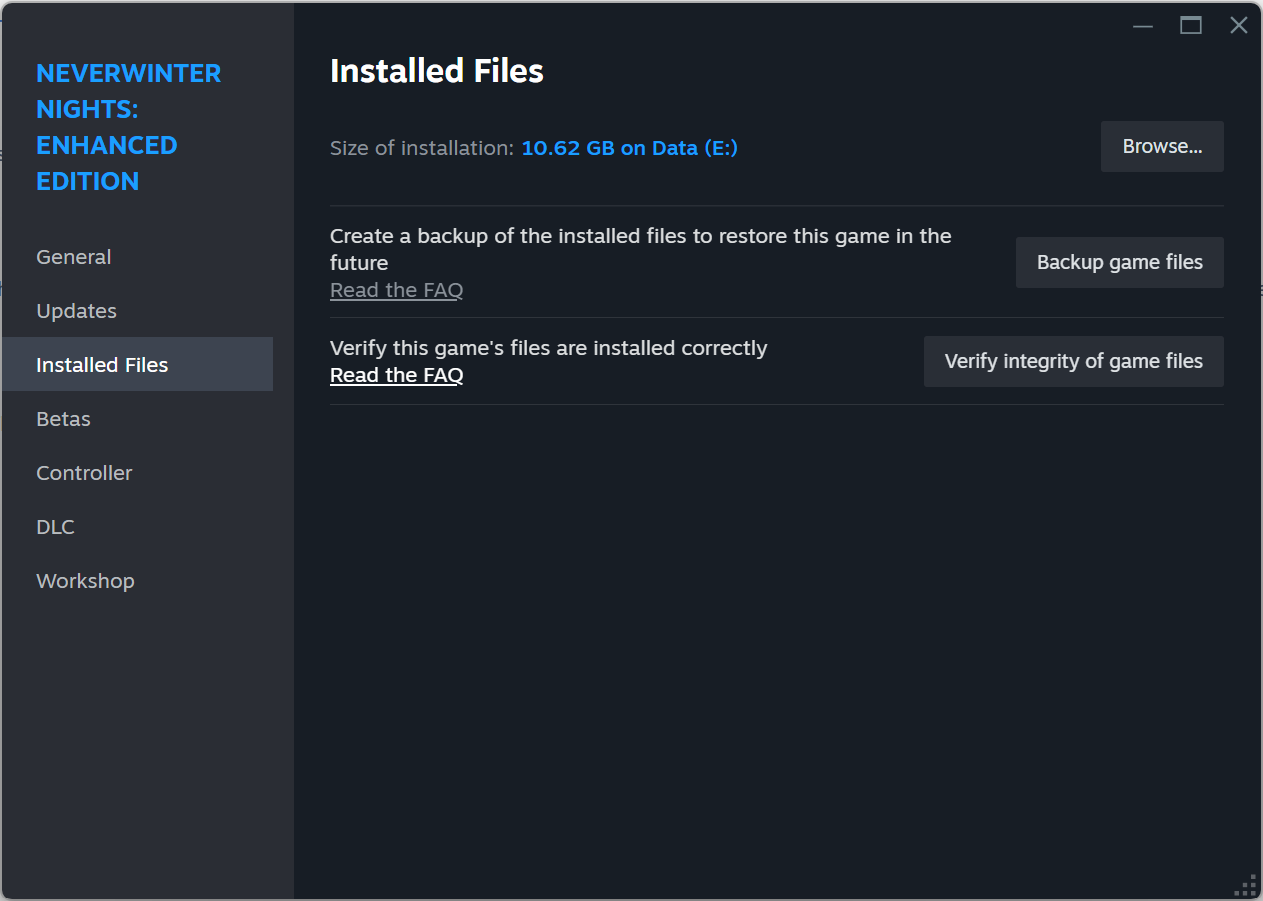
If this still has issues you (or an installer like the HD pack installer) might have added files to the games /ovr folder. You can delete it, and then revalidate the game to redownload those files cleanly. Example directory on Windows: E:\Steam\steamapps\common\Neverwinter Nights and the ovr folder is in it.
Finally if things still seem odd, you can redownload the game by deleting it in Steam, finding and deleting any leftover files in the game folder, and then installing again. This is the cleanest method, and removes any potentially odd files in the install directories left over from modding.
Remove Steam Workshop Files
This is a common issue that Neverwinter Nights EE has no in-game management of Steam Workshop files. You might have some and not even realise it!
Unsubscribe from the games workshop content here: https://steamcommunity.com/app/704450/workshop/ or in the Properties of your game where it can show if any are there, and remove them so it's empty:
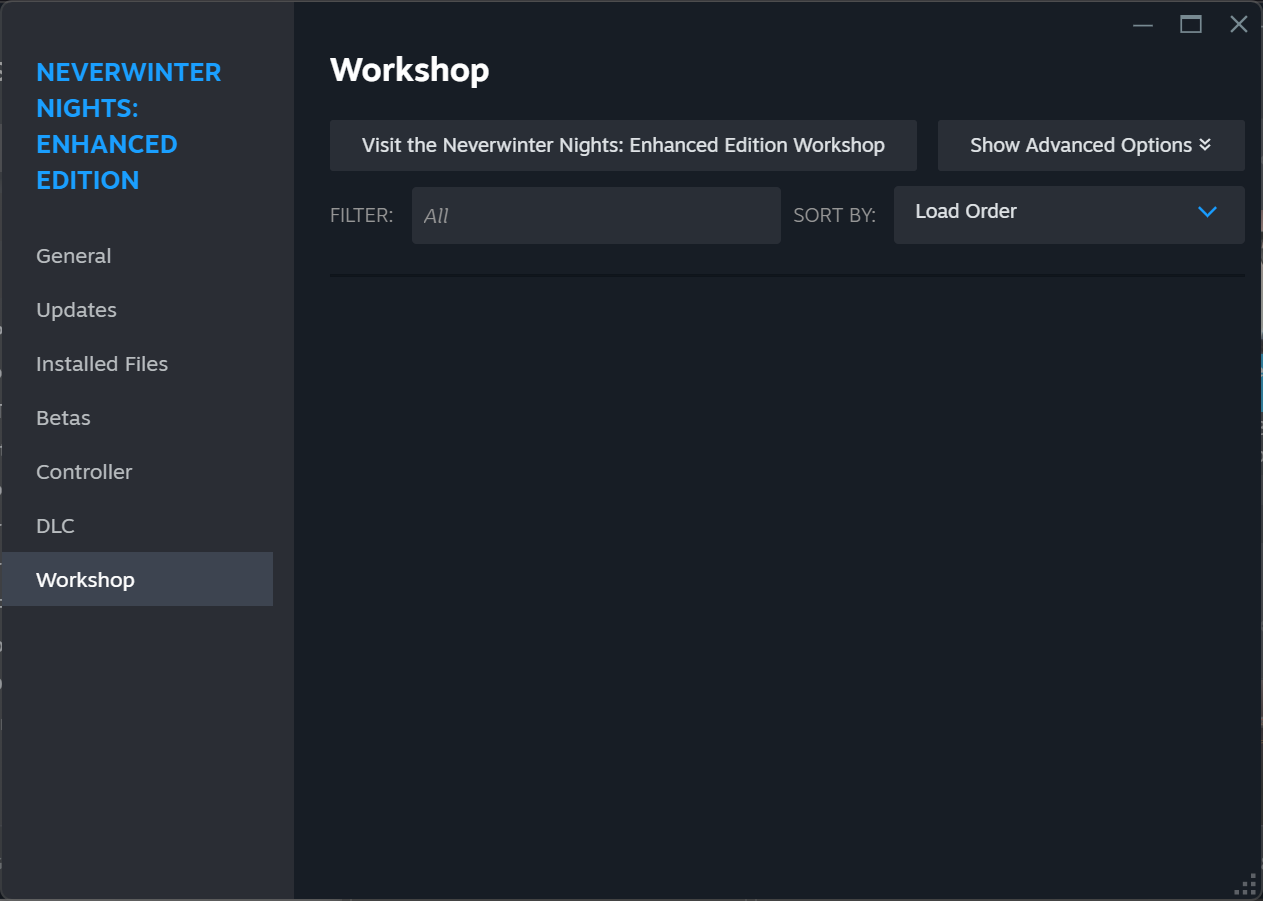
Then when unsubscribed, you can remove the content that Steam may have left around if you want to be sure. Example directory on Windows would be: E:\Steam\steamapps\workshop\content\704450\ - it should be on the same drive as the game is in.
Since Steam Workshop content usually are "override" files it can mess up files the game has patched or even module or server content by accident.
Reset your Documents Folder (Custom Content/settings)
This can help by resetting your settings, and moving all custom content away from the game, so you can find out what causes a crash or issue.
You need to rename your Neverwinter Nights folder in your Documents. Find it in your OS's documents folder, and simply rename the folder to something like "Neverwinter Nights Old". Then run the game once it will recreate the folder structure and settings file.
This should solve most crashes or other issues. Slowly adding back override, patch, hak and module content to find the issue. Or alter your settings, and find which setting crashes your game.
Running Without Steam or GoG
Rarely Steam or GoG causes issues. You can disable the loading of overlays etc. by exiting the clients before you load the game. The executables can run without Steam or GoG present just fine.
Toolset Note
Note the toolset won't load Steam or GoG overlays or load Steam workshop content, so if there are issues with it make sure you follow other suggestions above.