-
Created by
 Jasperre, last updated on Jul 25, 2025
5 minute read
Jasperre, last updated on Jul 25, 2025
5 minute read
This is a page to explain the different Eos Toolset project settings available.
Team Work Recommendations
If you're working with other people using source control and have a consistent file structure you can have this be generalised by using relative paths, like the external folder defaults to the Eos project folder \external - in this example it is E:\Eos Test Project\external
You can also update the settings file for your local config (eg your own Neverwinter Nights folder) and simply not upload the .eosproj file back to source control to keep such changes local.
Other options can be:
- Setup either a separate NWN documents folder (use -userdirectory for the game / toolset to specify and generate this)
- Work with nasher to generate the 2da files with that using Eos to export the final 2da and SSF files instead. Nasher can also copy the tlk file as needed
It will depend on your teams workflow, Eos is reasonably flexible since it can generate the hakpack and tlk files directly, or the 2da/SSF/TLK files directly.
Note SSF and TLK files are not suitable for most source control, you can add such file types to your gitignore file, or similar, to exclude them. You can also do this for 2da files if you want to just use the Eos base data in your source control.
Paths
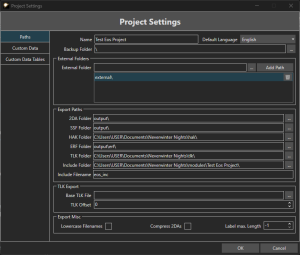
These are the base settings of the project - where we're exporting to and base TLK settings.
Name: Project Name, this is used for generating the hak and tlk file names.
Default Language: Eos does support putting in translations for other languages, but this is the default one used for the project and loaded from the game files.
Backup Folder: Only used for when using the Project → Backup Project. It will export a zip file to the given path, default: root path of the project.
External Folders
This section can add one or more "external" folders. This is currently only used to source TGA files used for icons. The icons do not have to be 32x32 or anything, any TGA file is found. It would be recommended to have a good custom content folder structure with a folder for icons.
Note: The icons are added to the hakpack export if any project data is using them.
The entire contents of the directories are checked - this means subfolders and all files. This can hang the toolset if there are too many files, so don't point it at tens of thousands of files.
Export Paths
These work in tandem with Project → Export Project.
2DA Folder: The folder the 2da files are exported to. Recommended to keep in the project source tree unless you want it to go directly into your override or development folder.
SSF Folder: The folder that compiled SSF files are exported to (sound set files).
HAK Folder: The folder that HAK files are exported to, these contain 2DA and SSF files, plus any icons if they are used and accessible from external folders. The hak folder in your Neverwinter Nights folder is suitable for this.
ERF Folder: The folder that ERF files are exported to. ERF files will only presently contain the script constants file NSS.
TLK Folder: The folder that TLK files are exported to (talk table files contain text strings to display in game). The tlk folder in your Neverwinter Nights folder is suitable for this.
Include Folder: The folder the script constants NSS file will go. Usually you'd point this to your module folder.
Include Filename: The constants script filename, you can use up to 16 character maximum.
TLK Export
Base TLK File: This is the path to an existing TLK file to use. For instance if you are building off CEP you can point it to the CEP file. Then Eos will use lines after the last entry in that TLK file, and provide those TLK strings to the toolset.
TLK Offset: The amount of padding to put the first TLK entry. For a brand new TLK file this makes it so you can pad out safe numbers underneath for builders to use or have some compatibility with other projects. Note that TLK binary files are not space efficient so having a very high value with only 1 TLK entry can still have a big TLK file with a lot of blank entries.
Export Misc.
Lowercase Filenames: This is recommended to tick, since on Linux files are case sensitive. Generally Eos exports lowercase hak and tlk files already, but some existing 2da files are not all lowercase so this covers those.
Compress 2DAs: This stops 2da files being padded with whitespace to have aligned columns. This vastly reduces their space and may have a minor effect on export speed by Eos and the load speed of 2das by the game. It can also help bring the files down in size for nwsync purposes. If you are not hand reading the resulting 2da files this is worth ticking.
Label max length: The maximum length of a label when exporting 2da files from the names you've used. For instance if you want labels to be only 10 characters max it will cut them off ("My Epic Super Feat" becomes "MY_EPIC_SU" as a label). Can usually just leave at -1.
Custom Data and Custom Data Tables
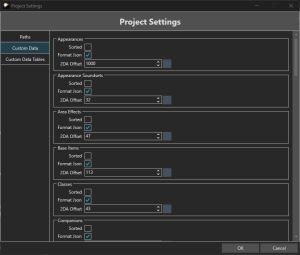
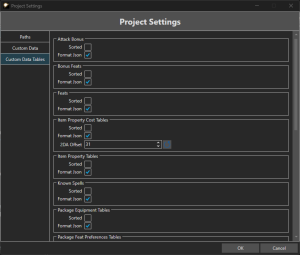
This section deals with adding new custom data to existing 2da files, where should it go and how should it be done?
All the 2das have the same settings although some don't need 2DA offset setting since there is no need:
Sorted: This will sort the order of entries in the toolsets GUI. By default sorting is off and based off 2da line. This is dependant on your preference since the Search functionality is good at finding things.
Format Json: The Eos JSON files that it generates when saving can be formatted. This means whitespace is added making them larger, but it can make it much more readable in source control and diff programs. Recommended to enable this for anyone using source control.
- Note that while the formatting is more consistent, data sometimes "moves around" JSON files as things are added, removed, moved, etc.
2DA Offset: This will start new entries at the given offset. This is set by the Toolset automatically based on the default game files or the imported data if you use any. You can set it by hand which can help projects wanting to pad entries past what other projects or developers use for compatibility purposes.