Original package primary authors:
A tileset is a selection of tile models all referenced from a single tileset file (.SET).
The toolset will use these files to create manual and automatic picking lists for area builders, with placement rules and prefab groups constructed in the SET file.
Models can be shared between two or more SET files. Original content sets reuse some tiles prefixed with "TALL_" such as the checkerboard feature and the basic raised portal pad.
Before beginning the creation of your tileset, you'll want to plan ahead and understand all the basics of tileset creation and how the toolset picks what can go where.
Tiles generally have three parts that you need to consider in everything you do. These parts will define what tiles can be placed adjacent to other tiles. The three primary parts are terrain, crosser, and height.
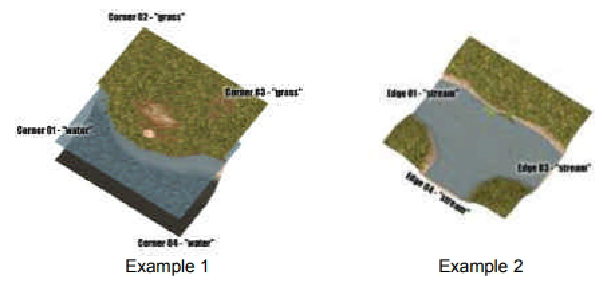
Terrain determines what is at the corner of tiles. These are your primary features per tile and usually correspond with actual terrain types, like "grass" or "floor" or "water". See Example 1 above.
Crosser determines what is at the edge of tiles between corners. These are your secondary features per tile and usually correspond with something that crosses from tile to tile, but which is not itself a terrain type. Examples include "road", "stream" or "wall". See Example 2 above.
Height determines the height of a corner terrain. Height values are increments of the tileset's height transition value, which is normally in meters.
When these parts match at corners and edges, the toolset will be able to pick and elevate tiles into the correct position for the builder to make an area.
With functional basics out of the way, you're ready to start taking down notes for your own tileset.
This process is far more complicated than most think, and will take a lot more work than anybody ever expects. But with good organization and planning before you begin the actual tile creation process, you can save yourself a lot of headache.
Keep in mind that the basic tilesets tend to have 200+ tiles, all of which conform in filename and overall format to a few basic structures. They're helped by aspects as simple as file naming, so let's start there.
The first thing you want to do is outline how you will name your files.
Original tilesets are named with a 5 character prefix, such as TTR01. This prefix says "Tileset Terrain Rural Version 01"
Naming files like this keeps all the files for one set in an easy-to-find group within your development or override folder while you are building the set. You should try to name even your textures and shaders this way when possible.
Using this naming convention can get you into trouble if you have a name that might overlap with existing tilesets in original content, or custom content on the vault. Original tilesets include standard prefixes such as those on the following table. However, custom content tilesets can and do have almost any prefix, and reasoning does not always follow this standard.
| Prefix | Tileset |
|---|---|
| TCN01 | City Neverwinter |
| TTR01 | Terrain Rural |
| TDC01 | Dungeon Crypt |
| TIC01 | Interior Castle |
Later versions of revamped original tilesets included with the NWN:EE versions have "02" in their prefix. This allows them to be used as optional versions, rather than forced overrides. You can do similar with sets you create.
When constructing tiles, builders will often have all their tiles in a single scene of a 3D editor, such as GMAX or Blender. To help with export of those tiles, and to later find them again in the scene, builders often use a grid layout.
Original tiles can be thought of as coming from a 3D grid. Rows are index by letter A to ZZ, whereas columns are indexed from 1 to 100. Variations of tiles are again indexed from 1 to 100.
These gridded indices are then added to the filename. The first tile in a set is therefore named "TTR01_A01_01".
In original tilesets, many tile rows were used for certain terrain types. For instance row A is usually used for your primary terrain mixed to your secondary terrain. Later rows above M tend to be used for feature and tile group parts. Row Z is often used for edgetiles which go around the boundary of your area but are grayed out and unusable.
It is good practice to get all your tiles mixing any two things into a single row. For instance all your grass mixed with water could be a single row.
It's also good practice to order your tiles such that if they mix two terrains, they also start with the lowest number of corners using the second terrain. For example, one corner of water mixed to grass would come before three corners of water and one grass. Mixing three terrains at once commonly goes on another row.
This naming convention is not required, but helps in both the planning and the export stages.
| A name is limited to 16 characters max, which is the limit for the RESREF datatype used by the engine. |
| Certain operating systems may see upper and lower case in filenames as two separate options, rather than being the same file. So in that case, you might consider all lowercase filenames to help those builders on other systems use your product. |
Axis Notation and Scale
When building in a 3D editor, there are a few basics that must be known before you begin.
In NWN, the Z axis is up (to space, not north). If your editor is working with a different "upways" axis, you'll need to change that. The X axis is the West to East direction. The Y axis is the South to North direction.
A tile in NWN is 10 meters square on the XY plane. If you have recently installed Max or GMax, then your settings may still have an arbitrary unit instead of meters for your dimensions. You'll want to adjust that before you begin working. See the individual help manuals for those programs for assistance. The settings you are usually looking for would be called "customization" or "preferences" and the topic would be "units" or "grid units". In GMax, it is common to work in centimeter scale, so that your tile is 1000x1000 units. NwMax will convert your centimeters to meters on export.
If you are working with models from 3rd party downloads, you may find that they're stored in a scale that is 1000x larger. This is commonly because they are working in millimeter scale for 3D printer software. In that case you will need to actually scale your models up or down before working them into NWN. Find how to do that using the help manuals for each 3D editor software.
To do all the work needed to build a custom tileset, you'll need to understand where the data comes from during gameplay. Below are some filetypes, specific files, and what they do.
The SET file is where almost all the data for your tileset will be located. It is stored in the old Windows INI format, with some exceptions. The primary exception is that the toolset will not load it using INI reading software. It will instead load it sequentially, meaning the order of INI headers and subsections must be strictly built. That layout can be found on the SET file description page.
Set files are named using just the set prefix, like "TTR01.set"
| The SET file specifically indexes everything by tile index, not by name. |
The ITP file is the menu tree structure while in the toolset. This is what the builder sees when using your set in the toolset. It contains a branch section for terrains, crossers, features (1x1 groups), and larger groups.
ITP files follow the format "TTR01palstd.itp" which you can see includes the tileset prefix, followed by the word "palstd".
| The ITP file indexes everything by name, rather than index. If you change the name of something in the SET file, then the ITP file might not work for that thing anymore. You won't be able to place features or groups using that name, and entire terrain type will be unusable. |
Tiles can have door indices which will snap doors to a specific location and orientation if the builder is placing doors. Other tiles have tileset specific doors which will automatically be installed when the builder places the tile.
Door types are stored in two files.
The file "doortypes.2da" includes tileset specific doors. If you add custom doors specific to your tileset, this is where you need to put that information, or your tiles will not load those doors when placed. They'll instead be blank spots. When referencing a door on your tile, you'll index the door by the row number in this file (1 based, rather than 0-based as usual).
The file "genericdoors.2da" includes generic doors. In general, if your door can fit any original content door jamb, then you would put your door in here. When referencing a generic door jamb on your tile, you'll use the door index zero (0). All generic doors are index zero, which lets the builder select a door, instead of forcing a certain indexed door.
If you make tileset specific doors, you MUST add them to doortypes.2da and then share that file to clients with your HAK and module. That file MUST be merged with any other versions including other set-specific doors, and the original content specific doors. Many builders simply won't do this and will instead use only generic doors.
Edge tiles are those tiles which surround the area out to 5 tiles beyond the actual area space. They are not walkable or reachable in any way. They are also grayed out to the clients.
Not all custom content has edgetiles. Not all tileset types can have fully functional edgetiles. And tilesets using edgetiles have a pattern of repeating tiles out from their edge that some builders do not like. When edgetiles are used, they are indexed in a separate file from the SET file.
The file "ttr01edge.2da" accompanies tileset "ttr01.set" and lists the edgetiles. See the writeup for that file to understand its structure.
Edge tiles using the original content naming convention usually have row Z set aside for edgetiles. If you follow that convention, it will make finding edgetiles in your tileset hak easier.
Edge tiles are not a requirement, and don't make sense in some situations.
The file "areag.ini" holds generic information and presets for tilesets. Any set not listed in this file will get the most basic default information.
Within this standard Windows INI file, you can set area tile details such as ambient sounds, battle music, daytime and nighttime running musing, initial scripts for clients entering and leaving the area, and assorted area properties, such as interior/exterior, or whether the area allows PVP.
The use of this file is not a requirement.
The file "loadscreens.2da" lists the selection of loading intermission images to play for your clients between areas. The "TileSet" column allows you to bind specific bitmap images to your set, so that you see only those you want shown. If not specified, your clients will instead see random bitmaps from the list.
Loadscreens are not a requirement.
Tile-oriented mainlights and sourcelights will draw their colors only from the file "tilecolor.2da". The color picker will not allow other colors. If you want other color lights on your tiles, you have to add them another way.
Tile lights are not required, but they do add to the ambience options that builders have when constructing an area. Tile mainlights are also controllable through the area environment settings. You can alter all tile mainlights at once by setting new environment properties in the toolset.
Mainlights are generally floating ambient lights, rather than directional lights which would cast shadows.
Sourcelights are generally directional lights with a specific causative feature, like a torch or lantern or campfire on the tile. Sourcelights are also partially controllable with environment settings. Sourcelights can also be bound to tile animations, so they can turn on and off by day and night settings, as well as activate and deactivate settings. For example, the forest tileset has torches and campfires that can turn on/off, allowing one tile to be used as multiple variants.
The toolset can handle two of each light type per tile. Anything beyond that will need to be done with placeables and visual effects. Using visual effects offers more light colors, especially when used with the new progFX functions (available to EE only).
The file "footstepsounds.2da" contains a list of sound overrides. It is not area-specific.
The file is an array of footstep type codes paired with three options of sound for each terrain type.
The terrain types include Dirt, Grass, Stone, Wood, Water, Carpet, Metal, Puddles, Leaves, Sand, and Snow. Each terrain type corresponds with the name of a walkmesh material type. See Surface Materials below.
The file "surfacemat.2da" contains the global controls for how walkmesh types will function in your module. See the listing for that file on how it works exactly.
Model files include the mesh for your tiles, as well as the position of lights on those tiles.
Model files also include the non-network version of AABB walkmesh data for your client, telling them how and where they can move.
Model files also include animation sequences for stuff specific to that tile.
Tile models do not include actual lights, sounds, or doors, or the animations for tile specific doors.
Wok or "Walk" files include the network-specific AABB walkmesh data for your client, telling them how and where they can move. During network play, WOK files are preferred over AABB sections within the MDL file. WOK files are kept and controlled by the server so the client finds it harder to cheat how they can move.
DWK files are walkmesh files paired with specific doors. They are named the same as the door they are used for.
When a door is closed, the DWK controls the on-tile walkspace.
When a door is opened, the DWK gives control to the tile WOK file.
When doors are opened and closed on a tile, the tile also changes pathnodes for those seeking to move through that tile from a distant tile to another distant tile. See pathnodes.
Tiles can make use of TGA and DDS textures. They can also make use of MTR material files, which can point to custom SHD shader files.
Light sources on tiles are typically not actually lights. Lights outside of tiles use an actual light node, but tiles instead import a light and control its characteristics in other ways.
Tiles use a dummy node with a specific naming convention to force the position of a light. There are two types of lights that will respond to the toolset and NwScript commands.
Each light will be prefixed with the tile name, exactly as it appears in the aurorabase. Each light will then be suffixed with either "ml" or "sl" for mainlight or sourcelight respectively. And then that suffix will be followed by the light index, 1 or 2.
As example, the light from tile mainlight 1 from tile TTR01_B01_01 would be "ttr01_b01_01ml1".
Tiles can be animated using the following animation names.
Name | Expected Frame Length (at 30 FPS) | Purpose |
animloop1 | 50 | A looping animation which animates a subset of the parts of a tile. |
| animloop2 | 50 | |
| animloop3 | 50 | |
| Day | 50 | The animation state during daytime. Ex. when night lamps are out. |
| Night | 50 | The animation state during nighttime Ex. when night lamps are on. |
| Night2Day | 50 | Just like it sounds: this (and the below Day2Night) runs at the transition of night/day. Used for e.g. turning on night-time torches or lanterns, and for fading-in night time illuminated window meshes over ordinary daytime window meshes, using keying of alpha values on the night-time window mesh. |
| Day2Night | 50 | See above |
| tiledefault | 50 | The default animation of a tile. Will be assumed when not specified. Not required. |
Animloops control a subset of the tile parts. Some parts can be bound to animloop 1, 2 and 3 separately, and then can be enabled/disabled separately. This allows one tile to have many uses.
During the daytime, the Day animation will play. Likewise the Night animation will play at night.
At the transition hours set in the module, Night2Day and Day2Night animations will play which are intended to cover the 1 hour interval of change going from Day to Night and back again.
During transition animations, you can slide parts out of view, including those with self-illumination values, like glowing glass pane windows. You can also switch on source lights.
Height Transitions
Terrain Types
Crosser Types
Tile Grass
Tile Water
Doors
Sounds