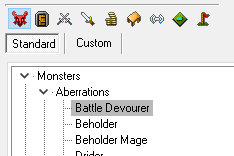
Note: The main 3d level editor needs to be opened for some reason to see the palettes of creatures, placeables and the like on the right hand side of the editor.
To open the area editor, simply double click on an area in the left hand list, or Right Click → View Area on it. You can in NWN:EE open more than one area if you enable it in the options (and can then copy things between them even) but this does tend to cause more crashes so be careful. However it is very useful.
The area editor is no longer a like-for-like visual representation of what the level looks in game due to improvements in lighting, shaders and other things. It is worth looking at the Test Module page for guidance on how to test how areas look and feel.
The camera usually acts as if it is anchored to 0.0 Z height which can be a bit frustrating for people used to a more advanced modern engine or 3d modeller program like Unreal Engine or Blender and sadly does not supported WASD or arrow key movement.
Basic controls for the 3d view are in the toolbar, some with associated keyboard and mouse controls:
| Command | Button or Menu Option | Keyboard / Mouse | Notes |
|---|---|---|---|
| Fullscreen Mode | View → Full Screen | F11 | |
| Move Camera (x/y axis) |
| Ctrl + Left mouse A + Left mouse You can also move the camera with the numpad: Numpad 4 / 6 / 8 / 2 - Move camera up / left / right / up / down | Oddly the numpad options stop working when holding shift, but not ctrl... |
| Reset Camera |
| Numpad 5 - Reset camera to facing straight down from a high height | |
| Pan Camera |
| Ctrl + Right Mouse Ctrl + Middle Mouse You can also pan the camera with the numpad: Numpad 7 / 9 / 1 / 3 - Pan left / right / up / down | |
| Zoom Camera |
| Scroll wheel | |
| Slowly Zoom Camera | Shift + Scroll Wheel | ||
| General | |||
| Refresh | Environment → Refresh | F5 | This seems to change if placeables stack...somewhat? It's a bit weird. Don't use it - there are rarely any times it will be useful the toolset is very good at displaying changes as needed. |
| Tile Interaction | |||
| Paint Tile | Select the terrain you want in the right bar and Left click on the area. Base terrain is done affecting 4 tiles at once. Features are baked in like walls/briges or are pre-set sizes of tiles for specific buildings etc. | ||
| Select Tile |
| Click on Select Terrain (top bar) or Paint Terrain (right hand menu) buttons then Left click to select | This allows a single tile to be copy and pasted with CTRL + C and CTRL + V. Copy and pasting of feature tiles can copy part of a tile. |
| Select Multiple Tiles | Click on Select Terrain (top bar) or Paint Terrain (right hand menu) buttons then drag with Left Mouse button to select more than one tile | This allows a group of tiles to be copy and pasted with CTRL + C and CTRL + V. The tile selection is in blue. Copy and pasting of feature tiles can copy part of a tile. | |
| Change Tile Appearance | If the tile is base terrain (where you usually place 4 tiles at once centred between tiles):
If the tile is special "feature" terrain (Eg; walls, bridges):
| ||
| Remove Feature Tile | Once tile(s) are selected, press Delete | This can remove partial parts of feature tiles (eg half a house), but usually removes all interconnected tiles as part of terrain like walls etc. | |
| Object Interaction | |||
| Select Object(s) | Click on one in the left hand panel | Select with Left Mouse button in object mode Drag with Left Mouse button to select multiple objects | Since you can hide different object types from view, mass moving just creatures or just sounds or something is relatively easy. |
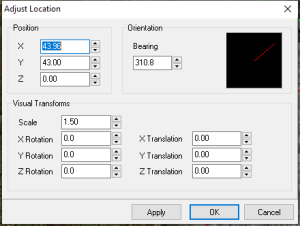
| Move Object (X/Y plane) | Right Click → Adjust Location (Position section)
| Select object(s) and drag with Left Mouse button | |
| Move Object (Z plane) | Right Click → Adjust Location (Position section) | Select object(s) and hold Alt and drag with Left Mouse button | Since Alt also can activate the accessibility menu for the top bar, it can be a bit finicky. Note creatures placed above or below the walkmesh will not stay there, and jump to the walkmesh. Anything else however will stay where it is placed on the Z plane (placeables, sounds, waypoints etc.). To adjust a creature to be higher use the Translate options. Note that if you select a placeable after moving it on the Z axis it might snap back to the walkmesh inadvertently. |
| Rotate Object |
Right Click → Adjust Location (Bearing section) | Select object(s) and hold Shift and drag with Right Mouse button | |
| Set Object Random |
| ||
| Scale Object | Right click object → Adjust Location (Visual Transforms section) | Select object(s) and hold Ctrl and use the Scroll Wheel | Scales and translations only work on non-static placeables. Note: Scaling via. the scroll wheel doesn't mark the area as needing to be saved, you must do this manually (or do something else in the area to trigger it to recognise changes). The adjust menu doesn't have this issue. |
| Translate Object | Right Click → Adjust Location (Visual Transforms section) | Translating an object does not change it's true real location, which is where you'd click on it if it was present. You could use this however to your advantage in many ways. | |
| Remove Object | Right click object → Delete (in world) Right click object → Remove (in sidebar) | Select object(s) and hit the Delete key | |
| Object Creation | |||
| Place new Object |
| Select in Palette and Left click to place | |
| Place multiple new Objects | Select in Palette and hold Shift Left click to place | The shift key keeps that object able to be placed again. | |
| Stack new Placeable on another Placeable | Select in Palette and hold Shift then Left click to place | This isn't perfect but works well enough. Also works to keep the placeable available to be placed again. |