In this tutorial, I'll walk you through how shadow and beaming volumes are made in NWN and how to deal with issues like negative shadows or shadow spikes.
First, let's be clear what is and is not a shadow in NWN. Shadows are volumetric darkening of an area based on a polygon projected from the "back" of a mesh away from a light source. Non-volumetric shadowing caused by height mapping, screen space occlusion, and just generally being a face pointed away from a light source are NOT shadows. Those things are handled in totally different ways which require modifications to height maps and vert normals (or in gmax/max, modification of smoothing groups). This tutorial will not cover those aspects.
Rules for shadows also apply to beaming, which is effectively using shadow volumes to create light columns, as seen in the OC Forest tileset.
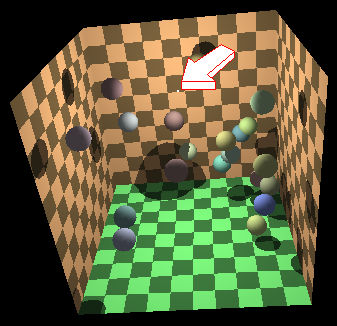
NWN builds volumetric shadows similar to the image shown below (from Wikipedia).
In the figure above,it may be difficult to see the light source, but there is a small white dot in the image which I've highlighted below. Shadow volumes project away from this point. In NWN, each light is one of these points.
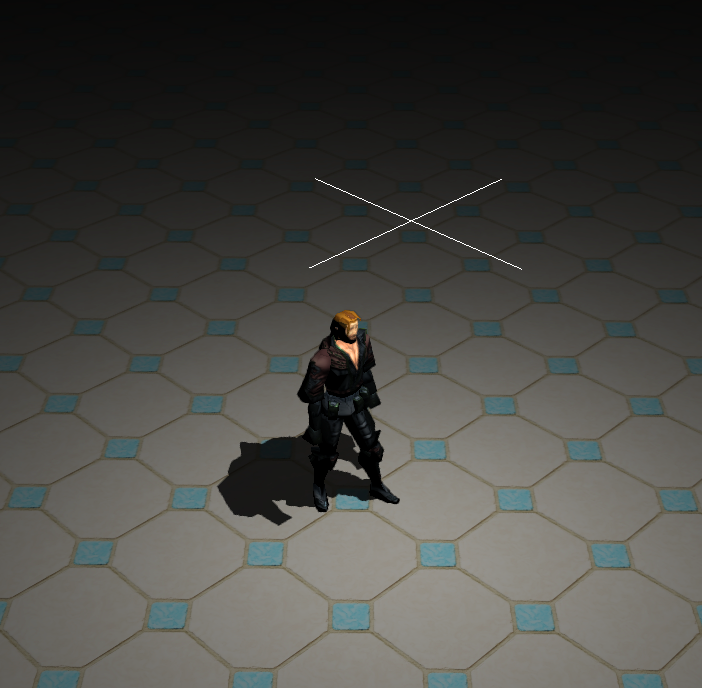
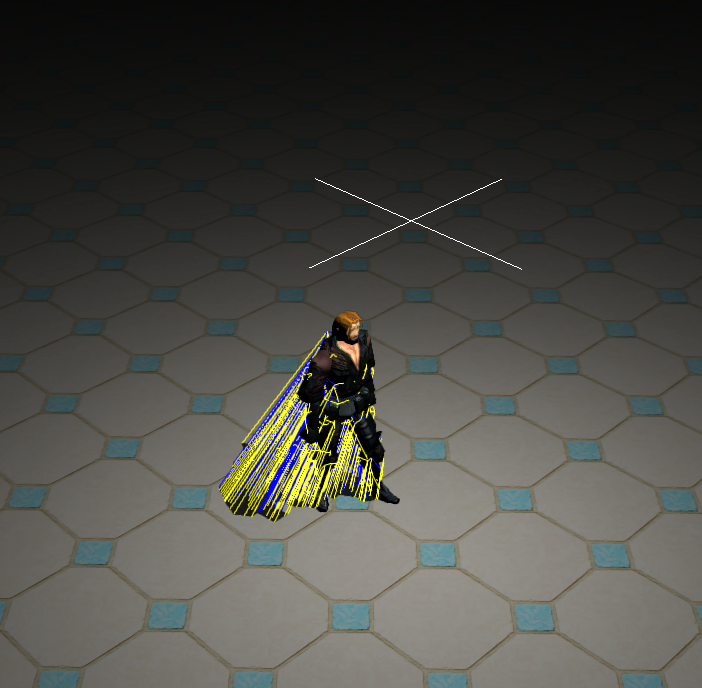
You can turn on similar shadow volumes on the debug panel from inside NWN:EE. You can also turn on a cross-hair marker for lights using the "renderlights" checkbox.
|
|
|
|---|
So far this all seems very intuitive because it stems from very simple geometry. However, shadow engines need to consider things like hollow spaces inside these shapes.
Let's think about a hollow sphere. If you were to move your character inside the sphere, you would want to see light being blocked from the outside, so a simple projection from the backside of any mesh will not do. Instead, a projection from the back side of any face must instead be done, and then the projection must end before passing through another object.
To do this NWN tries to negotiate the scene by flipping a yes/no variable as a ray is drawn through the mesh. If a ray of light strikes a frontface surface, then the switch flips to YES. The logical thing to do would be to flip the switch back to NO any time a backface is struck. However, that assumes that the mesh is a solid-hulled form, and as you probably know, most meshes in NWN do not have closed hulls. Many parts are simply planes, while others don't have any faces which would point down out of OC camera ranges. NWN does its best to figure out which meshes are "solid" but have very little to go on.
There is instead a system to determine if a face is supposed to be a solid YES/NO switch, but that system is not intuitive. Below is a pseudocode form for what the shadow engine should be doing.
Notice this is not even considering light source yet, and is entirely based on the origin point of the mesh. Which means we don't have to consider light sources in the calculations for shadow-fixing scripts. Everything we need is on the mesh node itself.
The most common problems with shadows are shadow spikes and negative shadows.
Shadow spikes occur when the origin is in front of one or more faces. A shadow volume is a 3D shape, more specifically a 3-sided prism, and so needs a start and endpoint for its z-axis or length. If one of those faces is pre-defined as the mesh's origin, then the shadow volume must always include the origin. That in turn means that if the volume is drawn from the origin to the face surface, the prism will be inside out. Once the truncated prism is handed over to the shader for drawing, what you'll see is the opposite side of the face is shadowed within the resulting prism. If the prism origin is far outside the mesh, you'll see a spike back to that position when drawn in world space.
Shadow spikes also occur when meshes have floating point math errors that return NULL or NAN. In those cases, one side of the prism is set to world xyz = [0,0,0], which is the far southwest corner of an area.
Negative shadows occur when the YES/NO switch for shadowing encounters multiple faces close together, such as invalid faces (ie. faces with only two unique verts), or cloned faces (ie. two or more faces using the same three verts). In these cases, shadow YES/NO can be set to NEGATIVE YES/NO, with the result being negative shadow. Negative shadow will appear similar to beaming, but will appear when no beaming meshes exist.
Another more recent problem with shadows is related to EE changes which helped stop decals from casting shadows on themselves. OC decals often used TXI command "decal 1" to draw after all other textures in that screenspace. This allowed placing the decal plane at the exact same position as the mesh the decal would draw onto. Without using the TXI decal commands, the render order of those meshes would continually swap during camera movement, and the decal would flicker.
Later builders instead raised the decal by 1 cm away from the underlying surface, but did not turn off SHADOW on the trimesh. This caused a shadow to be printed under the entire decal mesh.
To mass-fix this issue, the shadow shader was given an offset so that the shadow prism volume would be effectively zero under decals, therefore not printing a shadow for all those offset shadows. However, the drawback is that shadows now print starting at that offset from the mesh casting the shadow, which looks very strange and can result in too-short shadows, and may include visible gaps around meshes.
Flickering shadows also occur when the render order of a series of meshes cannot be properly identified. A perfect and common example is a flat floor plane with origin at tile xyz=[0,0,0] and the plane of the mesh is exactly 0 elevation. Is zero above or below zero? Yes. Depends on the camera angle and the math for that angle. So what you see is a flicker of yes and no.
Flickering floors can also be an issue caused by the model export's decimal accuracy. GMax and Max export whole numbers as floats which can have tiny error in the 0.001 to 0.000001 range. Therefore the number 10.0 in your Gmax vertex viewer may actually export as 9.999996. Numbers like this should be cleaned.
A modification can be made to older versions of NwMax for GMax to round values to the nearest integer value (which represents a centimeter in world space). Other programs and tools can process your models after export and fix those values. Look for tools like "snap verts". Not to be confused with "weld verts" which can cause additional errors like invalid faces and duplicate faces.
A simple method often given incorrectly for fixing shadows is to set the pivot of each mesh to 0,0,0. This won't work except for meshes which are planar and sit only above 0,0,0. As an example, let's look at a pit with mesh position at tile 0,0,0. In the first image the cross-hairs show where my light source is located. In the second image the pink cross-hairs show where the pivot (origin, position) of the meshes are located. We can see a pink pivot inside the center of the pit at ground level. The entire mesh of the pit is below the pivot, so the shadow volume is drawn inside out, producing a shadowed pit instead of a lit pit.
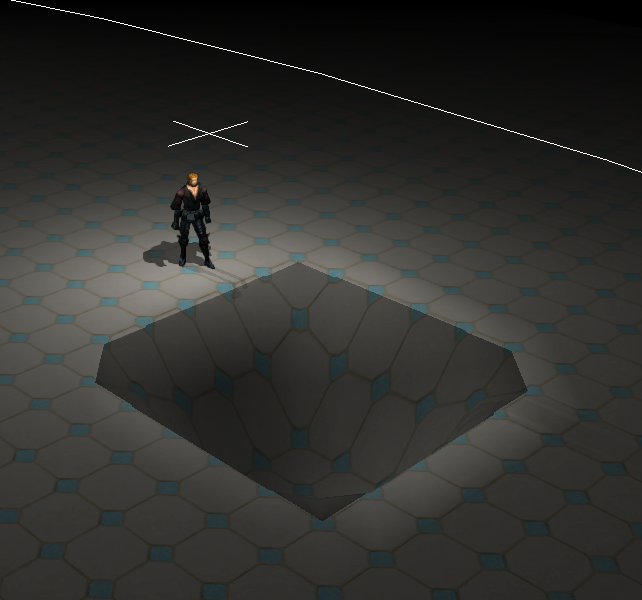
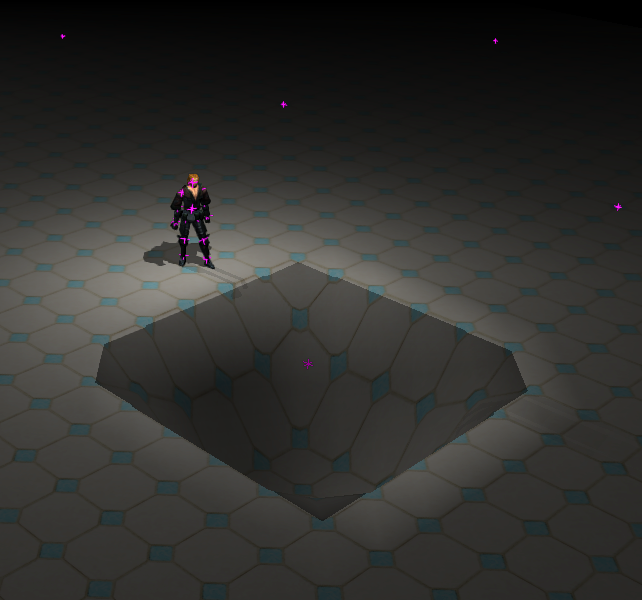
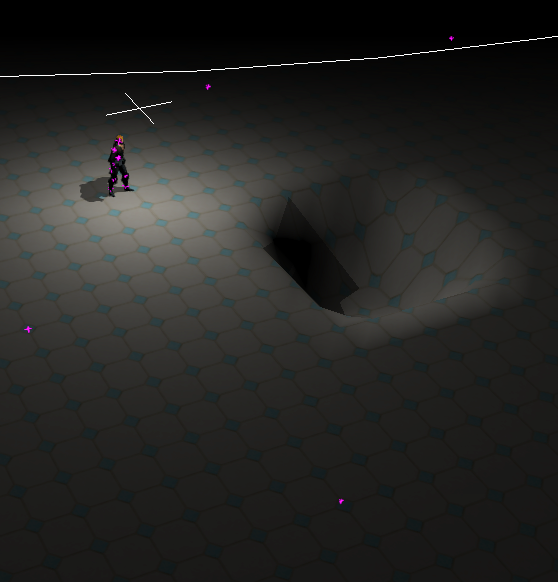
To fix this issue, the pivot must be moved below the pit body, but in a position where all faces are in front of the pivot. Any face pointing at the pivot will cast a backward shadow as with the pit body. Since all faces of the pit point generally up, the only position available for the pivot is far below the mesh and straight down from center. In the case of this pit, a safe location is actually 991 cm down from the original origin as shown in this corrected version below. Note the properly cast shadow and the pink pivot straight down from the pit approximately one tile-width deep.
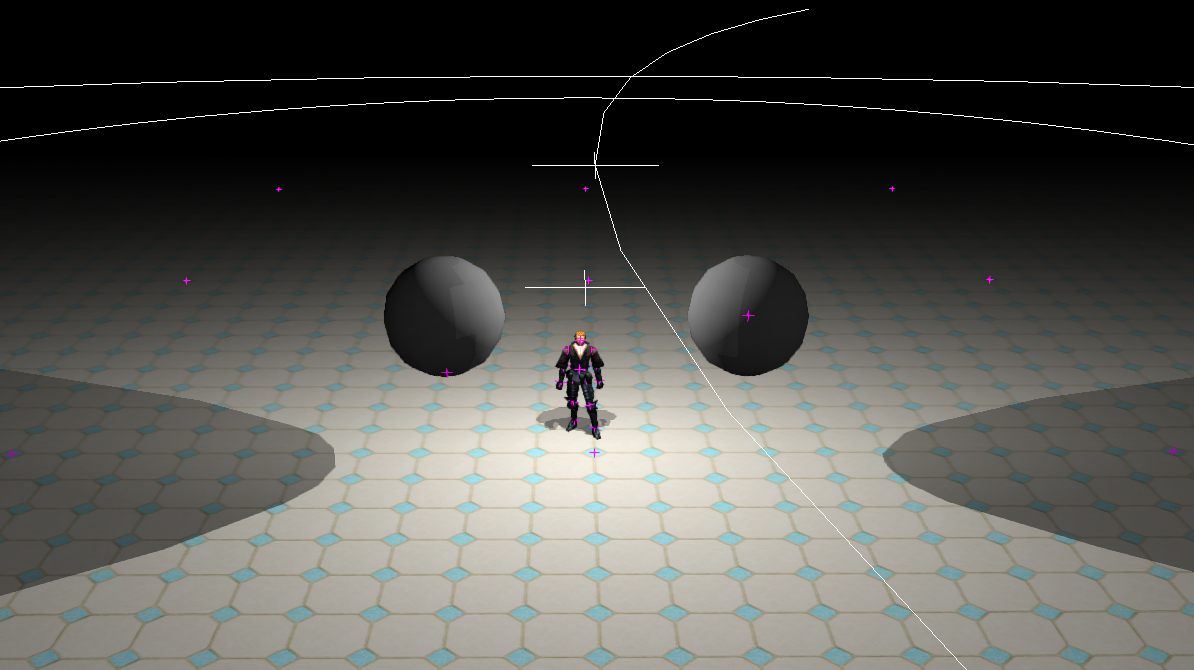
Another simple method often said to correct shadows is to reduce the complexity of the model. This only works for barely concave meshes to convex meshes and only if the pivot is inside or nearly touching the mesh to begin with. Let's take a look at a sphere produced in GMax. By default the sphere can be very detailed, but the pivot will be at the very bottom of there sphere touching the bottom-most vertex. The following image shows a bad sphere and a good sphere, but both cast good shadows. The bad sphere has the pivot technically outside the sphere, and the good sphere has the pivot inside the sphere. However, both spheres cast good shadows because the light is above the sphere, and the error draws back to the pivot, which is touching the sphere, so you never see it.
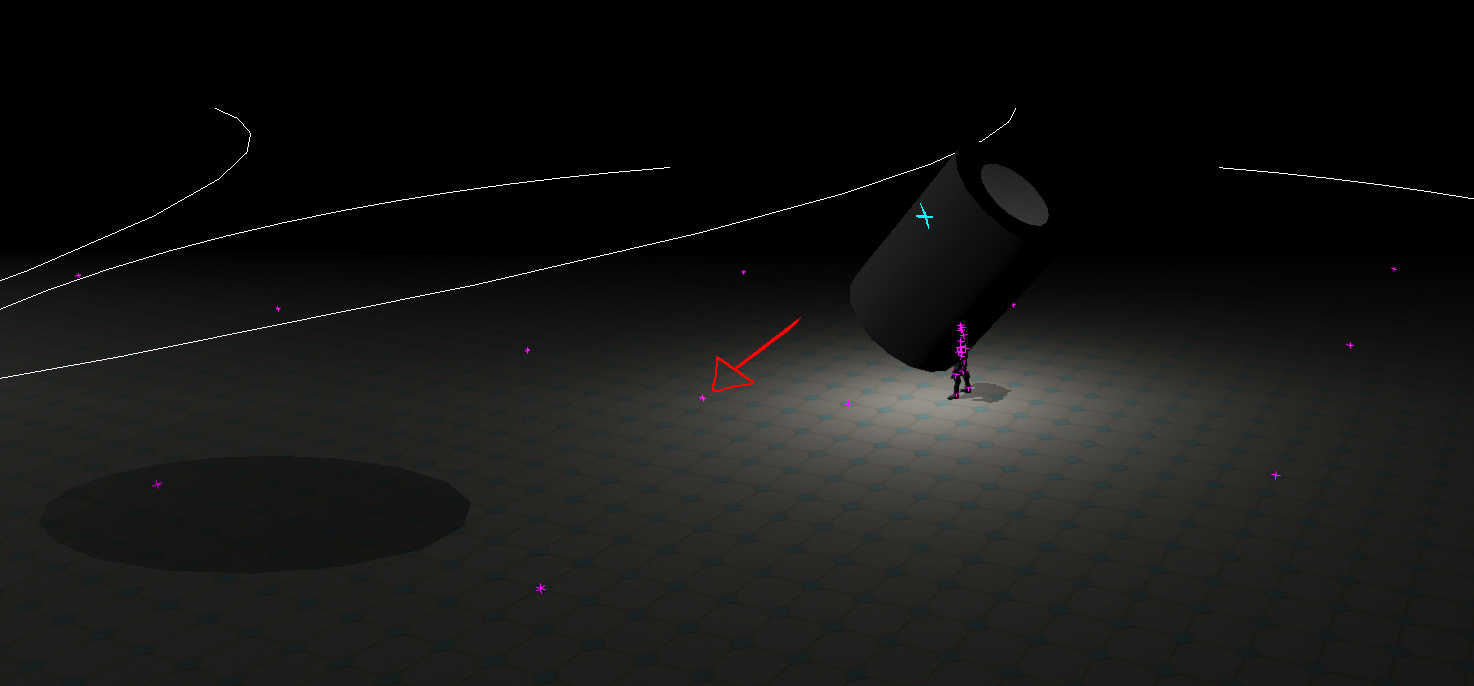
However, if we draw the pivot away from the mesh body and definitely place it outside the mesh, then we start to see really strange effects. As an example, I am standing inside this tube with my approximate light position marked by the cyan cross-hairs. The red-circled pivot belongs to the tube. Notice the shadow is now thrown to the other side and off the tile. Instead of projecting the shape of the outside of the tube, the shape of the hole in the tube seems to be projected. This shadow is wrong in every way except luminance.
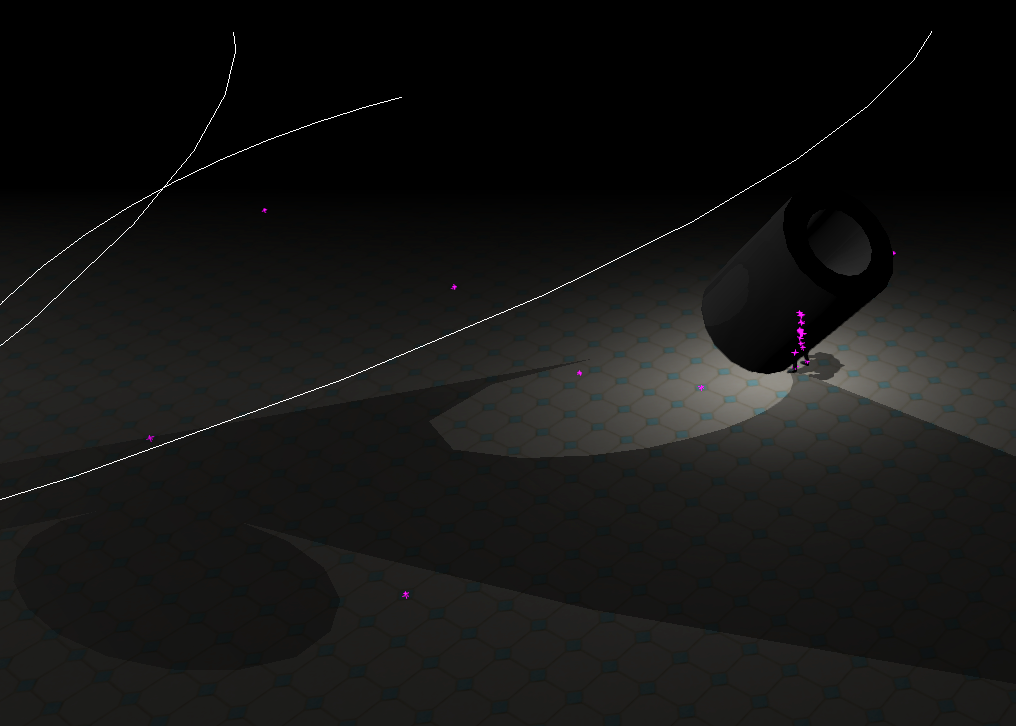
If the light source is placed behind just one more face, there are instead two projections, both of which are wrong.
What even is happening in these cases? Let's look at the shadow volume mesh to find out.
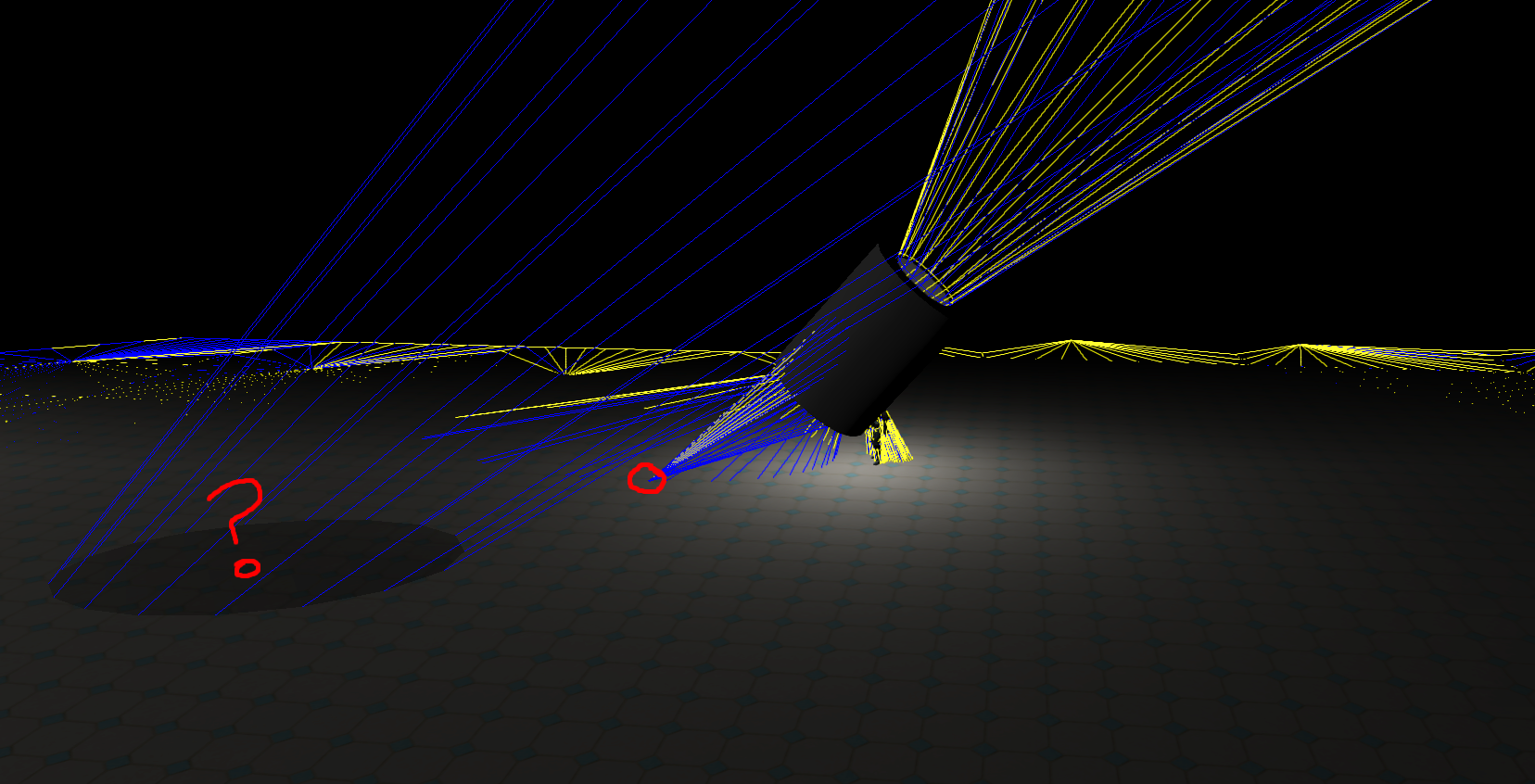
It looks like the shadow volume is projecting not only the pivot outside the mesh (circled in red) but also projecting backward from the pivot into space, then coming back through the floor to project somewhere else entirely? So very wrong.
In the case of a sphere, the fix is simple: just move the pivot inside the mesh if it causes an issue. However, the problem with a hulled tube is that there is no position inside the tube mesh which is behind all faces. In fact, there's a good chance that any position could only exist behind about a third or a quarter of the total faces.
To fix objects like this, they need to be split.
Think about the lowest number of meshes we would need to split this shape into so that there were X number of pivots that could exist behind all faces of the split. We could split out the inside, the outside, and the caps into four sections. However that leaves the inside as a concave tube which any point can only see half of. Likewise, the ends and the outside can be one mesh with a shared center.
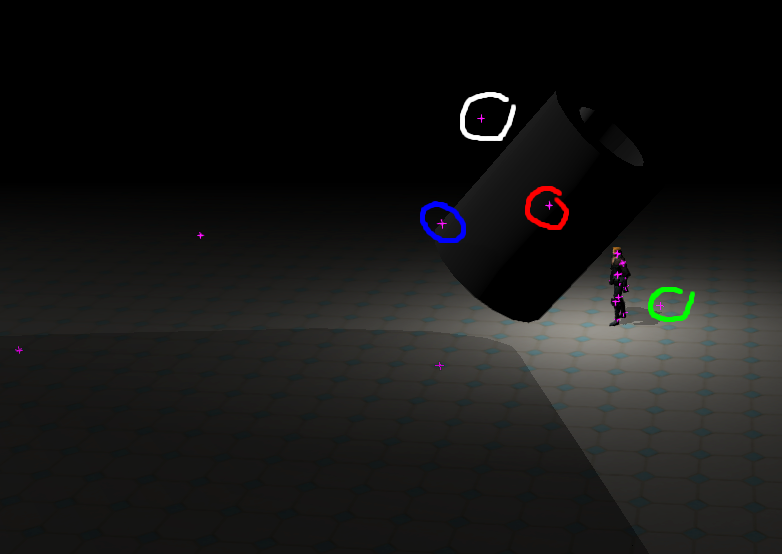
So what we can do is split the tube into outside plus ends, and then split the remainder inside into two or three radial sections. This tube has 18 radial faces, so if we split it into three parts of 6 then we should be very safe. Each part is color coded in the image below (red, green, blue, and white).
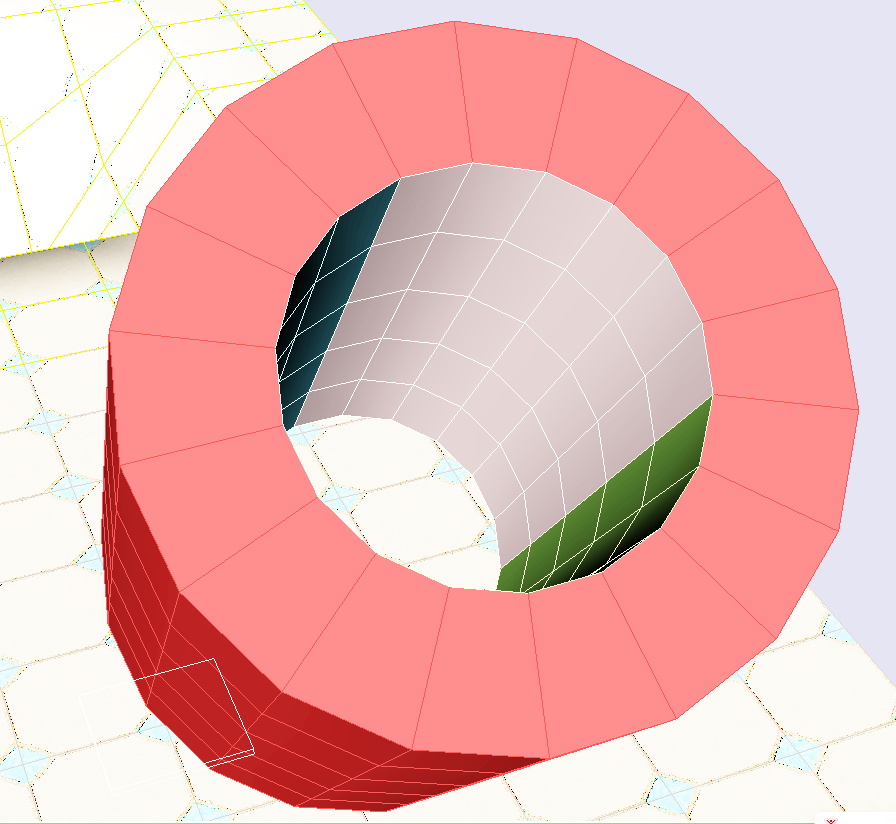
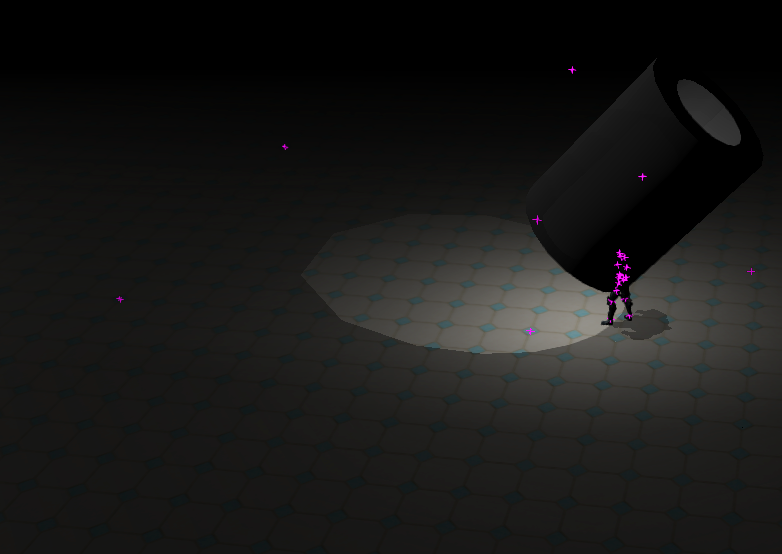
Now we can set the pivots of each subsection to behind those face groups and see how it fixes our shadow. The first image is taken with the light outside the tube. Pivots are circled in their respective colors for the submeshes. The second image is taken with the light source inside the tube. If we think about the physics of light, the spot cast from inside the tube cannot possibly be that big, but it's much better in terms of a video game rendering.
So we can see how simple it can be to correct concave and slightly-complex hulls. Let's take a look a multi-hulled object.
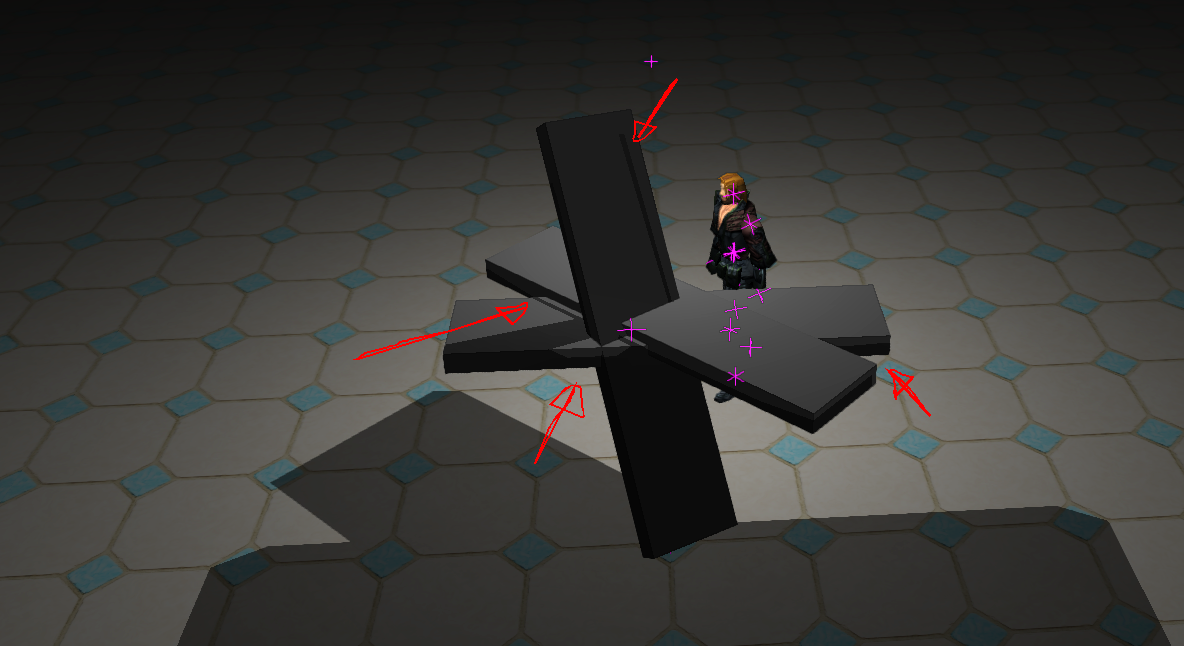
Here's a more extreme example of three boards overlapping as part of a combined mesh instead of three separated meshes. In this image we see some wrong shadows, some double shadows, and some negative shadows, as well as incorrect mesh-edge calculations. The simple fix for this one is to just detach the elements and put the pivot for each element inside that element hull.
Find the vector from the origin to the face
To find the vector from the mesh origin to the face simply get the face center and the position of the mesh. Subtract the mesh origin from the face center. Normalize the vector to find the vector direction from origin to face.
--Returns the vector direction from the center of iFace on oNode to the origin of oNodefn
GetOriginToFaceDirection oNode iFace = (
     local vFaceCenter = meshop.getfacecenter oNode iFace
     local vDiff = vFaceCenter - oNode.position
     normalize vDiff
)
Determine if two faces point generally the same direction
The function "dot" used with two normal vector inputs will produce a value that can be used to determine if something is facing the same direction as another. If the value is negative, then they point in opposite directions. If the value is positive, they point in generally the same direction. If the value is 1, they have the exact same orientation, and if the value is -1, they have the exact opposite orientation. If the value is exactly 0, then the first normal is perpendicular to the second.
--Returns 1 if vNormalA faces the same direction as vNormalB, otherwise returns 0
fn GetIsFacingSameGeneralDirection vNormalA vNormalB = (
     vNormalA = normalize vNormalA
     vNormalB = normalize vNormalB
     (dot vNormalA vNormalB) > 0
)
Determine if the origin is behind a face
If the vector from the origin to the face is pointing the same general direction as the face normal, then the origin is behind the face, otherwise the face is pointing at the origin, meaning the origin is in front of the face.
--Returns 1 if origin of oNode is behind face iFace of oNode
fn GetIsOriginBehindFace oNode iFace = (
     local vFaceCenter = meshop.getfacecenter oNode iFace
     local vDiff = vFaceCenter - oNode.position
     local vNormalA = normalize vDiff
     local vNormalB = getfacenormal oNode iFace
     (dot vNormalA vNormalB) > 0
)
Simple First Test: Set the pivot to the average of all face centers minus their face normal
Assuming you have a good mesh to work from without multiple elements, concave hulls, overlapping faces, etc., this function alone will fix most simple meshes.
--Find the average of the face centers, minus the normal of each face, and set the pivot to that position
fn SetPivotToAverageFaceCenter oNode = (
     local vSum = [0,0,0]
     local f
     for f = 1 to oNode.numfaces do (
          vSum += (meshop.getfacecenter oNode f) - (getfacenormal oNode f)
     )
     local vAverage = vSum/oNode.numFaces
     local vDiff = vAverage - oNode.position
     meshop.movevert oNode #{1..oNode.numverts} (oNode.position - vDiff)
     oNode.position = vAverage
)
Second simple test: Check if any face still points at the origin
Once you have tried setting the pivot to the average of the face centers, you need to check if any faces still point at the pivot. Otherwise you've gained no ground.
To do that, use this function to check each face using a function above.
--Does a simple check to see if shadow pivot position is behind all faces
--Does NOT check if there are overlapped faces from that position
--Returns 1 if all faces on node oNode are in front of the pivot, or 0 if any one face is not
--another position value can be specified in vPos, but if left empty will use the position of oNode
fn CheckShadowPivot oNode vPos:undefined = (
    if vPos == undefined then vPos = oNode.position
    local keepIt = true
    local f = 1
    while f <= oNode.numfaces and keepIt do (
        local vFaceCenter = meshop.getfacecenter oNode f
        local vPointToFace = normalize (vFaceCenter-vPos)
        local vFaceNormal = getfacenormal oNode f
        local fFaceDotNormal = dot vFaceNormal vPointToFace
        if fFaceDotNormal < 0 then (
            keepIt = false
        )
        f+=1
    )
    return keepIt
)
Snap verts to whole centimeters
The resulting position of the mesh can be a fraction of a centimeter, which can round up or down in the engine. It is best to round the resulting position to the nearest integer value yourself.
However, do not round just the verts as the mesh will still be wrong. And do not round just the mesh, or the verts will still be wrong. Instead, round the position of the mesh first, which will move the verts the same amount. Then round the resulting verts separately. This makes sure the position and the vert positions are all in values the engine can properly use.
Here are two functions to make rounding in GMax better.
--Returns the nearest integer value to input value n
fn roundNearestInteger n = (
    if (n>0) then (floor (n + 0.5)) else (ceil (n - 0.5))
)
--Rounds a vector to integer values for x,y,z coordinates
fn roundNearestIntegerVec3 v = (
    for i = 1 to 3 do (
        if (v[i]>0) then (v[i] = floor (v[i] + 0.5)) else (v[i] = ceil (v[i] - 0.5))
    )
    v
)
And here is a function which uses the previous function to snap your mesh to correct positions.
--Snaps the mesh and all of its verts to the nearest integer values
fn SnapMeshAndVertsToNearestInteger oNode = (
    oNode.position = roundNearestIntegerVec3 oNode.position
    for v = 1 to oNode.numverts do (
        local vert = getvert oNode v
        vert = roundNearestIntegerVec3 vert
        setvert oNode v vert
    )
)
If the second test failed, then you know you have more work to do in getting the pivot behind all faces. In addition to that, you also need to check that a ray drawn from the pivot outward can only ever hit one face. A simple test from pivot to each vert will tell you that. Gmax has some ray tracing functions, but they're inherently broken, failing when a backface is struck first. This issue may or may not be fixed in higher versions of Max. For this issue, there is some code I will share with a finished product at a later date. That code has a fully functional ray tracing function with a full report of the faces struck, including their details like normals and face indices.
Once you determine which faces are still offending, you can either move the pivot further, or in the case of overlapping faces or concave faces for which there is no simple fix, detach those faces to another mesh.
The code I will share simply takes all faces that fail the second code test above and puts them in another mesh, repeating the process until there are no more reductions to do.
An optional finished script instead crawls the pivot around through a network of lines through face normals trying to locate a position that will work within about 3x the bounding box size of the mesh. This works well for really big objects with somewhat complex shapes, but still requires split hulls for concave and overlapping forms.
I know these scripts work because they've worked wonders on the Crumbling Crypt set I started building in 2021. Hopefully I can simplify them to work for you too.
While everything so far presented here is mesh relative, there is one other issue that does come up sometimes, and that's lightsource related.
Light sources have two properties, Radius and Shadow Radius. By default, shadow radius equals light radius, therefore a torch with max radius 20m will also only cast a shadow to 20m, and a torch of only 2.5m radius also casts only a 2.5m shadow.
In most cases, people make their torch radius with multiplier x1, meaning the intensity is also set by the radius. A longer radius is effectively a stronger light. So a short radius light really wouldn't cast a long shadow anyway, right?
But let's investigate a deep pit in a DARK region where you're using a torch. If the torch max radius is 20m and your pit is 40m, then the bottom of your pit will be brighter than the shadowed section, which will look very odd.
You can fix that issue by modifying your torch lights. OC torches, rings and light effects are going through the file fx_light_clr.mdl. In that model you will see no shadow radius values for any of the lights. If you want your shadows in your world to reach the furthest extents, then you need a ShadowRadius value equal to the extent you want reached.
Take note that a longer shadow requires more drawing time. So setting your values to crazy high numbers will also make more work for the shaders. Likewise setting shadow radius lower will improve draw speed.
Another pit-related example can be used to examine the next case scenario. Imagine you have a deep pit in a well lit area, and you want the mesh along the pit to shade the pit all the way down.
To get this to occur, you need to have a correct pit-related bounding box. Light will not be drawn below the shadow-casting tile's lower bounds. So for example adjacent to your pit, you may have a flat floor tile with a lower bounds of around 0 elevation. This tile will not shadow very deeply into the pit next door.
To fix this issue, you can simply put a tiny mesh node way down below the tile origin. Place the mesh at the depth of your deepest pit, minus the height of your area height transition. That should work for almost all cases.