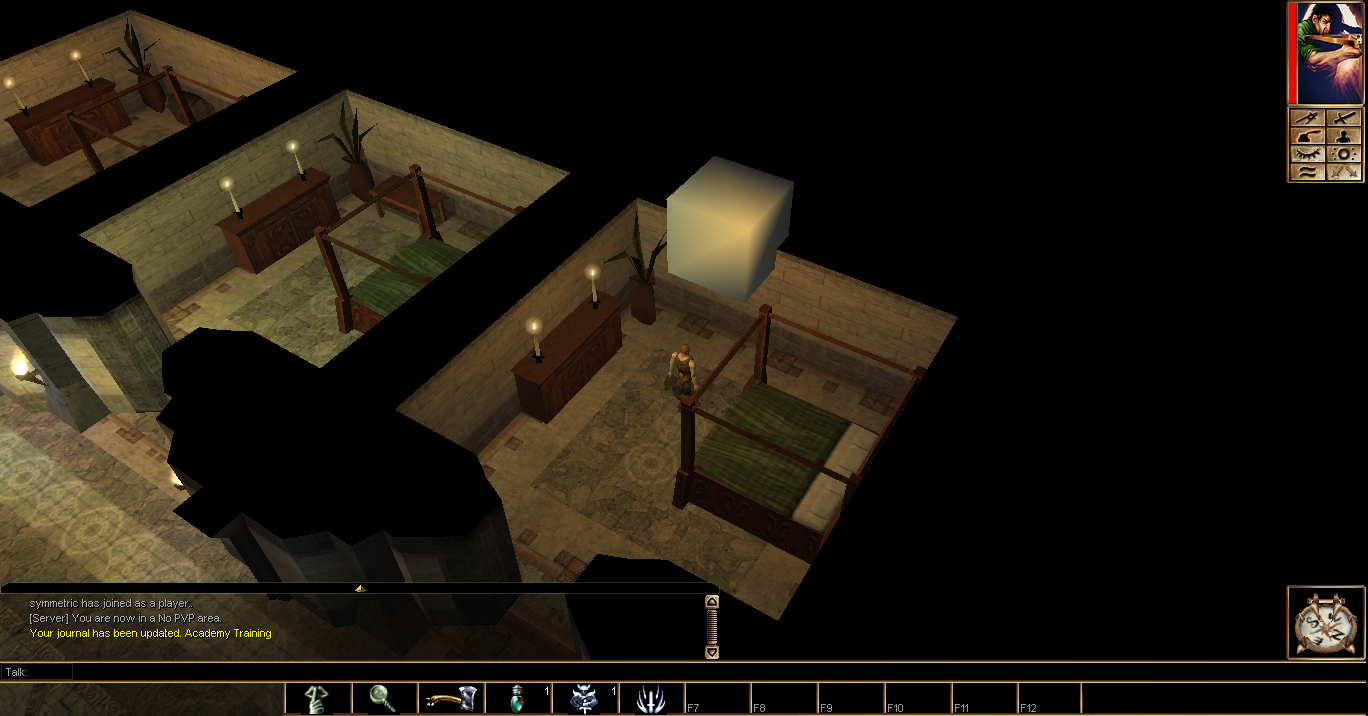
This tutorial will show you the basics of Blenders user interface and guide you through creating a primitive model and getting it to show up in Neverwinter Nights. There will be no actual modeling involved. We will be overwriting a standard object, meaning there will be no 2da editing involved either.
Getting Ready
Install NeverBlender as described here.
Remove all objects currently in the scene to make navigating easier: Press A to select all objects, followed by X (or DEL) to delete all selected
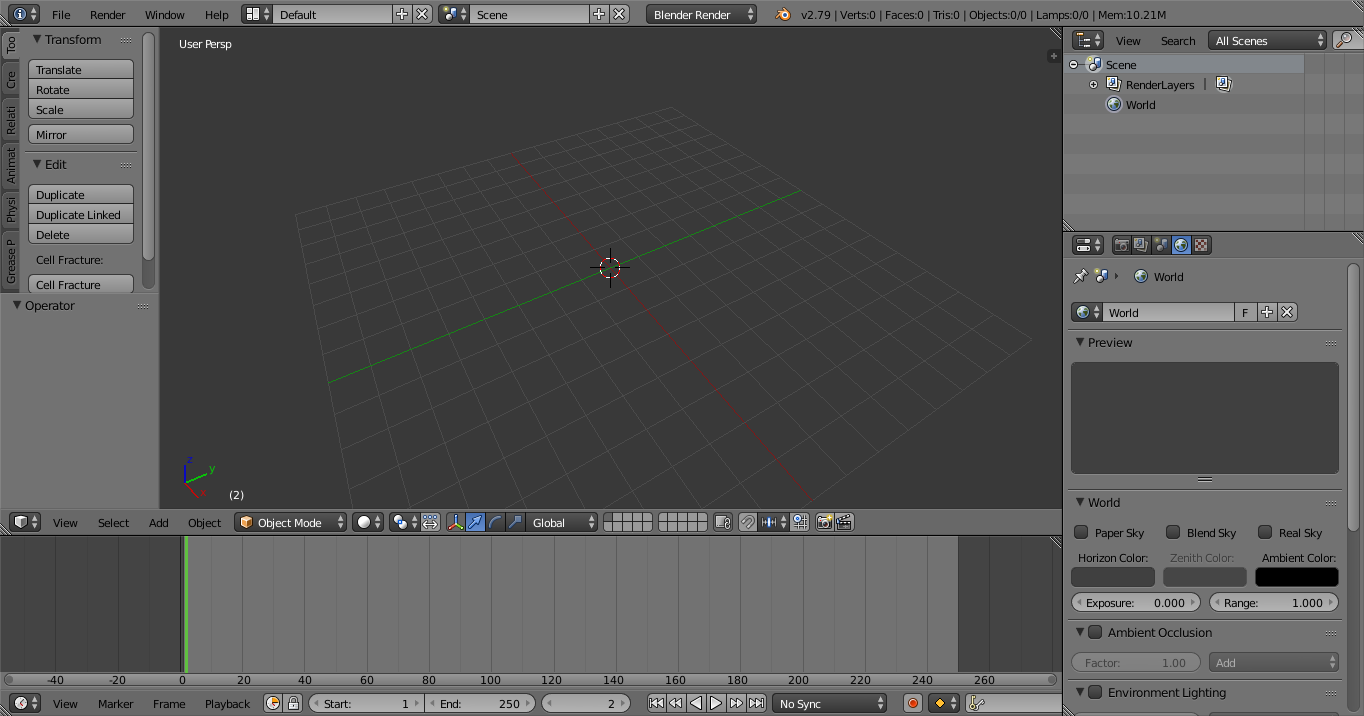
Aurora Base
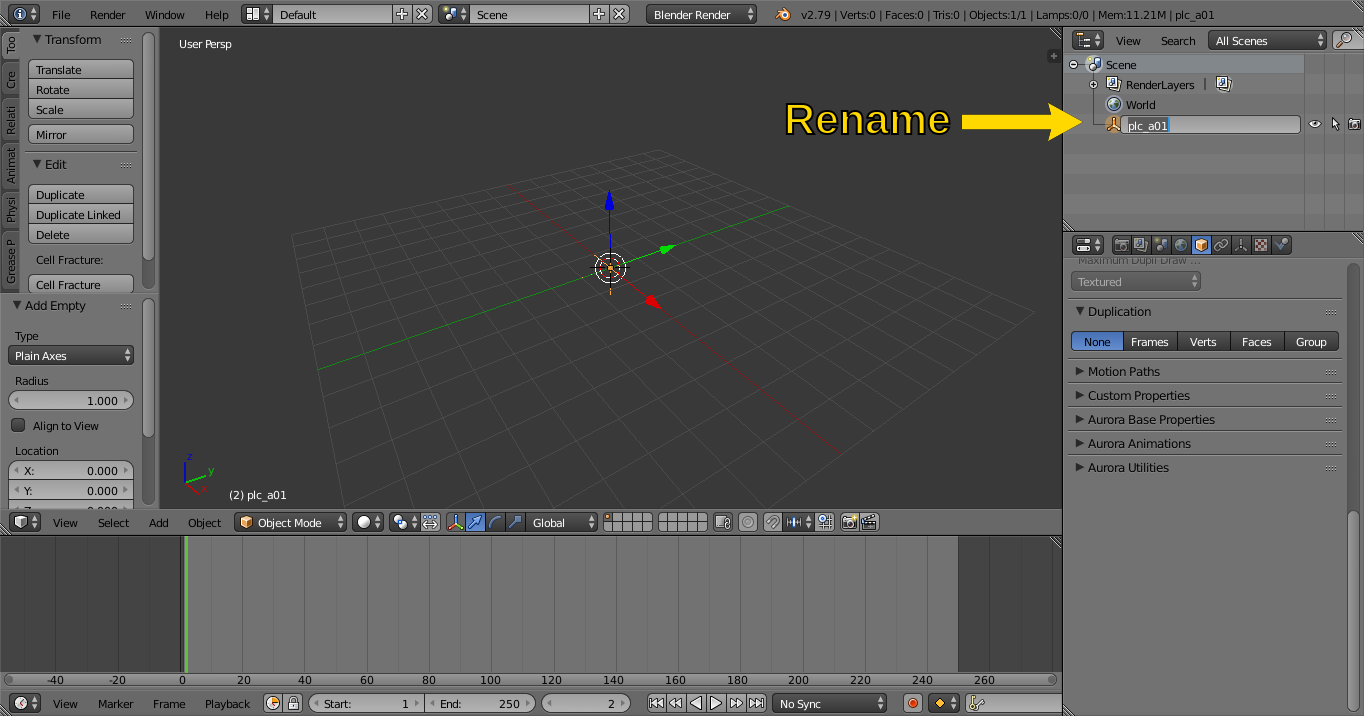
Name the Model
Next we need to give the Aurora Base a proper name. It has to match the mdl filename.
- Locate the newly created Empty in the Outliner.
- Either
- Double Click one the Name in the Outliner
- Right Click on the Name in the Outliner and select
Rename
- Rename the Empty to "plc_a01". This is the name of the armoire placeable, which we will override.
Create an Object
Create Object
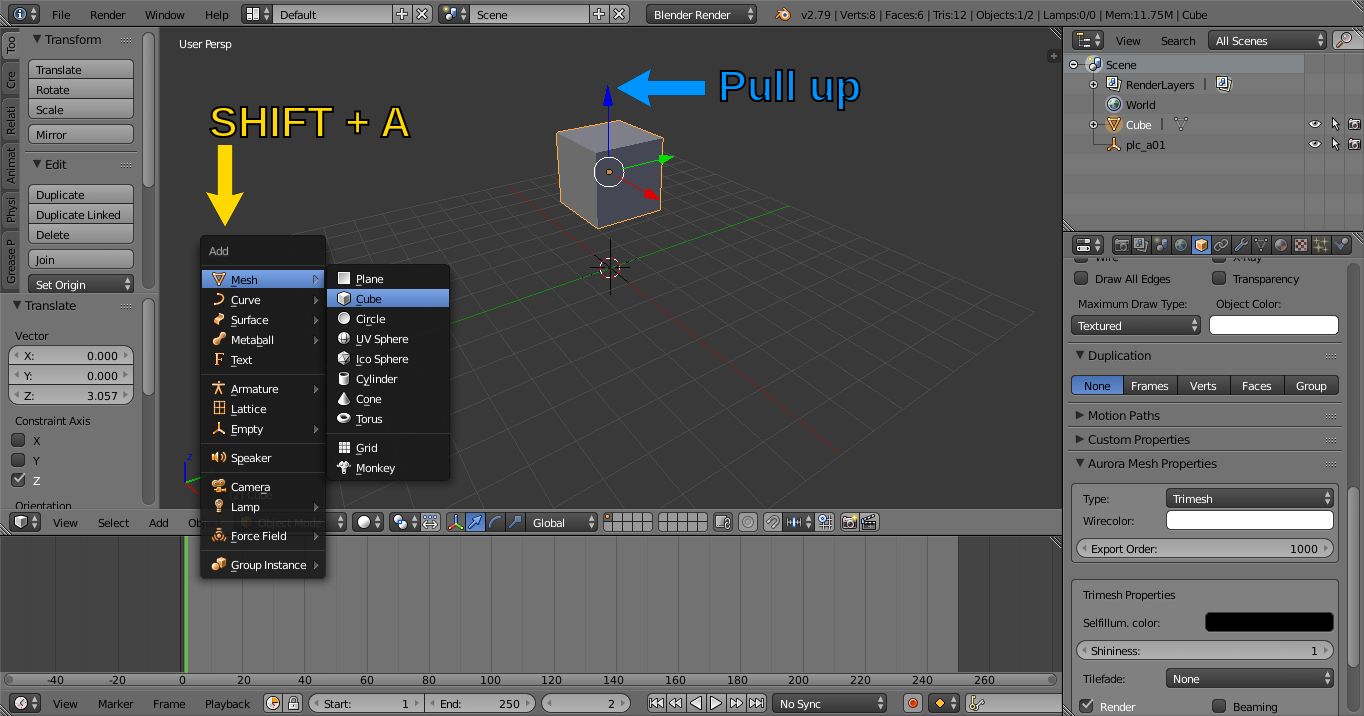
Now we need some kind of object to export.
- Make sure the 3D Cursor in the Center of the Scene: Press
CTRL + Sand selectCursor to Center. - Press
SHIFT + Ato bring up the Add Menu. - Select
Mesh » Cube. - Hold the blue Handle with the Left Mouse Button and pull the cube up a little. Alternatively: Press G followed by Z and move the mouse.
This is the only object we will export for our first model.
Parent to Aurora Base
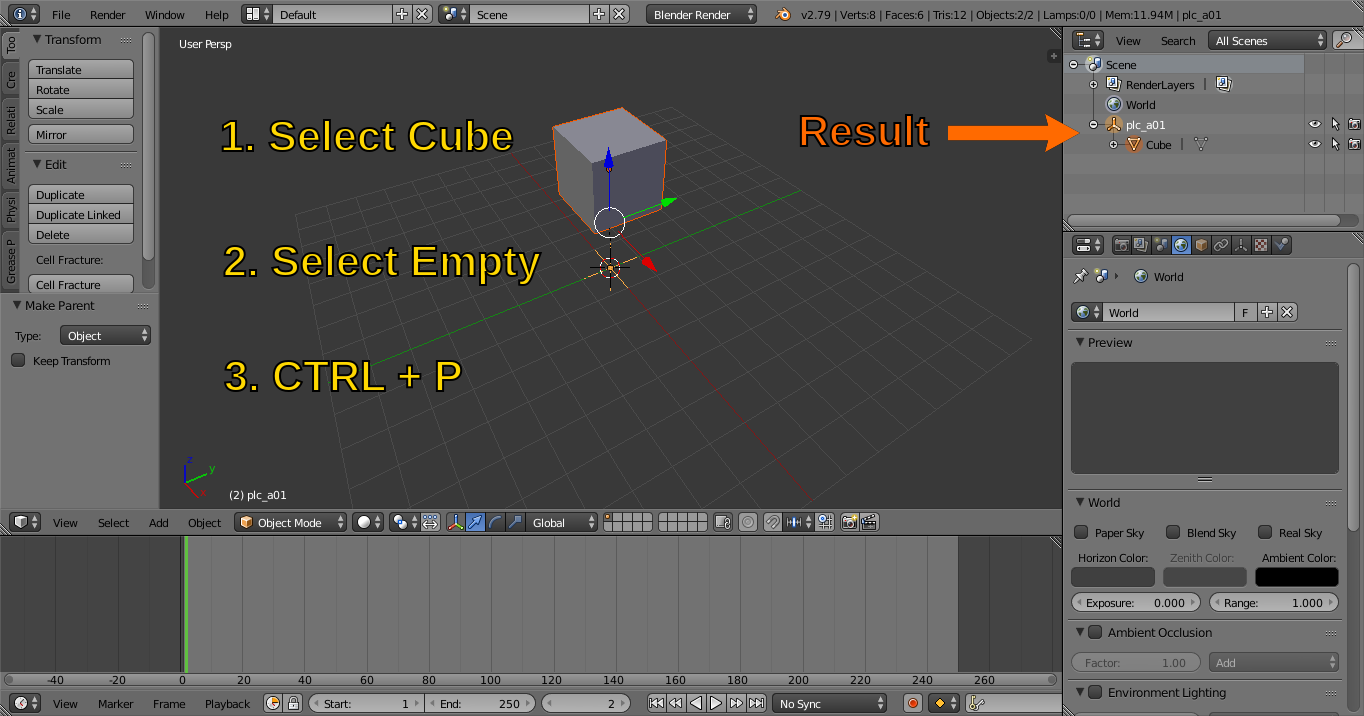
The newly created object needs to be parented to the Aurora Base.
- First Select the cube with the
Right Mouse Button. - Then select the Aurora Base (Empty "plc_a01") while holding down
SHIFT. - Press
CTRL + P.
The resulting hierarchy is shown in the outliner, you may need to click on the small + button to expand it.
Should you wish to add additional objects to the mdl they too need to be parented to the Aurora Base.
Walkmeshes
Create Walkmesh Base
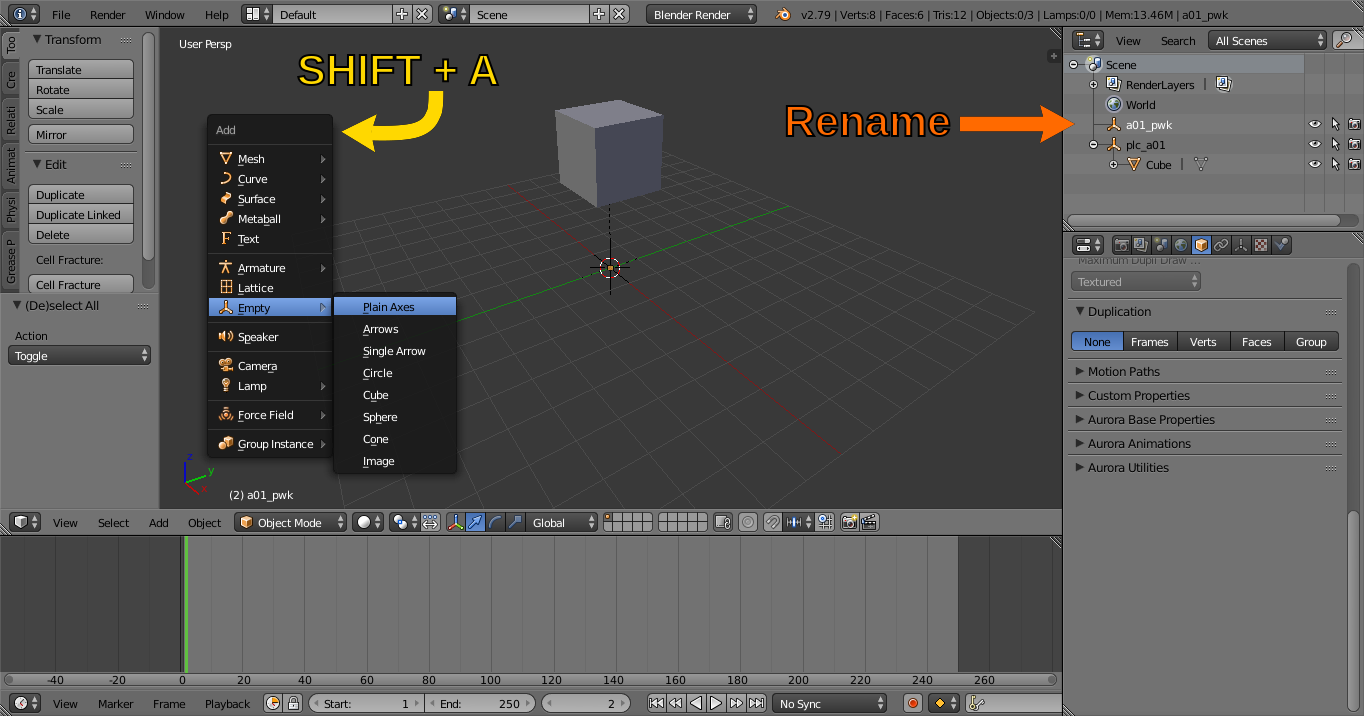
We will add another Empty which will serve as the Walkmesh Base. The Walkmesh Base indicates which objects should go into the walkmesh file (pwk) instead of the model file (mdl).
- Press
SHIFT + Ato bring up the Add Menu. - Select
Empty » Plain Axes. - Double click on the new Empty in the Outliner and rename it to "a01_pwk". This is purely for cosmetics, the name of the Walkmesh Base does not actually matter.
Set up Walkmesh Base
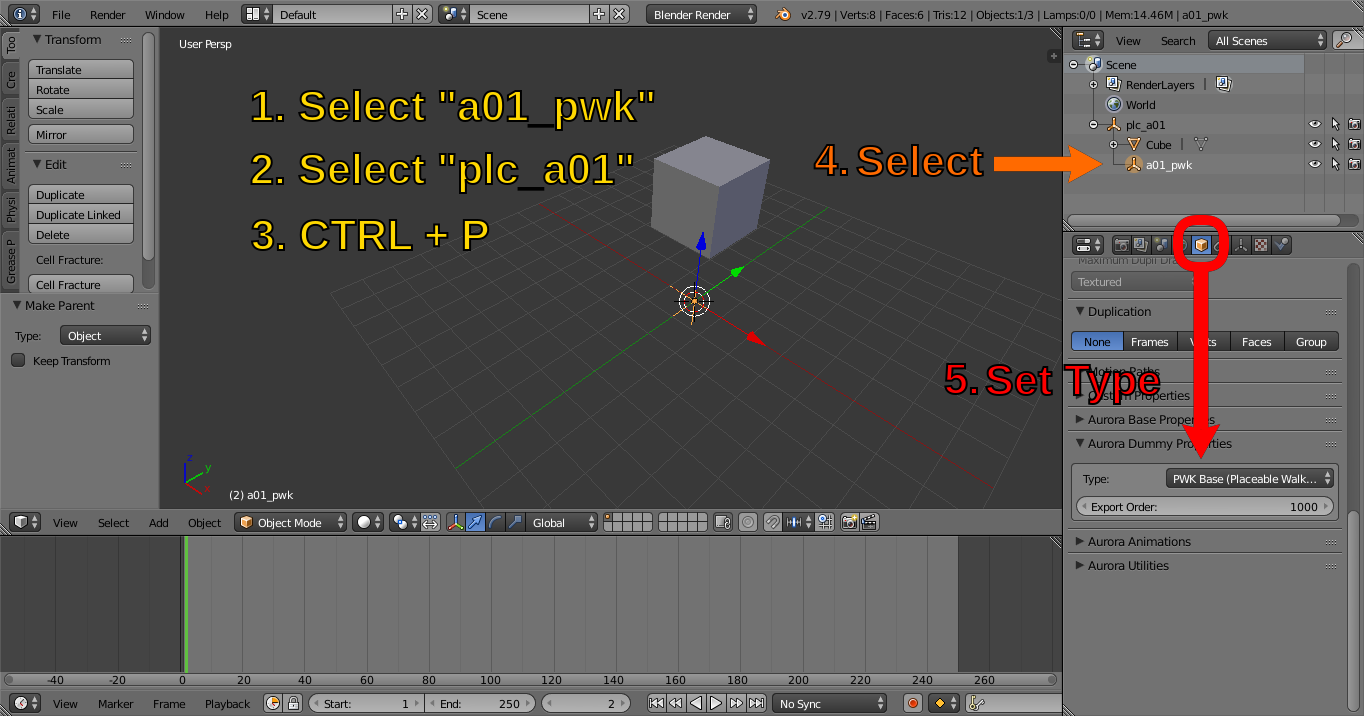
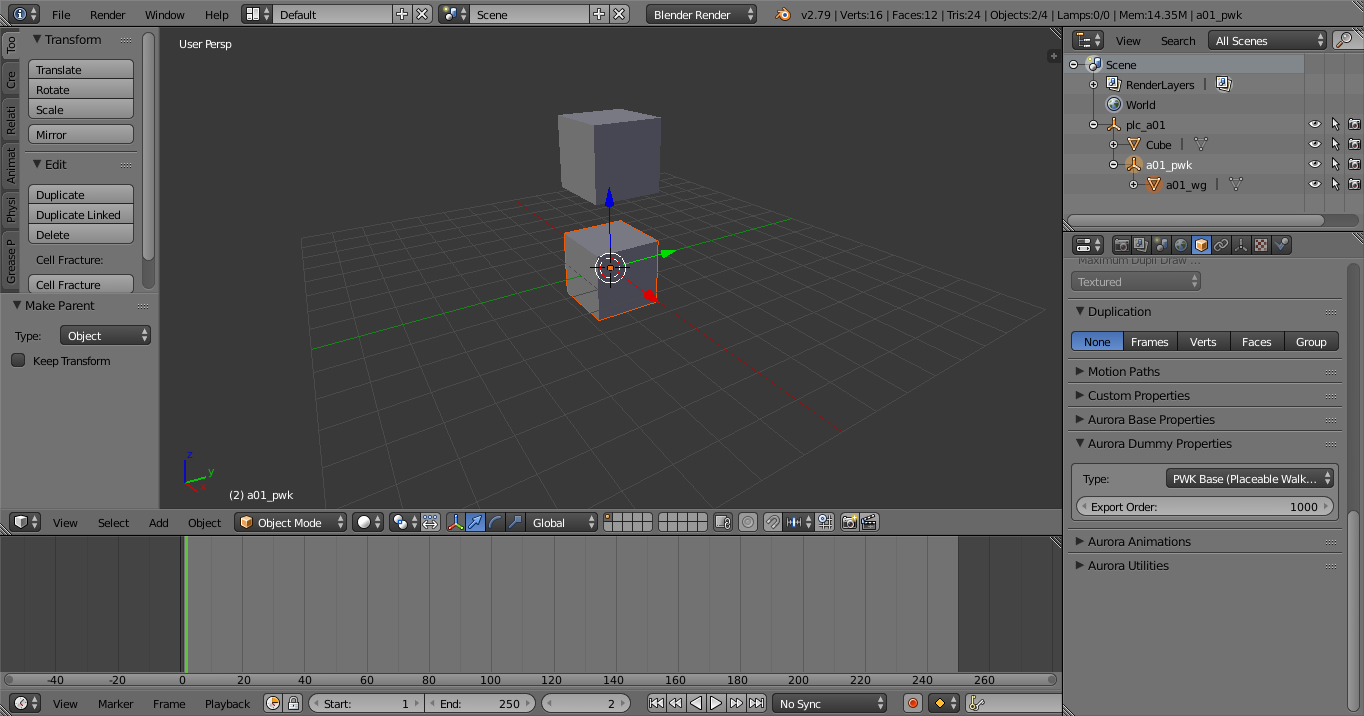
Now Walkmesh Base needs to be parented to the Aurora Base and an appropriate walkmesh type has to be selected
- First Select the Walkmesh Base ("a01_pwk").
- Then select the Aurora Base ("plc_a01") while holding down
SHIFT. - Press
CTRL + P. - Select the Walkmesh Base ("a01_pwk") in the outline with the
Left Mouse Button. - Select the Object Properties, got to
Aurora Dummy Propertiesand set the type toPWK Base.
Create Walkmesh
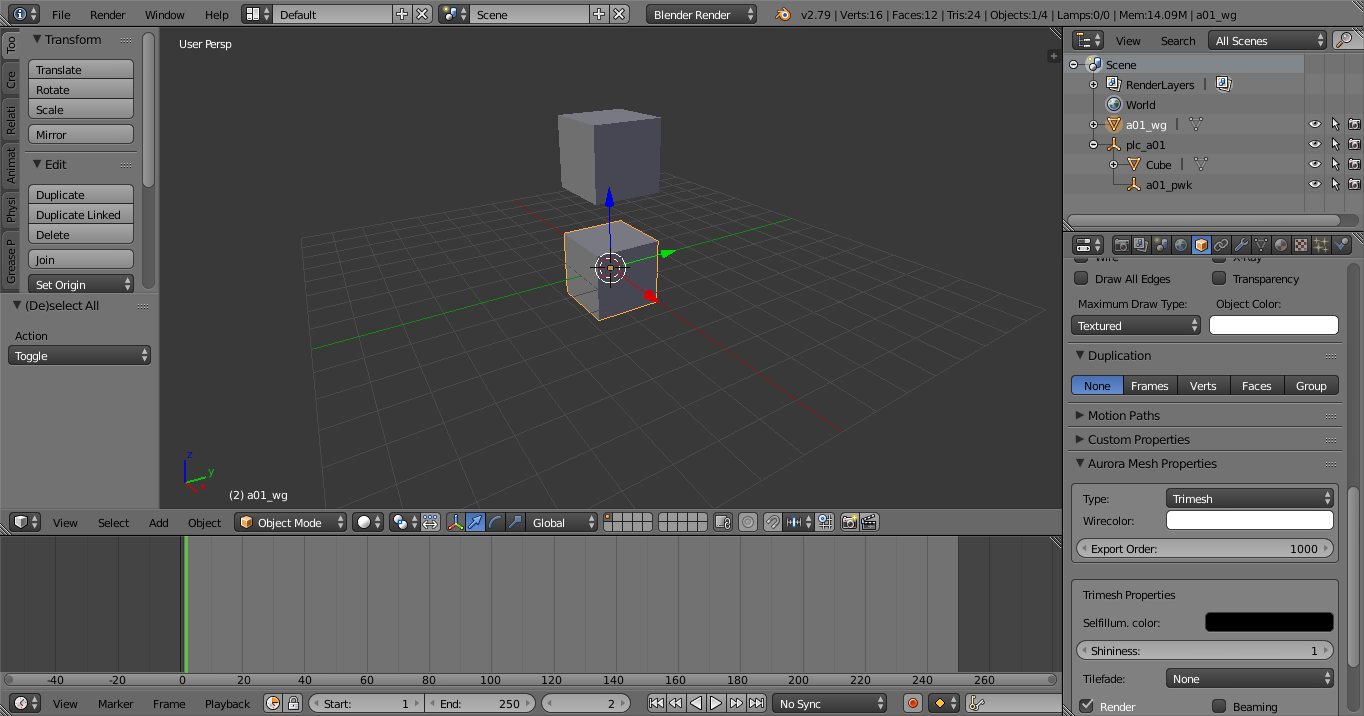
The walkmesh will be just another Cube. The walkmesh will prevent characters from passing through the object.
- Make sure the 3D Cursor in the Center of the Scene: Press
CTRL + Sand selectCursor to Center. - Press
SHIFT + Ato bring up the Add Menu. - Select
Mesh » Cube. - Double click on the new Cube in the Outliner and rename it to "a01_wg". This is purely for cosmetics, the name of the Walkmesh Base does not actually matter.
We'll leave the walkmesh at the current location. When creating a proper model you will need to edit the walkmesh to roughly match its shape.
Parent to Walkmesh Base
The newly created walkmesh needs to be parented to the Aurora Base.
- First Select the Walkmesh ("a01_wg").
- Then select the Walkmesh Base ("a01_pwk") while holding down
SHIFT. - Press
CTRL + P.
Now that your're done I can tell you that NeverBlender offers a tool to automatically generate walkmeshes and other meta objects needed by the engine.
Exporting
Export
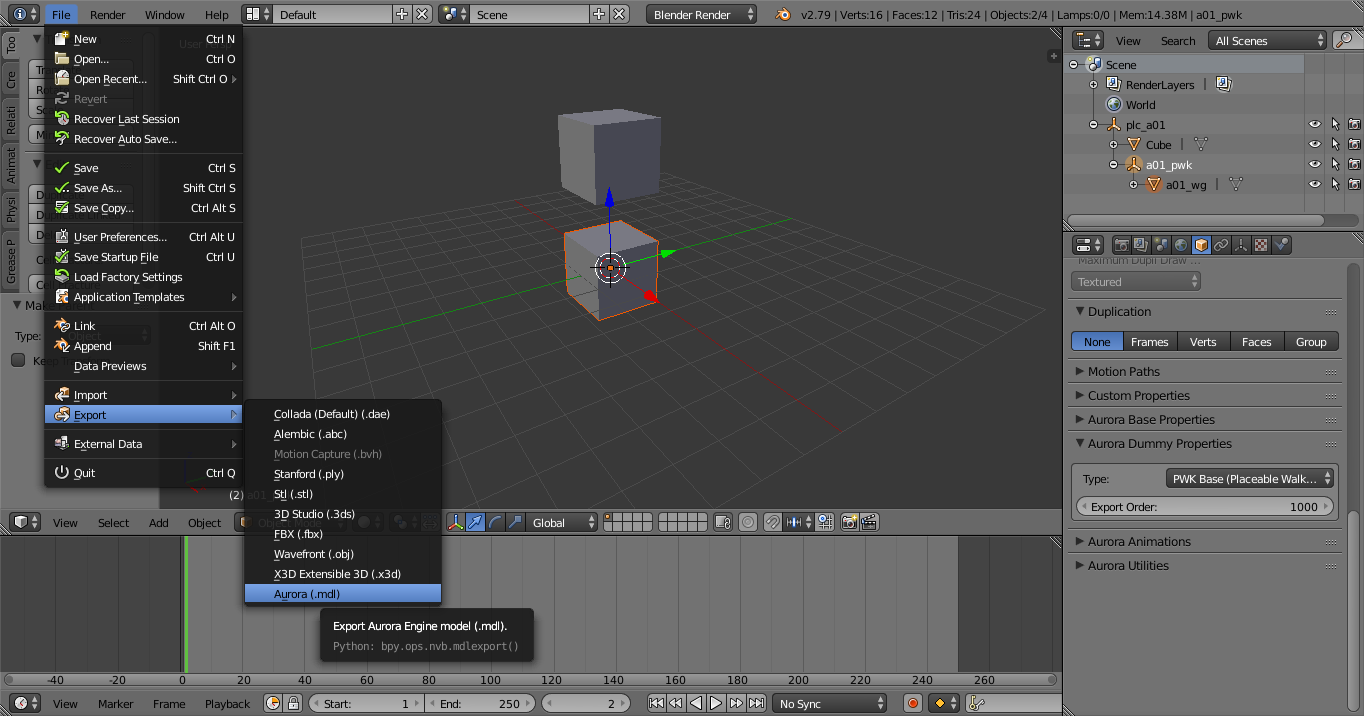
We are now ready to export. Select File » Export » Aurora (*.mdl) from the Info Bar. Leave all Export options on the default setting.
Navigate to Neverwinter Nights' override folder and type in the filename "plc_a01.mdl". This is the name default armoire object, which we will be overwriting. This name must match the name we have given to the Aurora Base.
Result
If you saved (or moved) the exported "plc_a01.mdl" and "plc_a01.pwk" to the override folder the armoire placeable will be replaced with the exported cube.
The screenshot was taken in the prelude of the original campaign, right in the first area.
Make sure to delete the file "plc_a01.mdl" and "plc_a01.pwk" from your override folder after you're done with the tutorial. Else you might be seeing cubes everywhere in your game. |