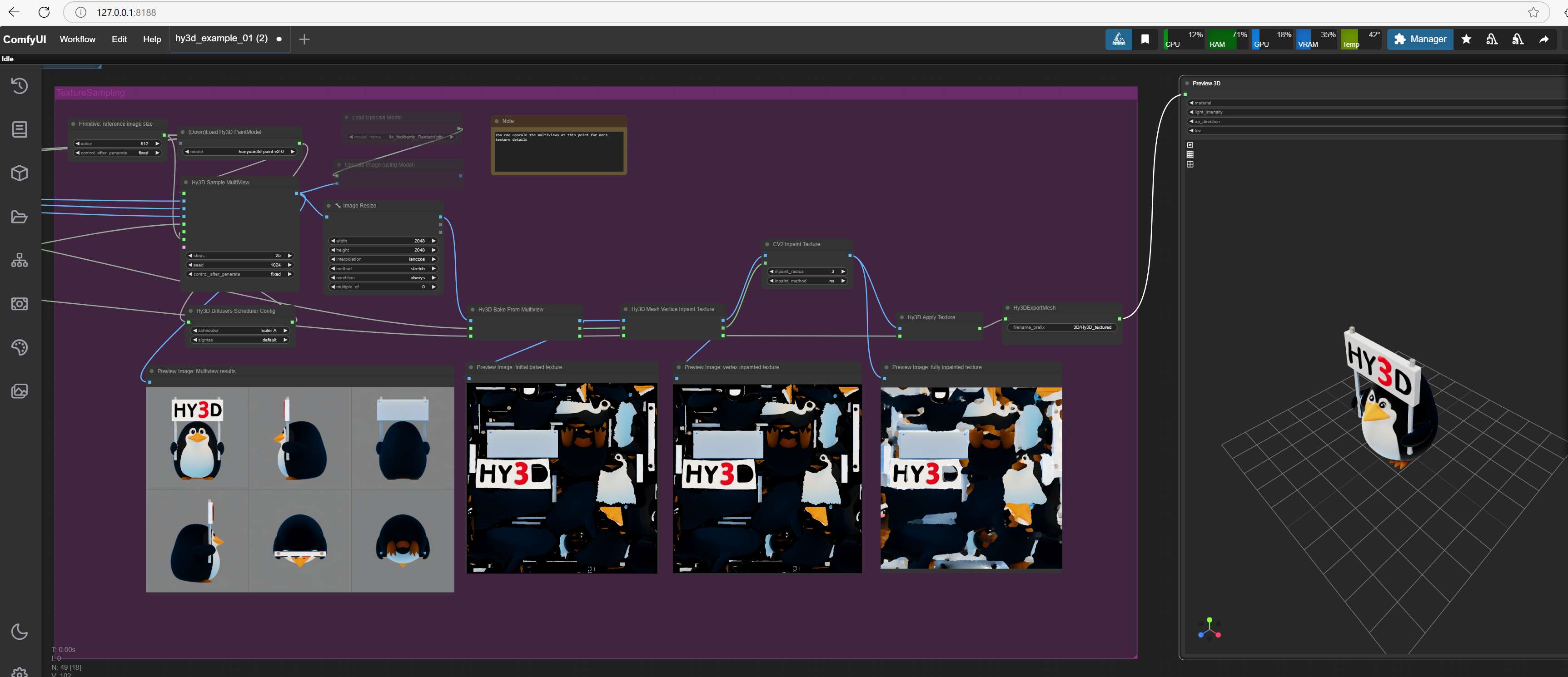
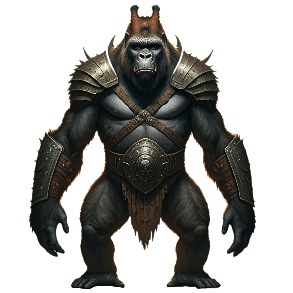
This guide explains how to install the free, open-source ComfyUI Portable with Hunyuan3D-2 on your local Windows PC. Its possible to install on linux/mac with nvidia using the exact same steps but the script is for Windows. Using this setup, you can quickly generate game-ready placeables, creatures, or tileset parts from either a 2D image or a text prompt, producing fully textured 3D models with UV mapping. The AI intelligently predicts the 3D shape and even generates unseen textures based on the image input. (Check out the example screenshots of a gorilla’s 2D image on a white background and its resulting 3D model in Blender.)
Generating a 3D model with textures typically takes 1 to 3 minutes, depending on your chosen quality settings and PC hardware. If you have an Nvidia GPU, you’ll achieve the faster and higher-quality results. However, if you don’t have an Nvidia card, you can use your CPU (slow choice many mins generating) or try an online service.
If you prefer an online option, Hugging Face offers a free 3D model generator powered by Hunyuan3D-2, accessible here which has a simple but limted interface:
🔗 Hunyuan3D-2 on Hugging Face Screenshot of the app converting a 2d image of cobra head (top left) to a 3d model shown side and back:
Below shows the 2d cobra image placeable statue generated from AI descripton using Google Gemini Imagin3 as the 2d source for the 3d model and texture to be generated:

Next shows the free online tool with imported 2d image (or you can supply a AI text chat description) and then the generated 3d model with texture button pressed and result:
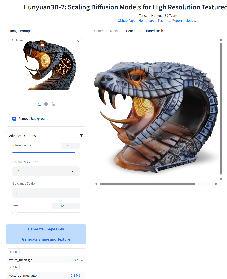
This online version has a fixed face count of 40K, and while the results can be impressive, they lack the fine-tuned control available in ComfyUI. (40k faces single mesh is too much for NWN).
This simplified generator can also be installed locally but for the effort and features you are better off installing ComfyUI.
Tip: Explore the Advanced Settings section for extra customization options. However, they are still more limited compared to a local ComfyUI installation.
GLB 3d model file then imported perfectly into blender with UV texture setup automatically:
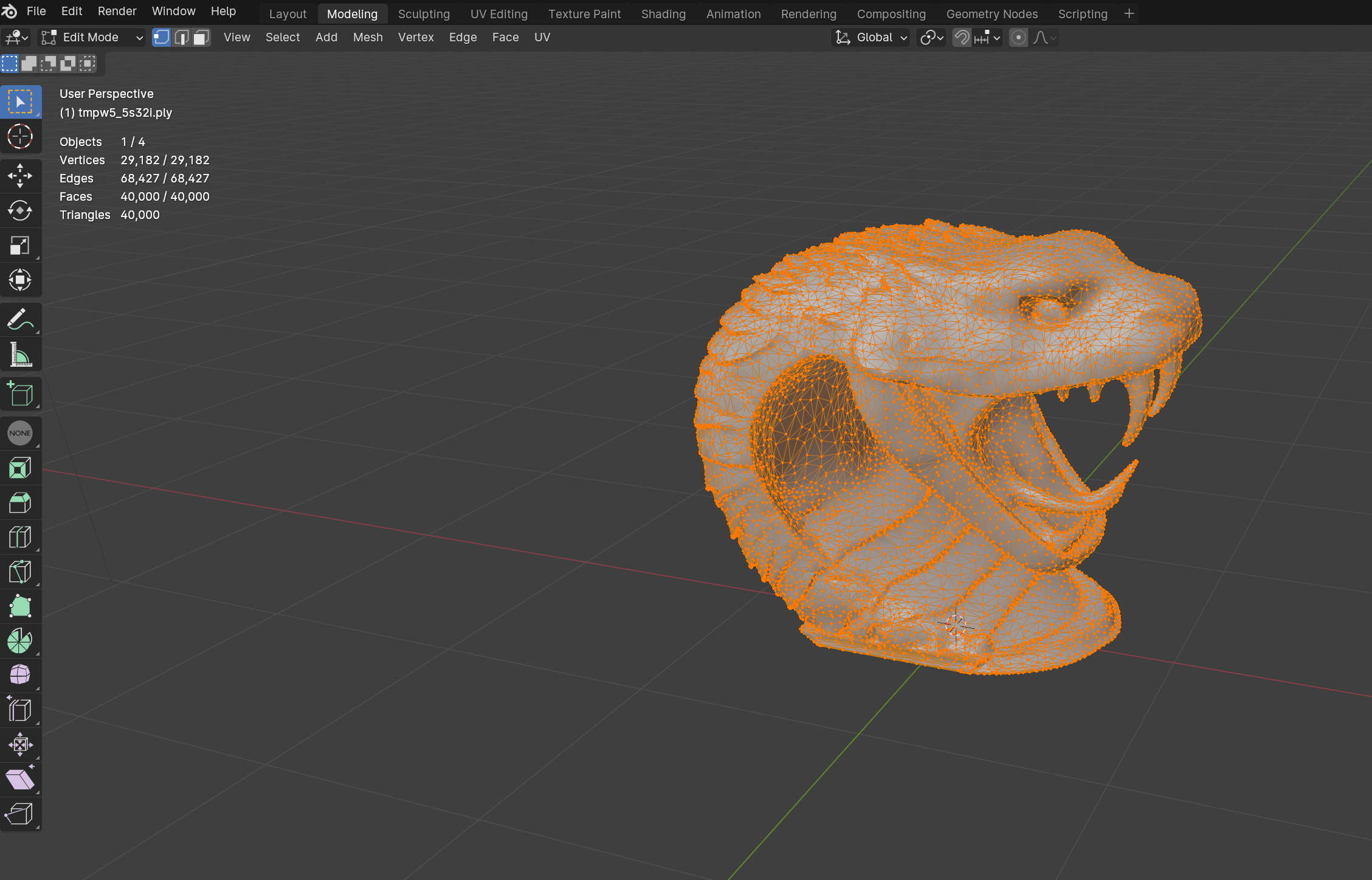
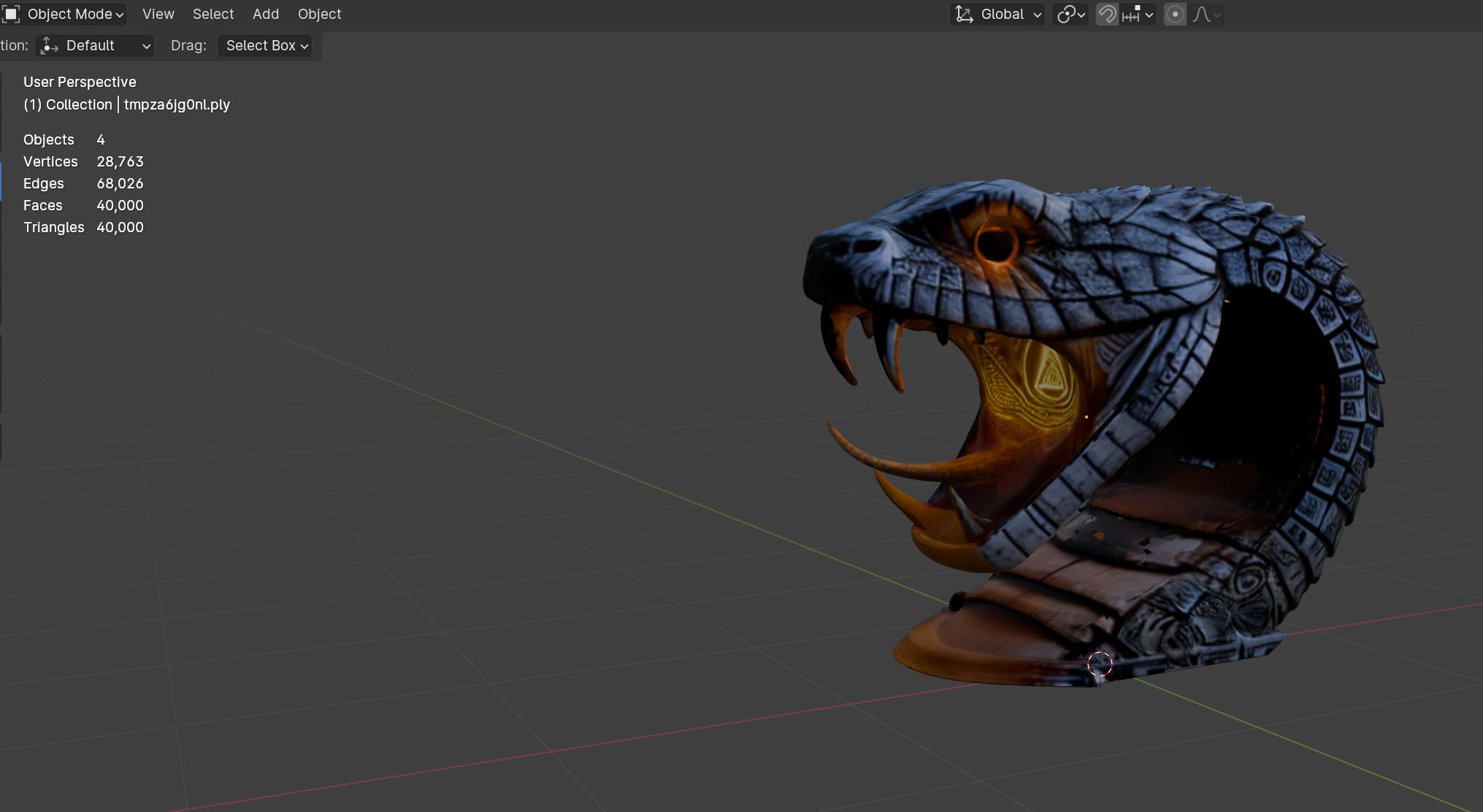
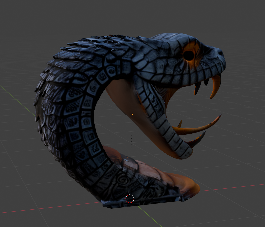
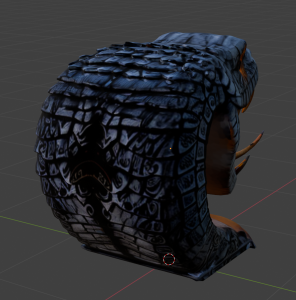
If you want full control over settings like polygon count, texture resolution, and quality, a local installation of ComfyUI is the best choice. Some third-party providers also offer hosted ComfyUI instances with a pay-per-use model.
On Hugging Face’s free tier, you can generate three models per day before needing to purchase credits. However, if you have a 6GB+ VRAM Nvidia GPU and at least 24GB RAM, you can generate higher-quality 3D models directly on your PC within minutes.
ComfyUI and its AI model generators allow you to generate 3D models with textures and UV maps from either a 2D image or a text description. The AI intelligently reconstructs the missing parts of the image, creating a fully detailed 3D model ready for import into Blender.
Tencent Discord
Join this discord channel to see examples and ask experts on Hunyuan3D-2
https://discord.com/channels/1315602970867662878/1315608784135131156
NWNVault Discord
Join this discord to discuss ComfyUI in the NWNVault workflow-and-tools channel
https://discord.com/channels/255017439371329537/511127010962046986
ComfyUI example workflow is accessed as web browser app with python installed 3d generator server. So it can be a local or remote service or for easy sharing or deployment.
These screen shots shows the workflow and Cobra 2d image input top left. The workflow is provided and you just load the image and tweak some settings and then press queue button to generate the 3d model. The workflow spans across three pages and you can drag/move/zoom the canvas to see the workflow. It starts top left and the steps flows to the bottom right where the completed 3d model is shown.
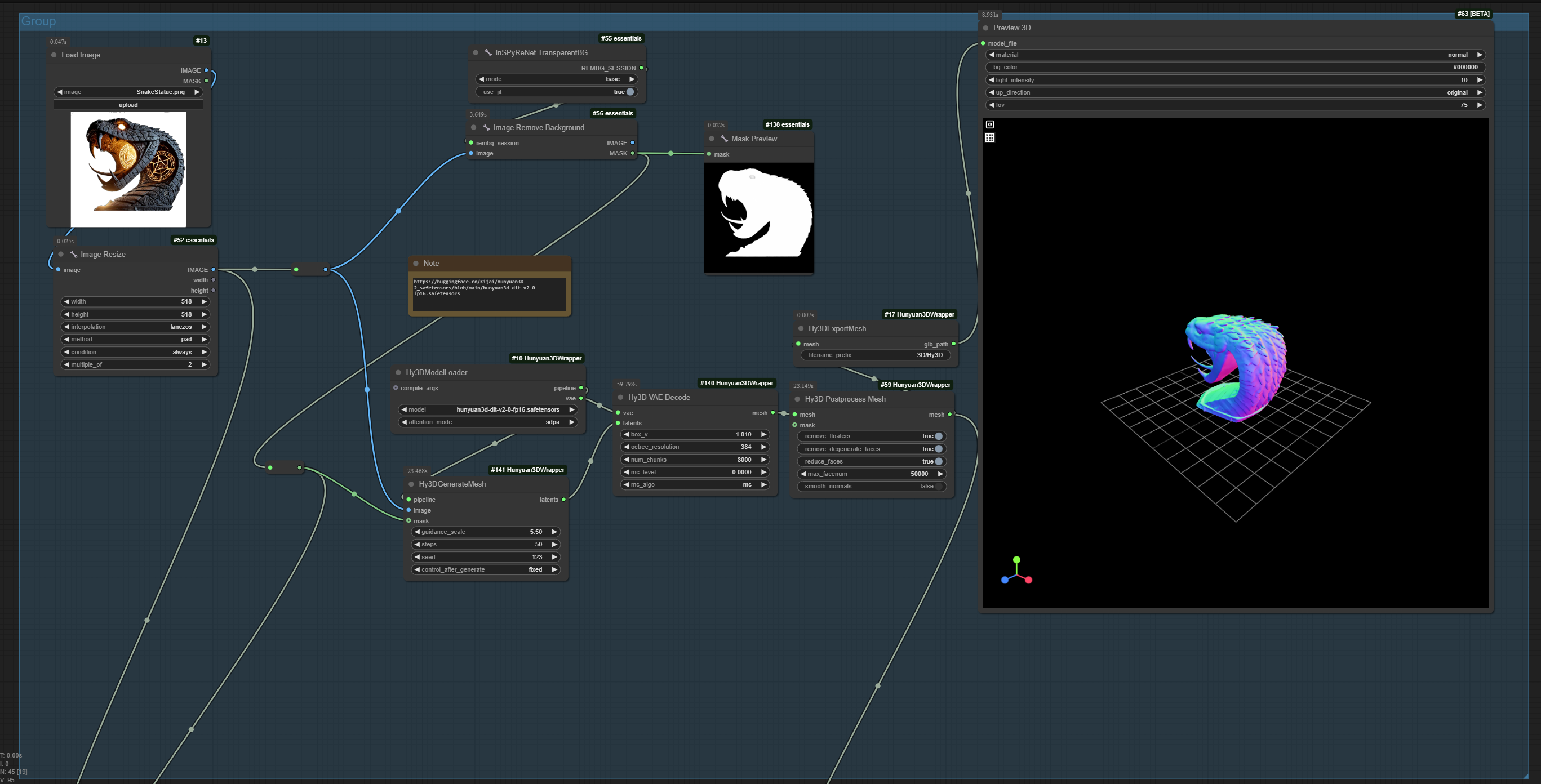
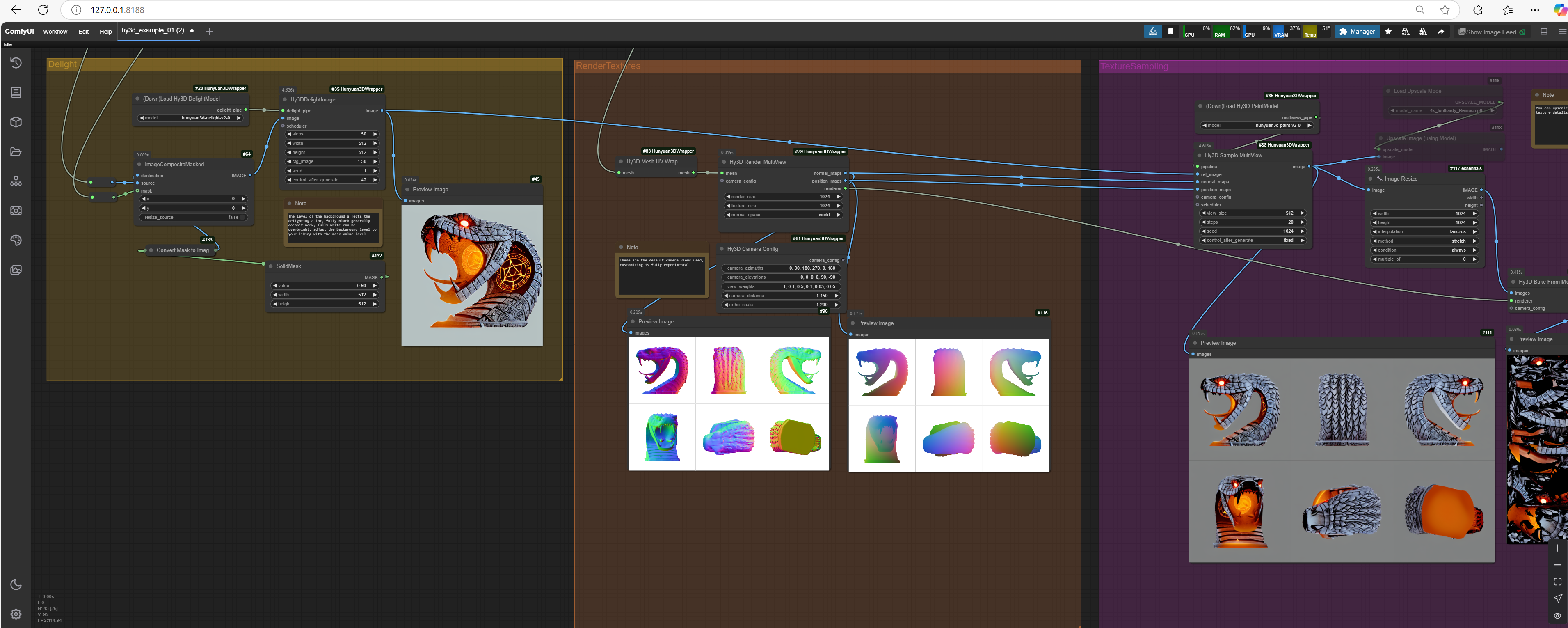
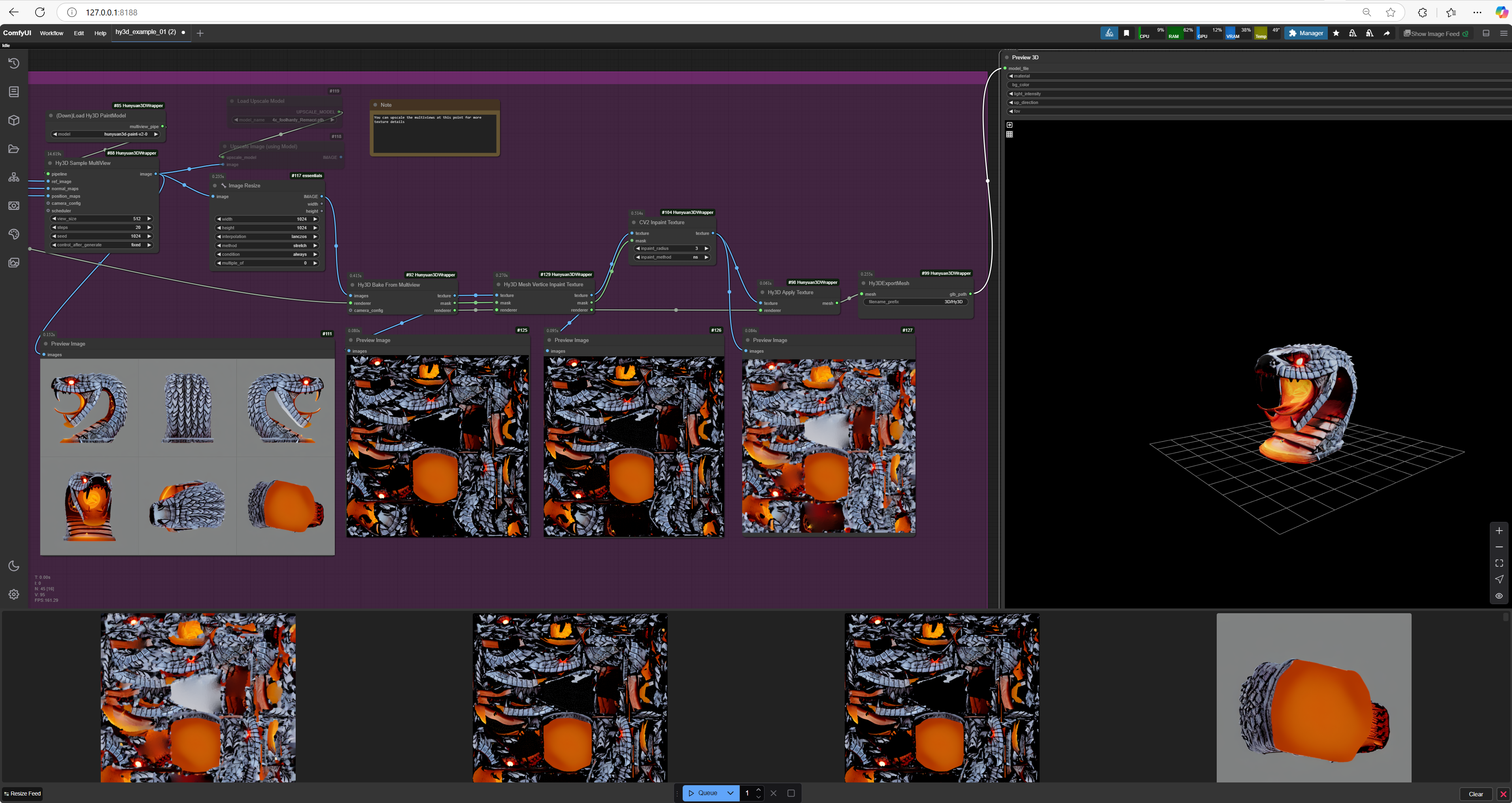
Features & Capabilities
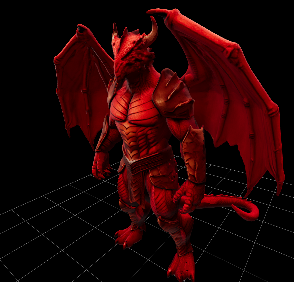
2d image created of Red dragonborn in A pose created using google AI Imagen3 from simple text description and result generated 3d model:
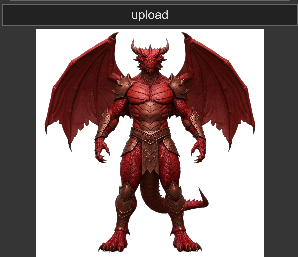
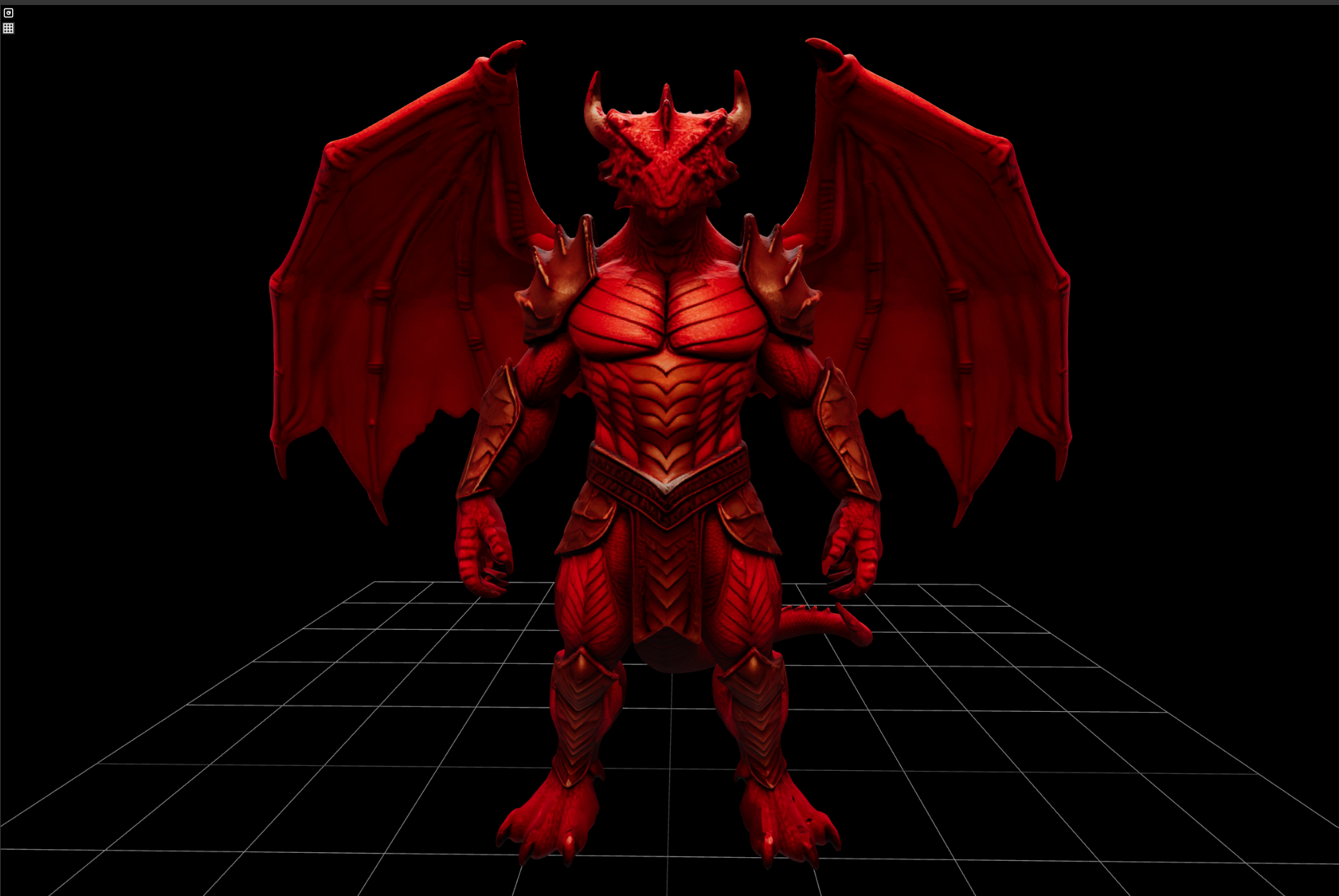
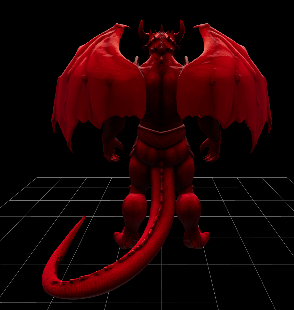
2d gorilla image in A pose with white background created by google Imagen3:
3d model generated by Comfyui Hunyuan3D-2 imported into Blender:
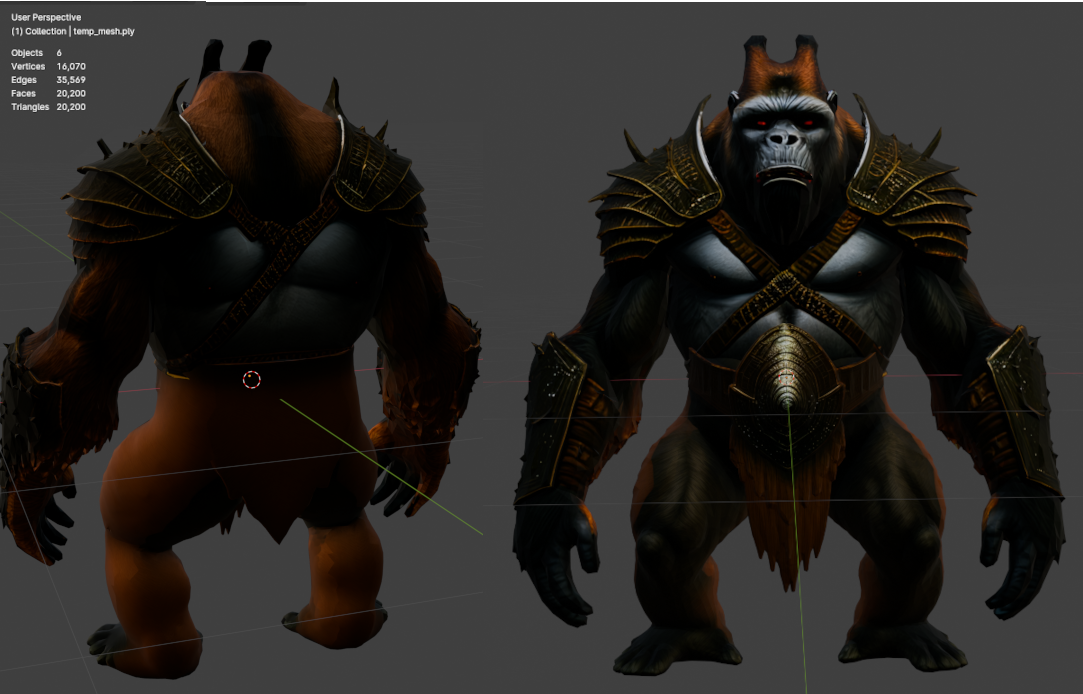
To demonstrate the capabilities of ComfyUI you can import this sample file in Blender of the generated gorilla.
The screen shot of Blender 3D gorilla model shown has 20K faces, which was achieved by splitting the original model into two meshes (top and bottom halves, each with 10K faces) by cropping the 2d image into two parts from the belt: part below is waist and legs, part above is torso, arms and head. This generated two 3d model meshes and was then merged as one model in Blender. This technique is useful optimization for Neverwinter Nights, where the per-mesh face limit is 10K. Also breaking the model into meshes with less to create per part makes it more detailed and easier for the 3d generator limited texture memory.
📌 No programming or workflow setup is required— open the provided workflow and simply tweak a few parameters to match your hardware, and you can generate a fully textured 3D model in 1 to 3 minutes.
📌 Batch processing is supported, allowing you to generate multiple models at once with different images or settings.
To achieve high-quality 3D models and textures, it’s important to adjust a few key parameters:
✅ Num Faces – Controls polygon count
✅ Octree Rendering – Helps with structure refinement
✅ Steps Count – Affects model detail level
✅ Texture Size – Defines texture resolution
✅ Delight Settings – Adjusts texture lighting and color balance
✅ Upscaler 4x – Improves texture quality (OFF by default; should be turned ON). A 6x better quality ai upscaler extra plugin is recommended.
✅ Texture Memory Renderer – Recommended increase to 786MB or 1024MB (Default is 512MB, but at 1024MB, the AI may generate unintended details)
ComfyUI is open-source, meaning new features, plugins, and enhancements—such as other 3D or 2D AI generators, PBR texture processing and advanced upscalers—are continually being developed.
📌 Operating System: Windows 10 or 11 (Linux and Mac also but this install script is Windows bat file)
📌 Disk Space: 50GB free space in your Windows home folder. Ideally fast SSD. Can be moved to another drive after install is done.
📌 RAM: 24GB minimum (32GB recommended for multitasking)
📌 GPU: Nvidia GPU with at least 6GB VRAM (8GB–12GB recommended for best performance)
ComfyUI installation involves five main steps. Follow the steps in order and do not skip any to ensure a successful setup. The install guide details via screenshots every step.
💡 Good news! The installer handles all the heavy lifting, so no manual setup is required for windows but you do need to do the ComfyUI gui setup of plugins which are shown with screenshots and explanation.
You need to download and install CUDA and git and then run two batch files.
1️⃣ ComfyUI3dInstaller.bat – Runs the initial installation of ComfyUI.
2️⃣ SetupCudaForComfyUI3Dplugin.bat – Sets up the CUDA driver for 3D Python processing (only needs to be run once after the first workflow execution).
Once installed, ComfyUI will be ready for 3D model generation using the Hunyuan3D workflow.
1) Download and Install Nvidia CUDA drivers
https://developer.nvidia.com/cuda-downloads
Select Windows, x86_64, your Windows version (Win 10 or Win 11), Installer type (network or local dont matter what you prefer) Press Download button and then execute the downloaded file.
2) Download and Install git software. https://git-scm.com/downloads/win Use blue link Click here to download. Run the installer. The setup will prompt you with several options; it’s fine to use the default settings for all of them. You will not have to use Git but the installer needs it.
3) Create Github.com account. This is so the installer can use your account login to download the software it needs when running.
4) Run the ComfyUI3dInstaller.bat to install ComfyUI and its setup.
Run ComfyUI using the Start_ComfyUI.bat installed on your desktop
5) Run SetupCudaForComfyUI3Dplugin program when you run the workflow so it can setup 3d plugin that needs CUDA driver.
When finished creating the 3d model will automatically saved as GLB Model file in output dir: C:\Users\{WIN_USER_NAME}\ComfyUI_Windows_portable\ComfyUI\output
You can import GLB model into Blender with UV textures already setup.