This is some notes on editing VFX in the game. The main reference (with some examples of how to build VFX) is available here: MDL ASCII Emitter Nodes.
There are two main ways to have VFX built, one is using actual geometry and moving it with animations (such as the Gate VFX) the second way is to have emitters do effects using textures, light and so forth.
You can technically edit VFX in 3dsMax or Blender, technically. There's not a great deal of reason to do so for emitter based VFX since there is no real way to preview most of the information, although positional information may be useful.
Hand editing ASCII is the usual way, using text editors like notepad++ or similar.
However you edit the MDL file. with you can test iteratively by:
If the changes are not detected you should be able to force it with a Reload Models click in the ResMan panel of the Debug Panel (Ctrl + Shift + F12 to open):
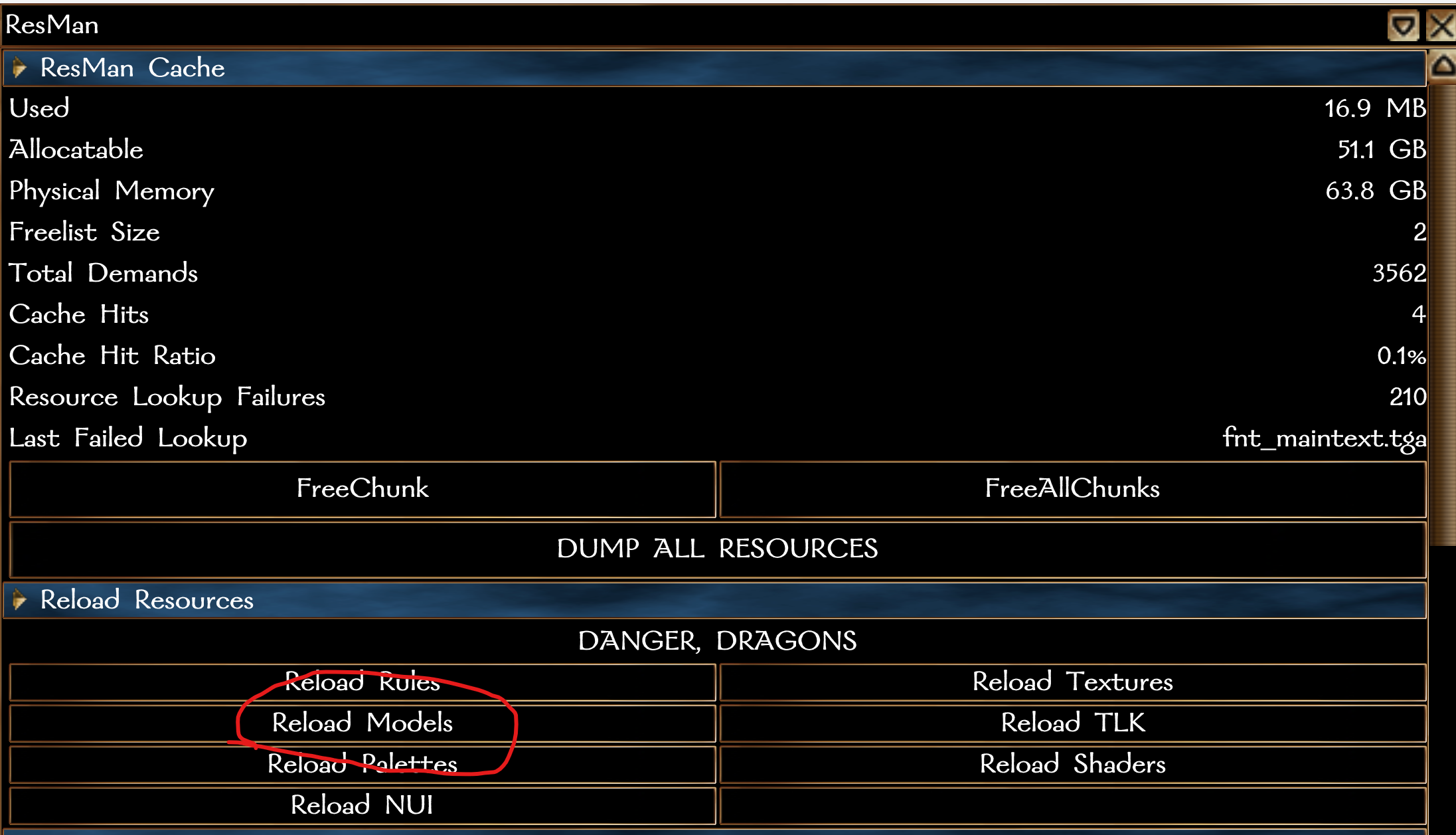
Alternatively you can keep a test module open in the toolset and load it every edit.
To run a VFX in NWN use the script window.
For visual effects in visualeffects.2da use one of these lines replacing 100 with the ID of the relevant visualeffects.2da or vfx_persistent.2da line (uncomment or don't copy in the others as needed) or alternatively edit a spell script and use the second option (may be useful to line up hand animations for beams etc.). Make sure to include a creature nearby for the VFX to target.
For persistent effects simply rest and it will remove them since they're magical.
object oCaster = GetFirstPC(); object oTarget = GetNearestCreature(4, 1, oCaster); // Instant effects (target) ApplyEffectToObject(DURATION_TYPE_INSTANT, EffectVisualEffect(100), oTarget); // Duration effects ApplyEffectToObject(DURATION_TYPE_PERMANENT, EffectVisualEffect(100), oTarget); // Beam effects ApplyEffectToObject(DURATION_TYPE_TEMPORARY, EffectBeam(100, oCaster, BODY_NODE_HAND), oTarget, 6.0); // Instant effects (ground) ApplyEffectAtLocation(DURATION_TYPE_INSTANT, EffectVisualEffect(100), GetLocation(oTarget)); // AOE effects (ground) ApplyEffectAtLocation(DURATION_TYPE_PERMANENT, EffectAreaOfEffect(100), GetLocation(oTarget)); |
For visual effects in spells.2da or if you are using an edited spell script, use this to cast a spell at the nearest creature (replace 100 with the spells.2da line):
object oCaster = GetFirstPC(); object oTarget = GetNearestCreature(4, 1, oCaster); AssignCommand(oCaster, ActionCastSpellAtObject(100, oTarget, 0, TRUE)); |
Some basic recommendations for visual effect editing for EE:
Note that while Bioware regularly disabled mipmaps using a TXI file for their VFX texture files due to them being TGA, this is redundant nowadays with how fast mipmap loading is with DDS files and that cachemodels.2da exists to preload models. Remember bigger sized DDS is more optimal in an engine than a smaller "uncompressed so full quality" TGA.
The VFX including in the game made by Bioware are usually compiled, so the easiest way usually to extract one you want to mess with quickly is NWN Explorer. Alternatively extract them all and run them through nwnmdlcomp since they're compiled for 1.69 edition and work with that decompiler.
Most of them should be recognisable names and tweaking them can be a good start to having size-appropriate VFX of a similar kind to what you want. Adding new textures, adjusting the spawn rates or colouring, and lighting effects are useful ways to remake a VFX into what you need.
These are some notes on how to deal with specific Visual Effect use cases and what some nuances of the emitter system are.
There is some nuance to getting Black or Grey VFX. By default a lot of Bioware VFX use transparent textures - great since we don't want big square blotches - but when you use blend Lighten which most do, the emitters use the colorStart/End to lighten the texture (acting like real light, ie you can't do "black light" only white-red-green-blue).
Instead change it to blend Normal and you can then use the colorStart and colorEnd properties. For instance, cropping out most of the emitter info, you'd use this:
node emitter EmitterName ... texture fxpa_smoke01 # Must be a texture with an alpha layer (DDS or TGA) blend Normal # Required so it doesn't turn some amount of white (where colorStart and colorEnd mainly determine the brightness) colorStart 0.3 0.3 0.3 # Start dark grey colorEnd 0.2 0.2 0.2 # End a bit lighter grey ... endnode |