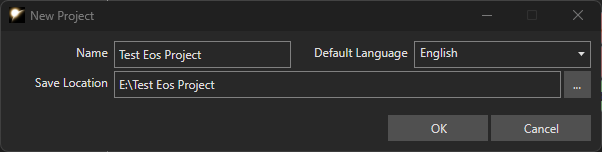
This is a basic overview of how to setup a blank Eos Toolset project and setup the right export paths to attach the data .hak and .tlk files to your module.
We won't be editing a lot of advanced settings only what we need so see other pages on settings you might want to use.
Firstly you need to setup the project. We'll be naming ours Test Eos Project. This name will be used for the exported hak and tlk files so choose something appropriate based on your module name, no need to include v1.0 or anything.
The module should generate and if it needs to import the base game data.
Then you need to create some data - while Eos is happy to export hakpacks with no data in them the toolset needs at least 1 file in a hakpack to load it.
Let's add a new Poison (you can delete it after you've added other data), then once the instructions below are followed to setup the export paths and include path, you can test it as per the article.
The easiest way to test our changes properly when building a module and data alongside it is to have the hakpack and TLK file added to it, so exporting from Eos will generate new updated ones instantly.
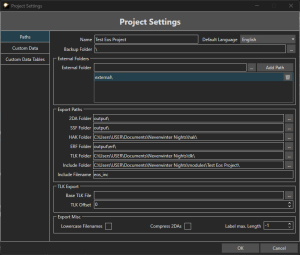
Open Project → Settings and find the entries for HAK folder and TLK folder and copy paste in your directories in the Documents folder for NWN, by default they look like this replacing USER with your username:
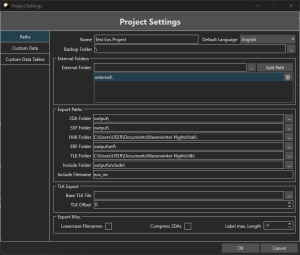
You can also set some other paths, here are some recommended values:
These other paths are for source files (that are put into the hakpack) so probably best to keep in source trees:
Even with no data and no TLK strings, this should generate some blank hakpack and TLK files ready to be added to a module.
Go to Project → Export:
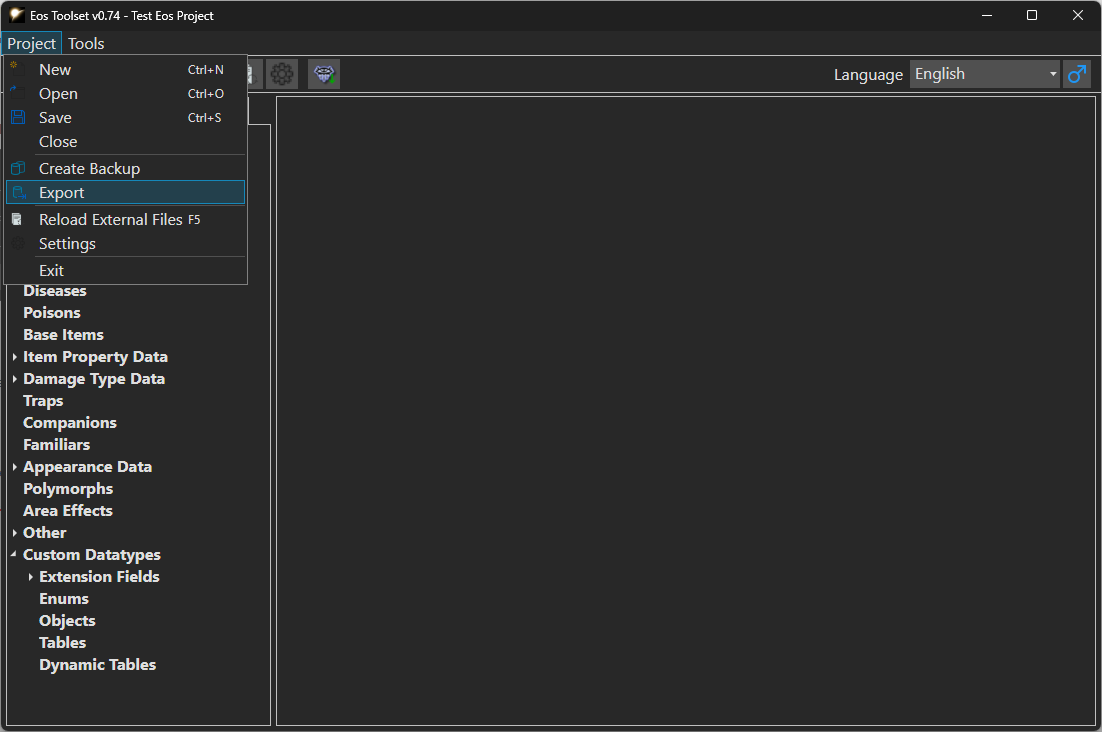
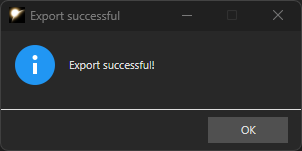
This will the generate the files, in this case, "eos_test_project.hak" in the hak folder and "eos_test_project.tlk" in the tlk folder.
Add the hakpack and tlk file to your module properties.
If you are using CEP or other projects this hakpack file should be the top most file and if you need to merge data from them there are options in Eos to do this (so it handles the data/tlk entries).
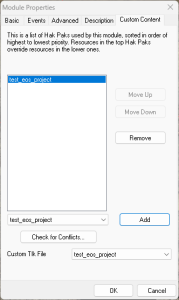
Then click OK, the module should check the files but since there is nothing in them not much will happen except this popup!
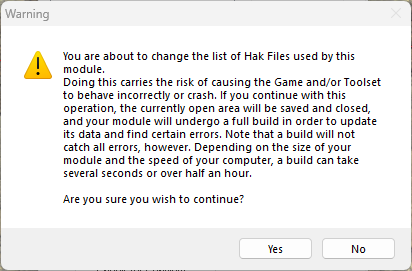
Adding the hakpack and tlk file in after generating some data may cause some checks about conflicting 2da files etc.
The Eos Constants file can be sent directly to your module, but this will only be really usable if you use modules as a folder option.
Convert your module to the folder version, then point Eos to that folder, eg:
C:\Users\USER\Documents\Neverwinter Nights\modules\Test Eos Project\
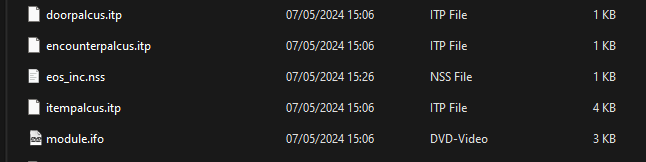
Then export and find the file in that folder, the toolset will pick it up once the module is saved and re-opened in the sidebar:
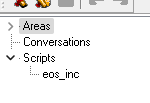
It is highly recommended to use source control. Eos data can be next to Nasher data (which is your module converted to json files) absolutely fine. You can also use nasher to generate the hakpack file based off Eos data if you so wish.
An example folder heirarchy may be:
\Eos Project\ <- Eos Project data folder \Eos Project\My Eos Project.eosproj <- Eos Project file \my_module\ <- Nasher files for the module nasher.cfg <- Nasher config file |
These then live side by side fine with github or other source control systems, not covered here.
If you cannot use source control then keeping regular backups are recommended. Set the backup folder to be on Google Drive / One Drive / Dropbox and at least then there is a copy off your device. Even using Nasher to push files to a remote location like this is better than nothing.
Eos Backups can be generated by going to Project → Create Backup
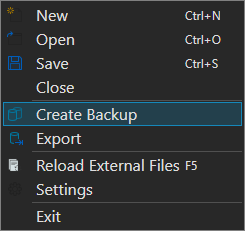
This generates a zip file of the current Json files. To restore just remove existing Json files and copy these back.
When adding data, for instance a new spell, you can quickly iterate on the data being added in Eos.
If you add in things you want to test in the toolset - for instance new appearances, or new classes for NPCs, or new base items, you can do this:
However for module only changes (eg a new spell being tested) you can keep the module open throughout the Eos export process and just reload the game module. It is safest to reload the game (turn off startup movies!) or at least exit to the main menu to load the new hakpack data safely. The process then is:
Once you are confortable or if you want to setup things depending on the project you are doing you might want to follow this page on Eos Toolset Project Settings.