Some notes on editing icons for the NWN style. Shouldn't need general/DM/Emote icons.
Existing Icons Info
| Name | Icon | Rough Colour Codes | Notes |
|---|
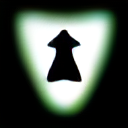
Feat Domain | | 7da8d1 | White and black contrast White fading into blue Domains are similar although just a different more square design with a rounded black border and the background is two toned blue. |
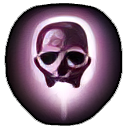
| Spell | | 8b7486 (more drab) or 7c5574 To convert seems 3d2439 works well (61.4/35.8/57.2) | Similar contrast to feats Purple-ish colouring |
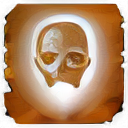
| Spell Scroll | | White version applied to the scroll icon | This is the spell icon but made into a white form. Black is transparent. |
| Skill | |
| Green similar to Good Effects |
| Good Effect | | 2dca25 or 45/201.6/37.5 when converting other icons with colorize | Project hasn't made these transparent (yet) |
| Bad Effect | | Pure red for converting is fine | Project hasn't made these transparent (yet) |
| Class | |
| Golden yellow |
Colouring Icons
To edit a image to a certain colour first greyscale it (Colours → Desaturate → Mono Mixer).
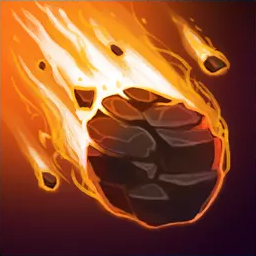
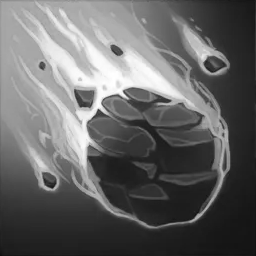
Then a rough 60% opacity Burn use of the Fill tool. You set to foreground colour with the right colour option as per above. Tweak to fit.
Alternatively you can use the Colorize option although sometimes the blacks change excessively with using it.
Then add the border ala Overhaul Icon Drop Shadow Workflow after removing bits with the magic wand. This may be easier done when black and white. Remember you can add areas to the existing selected ones to do two separately coloured but still relevant areas.
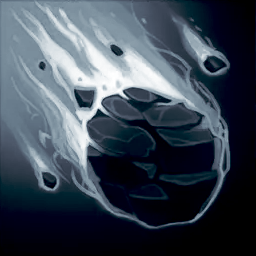
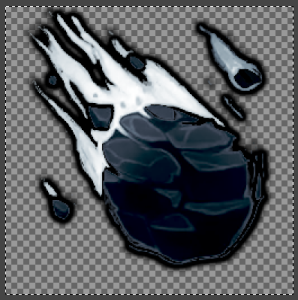
To get a version with a black alpha layer export with no background colours and set the background colour in the selector to black. https://www.gimp-forum.net/Thread-Change-transparent-color-to-white
Spell Scrolls
Need to do this process not done yet.