Some workflows and information on texture creation for Overhaul.
See parent page Overhaul Models and Textures for naming and sizing conventions. All files in an MTR file must be suffixed though with the appropriate ID (eg; _n for normal maps) even if the filename is truncated so script commands can work on each part of the MTR.
This is a multi-step process, but reasonably simple, to obtain a upscaled PNG file.
Then you use this as the basis for the others, and if you need to scale back to 2048x2048 or smaller use Crunch to do it at the DDS stage.
Same as above but you can avoid the Crunch step; just run Cupscale on the TGA file with 4xBSRGAN.pth model being run. It'll self-convert to PNG automatically.
This can be a big pain in the arse. Things like leaves or whatnot. Even icons. Some notes to follow and check out 4x Texture Upscaling pages for some attempts at formalising it.
Basically you need to use Pytorch mode and set the Alpha Mode in the options first. To save reading below use:
For the purposes of at least basic icons there are some better options then the default "Differential Alpha" option:
| Alpha Mode | Tested Use Case | Notes | Alpha Layer Pictures |
|---|---|---|---|
| 0 - Disabled | Anything with no alpha channel usage | Many NWN textures contain no alpha. Most tileset textures for instance, many GUI icons and textures, many feat and spell icons. | |
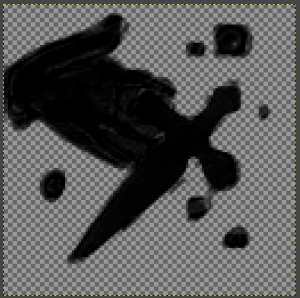
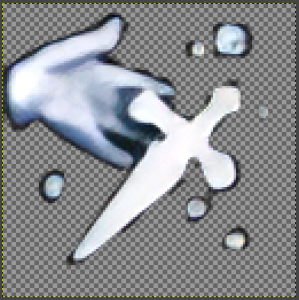
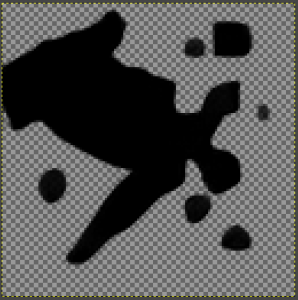
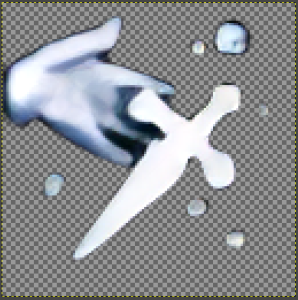
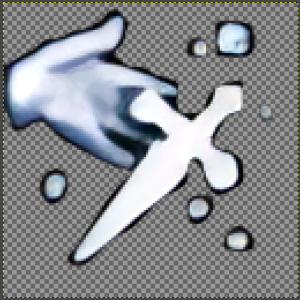
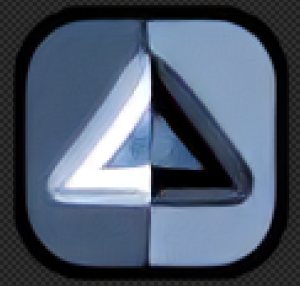
| 1- Differential Alpha | This seems to be pretty bad, at least for icons (in this case id_good.tga), see picture for what the "Alpha" layer turns into! It should be all black but instead has some alpha all over the place. Basically if we were using alpha more passively - like having wisps of smoke or the like, then it might be usable. Most domains, feats, spells icons will not use this and instead use mode 2. Will need to test it on some others. ife_disarm.tga as the second example shows it is awful, since it's got lots of random transparency all over the icon. |
| |
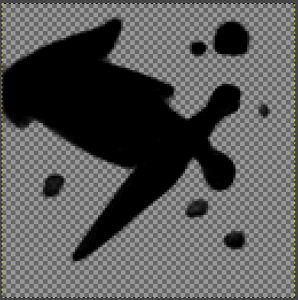
| 2 - Separated Alpha | Icons (feats, domains, actions) | This seems to work perfectly well for icons and the like where there is basically an icon in the middle, and alpha (tending to black) around it. Example of the same icon which as a much better "small amount" of alpha fade at the edges and otherwise the middle is all opaque. ife_disarm.tga looks ok - a little bit of transparency at the edges (here with 8 bit alpha on) - but it's got some weird harder edges compared to the other 2 options. |
|
| 3 - Channel | This appears to be very similar to type 11, for icons at least. See id_good.tga to the right, again it moves some alpha into the icon which isn't present in the original. The outer edges however are more nicely/gradually faded. Not that they have to be - the original icon is basically "opaque or not" alpha, with the outer edge not even being entirely black (although it kinda "fades to black"). The second example shows a slightly better case when used on ife_disarm.tga - seems better rounded parts and gives a better outline. |
|
There is also an Alpha Depth option, using 2 - Separated Alpha, we have:
| Type | Notes | Picture |
|---|---|---|
| Full (8 Bit) | This is best for anything with fading alpha. IE not icons with a border, but for things like grass or whatever Note the fade in the example icon - it's not bad if you want a little fading however! |
|
| Binary (1 Bit) | This may be quite good for alpha-with-a-border, ie things like icons See example picture it gives a nice crisp edge. |
|
| Ternary (2 Bit) | This isn't really suitable for anything in NWN. It's basically a worse 8 bit version, where pixels do have bits of transparency at the edge, but don't look as good/as smooth. |
|
The intermediary file, usually PNG, could be TGA or another uncompressed format, can be converted using NWN Crunch: https://neverwintervault.org/project/nwnee/other/tool/nwn-crunch-enhanced-edition
There are some reasonable default cmd scripts but some edits are needed for doing:
See the SVN for these scripts. The autoflip = 1 should likely be on if you've converted the files originally from DDS.
Final DDS should be as close to the original sizes as possible, keeping under 15MB, see Overhaul Models and Textures at the bottom for notes on this but basically with alpha it is usually 2048x2048 maximum and without alpha it is 4096x4096 - although only needed on very large creatures like Dragons or Giants.
The mainstay of content for the Overhaul to begin with will be using upscaled 4x textures with PBR additions.
Starting Tutorial: Using ShaderMap 4 (SM4) to Make Simple PBR Textures
If a creature is quite "dry" and "normal" we can just do a normal map. This adds some shadowing on the model where bumps are in the texture.
Using ShaderMap 4 we just simply add the image we want to create normals from, which will generate a basic normal map - to have it to NWN standards change the green channel to be Y+
(shamelessly from the tutorial above) Select the normal map then click the axis icon in the bottom left panel.
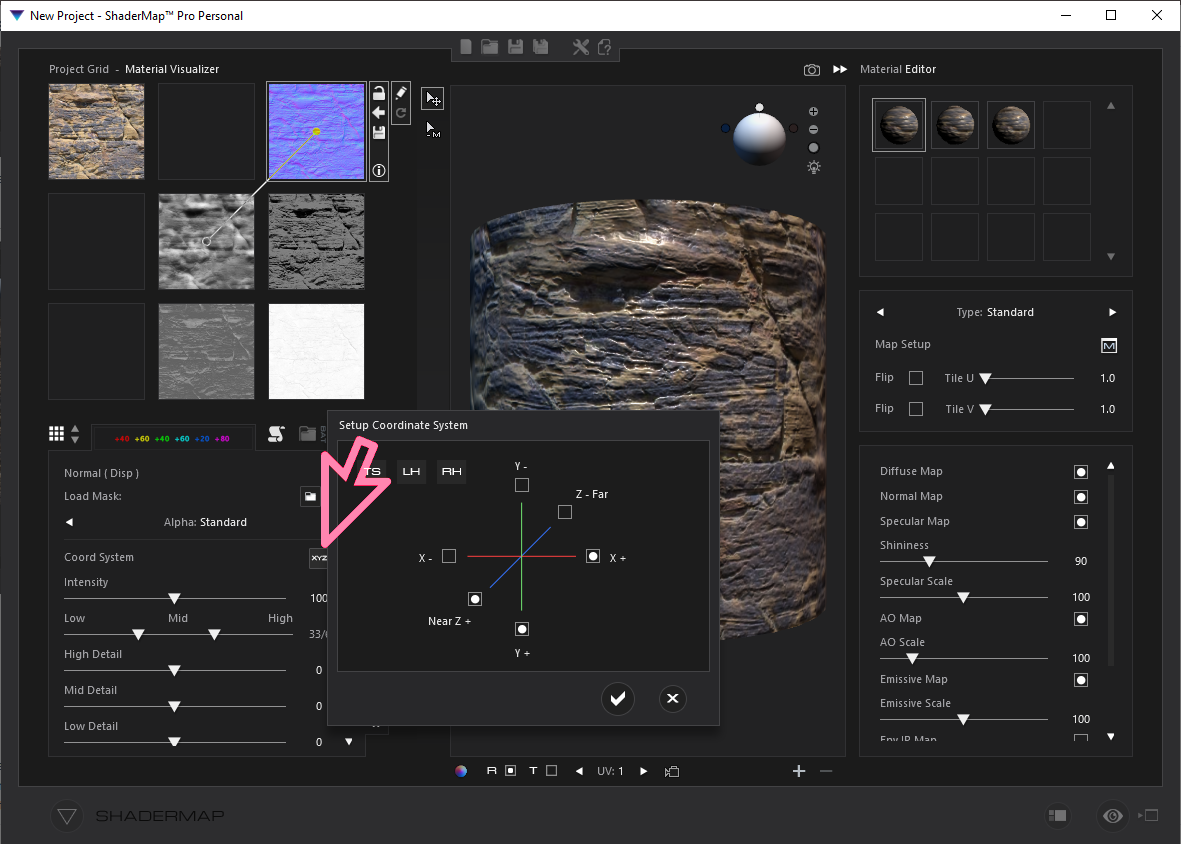
Next, click the box at the top of the green axis.
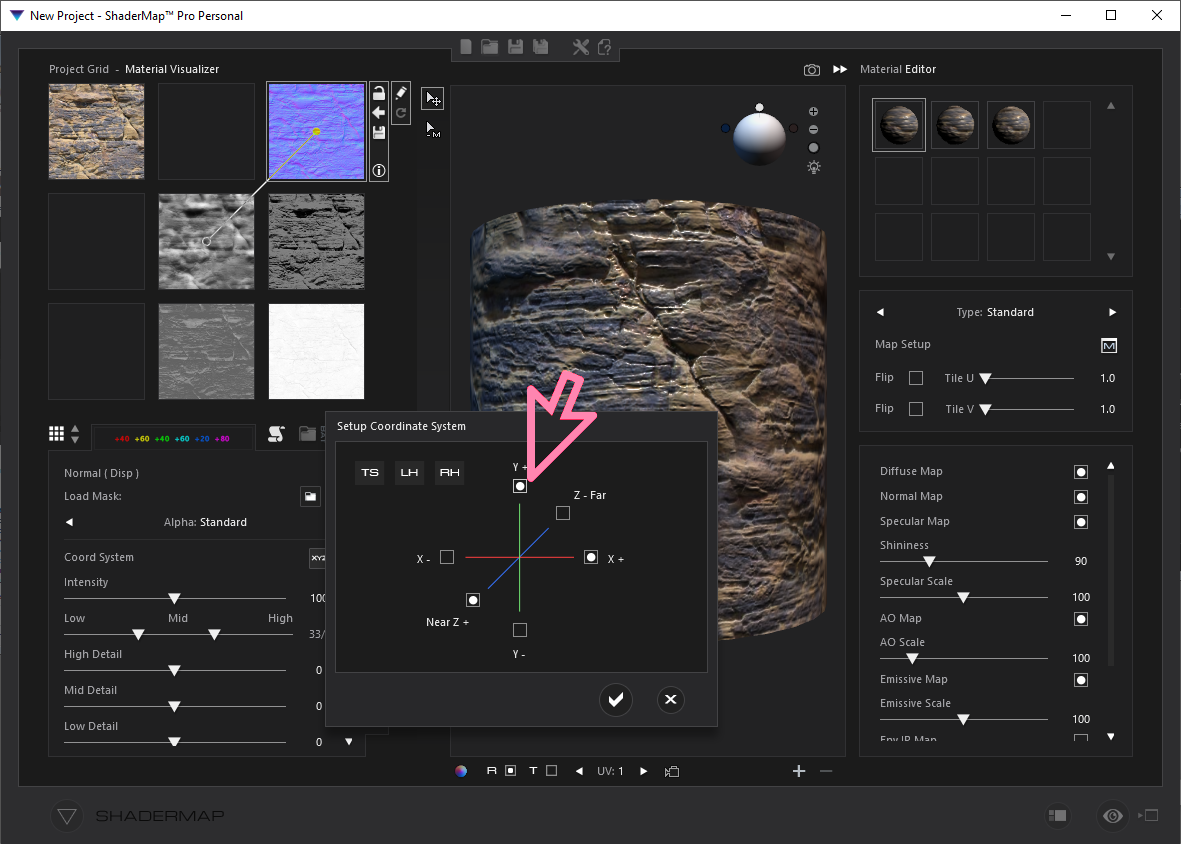
Click the checkbox to accept the changes.
This might be all you need to do - save the normal file as a PNG by right clicking on it.
You can also edit the intensity (usually the main thing to do) and the other options. Listing these on the creature model pages may be recommended to recreate it later (eg; if you change the texture size, or swap the texture).
For the specular you can use this to generate a good enough general spec map to later edit in GIMP or similar to change to NWN specifics. See Merrickdad's tutorial for most of this.
These maps provide a shine to the object.
However it's not as simple as "just export stuff from ShaderMap 4" or any other tool, since:
Specular maps:
Roughness maps:
Some experimentation is required here and for different types.
Using shader variables
This might be easier than having a ton of DDS files which essentially are one uniform colour. Saves a lot of disk space and file mess too.
Example MTR c_ettercap.mtr - the top two lines force normal maps and specular/diffuse compared to leaving them blank, taken from the PBR demo module (bit more on default shaders used here: https://github.com/mtijanic/nwnee-shader-tutorials/blob/master/tut/material-fragment-shaders.md ). The values though will just be uniform for the model, as if we produced an entire specular/roughness map which was all uniform white or black or grey.
customshadervs vslit_nm customshaderfs fslit_nm renderhint NormalTangents // Textures texture0 c_ettercap_d texture1 c_ettercap_n parameter float Specularity 0.02 parameter float Roughness 0.1 |
Example code to change the values for testing - debug console - select the ettercap and apply.
    float fSpecularity = 0.02;
    float fRoughness = 0.05;
    SetMaterialShaderUniformVec4(OBJECT_SELF, "c_ettercap", "Specularity", fSpecularity);
SetMaterialShaderUniformVec4(OBJECT_SELF, "c_ettercap", "Roughness", fRoughness); |
Example values see here: Enhanced Lighting Engine and PBR
However having something that is "wet but solid" instead of water needs some testing. It sometimes also benefits from the diffuse file (main colours) being altered to remove shadows or lighten them up.
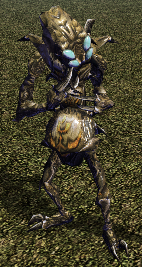
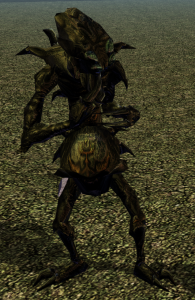
Some examples:
| Specular | Roughness | Picture | Description |
|---|---|---|---|
| 0.3 | 0.05 |
| Generally a bit "wet" but not quite good enough |
| 1.0 | 0.00001 |
| A metallic mess (note setting Roughness to 0.0 seems to recalculate it as if it wasn't set) |
There's a Metallicness value set in the shader too. We'll look at that another time...the shader defines it in inc_material.shd and seems to be auto generated anyway:
uniform lowp float Specularity; uniform lowp float Roughness; uniform lowp float Metallicness; Default definition: fMetallicness = clamp(fMetallicnessModifier * fSpecularity - fMetallicnessMod, 0.0, 1.0); |
Code to test:
    float fSpecularity = 0.02;
    float fRoughness = 0.05;
    float fMetallicness = 0.05;
    SetMaterialShaderUniformVec4(OBJECT_SELF, "c_ettercap", "Specularity", fSpecularity);
    SetMaterialShaderUniformVec4(OBJECT_SELF, "c_ettercap", "Roughness", fRoughness);
SetMaterialShaderUniformVec4(OBJECT_SELF, "c_ettercap", "Metallicness", fMetallicness); |
These provide some colourisation information to the model where things are reflected. The textures alpha channel is used to modify the texture based on the environment map.
The default games version without PBR's is a bit lackluster.
The "default" option uses the texture file "chrome1"
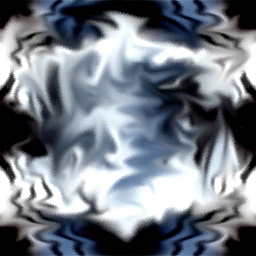
This applies - as it looks like - a bit of a silvery-shine.
Needs further testing on how we replace this default or, well, how it works overall. Some aspects of implementation:
Can use GIMP or in MindText2 you can use "Flatten Color" to remove the shine from a texture, from Defana:
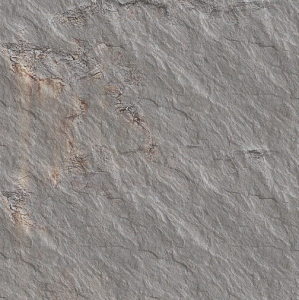
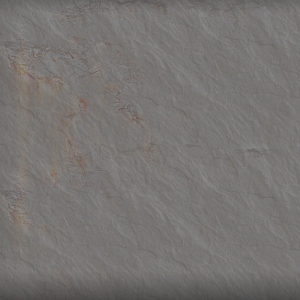
It loses some of it's quality so it can be difficult to do properly.
As noted above alpha layers are used for the environment mapping "shiny/reflective" surfaces. It'd be nice to get these converted over to PBR's though (which gives us some nicer control).
In GIMP you can go Alpha → Greyscale like this: https://graphicdesign.stackexchange.com/questions/155206/alpha-to-colour-value-in-gimp
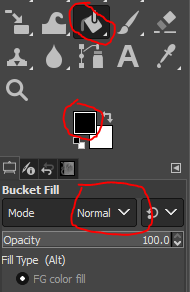
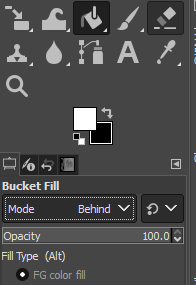
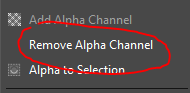
Now it's ok but might not be to what specular maps should be (where white == shiny). This is because the NWN envmaps overwhelm the colour and so fully alpha would mean, basically, full environment map replacement, which is really bad.
We want to extend the colours so black stays black, and greys become more white. Most of the time the non-alpha black bits are all the non-metal parts (eg wood, skin etc.) so it's pretty safe assumption the even dark grey bits are meant to be shiny.
I've found that Colors → Exposure works well. Put black level to 0.1 (maximum) to keep the blacks and the Exposure upwards, say to 2.0 or so. Going a little higher can really push the whites. Over 3.0 and it tends to white out everything on the example below. 2.0 seems to be fine in game for our purposes.
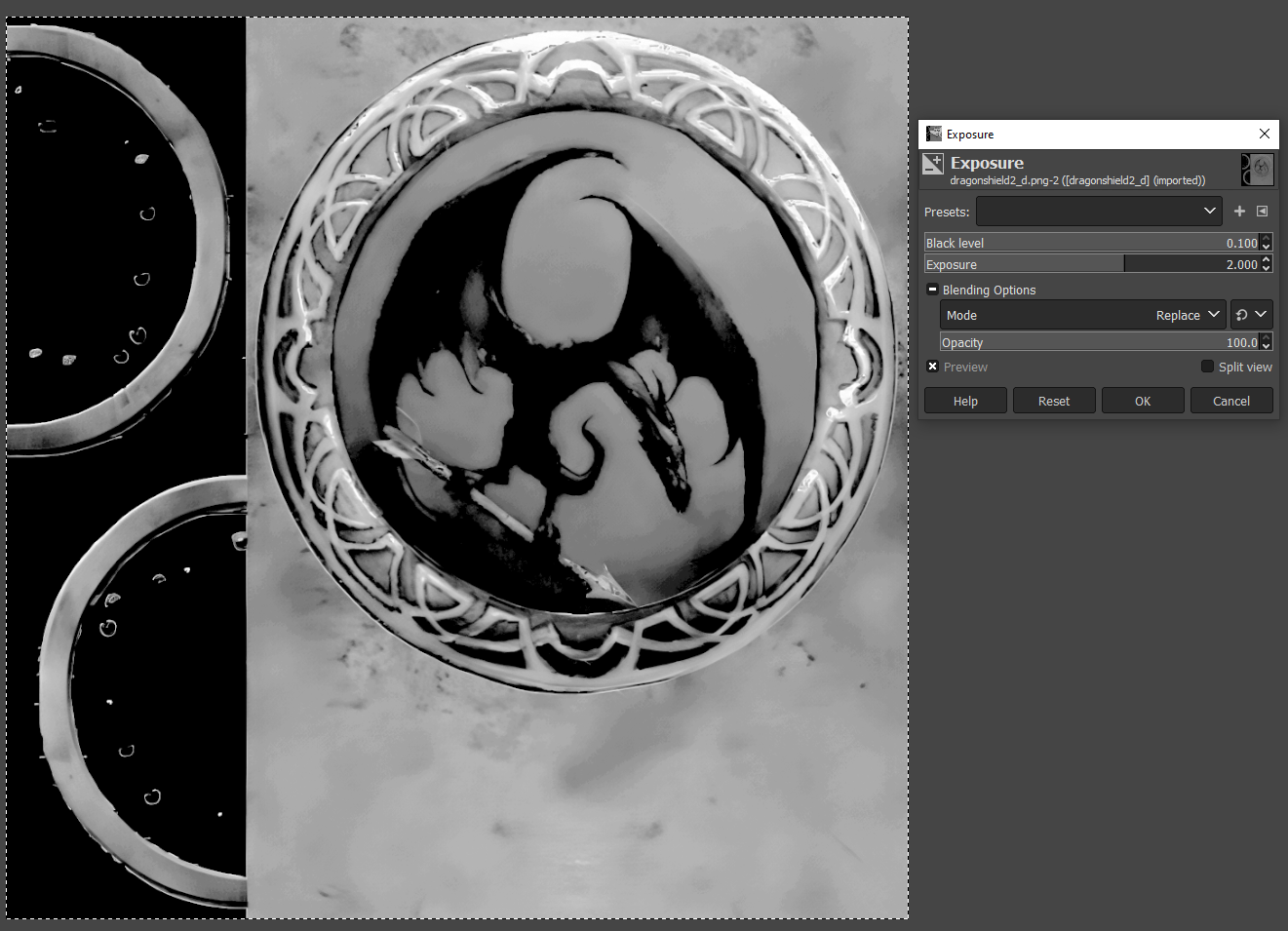
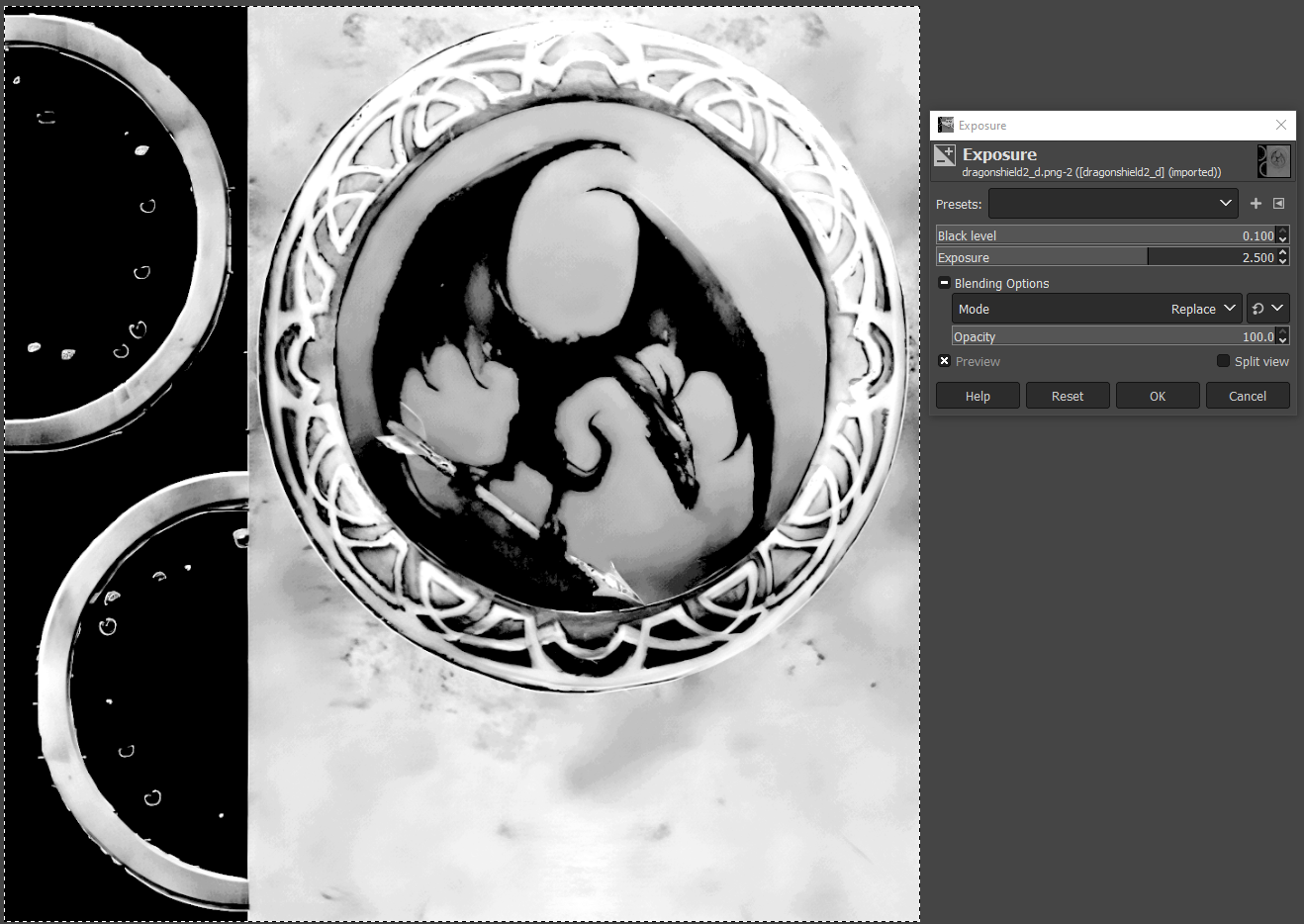
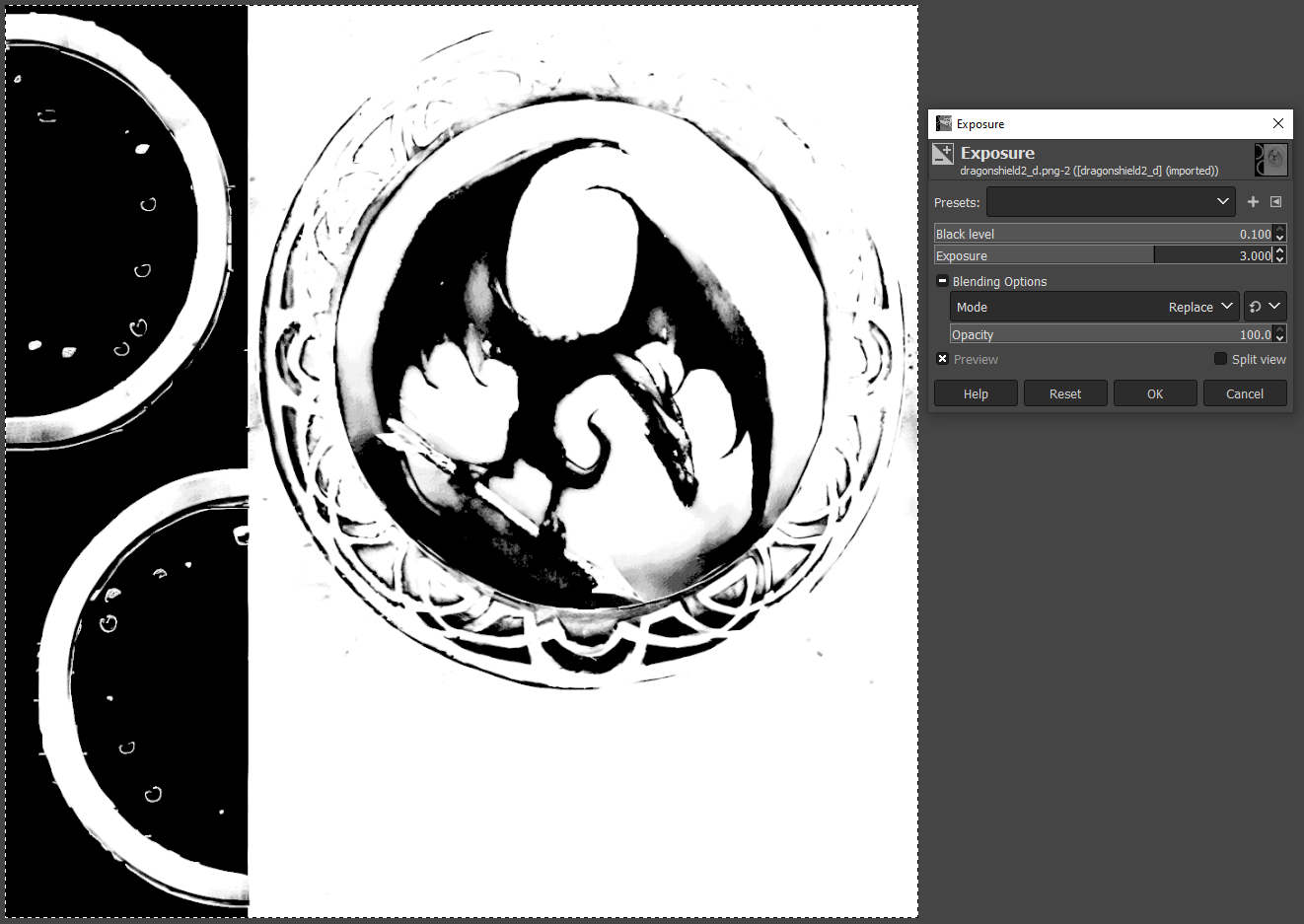
Then convert with Crunch and bingo (here with a normal map from Shadermap 4):
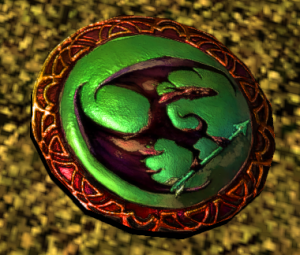
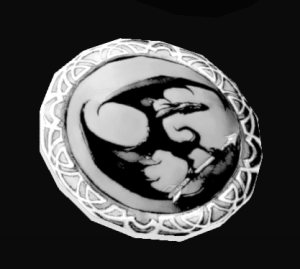
Note the diffuse has been passed in as DXT1 to remove any alpha (and lower the DDS size, they tend to get quite big at 2048 size).