-
Created by
 Merricksdad, last updated by Jasperre on Sept 28, 2024
26 minute read
Merricksdad, last updated by Jasperre on Sept 28, 2024
26 minute read
Original package primary authors:
- Pstemarie – Project Q Admin
- Bannor Bloodfist – CTP Admin
- Merricksdad – Tileset and Tutorial Creator
- BioWare Corp. – Tileset Construction Tutorial
- Tonden Ockay – Compiled and edited document: NWN CTT 1.0 Beta
Tileset Overview
A tileset is a selection of tile models all referenced from a single tileset file (.SET).
The toolset will use these files to create manual and automatic picking lists for area builders, with placement rules and prefab groups constructed in the SET file.
Models can be shared between two or more SET files. Original content sets reuse some tiles prefixed with "TALL_" such as the checkerboard feature and the basic raised portal pad.
Before beginning the creation of your tileset, you'll want to plan ahead and understand all the basics of tileset creation and how the toolset picks what can go where.
Planning
Tiles generally have three parts that you need to consider in everything you do. These parts will define what tiles can be placed adjacent to other tiles. The three primary parts are terrain, crosser, and height.
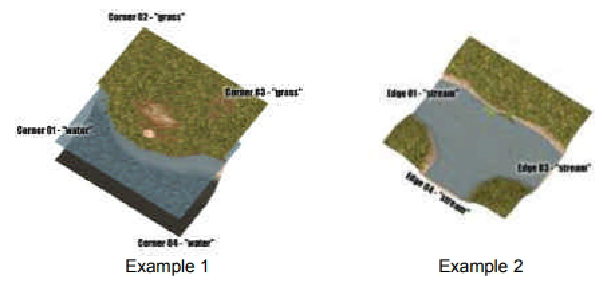
Terrain determines what is at the corner of tiles. These are your primary features per tile and usually correspond with actual terrain types, like "grass" or "floor" or "water". See Example 1 above.
Crosser determines what is at the edge of tiles between corners. These are your secondary features per tile and usually correspond with something that crosses from tile to tile, but which is not itself a terrain type. Examples include "road", "stream" or "wall". See Example 2 above.
Height determines the height of a corner terrain. Height values are increments of the tileset's height transition value, which is normally in meters.
When these parts match at corners and edges, the toolset will be able to pick and elevate tiles into the correct position for the builder to make an area.
Before we begin, you will need to have some form of organization, and you'll need to learn the terminology. You'll also need to grab some tools.
Basic Organization
With functional basics out of the way, you're ready to start taking down notes for your own tileset.
This process is far more complicated than most think, and will take a lot more work than anybody ever expects. But with good organization and planning before you begin the actual tile creation process, you can save yourself a lot of headache.
Keep in mind that the basic tilesets tend to have 200+ tiles, all of which conform in filename and overall format to a few basic structures. They're helped by aspects as simple as file naming, so let's start there.
File naming conventions
The first thing you want to do is outline how you will name your files.
Original tilesets are named with a 5 character prefix, such as TTR01. This prefix says "Tileset Terrain Rural Version 01"
Naming files like this keeps all the files for one set in an easy-to-find group within your development or override folder while you are building the set. You should try to name even your textures and shaders this way when possible.
Using this naming convention can get you into trouble if you have a name that might overlap with existing tilesets in original content, or custom content on the vault. Original tilesets include standard prefixes such as those on the following table. However, custom content tilesets can and do have almost any prefix, and reasoning does not always follow this standard.
| Prefix | Tileset |
|---|---|
| TCN01 | City Neverwinter |
| TTR01 | Terrain Rural |
| TDC01 | Dungeon Crypt |
| TIC01 | Interior Castle |
Later versions of revamped original tilesets included with the NWN:EE versions have "02" in their prefix. This allows them to be used as optional versions, rather than forced overrides. You can do similar with sets you create.
When constructing tiles, builders will often have all their tiles in a single scene of a 3D editor, such as GMAX or Blender. To help with export of those tiles, and to later find them again in the scene, builders often use a grid layout.
Original tiles can be thought of as coming from a 3D grid. Rows are index by letter A to ZZ, whereas columns are indexed from 1 to 100. Variations of tiles are again indexed from 1 to 100.
These gridded indices are then added to the filename. The first tile in a set is therefore named "TTR01_A01_01".
In original tilesets, many tile rows were used for certain terrain types. For instance row A is usually used for your primary terrain mixed to your secondary terrain. Later rows above M tend to be used for feature and tile group parts. Row Z is often used for edgetiles which go around the boundary of your area but are grayed out and unusable.
It is good practice to get all your tiles mixing any two things into a single row. For instance all your grass mixed with water could be a single row.
It's also good practice to order your tiles such that if they mix two terrains, they also start with the lowest number of corners using the second terrain. For example, one corner of water mixed to grass would come before three corners of water and one grass. Mixing three terrains at once commonly goes on another row.
This naming convention is not required, but helps in both the planning and the export stages.
Axis Notation and Scale
When building in a 3D editor, there are a few basics that must be known before you begin.
In NWN, the Z axis is up (to space, not north). If your editor is working with a different "upways" axis, you'll need to change that. The X axis is the West to East direction. The Y axis is the South to North direction.
A tile in NWN is 10 meters square on the XY plane. If you have recently installed Max or GMax, then your settings may still have an arbitrary unit instead of meters for your dimensions. You'll want to adjust that before you begin working. See the individual help manuals for those programs for assistance. The settings you are usually looking for would be called "customization" or "preferences" and the topic would be "units" or "grid units". In GMax, it is common to work in centimeter scale, so that your tile is 1000x1000 units. NwMax will convert your centimeters to meters on export.
If you are working with models from 3rd party downloads, you may find that they're stored in a scale that is 1000x larger. This is commonly because they are working in millimeter scale for 3D printer software. In that case you will need to actually scale your models up or down before working them into NWN. Find how to do that using the help manuals for each 3D editor software.
Understanding Tileset Related Resources
To do all the work needed to build a custom tileset, you'll need to understand where the data comes from during gameplay. Below are some filetypes, specific files, and what they do.
Set File
The SET file is where almost all the data for your tileset will be located. It is stored in the old Windows INI format, with some exceptions. The primary exception is that the toolset will not load it using INI reading software. It will instead load it sequentially, meaning the order of INI headers and subsections must be strictly built. That layout can be found on the SET file description page.
Set files are named using just the set prefix, like "TTR01.set"
ITP File
The ITP file is the menu tree structure while in the toolset. This is what the builder sees when using your set in the toolset. It contains a branch section for terrains, crossers, features (1x1 groups), and larger groups.
ITP files follow the format "TTR01palstd.itp" which you can see includes the tileset prefix, followed by the word "palstd".
Door Types
Tiles can have door indices which will snap doors to a specific location and orientation if the builder is placing doors. Other tiles have tileset specific doors which will automatically be installed when the builder places the tile.
Door types are stored in two files.
The file "doortypes.2da" includes tileset specific doors. If you add custom doors specific to your tileset, this is where you need to put that information, or your tiles will not load those doors when placed. They'll instead be blank spots. When referencing a door on your tile, you'll index the door by the row number in this file (1 based, rather than 0-based as usual).
The file "genericdoors.2da" includes generic doors. In general, if your door can fit any original content door jamb, then you would put your door in here. When referencing a generic door jamb on your tile, you'll use the door index zero (0). All generic doors are index zero, which lets the builder select a door, instead of forcing a certain indexed door.
If you make tileset specific doors, you MUST add them to doortypes.2da and then share that file to clients with your HAK and module. That file MUST be merged with any other versions including other set-specific doors, and the original content specific doors. Many builders simply won't do this and will instead use only generic doors.
Edge Tiles
Edge tiles are those tiles which surround the area out to 5 tiles beyond the actual area space. They are not walkable or reachable in any way. They are also grayed out to the clients.
Not all custom content has edgetiles. Not all tileset types can have fully functional edgetiles. And tilesets using edgetiles have a pattern of repeating tiles out from their edge that some builders do not like.
When edgetiles are used, they are indexed in a separate file from the SET file.
The file "ttr01edge.2da" accompanies tileset "ttr01.set" and lists the edgetiles. See the writeup for that file to understand its structure.
Edge tiles using the original content naming convention usually have row Z set aside for edgetiles. If you follow that convention, it will make finding edgetiles in your tileset HAK easier.
Edge tiles are not a requirement, and don't make sense in some situations.
INI files
The file "areag.ini" holds generic information and presets for tilesets. Any set not listed in this file will get the most basic default information.
Within this standard Windows INI file, you can set area tile details such as ambient sounds, battle music, daytime and nighttime running musing, initial scripts for clients entering and leaving the area, and assorted area properties, such as interior/exterior, or whether the area allows PVP.
The use of this file is not a requirement.
Loadscreens
The file "loadscreens.2da" lists the selection of loading intermission images to play for your clients between areas. The "TileSet" column allows you to bind specific bitmap images to your set, so that you see only those you want shown. If not specified, your clients will instead see random bitmaps from the list.
Loadscreens are not a requirement.
Tile Light Colors
Tile-oriented mainlights and sourcelights will draw their colors only from the file "tilecolor.2da". The color picker will not allow other colors. If you want other color lights on your tiles, you have to add them another way.
Tile lights are not required, but they do add to the ambience options that builders have when constructing an area. Tile mainlights are also controllable through the area environment settings. You can alter all tile mainlights at once by setting new environment properties in the toolset.
Mainlights are generally floating ambient lights, rather than directional lights which would cast shadows.
Sourcelights are generally directional lights with a specific causative feature, like a torch or lantern or campfire on the tile. Sourcelights are also partially controllable with environment settings.
Sourcelights can also be bound to tile animations, so they can turn on and off by day and night settings, as well as activate and deactivate settings. For example, the forest tileset has torches and campfires that can turn on/off, allowing one tile to be used as multiple variants.
The toolset can handle two of each light type per tile. Anything beyond that will need to be done with placeables and visual effects. Using visual effects offers more light colors, especially when used with the new progFX functions (available to EE only).
Footstep Sounds
The file "footstepsounds.2da" contains a list of sound overrides. It is not area-specific.
The file is an array of footstep type codes paired with three options of sound for each terrain type.
The terrain types include Dirt, Grass, Stone, Wood, Water, Carpet, Metal, Puddles, Leaves, Sand, and Snow. Each terrain type corresponds with the name of a walkmesh material type. See Surface Materials below.
Surface Materials
The file "surfacemat.2da" contains the global controls for how walkmesh types will function in your module. See the listing for that file on how it works exactly.
MDL File
Model files include the mesh for your tiles, as well as the position of lights on those tiles.
Model files also include the non-network version of AABB walkmesh data for your client, telling them how and where they can move.
Model files also include animation sequences for stuff specific to that tile.
Tile models do not include actual lights, sounds, or doors, or the animations for tile specific doors.
WOK File
Wok or "Walk" files include the network-specific AABB walkmesh data for your client, telling them how and where they can move. During network play, WOK files are preferred over AABB sections within the MDL file. WOK files are kept and controlled by the server so the client finds it harder to cheat how they can move.
DWK File
DWK files are walkmesh files paired with specific doors. They are named the same as the door they are used for.
When a door is closed, the DWK controls the on-tile walkspace.
When a door is opened, the DWK gives control to the tile WOK file.
When doors are opened and closed on a tile, the tile also changes pathnodes for those seeking to move through that tile from a distant tile to another distant tile. See pathnodes.
Materials and Textures
Tiles can make use of TGA and DDS textures. They can also make use of MTR material files, which can point to custom SHD shader files.
Understanding Tile Model Parts
Aurorabase
This is the specially dummy node underlying every model. It contains information about the tile name and supermodel linking, is the base for its tree structure, and contains the list of animations on the tile.
Every tile must have an aurorabase. If it will be walkable with a WOK file, then it must have its Type set to "Tile".
The aurorabase node name must be the same as the filename for full proper functionality.
The aurorabase node name will be reuised in other parts, such as lights.
Light Sources
Light sources on tiles are typically not actually lights. Lights outside of tiles use an actual light node, but tiles instead import a light and control its characteristics in other ways.
Tiles use a dummy node with a specific naming convention to force the position of a light. There are two types of lights that will respond to the toolset and NwScript commands.
Each light will be prefixed with the tile name, exactly as it appears in the aurorabase. Each light will then be suffixed with either "ml" or "sl" for mainlight or sourcelight respectively. And then that suffix will be followed by the light index, 1 or 2.
As example, the light from tile mainlight 1 from tile TTR01_B01_01 would be "ttr01_b01_01ml1".
In modern tiles, all lights are parented to the aurorabase dummy node.
In some older custom content tiles, lights were instead parented to other nodes, which will likely cause them to no longer function correctly, or at all.
Animations
Animation details are stored on the aurorabase dummy node.
Tiles can be animated using the following animation names.
Name | Expected Frame Length (at 30 FPS) | Purpose |
animloop1 | 50 | A looping animation which animates a subset of the parts of a tile. |
| animloop2 | 50 | |
| animloop3 | 50 | |
| Day | 50 | The animation state during daytime. Ex. when night lamps are out. |
| Night | 50 | The animation state during nighttime Ex. when night lamps are on. |
| Night2Day | 50 | Just like it sounds: this (and the below Day2Night) runs at the transition of night/day. Used for e.g. turning on night-time torches or lanterns, and for fading-in night time illuminated window meshes over ordinary daytime window meshes, using keying of alpha values on the night-time window mesh. |
| Day2Night | 50 | See above |
| tiledefault | 50 | The default animation of a tile. Will be assumed when not specified. Not required. |
Animloops
Animloops control a subset of the tile parts. Some parts can be bound to animloop 1, 2 and 3 separately, and then can be enabled/disabled separately. This allows one tile to have many uses.
Day and Night Cycles
During the daytime, the Day animation will play. Likewise the Night animation will play at night.
At the transition hours set in the module, Night2Day and Day2Night animations will play which are intended to cover the 1 hour interval of change going from Day to Night and back again.
During transition animations, you can slide parts out of view, including those with self-illumination values, like glowing glass pane windows. You can also switch on source lights.
Door Placement Dummies
On some old tiles, you may find door placement dummies. These do not actually function in the toolset, and have no functional purpose in the game.
The door dummies usually keep the same position as listed in the SET file tile entry. So you can use the door dummy position to get the aurorabase-relative position of the door. The SET file door position will be equal to the position of the door dummy minus the position of the aurorabase. This is helpful for calculating the SET file door position when your tiles are all inside a single scene in your 3D modeling program.
Including your own non-functional door dummies can help future SET file writers get the proper door positions.
Walkmesh and Walkmesh Rules
This is a separate mesh not seen by the clients. It guides units through the tile while within the tile's bounds.
The walkmesh controls which triangles on the walkmesh are walkable and not walkable. It also stores which type of material is painted within the bounds of that triangle.
For material types and their walkable/not-walkable characteristics, see surfacemat.2da.
Walkmesh also controls things like water splashes, and tileset grass.
The walkmesh trimesh portion acts like a collisionmesh for camera bumping, blood spurting effects (splat and bounce emitter commands), and the like. The walkmesh AABB portion controls where units can walk.
The walkmesh node must be parented only by the aurorabase node.
There are many rules which apply to walkmesh construction, which can be very confusing:
Rule #1: A walkmesh should be very simple
A mesh polycount of 100 is a good limit.
While a walkmesh can be more complex, older software like GMax will run out of memory processing the walkmesh into an AABB structure before it finishes, crashing the program. It can also fail to report an error while making an AABB branch structure, and will then allow you to output broken walkmesh files.
To compile correct AABB structures for more complex walkmesh, use a 3D editor program that is at least 64 bit.
Rule #2: A walkmesh cannot have more than eight faces associated with any given vertex
Most non-walkable face types do not count toward that limit, though you should still keep them to a minimum of 8 per vertex for future builders that might change your walkmesh surface types.
Rule #3: A walkmesh walkable portion must be single-planar non-complex
You cannot have multi-level walkable portions that actually work correctly. Any vertex from any face cannot therefore overlap any other walkable face. Non-walkable faces do not have this rule.
If you make multi-level walkable space in GMax, you will likely crash the exporter. In other programs, it may allows you to build the AABB structure, but units using that mesh will jump from level to level randomly.
Rule #4: A walkmesh walkable portion must point upward
Downward facing walkable portions can crash GMax exporter, and will lead to jerking and hopping of players in the game.
Some invalid walkmeshes seen by the engine will not load properly, setting the entire tile as walkable, 15 meters tall, and with walkmesh surface type 0 = invalid.
Other invalid walkmeshes will crash the toolset and engine, especially during model unload. Other faulty walmeshes have been known to leave a shadow copy of their AABB structure behind when painting terrain in the toolset.
Non-walkable portions can point down to produce ceilings, but if they ever get set to walkable it can crash the toolset and engine. It is a good idea to make a new surfacemat entry for ceilings.
Rule #5: Walkmesh must be a single model node
Supplying more than one AABB node in a model will have a lot of undesired consequences.
You can however split the AABB host mesh into multiple elements. This will throw warnings in NwMax, at least for GMax.
This method works very much like PWK overlays for placeable objects. Entry paths for sub elements will be run separately and more cheaply than making a more complex mesh.
All previous rules still apply. No overlap of walkable faces and vertices. Only 8 faces per vertex. Etc.
Rule #6: Avoid straight vertical edges
Straight vertical edges breaks the no-overlap rule. Even when one of the vertices are part of a non-walkable mesh, this can still crash the toolset or engine.
Any time you have a height change in the walkmesh, offset it on the XY plane at least 1 cm. on each axis.
Rule #7: Position at zero
A walkmesh should have its origin (aka pivot) set to the tile center (aka 0,0,0), sharing the exact position of the aurorabase node.
The walkmesh node cannot be scaled or rotated (must have any transforms reset).
If the tile is a raised tile, this rule still applies.
Rule #8: No tile edge gaps
A walkmesh meant to allow travel off the tile must have an edge at exactly +/- 5 meters from the center of the tile. No decimal variation should be permitted.
Very small fractions of 3/1000 of a cm will still allow walking across the triangle most of the time. Longer gaps will make units stop at the edge and they will not be able to cross.
Tile A-Node
The tile A-node was used in early versions of Pre-EE NWN. It allowed static portions of the tile to be animated during the operation of dynamics parts of the scene. All animated parts needed to be parented to the A-node.
In custom content, the A-node was also used as a method to force transparent textures to render above dynamic content, such as player models and visual effects. This allowed transparent walkable water, glass windows, and display cases.
During early EE versions, the A-node stopped working. It did not return until preview version 8193.35 [2070a8b9].
The new A-node functionality is similar to the old version with all the same uses. It allows stuff like static object glass transparency, transparent foliage, and water that does not block leg visibility.
To set up an A-node, simply make a dummy node with the same name as the aurorabase, suffixed with "a". Parent to the aurorabase dummy node.
Any mesh parented by the A-node will be rendered in the dynamic drawing phase after static meshes. This improves transparency ordering. It does require more processor time.
Note that visual effect particles are still blocked by A-node transparent objects except where those textures have Alpha layer = 0, and where the shader uses the "discard" command to open a hole in the texture.
Meshes that fall under the A-Node in hierarchy will not respond to tilefade or keyholing due to draw order.
Tile Water Options
Water on tiles can be either walkable or not walkable, as determined by the walkmesh.
Walkable default water is set by surfacemat #6, whereas deep non-walkable water is set by surfacemat #17
Other water types exist based on surfacemat values, and you can make your own.
When splashing through walkable water types, a creature unit will leave a splash emitter particle on the surface water. The water surface is automatically determined by the engine. You do not need to do that manually.
Certain effects that leave wind behind, such as spawning in, can leave long-lasting wind-marks on water.
Water texture has a few special options. The first and more common option is fancywater, which is started by using a TXI file, but uses a special shader. The second older method is to use a TXI file to run an Arturo Noise function on the water texture.
Understanding SET File Parts
Path Nodes
Path nodes help units move through the tile from another tile to another tile. These are used instead of the walkmesh on the tile, allowing distance pathing to see the tile as a single simple node in a route.
Path nodes are set for each tile in the SET file.
The node type selected should align such that lines from edge to edge line up with the basic throughput of your tile.
It is better to know and understand path nodes before you start making tiles. Use pathnode icons as your starting point for the pathing types you can use in those tiles, that way you don't make a tile that cannot be properly pathed.
A list of path nodes can be found on the SET file description page.
Lines in path node icons connect sections of a tile edge to another edge on that same tile. Selected path nodes for adjacent tiles should align such that the lines from one pathnode would connect with lines on the adjacent tile.
When in doubt, choose the simplest pathnode that would allow a unit to move through the tile, even if it's not entirely correct. Pathing most of three sides of your tile is better than not pathing anything.
A failure of pathing will prevent units from correctly moving across one side of your tile. They will instead take paths through the tile and way out around other tiles just to move to the incorrectly pathed tile adjacent to your tile.
Through all the versions of EE, there has never been any added path nodes. Don't expect any in the future. Try to use only what is already available.
Pathing is required for proper function. Omitting it will prevent creature units from properly interacting with your players. It will also prevent players using click-to-move actions from using your tileset. However, players using driving keys will still be able to use the basic walkmesh to move across your tile.
Visibility Nodes
By default, the visibility node will be the same as the selected path node.
Visibility nodes tell the units if they can see across a given tile. If not, then LOS will be blocked.
In most cases, visibility nodes should be simpler than pathing nodes. Unless warranted, use the simplest visibility node, with straight lines from edge to edge, rather than split edges.
Door Visibility Nodes
Door visibility nodes are those which are used instead of the visibility node when a door is present and closed.
When a door is opened, the visibility node will take over.
Door visibility nodes control maximized darkness behind closed doors.
Groups and Features
Tile groups can be made in the SET file. These are just lists of tiles that will be placed at the same time.
Group tiles are listed from bottom left to upper right.
The first tile in a group must be unique in filename because the ITP file will detect the rest of the tiles in the group using the first tile's filename rather than its index.
Other tiles in the group can be repurposed in other groups.
Any tile in a group will not be available for randomized picking while drawing terrain and crossers.
Any non-group tile sharing the same filename as the first tile of a group will also not autopick while drawing terrain.
Tiles in groups will be rotated as a unit.
You cannot specify an orientation for a tile inside a tile group, so you cannot reuse the same tile but at different orientations in groups.
A group of only one tile is called a feature.
Groups with tiles having doors will place all doors at once. Removing the group is supposed to remove the associated doors, but can leave doors behind.
If you want to leave a randomized tile inside your group, you can set the tile index in that position to -1. However, the first tile in a group cannot use this feature and will crash the toolset.
Height Transitions
The tileset height transition is a value in meters representing the Z-axis (up) offset which the tiles will gain with each step of transition.
The toolset gives you the ability to use Raise/Lower when a tileset has the "HasHeightTransition" value = 1
You cannot lower a tile below elevation 0. There may also be issues with raising tiles too far.
Prior to some version of EE, height transitions needed to be integer values. In the current version, they can now be floating point decimals.
The whole set can only have a single transition value. You can however make a separate terrain that uses half of the transition height and then mix it with other tiles using the full transition.
In general, a set can only use one height transition at a time per tile.
There are tilesets which use up to 3 per tile. They are more complex, take substantially more work to create, and cannot make full use of edgetiles. Multi-raise tilesets let a builder jump two or more transition increments over a single tile.
Terrain Types
Terrain types are your tile corners. They are the base terrain available in your tileset.
Terrain types are referenced in the SET and ITP file by name, not index.
Terrain types are required.
Crosser Types
Crosser types are your tile edge types. They are the secondary terrain available in your tileset.
Crosser types are referenced in the SET and ITP file by name, not index.
Crosser types are not required. The default crosser type is blank.
Tile Grass
Tile grass is late-drawn dynamic grass added to parts of the walkmesh at runtime.
Tile grass details like color and density are handled in the SET file.
You can specify an override grass texture name in the grass heading of the SET file.
Walkmeshes using surfacemat #3 will paint tile grass.
Tile grass will move like a danglymesh node, however its limits are different than all other danglymesh, allowing it to move and bounce back over longer time periods.
Tile grass can be affected by wind like danglymesh, however it receives different limitations based on options set by the client in the options menu.
Certain effects that leave wind behind, such as spawning in, can leave long-lasting wind-marks on grass.
See the SET file writeup for more details.
Original content tiles use height transitions of 5 meters. A more reasonable height transition for custom content tiles is usually 2 or 3 meters. But it depends on the intended appearance.
Doors
Door instances are stored with the tile they are attached onto.
In the SET file INI structure, they will directly follow the tile INI structure, and will be referenced as [TILEX_DOORY] where X is the tile index, and Y is the door index.
Sounds
Like doors, sounds can be added to tiles. This is not suggested.
Get to know your tools
You'll need various tools to build a tileset.
For making models, you'll need either Max/GMax or Blender.
To export NWN-ready models, you'll need NwMax or NeverBlender addon for that respective program.
To edit any model, 2DA or SET file by hand, you'll need a simple text editor, such as Notepad++.
To edit binary GFF file formats, such as to make a custom ITP file for your SET file, you'll need a GFF Editor.
To extract or view existing content locked in BIF files, you'll need NwExplorer or similar.
To extract material from custom content and to pack your own custom content for sharing, you will need a HAK editor.
Laying out your intended area
Estimating your terrain type needs
The first thing you want to examine is the number of terrains you intend to have in a single area.
Any time two or more terrains can meet on a tile will substantially increase the workload.
While tilesets exist which mix four terrains, it would be best to start with two and only work up as needed.
Commonly used options include Grass, Water, Mountain, and Forest for outdoor sets, while indoor sets have a terrain type per room but are separated by a shared wall terrain sometimes called "solid".
Mixing Two Terrains
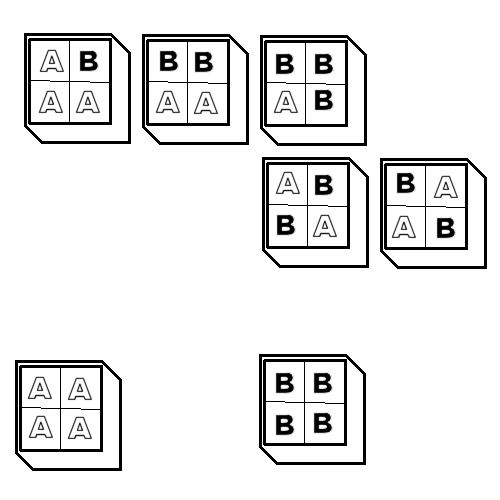
Imagine you have two terrains A and B. For each terrain you need one tile with all four corners being the same terrain. For any corner mixed with the other terrain, you need another 4-5 tiles as shown in the diagram below.
While ABBA and BAAB are technically the same pattern rotated, they represent options where the primary terrain is the one in the upper left corner. Imagine you have terrain A which is flat grass, and B which is raised rock. If you want a bridge of raised rock across the grass, then BAAB is the tile you would be making. Whereas if you want a grass path through two raised rocks, then ABBA is the tile you are making. We can think of these as inverse tiles.
Builders will commonly make three variant versions of ABAA, BBAA, and BBAB, but only one version of ABBA and BAAB. Some builders make six variants of AAAA and BBBB. Variation of individual tiles helps reduce repeating patterns in the client view.
With each terrain C or D added, the number of mixing tiles will increase with A, B, C and D. You would need A, B, C, D, AB, AC, AD, BC, BD, and CD.
Mixing Three Terrains
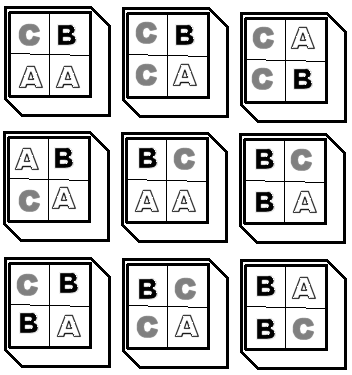
In addition to mixing C and D with A and B, you might also consider mixing three terrains at once. for each terrain C added, you will need 9 more tiles to complete the mixing options.
Having complete mixing options allows builders to keep painting without having to erase a tile to paint another terrain. However, more mixing options always increases the number of tiles needed, and the workload.
Note that this following set finishes the ABC combo, but omits D. So to complete ABCD, you would need ABD, ACD and BCD copies of the following.
Mixing Four Terrains
If you wanted to mix in a fourth texture D with A, B and C so that each corner was another terrain, then you would need 6 more tiles adding terrain D. But, unlike other subsets, you already have all the tile you you need in this mixing type for the whole set ABCD.
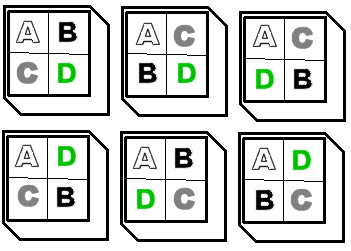
So you can see, with just four terrains the workload is building up. Adding terrains E thru Y would substantially increase the workload.
Standard tilesets have usually four terrains. Custom tilesets have tens of terrains with varying mixing capability.
Mixing only two terrains at once can seriously reduce total workload. Not all terrains need to be mixed. And in most cases, a lot of the mixing tiles will never be used in any given area, creating file bloat.
You can also make "graduated" terrains, where terrain B only appears inside terrain A, and where terrain C only appears inside terrain B. With such a graduated terrain system, you can transition from terrain to terrain with every tile, but you will need four tiles to make it to terrain D.
The maximum area size is 32 wide or long. So burning 4 tiles distance to transition over four terrain types might mean wasting some real estate.
Keep in mind that you can also start with max-2 mixing tiles. Build what you need, and then do anything special with tile groups. That method would allow you to skip making most mixing tiles and only make what you personally need.
Estimating your crosser type needs
Crossers are what goes on the edge of your tile and connects it to the adjacent tiles. In original content tiles, these are usually streams and roads outside, while inside they can be corridors or bridges over watery pits.
Like with corner terrains, you need so many tiles to complete a crosser set.
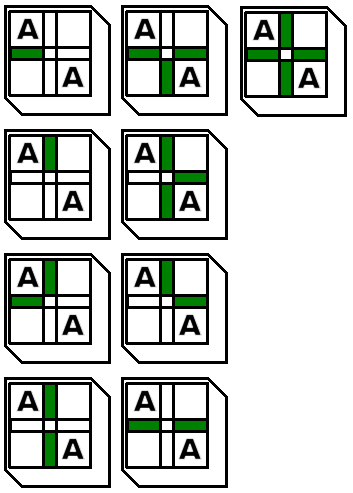
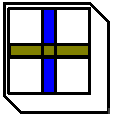
If we imagine that a tile has this structure:
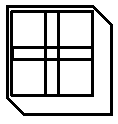
...then to compete a set you need three basic tiles to make a continuous road with a termination.
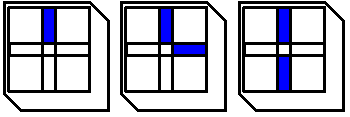
And to make intersections in your road, you need these two tiles:
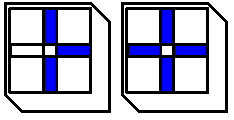
Keep in mind that this is ONLY to cover one corner terrain type with one crosser type.
Mixing Two Crossers
You can also mix up to four crosser types on a single tile, just like with corner terrains. Here's an example of two crosser types meeting in the middle, such as a road crossing a river.
Shown below is an early river system subset by Merricksdad.
|
|
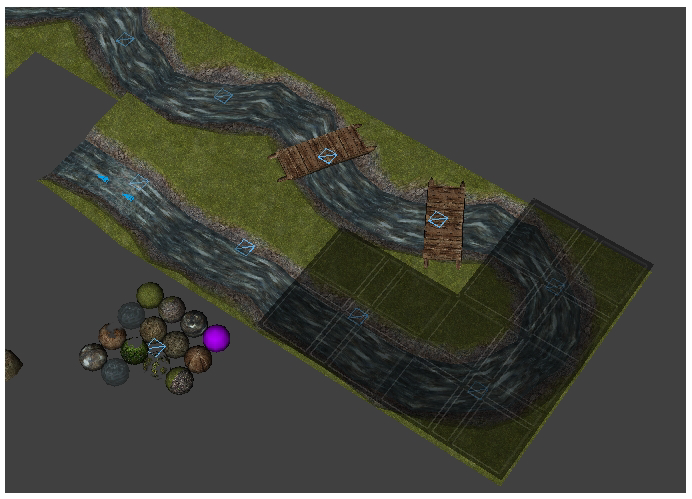
Notice in the river subset above, the river does not need to cross the tile at the tile edge center. It can be offset. However, in producing tiles like that, you then need extra tiles to snake the river across the tile, such as those shown with bridges.
Mixing Terrain and Crossers
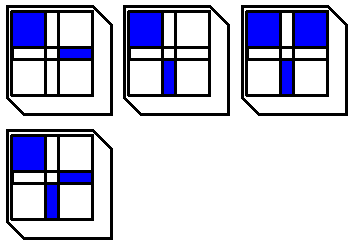
Now imagine you want your river to empty into a lake. The tiles shown below would be needed to complete that transition set.
Mixing Height Transitions and Crossers
The following chart paints a clearer picture of the needed tiles for any given terrain-crosser mix where there is any height transition A, or where A is actually a different terrain than the blank portion.
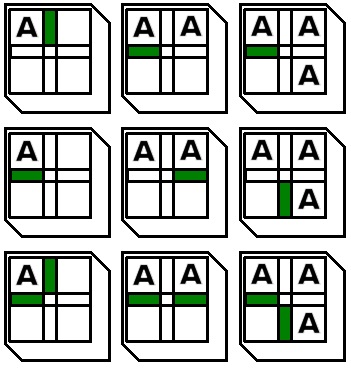
But if you want full diagonal raised terrain support, you also need these following tiles.