-
Created by
 Palindar, last updated on Feb 06, 2025
5 minute read
Palindar, last updated on Feb 06, 2025
5 minute read
This guide shows you how to install free open source ComfyUI portable with Hunyuan3D-2 on your local windows PC. Game ready placeables, creature or tileset parts can be generated from 2d image or text very fast. Between 1 to 3 mins depending on your pc hardware.
You can also for free generate via hosted app online a few 3d models from 2d image using the same Hunyuan3D-2 AI model generator using this online tool called huggingface space: https://huggingface.co/spaces/tencent/Hunyuan3D-2 Use the advanced section to open and control the model generation settings.
Be aware that Hugging face site model generator is basic compared to local install ComfyUI. Local install allows you to control the faces poly count, the texture resolution and other important settings. After three models generated per day with the hosted version then you have to pay credits to use it. The free online huggingface can produce very good models with textures so dont discount it. If you have a 6GB+ vram Nvidia card and 24 gb ram then you can create better looking 3d models on your pc in a few mins. The results are much better with ComfyUI as you have full control to chose higher quality output. You can batch produce many 3d models with different settings. (and its all free).
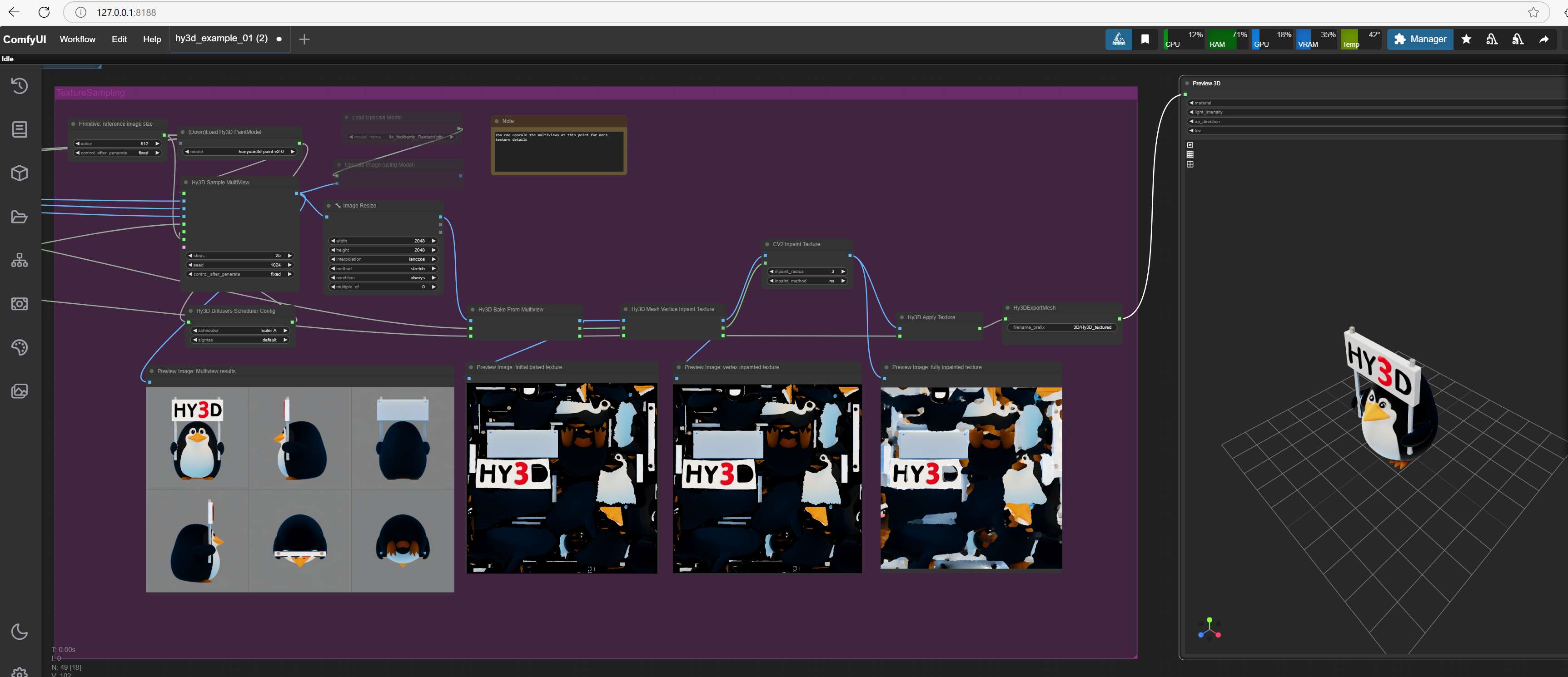

ComfyUI and its AI model generators allows you to supply a 2d image or text description and it will generate the model with texture with UV map ready to be imported into blender. The AI will figure out what the other side of the image looks like as a 3d model.
There are additional plugins to Comfyui to add in PBR image processing when you create the model. (PBR plugins not covered by this intaller)
ComfyUI can generate models that have low poly faces 5k or high poly over 250k. The image texture output can be controlled using settings so that better image quality can be achieved. Up to 2k upscaled and deatailed textures can be produced for your model.
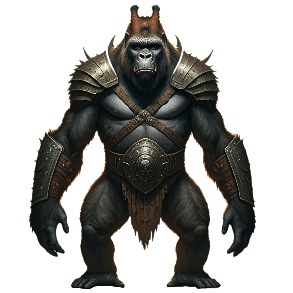
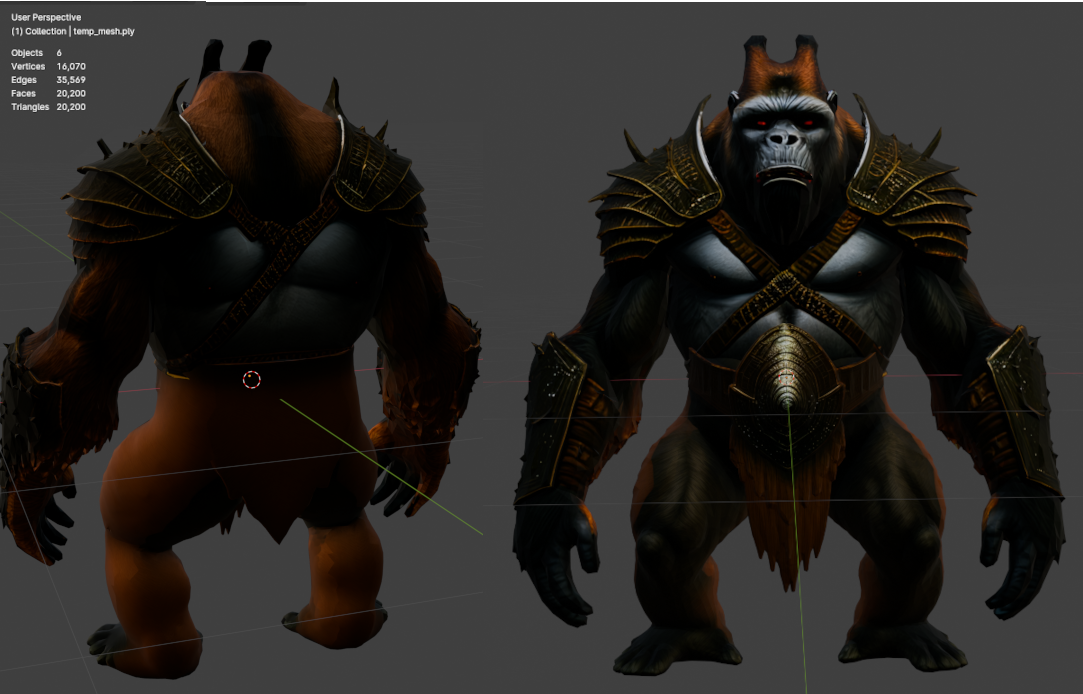
You can see an example of the gorilla 2d image used to 3d generate the model and then loaded in blender with faces stats. You can import this sample HY3d_00118.glb file into blender to see the 3d quality possible it can generate.
This sample gorilla model created you can download and import into blender was set to generate model with 10k faces and 2k texture. You can in ComfyUI choose what poly limit and texture size you want when you generate.
The picture of the 3d gorilla in blender has 20k faces and was made by cutting the image into two parts to create two meshes (top and bottom from the belt) from 10k faces each and then stuck together in blender. This makes it easy to create meshes for optimization and reduces 3d modeling time. Nwn mesh limit is about 10k faces per mesh.
High quality high poly models can be produced and also low poly models that also look good.
NOTE: To get good 3d model/texture results you need to change a few default settings: like num faces, octree rendering, steps count, texture size, delight settings (controls light and color), upscaler 4x on and texture memory renderer.
NOTE: You dont have to create any workflow or program anything its just those few parameters to tune for your pc hardware and then you convert 2d image to 3d model in 1 to 3 mins per model as many as you want in batch also possible depending on your pc hardware.
You can extend the workflow with other things like PBR and better upscalers to improve the image further. Being open source there will be new things added in the future.
Using ComfyUI automatic installer with Hunyan3d Comfui workflow
Requirements: You will need a PC with Windows 10 or 11
Hardware: 24 GB ram (32GB recommended so you can run windows apps also) and 6 GB ram Nvidia gpu minimum (8 gb vram to 12 gb vram recommended). If you have less than 8gb vram nvidia card there is a lowvram setting when you start Comfyui. The default is to let it detect vram.
50 GB disk space in your windows home folder. Later you can moved the installed files to another folder after installation or edit the installer bat file to use another dir. It will be downloading a lot of AI model content to use the 50 GB space so it takes about 2 hours to do the install on a fast internet connection.
There are 5 main setup steps in Comfyui. Do steps in order and do not miss any out.
All steps are simple to do because the installer does all the hard work. There are two bat to download and use to do the install.
ComfyUI3dInstaller.bat initial install for ComfyUI.
SetupCudaForComfyUI3Dplugin.bat used once later to setup 3d python CUDA driver when workflow runs.
Follow this google doc or download the pdf that has screenshots and detailed how to install step by step:
Overview of steps you follow to do ComfyUI Install:
1) Download and Install Nvidia CUDA drivers
https://developer.nvidia.com/cuda-downloads
Select Windows, x86_64, your Windows version (Win 10 or Win 11), Installer type (network or local dont matter what you prefer) Press Download button and then execute the downloaded file.
2) Download and Install git software. https://git-scm.com/downloads/win Use blue link Click here to download. Run the installer. The setup will prompt you with several options; it’s fine to use the default settings for all of them. You will not have to use Git but the installer needs it.
3) Create Github.com account. This is so the installer can use your account login to download the software it needs when running.
4) Run the ComfyUI3dInstaller.bat to install ComfyUI and its setup.
Run ComfyUI using the Start_ComfyUI.bat installed on your desktop
5) Run SetupCudaForComfyUI3Dplugin program when you run the workflow so it can setup 3d plugin that needs CUDA driver.
When finished creating the 3d model will automatically saved as GLB Model file in output dir: C:\Users\{WIN_USER_NAME}\ComfyUI_Windows_portable\ComfyUI\output
You can import GLB model into Blender with UV textures already setup.