-
Created by
 Jasperre, last updated on Jun 25, 2022
4 minute read
Jasperre, last updated on Jun 25, 2022
4 minute read
This Toolset User Manual is intended to cover what each part of the Toolset does, with a full list of documentation on commands, shortcuts, and anything that is broken/to be wary of. See the subpages for specific coverage of different Toolset topics.
Toolset General
The toolset is a Windows 32bit application located in Install Path\bin\win32\nwtoolset.exe - it runs an old school Windows GUI (this mainly means you can't, for instance, open two creatures properties at once, or have the journal and conversation editor open at the same time). You can run it under WINE or similar applications on Linux but it is not full proof; always make constant saves.
You can associate .mod files with the toolset to be able to double click and open them directly (when placed in the default /module folder)
You can set the user directory (on Windows usually in My Documents folder called "Neverwinter Nights"). This can be helpful if you want to load a specific set of hakpack files or other files for a particular mod. Of course the .mod file should be in the relevant /module folder: nwtoolset.exe -userdirectory "C:\Path"
You can pass the full path and name of a module file and it will load it directly, useful for shortcuts to the main module you want to open: nwtoolset.exe "C:\folder\module name.mod"
When the toolset opens it generates a "temp0" folder in the modules folder. This can be renamed to be the same as the .mod filename and the toolset will use this to load from instead of unpacking each time.
For instance, create a new module called "my_mod" it generates a new temp0 folder, a my_mod.mod and my_mod.BackupMod file when it is saved. If you rename the temp0 folder to be exactly "my_mod" and go to Open it again, it will popup with a prompt; "A directory with the same name has been found. Do you want to open this directory as a module?" answer Yes and it doesn't need to unpack the .mod file. This option can be set as the default way to open a module in the Toolset Options.
New Modules
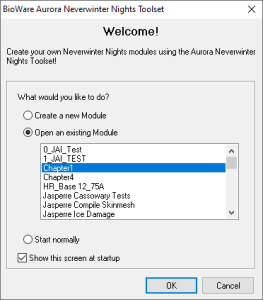
By default the first menu popup contains options to create a new module, open an existing module or "start normally" which basically does nothing. Select the Create a new module option or when in the toolset usually press the Create a new module icon on the toolbar  or go File → New or use the keyboard shortcut Ctrl + N.
Any of these opens the Module Creation Wizard.
Open Modules
The menu which opens by default is a good way to open modules usually. Alternatively use the Open Module toolbar icon  or go File → Open or use the keyboard shortcut Ctrl + O.
You can pass the full path and name of a module file and it will load it directly, useful for shortcuts to the main module you want to open: nwtoolset.exe "C:\folder\module name.mod"
Saving Modules
To save your module press the Save toolbar button  or go File → Save / Save As, or use the keyboard shortcut CTRL + S. The keyboard shortcut is the same in the Conversation Editor and Script Editor.
The toolset can crash from time to time, so make sure you make regular saves. It is worth keeping a copy of your module in a separate location. Eg on Dropbox or OneDrive. This prevents toolset corruption and lost work!
Note that if you have a crash the toolset can potentially recover from the temp0 directory (make a copy of it, and rename it to be the same as the module name to try loading it). Failing this using the .BackupMod file may be a method to retrieve lost work.