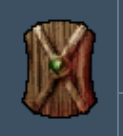
...
This is perfect - a hard edge, you first of all want to make the green black, then you can delete this for a transparent background now.the layer for the transparency to come through instead (the black background will be carried onto final TGA/PNG and DDS files).
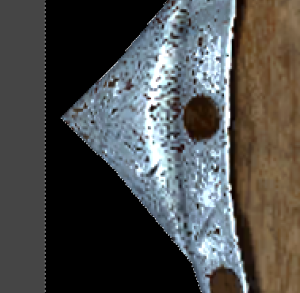
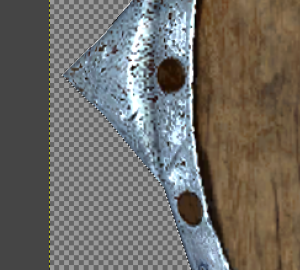
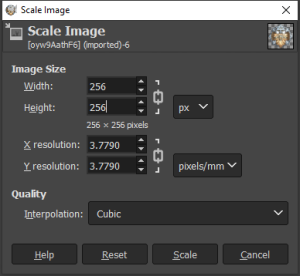
Finally we'll use the menu option Image → Scale Image to do the final 256 width we want; the Interpolation you may want to leave as Cubic which is taking the average colour around the pixel being resized. The reason for the black is we then don't get any weird half-transparent pixels on the edges, instead it takes it from the black.
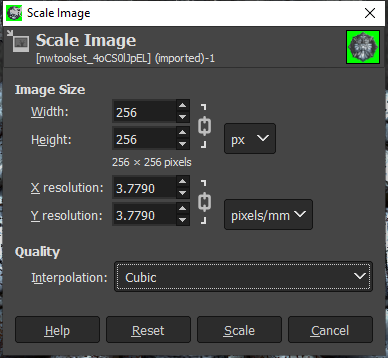
You can zoom in and see the cubic interpolation overlapping the nice edges of our icon we cut out before. There are not many over the "edge" and I've checked and there is no easy solution - the cubic interpolation simply does add transparency.
...
Now your icon is ready for exporting - you can at this point also add a bit of a outline if you wanted, up to you! The transparent areas are all black if you did anything else to affect it.
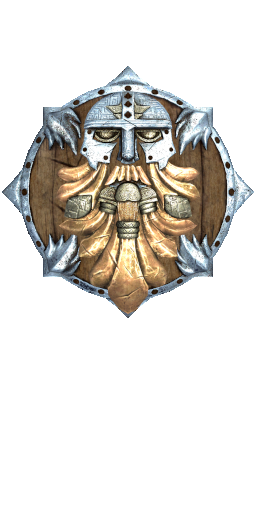
Icons can be exported in TGA (you can use RLE compression in GIMP too) or DDS (if a new icon only - old icons can only be overriden with TGA I think).
If you want to add transparency rather than the hard edge, see this guide for important information on the background colour and how alpha can need better RGB than black to improve quality; https://www.adriancourreges.com/blog/2017/05/09/beware-of-transparent-pixels/#as-an-artist-make-it-bleed
Example of original game icon with black outline (although this doesn't always occur - helmets, armor and cloaks which are PLT icons tend to not have the outline or not as pronounced, and others have shadows or other different alpha blends to fully transparent):