This is a brief overview of the controls and usage of the toolset with controls, shortcuts and toolbar explanations. If it gets too lengthy subpages for different aspects of the toolset will be created.
| Table of Contents |
|---|
Toolset General
The toolset is a Windows 32bit application located in Install Path\bin\win32\nwtoolset.exe - it runs an old school Windows GUI (this mainly means you can't, for instance, open two creatures properties at once, or have the journal and conversation editor open at the same time). You can run it under WINE or similar applications on Linux but it is not full proof; always make constant saves.
You can associate .mod files with the toolset to be able to double click and open them directly (when placed in the default /module folder)
You can set the user directory (on Windows usually in My Documents folder called "Neverwinter Nights"). This can be helpful if you want to load a specific set of hakpack files or other files for a particular mod. Of course the .mod file should be in the relevant /module folder: nwtoolset.exe -userdirectory "C:\Path"
You can pass the full path and name of a module file and it will load it directly, useful for shortcuts to the main module you want to open: nwtoolset.exe "C:\folder\module name.mod"
When the toolset opens it generates a "temp0" folder in the modules folder. This can be renamed to be the same as the .mod filename and the toolset will use this to load from instead of unpacking each time.
For instance, create a new module called "my_mod" it generates a new temp0 folder, a my_mod.mod and my_mod.BackupMod file when it is saved. If you rename the temp0 folder to be exactly "my_mod" and go to Open it again, it will popup with a prompt; "A directory with the same name has been found. Do you want to open this directory as a module?" answer Yes and it doesn't need to unpack the .mod file. This option can be set as the default way to open a module in the Toolset Options.
Saving Modules
The save command is the top left "save" icon or CTRL + S. This save shortcut is the same in the Conversation Editor and Script Editor.
The toolset can crash from time to time, so make sure you make regular saves. It is worth keeping a copy of your module in a separate location. Eg on Dropbox or OneDrive. This prevents toolset corruption and lost work!
Note that if you have a crash the toolset can potentially recover from the temp0 directory (make a copy of it, and rename it to be the same as the module name to try loading it). Failing this using the .BackupMod file may be a method to retrieve lost work.
Area Editor
Note: The main 3d level editor needs to be opened for some reason to see the palettes of creatures, placeables and the like on the right hand side of the editor.

| Table of Contents |
|---|
To open the area editor, simply double click on an area in the left hand list, or Right Click → View Area on it. You can in NWN:EE open more than one area if you enable it in the options (and can then copy things between them even) but this does tend to cause more crashes so be careful. However it is very useful.
You can also expand an area without opening it which may help you find particular objects (the objects are not editable but you can focus to them).
Areas open always facing north (bearing 0.0) and all objects placed default to facing north.
The area editor is no longer a like-for-like visual representation of what the level looks in game due to improvements in lighting, shaders and other things. It is worth looking at the Test Module page for guidance on how to test how areas look and feel.
The camera usually The camera acts as if it is anchored to 0.0 Z height which can be a bit frustrating for people used to a more advanced modern engine or 3d modeller program like Unreal Engine or Blender and sadly does not supported WASD or arrow key movement.
Controls
Basic controls for the 3d view are in the toolbar, some with associated keyboard and mouse controls:
| Command | Button |
|---|
or Menu Option | Keyboard / Mouse | Notes | |||||
|---|---|---|---|---|---|---|---|
| Fullscreen Mode | View → Full Screen | F11 | |||||
| Move Camera (x/y axis) |
| Ctrl + Left mouse A + Left mouse You can also move the camera with the numpad: Numpad 4 / 6 / 8 / 2 - Move camera up / left / right / up / down (with Numlock on) | Oddly the numpad options stop working when holding shift, but not ctrl... Alt Gr + Left mouse tends to work similarly to Ctrl. | ||||
| Reset Camera |
| Numpad 5 - Reset camera to facing straight down from a high height (with Numlock on) | |||||
| Pan Camera |
| Ctrl + Right Mouse Ctrl + Middle Mouse You can also pan the camera with the numpad: Numpad 7 / 9 / 1 / 3 - Pan left / right / up / down (with Numlock on) | Alt Gr + Right / Middle mouse tends to work similarly to Ctrl for these commands. | ||||
| Zoom Camera |
| Scroll wheel | |||||
| Slowly Zoom Camera | Shift + Scroll Wheel Ctrl + Scroll Wheel | Much more incremental zooming, roughly half the speed of normal zooming. | |||||
| General | |||||||
| Refresh | Environment → Refresh | F5 | Don't use it. This seems to sometimes reset placeables to 0.0 Z value. It's a bit weird. There are rarely any times it will be useful the toolset is very good at displaying changes as needed. The only thing that might not reset is shadows, and you can enable/disable them and area lighting for a similar effect. | ||||
| Undo |
Edit → Undo | Ctrl + Z | Not everything can be undone, eg; removing areas, certain kinds of changes to the things in an area, changes to things in property boxes (like altering an areas name for instance). | ||||
| Redo |
Edit → Undo | Ctrl + Shift + Z | |||||
| Copy | Edit → Copy | Ctrl + C | Copys a given selected set of tiles if in area select mode, or a group of other objects in object select mode.
| ||||
| Cut | Edit → Cut | Ctrl + X | Same as copy except it also removes the items from the area. On tiles it does a "delete" on the tiles, although in most cases it'll just randomise the terrain, but for features like roads they may be removed. | ||||
| Paste | Edit → Paste Then left click to place. | Ctrl + V Then left click to place. | This will not instantly paste where the mouse is, instead you get a ghost image version before placing. You then left click to place. You can cancel this with right click. Pasting a group of objects retains their relative positions and handily selects them all, meaning you can immediately do adjustments for the entire group (eg rotating them all). | ||||
| Area Changes | |||||||
| Resize Area | Edit → Resize Area | The area is resized using the bottom left, or south west most tile (row 0, col 0 if you mouse over it). If removing some of the area it will delete the objects in those tiles. If adding some to an area (much safer) it will copy the same tiles that were on those edge areas. It might be a good idea to create a clone of an area before attempting this rather destructive process. You can also rotate an area to expand a certain edge, since the 0, 0 area position is used. | |||||
| Rotate Area | Edit → Rotate Area | Rotations are of course not destructive but useful for re-orientating an area to fit compass positions or other things better or to resize a particular edge of the area. | |||||
| Remove Area | Right click area in left hand list → Remove | This removes the area entirely. Backup first! You cannot undo this! | |||||
| Create Clone | Right click area in left hand list → Create Clone | A clone of an area will have a different resref but can otherwise be identical. Useful if you need to play with resizing, rotating or altering an area in large ways. Note however be careful leaving such areas around unless you re-tag all the area transitions the game may get confused when the module loads and you may unexpectedly end up in one of them you didn't intend. | |||||
| Tile Interaction | |||||||
| Paint Tile | Select the terrain you want in the right bar and Left click on the area. Base terrain is done affecting 4 tiles at once. Features are baked in like walls/briges or are pre-set sizes of tiles for specific buildings etc. |
| |||||
| Select Tile |
| F10 will toggle between Select Objects and Select Terrain (which can be helpful to unselect objects) Click on Select Terrain (top bar) or Paint Terrain (right hand menu) buttons then Left click to select | This allows a single tile to be copy and pasted with CTRL + C and CTRL + V. Copy and pasting of feature tiles can copy part of a tile. | ||||
| Select Multiple Tiles | Click on Select Terrain (top bar) or Paint Terrain (right hand menu) buttons then drag with Left Mouse button to select more than one tile | This allows a group of tiles to be copy and pasted with CTRL + C and CTRL + V. The tile selection is in blue. Copy and pasting of feature tiles can copy part of a tile. Any tiles you copy will also copy lighting settings. | |||||
| Change Tile Appearance | If the tile is base terrain (where you usually place 4 tiles at once centred between tiles):
If the tile is special "feature" terrain (Eg; walls, bridges):
| ||||||
| Remove Feature Tile | Once tile(s) are selected, press Delete | This can remove partial parts of feature tiles (eg half a house), but usually removes all interconnected tiles as part of terrain like walls etc. | |||||
| Object Interaction | |||||||
| Select Object(s) |
Click on one in the left hand panel | F10 will toggle between Select Objects and Select Terrain (which can be helpful to unselect objects) Select with Left Mouse button in object mode Drag with Left Mouse button to select multiple objects | Since you can hide different object types from view, mass moving just creatures or just sounds or something is relatively easy. You can copy and paste with Edit → Copy (CTRL + C) and Edit → Paste (CTRL + V) which can be done on single or multiple objects, good for sorting groups of placeables. | ||||
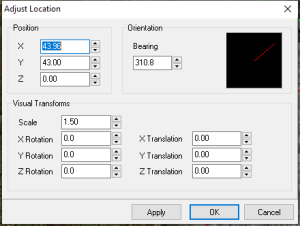
| Move Object (X/Y plane) | Right Click → Adjust Location (Position section)
| Select object(s) and drag with Left Mouse button |
| ||||
| Move Object (Z plane) | Right Click → Adjust Location (Position section) | Select object(s) and hold Alt and drag with Left Mouse button | Since Alt also can activate the accessibility menu for the top bar, it can be a bit finicky. Note creatures placed above or below the walkmesh will not stay there, and jump to the walkmesh. Anything else however will stay where it is placed on the Z plane (placeables, sounds, waypoints etc.). To adjust a creature to be higher use the Translate options. Note that if you select a placeable after moving it on the Z axis it might snap back to the walkmesh inadvertently.
| ||||
| Rotate Object |
Right Click → Adjust Location (Bearing section) | Select object(s) and hold Shift and drag with Right Mouse button | |||||
| Set Object Random |
| ||||||
| Scale Object | Right click object → Adjust Location (Visual Transforms section) | Select object(s) and hold Ctrl and use the Scroll Wheel | Scales and translations only work on non-static placeables. Note: Scaling via. the scroll wheel doesn't mark the area as needing to be saved, you must do this manually (or do something else in the area to trigger it to recognise changes). The adjust menu doesn't have this issue.
| ||||
| Translate Object | Right Click → Adjust Location (Visual Transforms section) | Translating an object does not change it's true real location, which is where you'd click on it if it was present. You could use this however to your advantage in many ways. | |||||
| Remove Object | Right click object → Delete (in world) Right click object → Remove (in sidebar) | Select object(s) and hit the Delete key | |||||
| Object Creation | |||||||
| Place new Object |
| Select in Palette and Left click to place | Placing most objects snaps it to the appropriate floor height. See below for how placeables can be potentially stacked though. Creatures may not spawn if placed somewhere invalid somehow - the Build menu will be able to check for these.
| ||||
| Place multiple new Objects | Select in Palette and hold Shift Left click to place | The shift key keeps that object able to be placed again. Right click or hit escape to clear the selection. | |||||
| Stack new Placeable on another Placeable | Select in Palette and hold Shift then Left click to place | This isn't perfect but works well enough. Adjust it further with the Move Object (Z Plane) suggested above. This may be based on the placeable objects walkmesh height. Also works to keep the placeable available to be placed again so you can do several at once. |





Filters
You can show and hide all object types that can be placed down which is useful when doing placeable work, or want to find specific waypoints or other objects. The far right buttons show/hide everything.

Lighting Options
The lighting options are key to working with an area well.  You can:
- Toggle Shadows - recommended off for performance
- Toggle Fog - recommended off for visibility
- Toggle Area Lighting - recommended off usually, especially since it does not mimic the NWN:EE enhanced lighting engine. It is worth testing in game to check the lighting.
Sound Options
The sound engine is similar to the games, but is done where the camera is, so testing in game is still recommended. For usual builds it is highly recommended to turn these off unless sorting sounds in particular, the toolset sometimes doesn't like playing a lot of sounds as you move the camera around quickly in and out of sound areas, and the music playing in the background can be very annoying after a while.

Preview Window
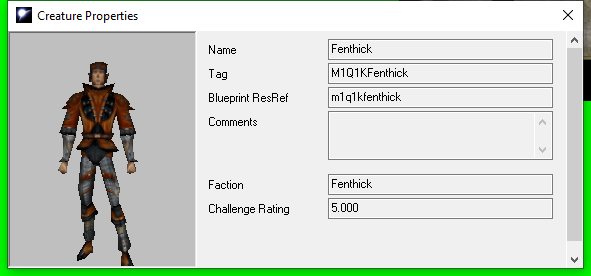
The last toolbar option is to show the preview window  . This is also accessible by View → Show Preview Window. This popup window is a rare one that does not actually take over the screen attention fully. Instead you can move it to one side and select objects on the left hand objects in area sidebar, the right hand palette sidebar, or the game world to see their properties. Most usefully this can be used to see default game palette creature blueprints, for use in scripts and the like. The fields are tied to the object being selected as well (sometimes quicker than opening the full object properties), with a model preview if available.
Area Contents Left Hand Sidebar
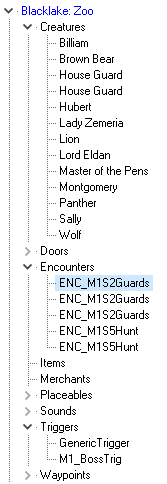
The left hand sidebar is a complete list of every object in the area sorted by type. The only missing one is the start location, which isn't a true object. Objects in the list are listed either by name (Creatures (first name only), Items, Placeables) or tag (everything else).
You can double click any object to focus on them in the world - if the area is not open it will open the area then focus on it.
The right click menu has a different set of things to right clicking an object in the world since it is not object specific, and the same menu is for every object. Most of these options are covered under the toolset controls above. Note "Remove" is equivalent to other menus using "Delete".
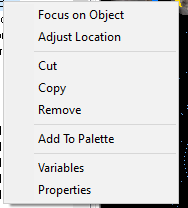
Object Palettes Right Hand Sidebar
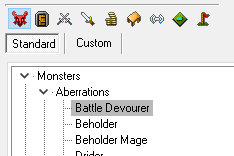
The palettes on the right hand sidebar are only available when an area is open, and allows the creation of Blueprints, and placing of blueprints into the area which instances them. Removing a blueprint later may remove those objects from the world so be careful. All your own additions will be under the Custom selection while the game default files are under Standard and cannot be edited (although copies can be made).
Objects in this menu are always ordered by Name not tag or other identifier, with creatures only getting the first name displayed (which, frankly, could be just used for their entire name since the times forename/lastname is used in game is usually conversations, which only PCs can do).
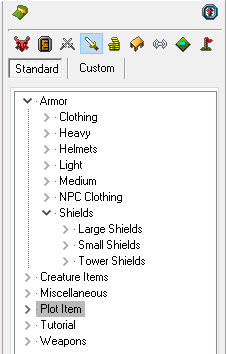
The main thing here is that you can find things with Ctrl + F (F3 to find next), and find instances of that blueprint in the world by right clicking one and using Find Instances. Finally you can make changes to a blueprint, and use Update Instances to find and update those objects to match the blueprint.
You can also refresh the custom palette with the Refresh Palette option which may solve issues with a blueprint not appearing even though it is in the temp0 directory. If the palette is really wrong use the Build Module option to rebuild them fully.
If you want to change the categories in the palette file you can do so, see the Toolset Palette ITP page for more information.