...
This allows you to grow, shrink, "lower" or "raise", and rotate the object in a variety of ways. Furniture can be upside down in wreckage, the floor can have flags on it, the walls can have carpets. Many objects are not optimised to be rotated however!
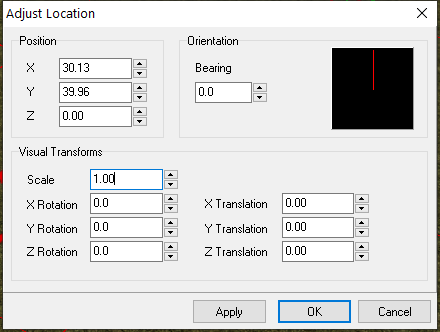
Shortcuts
Holding ALT and holding the mouse over the placeable will move it up and down.
Holding CTRL and moving the mouse wheel will scale them.
BEWARE Hitting F5 resets all settings on your placeable objects.
Map Bounds
Did you know? There is a way you can get placeables to be outside the map bounds and still load in the game. The map bounds extend for 5 tiles away from the playable area, replicating the tile closest to the edge.
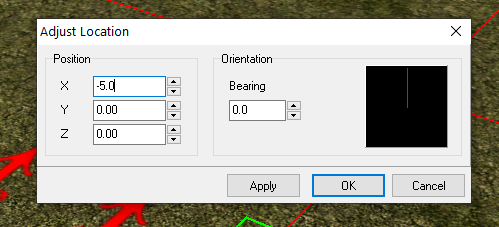
To do this use the Adjust Location option on a already put down placeable that is static. This allows you to select coordinates outside the map boundaries and press enter to save.
...
Example: Select Adjust Location by right clicking a placeable. In one of the X or Y boxes set, say, a negative value of -5.0. Press Enter and poof it appears outside. Experiment and as always you can convert an area to code to set the locations of things independently of the toolset.
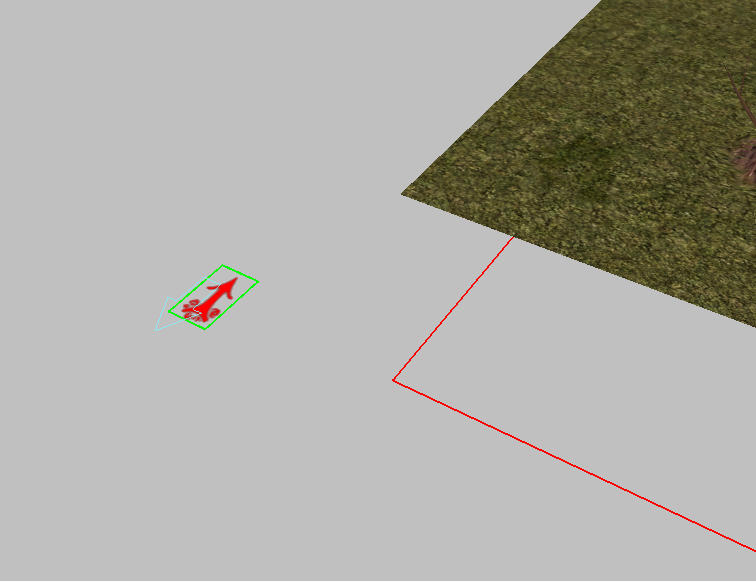
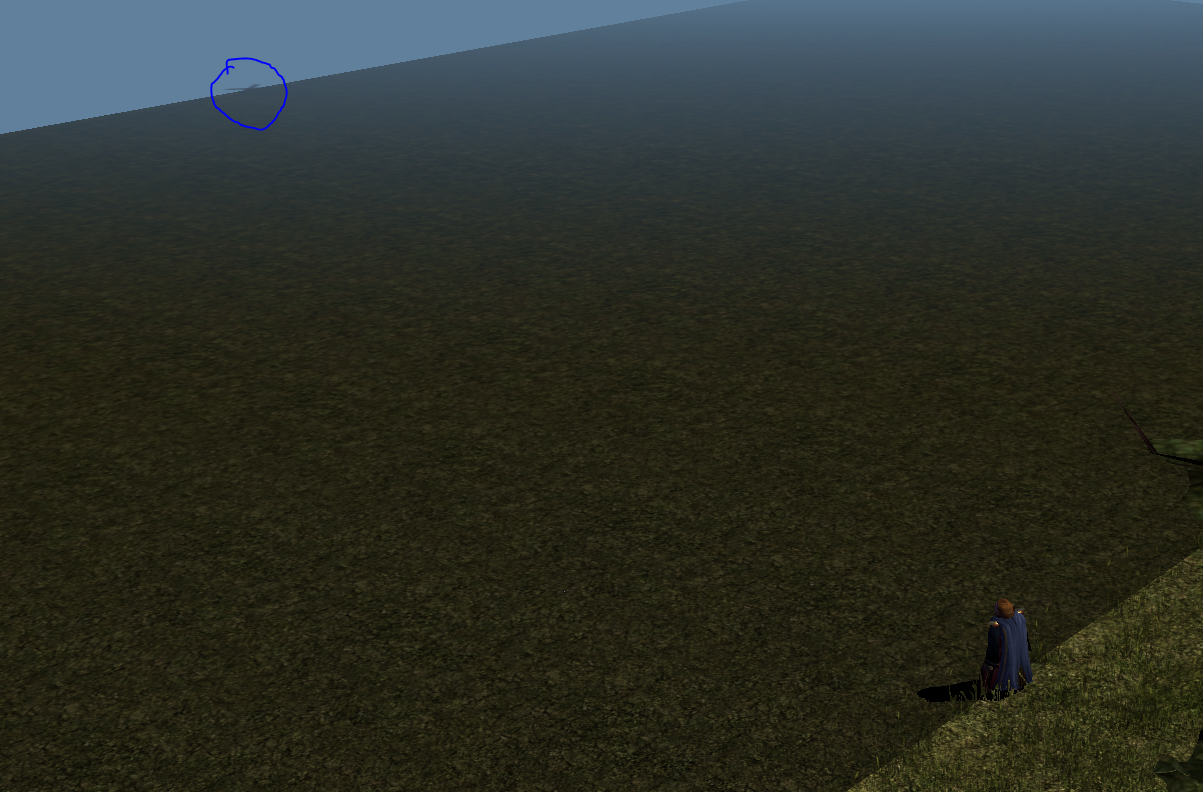
Example of a placeable set to -50 meaning the edge of any visible boundary. Usually players can't see this far unless the fog distance is increased.
 \
\
Stackable / Unstackable
In the toolset by default placeables can be stacked, such as placing a book on a table. In these situations the placed item will rest at the Z axis of the bounding box for the placeable it is placed. Custom content creators who wish to have "transparent" placeables where they will not stack placeables can put an "a" and the end of the mesh name in the MDL file. The toolset will recognize this and allow placements to bypass that placeable and not stack. This is useful for planes of water like a stream, custom grass meshes, etc.