...
In GIMP you can go Alpha → Greyscale like this: https://graphicdesign.stackexchange.com/questions/155206/alpha-to-colour-value-in-gimp
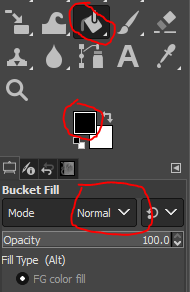
- Delete all the colour Bucket Fill with Normal mode and black colour all channels except alpha so RGB layers are black (do this by unselecting the alpha under Channels)
- (optional but not really needed) Insert an all back layer below the now alpha only layer
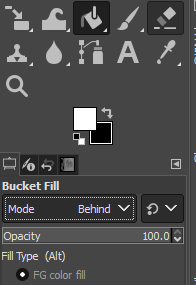
- Use "Behind" bucket fill with white paint bucket colour on the alpha layer
- Should fill it in with black being "no alpha" and white being "full alpha" .more or less
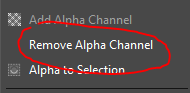
- You can now delete the alpha layer; select the layer, right click and then select Remove Alpha Channel:
Now it's ok but might not be to what specular maps should be (where white == shiny).. This is because the NWN envmaps overwhelm the colour and so fully alpha would mean, basically, full environment map replacement, which is really bad.
We want to extend the colours so black stays black, and greys become more white. Most of the time the non-alpha black bits are all the non-metal parts (eg wood, skin etc.) so it's pretty safe assumption the even dark grey bits are meant to be shiny.
I've found Found that Colors → Exposure works well. Put black level to 0.1 (maximum) to keep the blacks and the Exposure upwards, say to 2.0 or so.
Then can delete the alpha layer (or just leave it, doesn't really matter) convert with Crunch and bingo (here with a normal map from Shadermap 4):
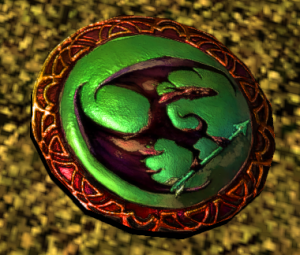
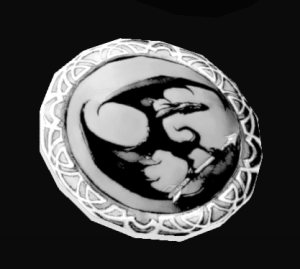
Note the diffuse has been passed in as DXT1 to remove any alpha (and lower the DDS size, they tend to get quite big at 2048 size).