...
- From the new page, select "Create blank project". More documentation can be found here: https://docs.gitlab.com/user/project/
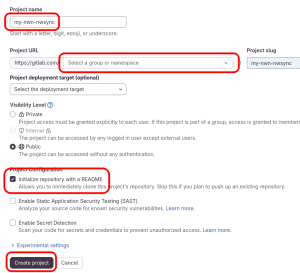
- Choose a project-name, and a visibility level.
...
Initial project configuration
The purpose of this part is to clone an existing project, and then merge this project into your project.
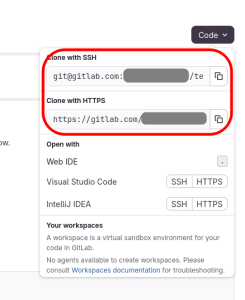
- From a folder of your choice on your computer, clone the project on your computer, either with command-line, or TortoiseGit. The repository URL is in the dropdown black "Code" button. If you do not have a ssh-key, or don't know what it is, select "Clone with https"
Initial project configuration
...
- In another directory, which is not a sub-directory of where you cloned the repository above, clone the project https://gitlab.com/nwn.ovh/nwn-gitlab-nwsync
- Copy all the directory and sub directory contents from this new folder into the folder you cloned in the previous section. Keep the folder hierarchy.
- (git add / commit initial commit, and push)
- (configure deploy/pages)
...