The Toolset Options panel contains the main ways to alter some default behaviours in the toolset. There are also some hidden options in nwtoolset.ini
| Table of Contents |
|---|
General
General options for the entire toolset.
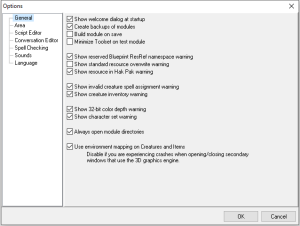
You can additionally disable the Area Tabs by using the "Disable Tabs" option, by setting it to 1 if you don't want to have the tab functionality (for stability or other reasons):
| Code Block |
|---|
[Start Up]
Disable Tabs=0 |
Area
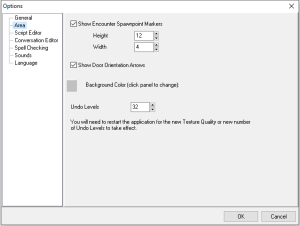
Area Editor specific options.
Script Editor
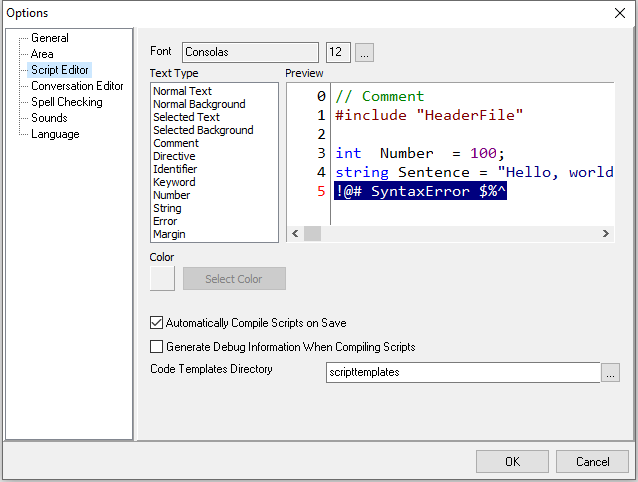
Script Editor specific options.
| Option Name | Default | Description |
|---|---|---|
| Font Options | Courier New, Size 10 | A tip for Windows users: the font Consolas is a nicer font then the default for scripting with, and on larger monitors upping the text size to 12 or 14 might assist with editing scripts more easily. |
| Font Colour Options | Black text, white background and various colours for different elements | You could create a kind of dark mode by altering these to suit. |
| Automatically Compile Scripts on Save | On | This is recommended to enable, script compiling is super fast and if you leave this off you may make edits and forget to compile and wonder why you don't see any changes. |
| Generate Debug Information When Compiling Scripts | Off | This generates .ndb files. These are used with the NWN Script Debugger generally but do have other advanced uses, and can reconstruct the nss file more accurately. However it does add to the compile time and module file size, and is not usually needed. |
| Code Templates Directory | scripttemplates | This default value of "scripttemplates" used to load that folder from the game directory so you already had some example templates to use. Instead you need to in modern OS select a folder - recommended would be Documents\Neverwinter Nights\scripttemplates When setup correctly this will populate the Templates tab in the Script Editor, which will allow you to have boilerplate headers, and filled in code available to quickly plug into scripts. |
| External Script Edtior | <blank> | This allows you to edit scripts intuitively using applications such as VSCode or Notepad++ without exiting the toolset. When pointed at an exe file it will open this application to edit scripts instead of using the default internal Toolset Script Editor. |
Conversation Editor
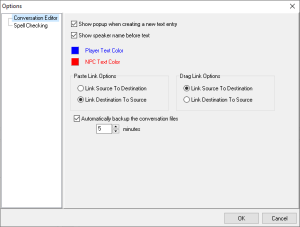
Conversation Editor specific options.
| Conversation EditorOption Name | Default | Description |
|---|---|---|
| Show popup when creating a new text entry | On | |
| Show speaker name before text | On | When enabled it adds the square bracket [OWNER] or NPC tag to the NPC nodes. If disabled it removes it which may make it cleaner. |
| Player Text Color | Blue | Is bright blue not your thing? Change the colour here. |
| NPC Text Color | Red | Is bright red not your thing? Change the colour here. |
| Paste Link Options | Link Destination to Source | When you right click a node and do Paste As Link it by defaults links the destination to the source, but it can instead link the source to the destination. |
| Drag Link Options | Link Source to Destination | When you hold Ctrl and left click and drag node this occurs, which makes the source (you dragged) link to the destination (you have dragged to). You can toggle it to be the same as Past Link instead. |
| Automatically Backup the conversation files | On with 5 minutes | This auto saves the dialogue file (filename.dlg) to the module temporary directory. If the toolset crashes you can recover your work from this directory (by default called temp0 in the /module folder) |
...