...
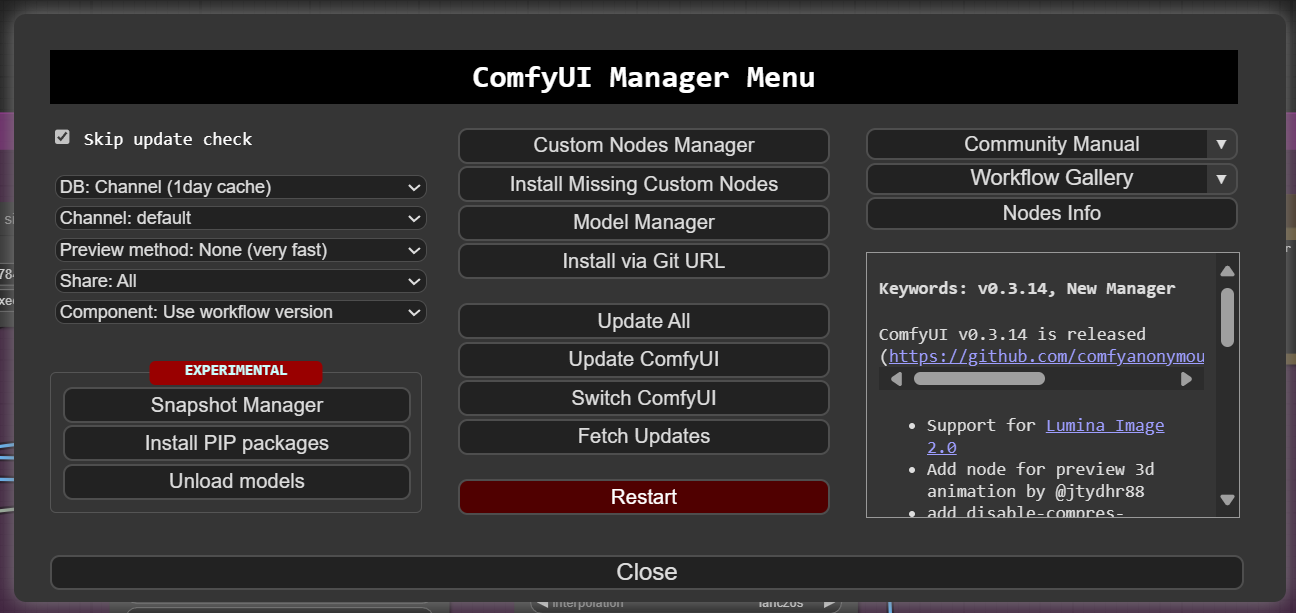
1) Press the Manger button and then Model manager button.
2) Type in the search field for foolhardy and then appears 4x_foolhardy_Remarci in the list. Oddly the install button did not work. Instead you press the download arrow (pointing down) next to the install button. This downloads a 67MB file called 4x_foolhardy_Remacri.pth
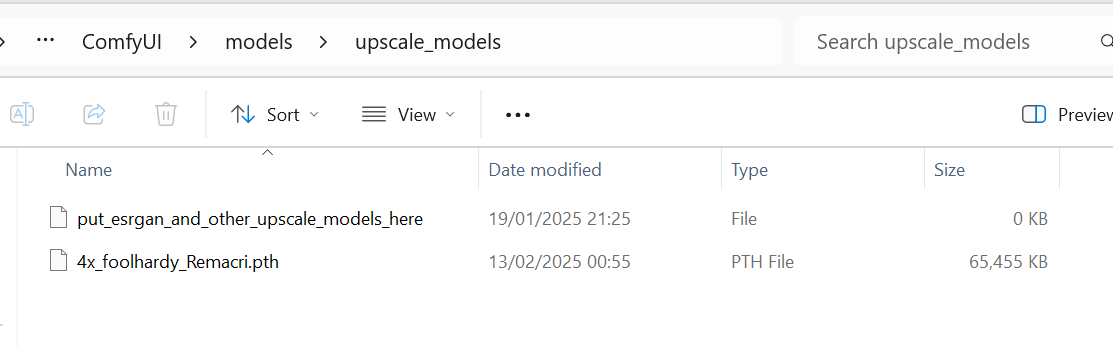
3) Copy this file 4x_foolhardy_Remacri.pth into dir ComfyUI \ models \ upscale_models
4) From manager panel press the red restart button so the model is found.
5) On the workflow find the disabled upscaler nodes. (greyed out near the bottom right next to the 3d model final output. Right click on the disabled gredyed out node called "Load Upscale Model" and enable the two greyed out nodes.
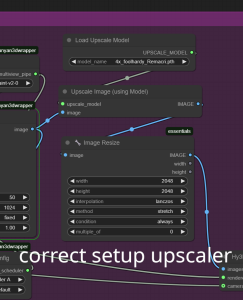
6) Press the right arrow on the Load Upscale Node to cycle and show the 4x foolhardy_Remacri model. (see the screen shot for what it looks like when set)
7) Wire up the nodes so that the image can be sent for Upscaling and then back to the 3d model. See the screen shot how to wire the nodes. If you make a mistake you can use ctrl-z to undo. (see the screen shot for what it looks like when set)
Screenshots of the steps below:

Press the arrow on the model to ensure the 4x_foolhardy_Remacri model is on.
Wire your upscale exactly like this this way so that the image input inputs and output outputs matches and does so the upscaleupscaler works: