...
Next shows the free online tool Hunyuan3D-2 with imported 2d image (or you could give it an AI text chat description for what you want it to 3d create) and then the generated 3d model with texture button pressed and result.
...
2)Download and Install git software. https://git-scm.com/downloads/win Use blue link Click here to download. Run the installer. The setup will prompt you with several options; it’s fine to use the default settings for all of them. You will not have to use Git but the installer needs it.
3)Create Github.com account. This is so the installer can use your account login to download the software it needs when running.
...
Untested Linux install script converted from Widows bat to Ubuntu Debian compatible bash shell script:View file name Comfyui3DInstall.sh height 250
Bonus setup: Upscaler. This helps the final texture to look better. There are other Upscalers that work better than this default one but this 4x upscaler is already setup almost ready to use but needs a model file to be installed.
You will find two nodes called "Load Upscale Model" near the end of the workflow. They are disabled greyed out but setup in the workflow for optionally upscaling the final texture. They can optionally be turned on by right click and enable. Also some wiring of the flow to connect them.
The upscaler model file is missing so it will show red if you try and use the upscaler. It needs a model file used to do the upscale. So you need to do these steps to download and put the upscale model file in dir and restart comfyui for it to be found and turn on.
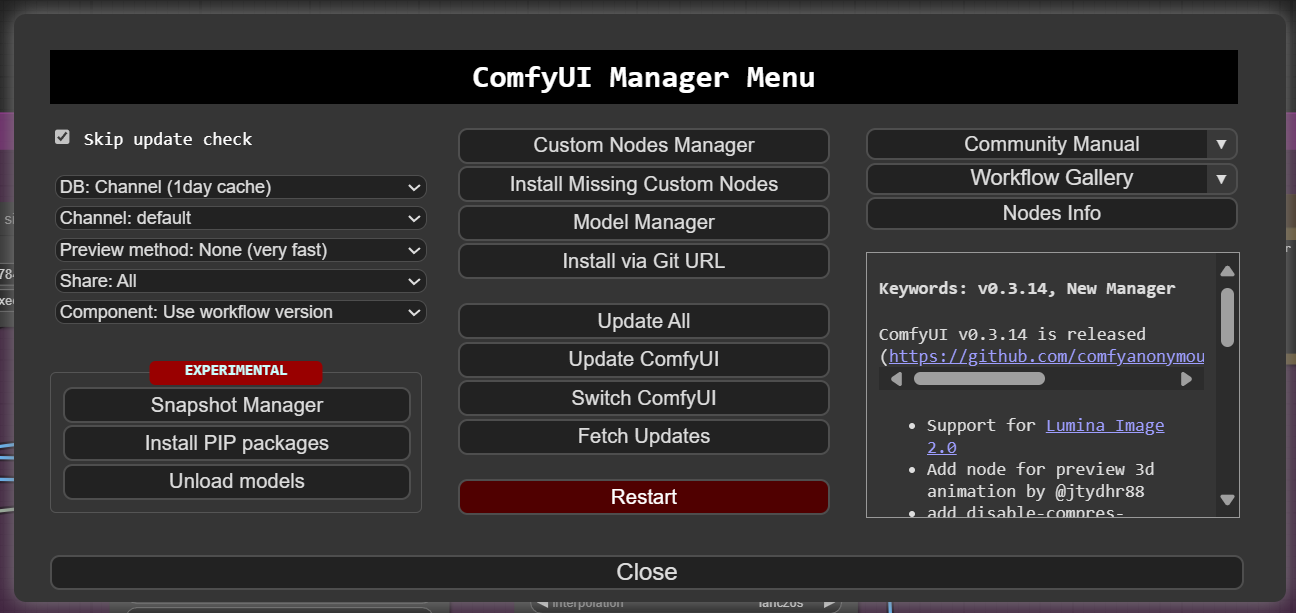
1) Press the Manger button and then Model manager button.
2) Type in the search field for foolhardy and then appears 4x_foolhardy_Remarci in the list. Oddly the install button did not work. Instead you press the download arrow (pointing down) next to the install button. This downloads a 67MB file called 4x_foolhardy_Remacri.pth
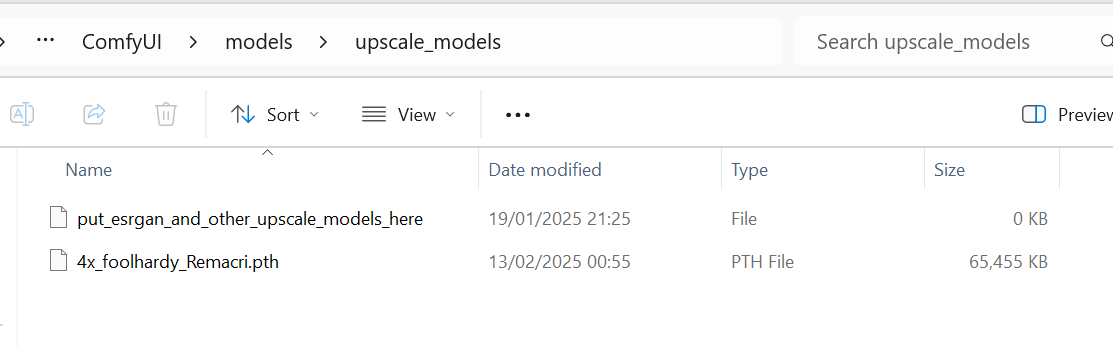
3) Copy this file 4x_foolhardy_Remacri.pth into dir ComfyUI \ models \ upscale_models
4) From manager panel press the red restart button so the model is found.
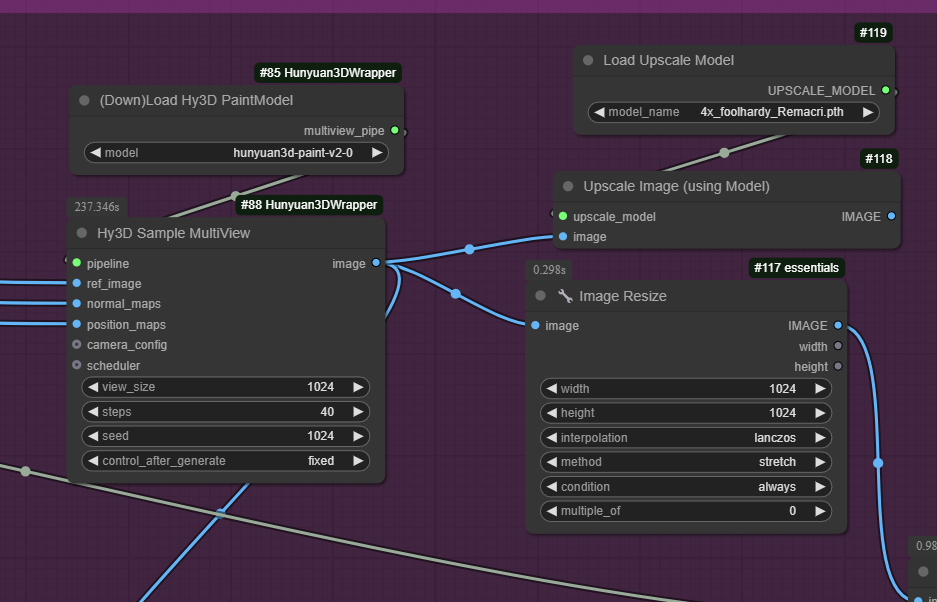
5) On the workflow find the disabled upscaler nodes. (greyed out near the bottom right next to the 3d model final output. Right click on the disabled gredyed out node called "Load Upscale Model" and enable the two greyed out nodes.
6) Press the right arrow on the Load Upscale Node to cycle and show the 4x foolhardy_Remacri model. (see the screen shot for what it looks like when set)
7) Wire up the nodes so that the image can be sent for Upscaling and then back to the 3d model. See the screen shot how to wire the nodes. If you make a mistake you can use ctrl-z to undo. (see the screen shot for what it looks like when set)
Screenshots of the steps below: