...
| View file | ||||
|---|---|---|---|---|
|
ComfyUI: AI-Powered 3D Model Generation from 2D Images or Text
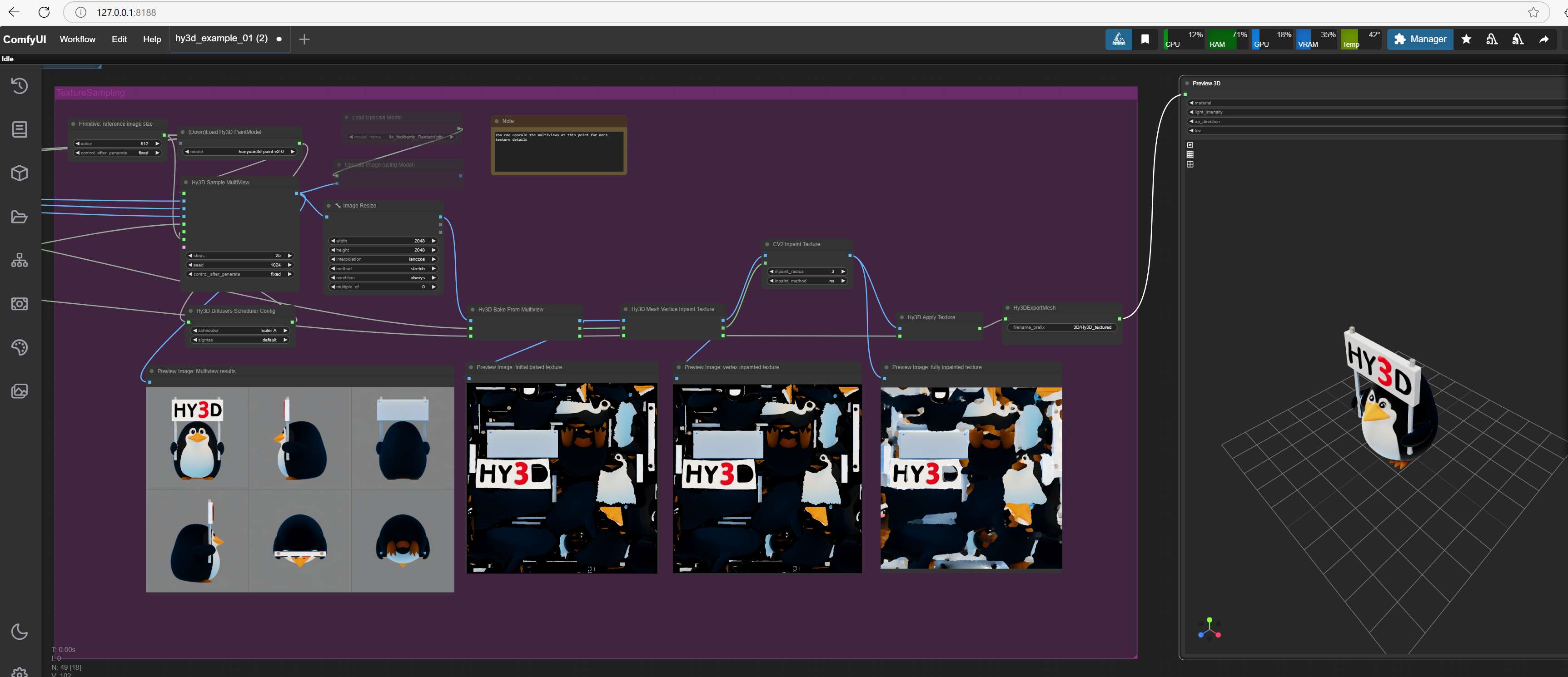
ComfyUI and its AI model generators allows allow you to supply a 2d generate 3D models with textures and UV maps from either a 2D image or a text description and it will generate the model with texture with UV map ready to be imported into blender. The AI will figure out what the other side intelligently reconstructs the missing parts of the image looks like as a 3d model.
There are additional plugins to Comfyui to add in PBR image processing when you create the model. (PBR plugins not covered by this installer you can add plugins later)
ComfyUI can generate models that have low poly faces 5k or high poly over 250k. The image texture output can be controlled using settings so that better image quality can be achieved. Up to 2k upscaled and deatailed textures can be produced for your model.
...
, creating a fully detailed 3D model ready for import into Blender.
Features & Capabilities
- Polygon Control: Generate models with low poly (5K faces) or high poly (250K+ faces).
- Texture Quality: Adjustable texture resolution, supporting up to 2K upscaled and detailed textures.
- PBR Compatibility: Additional plugins can be installed to enable PBR texture processing. (Note: PBR plugins are not included in this installation but can be added later.)
Example Workflow – 3D Gorilla Model
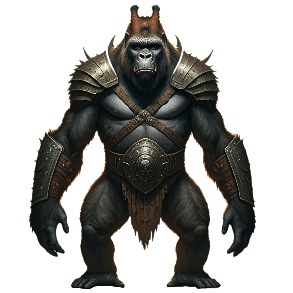
To demonstrate the capabilities of ComfyUI, you can use a sample 2D image of a gorilla (in an A-pose or T-pose with a white background) to generate a 3D model, which is then loaded into Blender.
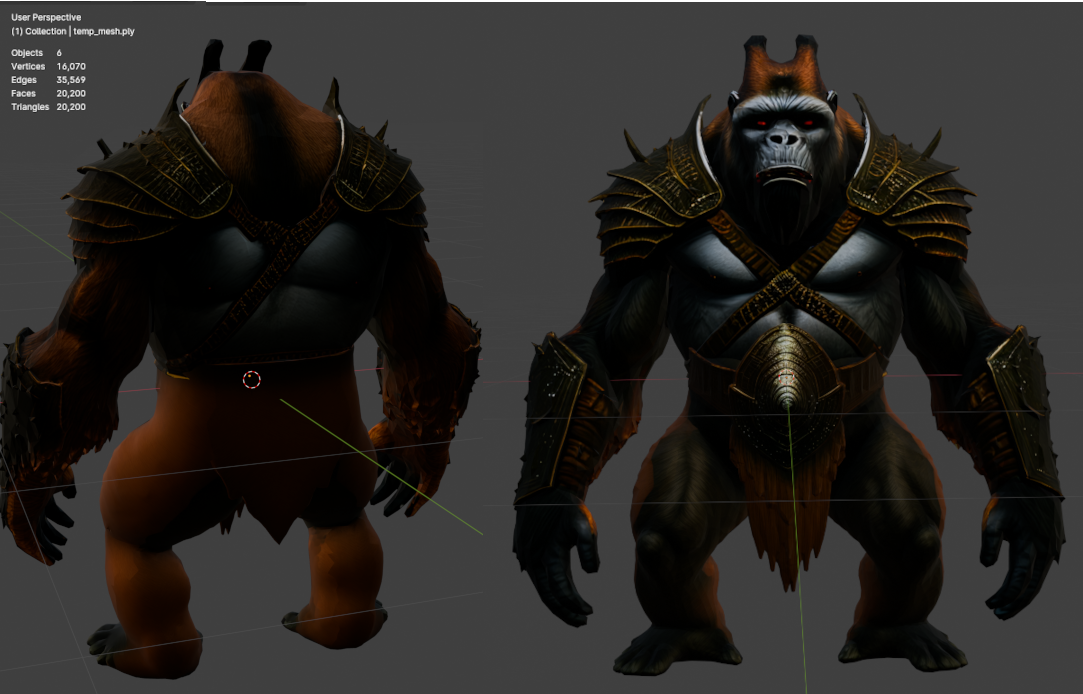
- Sample File: You can download and import HY3d_00118.glb into Blender to examine the 3D quality.
- Generation Settings:
- 10K faces
- 2K texture resolution
Screen shot of Blender 3D gorilla model shown has 20K faces, which was achieved by splitting the original model into two meshes (top and bottom halves, each with 10K faces) and merging them. This technique is useful for optimization, especially for Neverwinter Nights, where the per-mesh face limit is 10K.
Fine-Tuning Settings for Best Results
To achieve high-quality 3D models and textures, it’s important to adjust a few key parameters:
✅ Num Faces – Controls polygon count
✅ Octree Rendering – Helps with structure refinement
✅ Steps Count – Affects model detail level
✅ Texture Size – Defines texture resolution
✅ Delight Settings – Adjusts texture lighting and color balance
✅ Upscaler 4x – Improves texture quality (OFF by default; should be turned ON)
✅ Texture Memory Renderer – Recommended increase to 786MB or 1024MB (Default is 512MB, but at 1024MB, the AI may generate unintended details)
Ease of Use & Batch Processing
📌 No programming or workflow setup is required—simply tweak a few parameters to match your hardware, and you can generate a fully textured 3D model in 1 to 3 minutes.
📌 Batch processing is supported, allowing you to generate multiple models at once (hardware-dependent).
Getting the Best Results from Your 2D Images
- Use an A-pose or T-pose for characters
- Ensure a sharp, high-quality image with a plain white background
- Avoid weapons or accessories obstructing the body
- For placeables, use a clear, full-frame image with a white background
Extending Your Workflow
ComfyUI is open-source, meaning new features, plugins, and enhancements—such as PBR texture processing and advanced upscalers—are continually being developed.
By fine-tuning the settings and using the right input images, you can generate high-quality 3D models optimized for your workflow—whether for games, animations, or other 3D applications.
...
High quality high poly models can be produced and also low poly models that also look good.
NOTE: To get good 3d model/texture results you need to change a few default settings: like num faces, octree rendering, steps count, texture size, delight settings (controls light and color), upscaler 4x on (its off by default) and texture memory renderer increase to 786mb or 1024mb but at 1024mb it may hallucinate and draw extra things. (default 512mb works but its low).
NOTE: You dont have to create any workflow or program anything its just those few parameters to tune for your pc hardware and then you convert 2d image to 3d model in 1 to 3 mins per model as many as you want in batch also possible depending on your pc hardware.
NOTE: The first images you try with default settings that are more complex than the pengiun your mileage may vary depending on how detailed and complex the model is. The default delight setting (texture lighting) and texture memory settings can make a big difference in texture model output. If the image is too bright/light then you need to adjust settings and then it will look way better. So expect your first generated models to look poor until you change the settings for better results. Your starter 2d image need white background and clear sharp texture. A or T character pose with no weapons to see the whole body. Placeable are similar best with plain white background filling the whole frame with a sharp image.
You can extend the workflow with other things like PBR and better upscalers to improve the image further. Being open source there will be new things added in the future.
Using ComfyUI automatic installer with Hunyan3d Comfui workflow
...