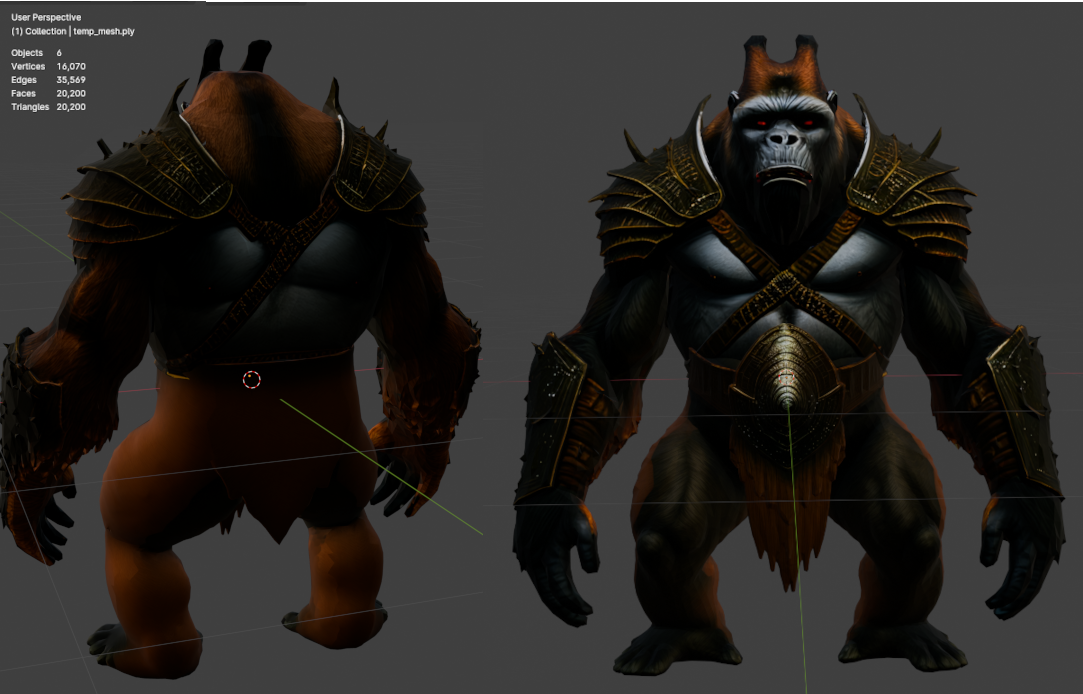
This guide shows you explains how to install the free, open-source ComfyUI portable Portable with Hunyuan3D-2 on your local windows Windows PC. Game Using this setup, you can quickly generate game-ready placeables, creatures, creature or tileset parts can be generated from 2d from either a 2D image or a text very fast producing a 3d model and 3d model with UV texture paintedprompt, producing fully textured 3D models with UV mapping. The AI guesses what intelligently predicts the 3d 3D shape and what the unseen texture behind looks like. (check out the gorilla 2d picture white background and 3d model in blender screenshots)
To generate a model with texture takes about 1 min to 3 mins depending on the quality setting and your pc hardware with Nvidia graphics card. If you dont have Nvidia card then you can use CPU or try the online service.
The free online service from HuggingFaces can be used to generate 3d models from 2d image or text prompt using the same Hunyuan3D-2 AI model generator: https://huggingface.co/spaces/tencent/Hunyuan3D-2 The faces count is fixed at 50k for huggingface generator the results can be very good but not as controlable or best results and free as ComfyUI local install.
Tip: Look for and use the advanced section to open the online model generation settings but they are simple compared to Comfyui.
even generates unseen textures based on the image input. (Check out the example screenshots of a gorilla’s 2D image on a white background and its resulting 3D model in Blender.)
Performance & Hardware Requirements
Generating a 3D model with textures typically takes 1 to 3 minutes, depending on your chosen quality settings and PC hardware. If you have an Nvidia GPU, you’ll achieve faster and higher-quality results. However, if you don’t have an Nvidia card, you can still use your CPU or try an online service.
Free Online 3D Model Generation (Hugging Face)
If you prefer an online option, Hugging Face offers a free 3D model generator powered by Hunyuan3D-2, accessible here:
🔗 Hunyuan3D-2 on Hugging Face
This online version has a fixed face count of 50K, and while the results can be impressive, they lack the fine-tuned control available in ComfyUI.
Tip: Explore the Advanced Settings section for extra customization options. However, they are still more limited compared to a local ComfyUI installation.
Local ComfyUI vs. Online Services
If you want full control over settings like polygon count, texture resolution, and quality, a local installation of ComfyUI is the best choice. Some third-party providers also offer hosted ComfyUI instances with a pay-per-use model.
On Hugging Face’s free tier, you can generate three models per day before needing to purchase credits. However, if you have a 6GB+ VRAM Nvidia GPU and at least 24GB RAM, you can generate higher-quality 3D models directly on your PC within minutes.
Advantages of ComfyUI
✅ Higher-quality outputs due to full control over settings
✅ Batch processing – generate multiple models with different settings
✅ Better texture mapping and polygon count control
For fast, efficient, and customizable 3D model generation, a local ComfyUI installation is the best option—especially if you have the required hardwareIts also possible to find hosted ComfyUI that you can pay per use. Comfyui software allows you to control the faces poly count, the texture resolution and other important settings. After three models generated per day with the hugging face hosted version then you have to pay credits to use it. If you have a 6GB+ vram Nvidia card and 24 gb ram then you can create better looking 3d models on your pc in a few mins. The results are much better with ComfyUI because you have full control to chose higher quality output. You can batch produce many 3d models with different settings.
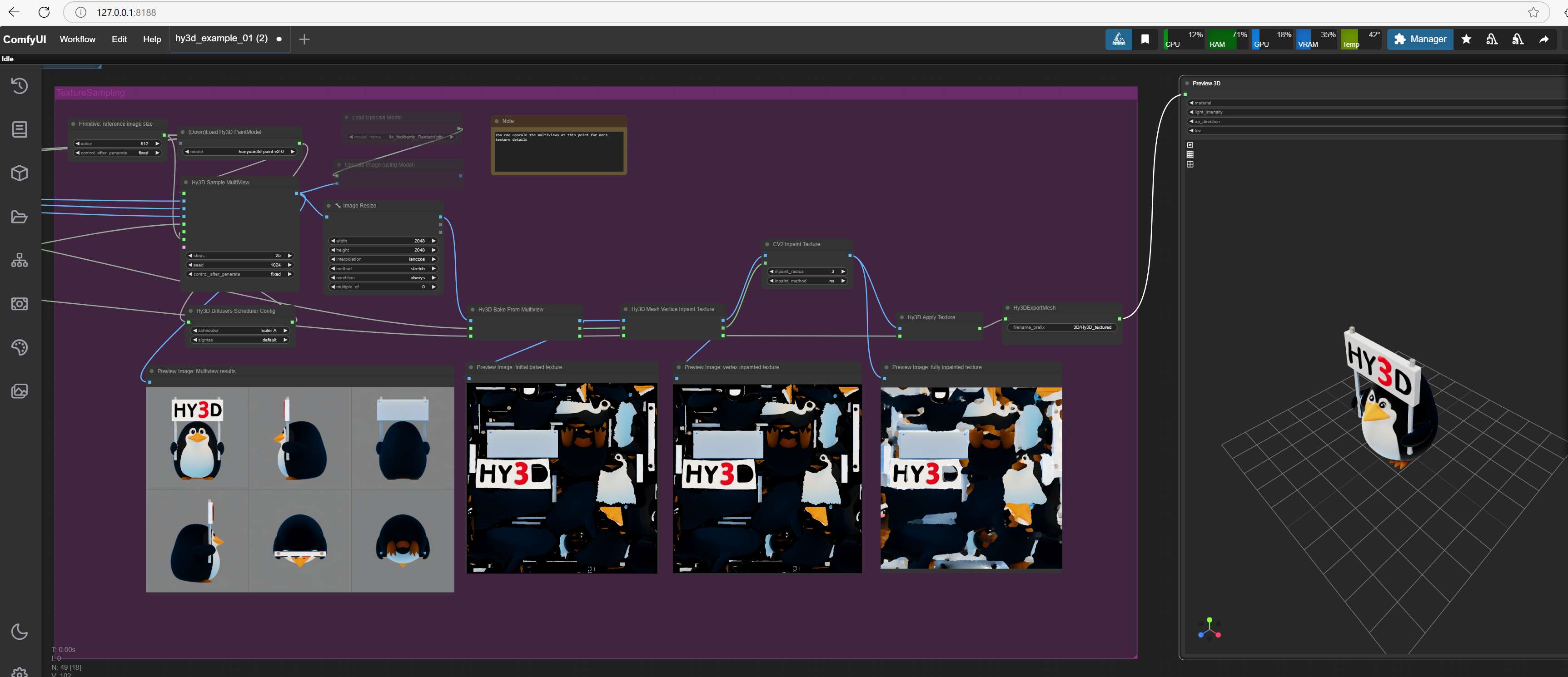

| View file | ||||
|---|---|---|---|---|
|
...
You can extend the workflow with other things like PBR and better upscalers to improve the image further. Being open source there will be new things added in the future.
Using ComfyUI automatic installer with Hunyan3d Comfui workflow
Requirements: You will need a PC with Windows 10 or 11
Hardware: 24 GB ram (32GB recommended so you can run windows apps also) and 6 GB ram Nvidia gpu minimum (8 gb vram to 12 gb vram recommended).If you have less than 8gb vram nvidia card there is a lowvram setting when you start Comfyui. The default is to let it detect vram.
...
| View file | ||||
|---|---|---|---|---|
|
Follow this google doc or download the pdf that has screenshots and detailed how to install step by step:
| View file | ||||
|---|---|---|---|---|
|
Widget Connector url https://docs.google.com/document/d/1QAadTW3AFNQybGDaSGo3kQa3psN1GsHXHUzeDZ_D0XU/edit?usp=sharing
| url | https://docs.google.com/document/d/1QAadTW3AFNQybGDaSGo3kQa3psN1GsHXHUzeDZ_D0XU/edit?usp=sharing |
|---|
Overview of steps you follow to do ComfyUI Install:
1) Download and Install Nvidia CUDA drivers
https://developer.nvidia.com/cuda-downloads
...