...
| Item | Screenshot | Function and Notes |
|---|---|---|
| Portrait |
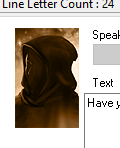
| This default "unknown PC" portrait appears for PC nodes. The NPC nodes never seem to have this filled in which is a shame, presumably it was a planned feature which got cut from the toolset. At least it does make it more clear which person is speaking however. |
| Speaker Tag Dropdown |
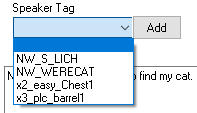
| This is only available on NPC nodes, and will let a different NPC (which could technically be a placeable, door, or creature) speak a node of dialogue, useful for multiple NPCs conversing with themselves and the PC. Left blank it defaults to [OWNER] which is the object initiating dialogue. Note: There is a distance limit to conversations, around 20M or 2 tiles (from the PC), and so checking the NPC is nearby or moving them to be so would help this work correctly. The dropdown will auto populate with tags of objects in the objects current area, and any speaker tags on other nodes in the given conversation, but if you click Add you can select any blueprint in your module to act as a tag in case you're editing it without the creature being pre-placed in the world. |
| Editing Box |
| This basic area can input plain text. The format NWN uses is UTF-8. There are no text formatting options (eg bold, underlined, italics) but you can change the text colour; you can right click anywhere to Insert Token which is detailed below. You can use a basic undo (Ctrl + Z) here, although it only seems to save one thing - and if you undo something that becomes the thing to undo. If you want to use TLK strings instead, put a number in this box. Note while the spellchecker is no longer included in the toolset the colours it uses still get applied; with some interesting cases:
So spellchecker being enabled adds a little functionality. When you click a box it goes normal black in any case. TBH there are probably some bugs there. |
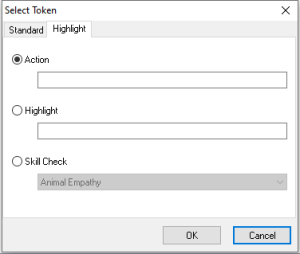
| Insert Token |
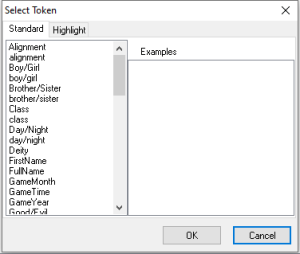
| This will allow tokens to be added where the current cursor position is in the text. These can be standard ones, such as "Hello <boy/girl>" under Standard, or more advanced ones that alter the text colour under Highlight. See also Conversations which goes into detail on all the tokens and how to do arbitrarily coloured strings. Note that you can just type the text in by hand - this is just a selector to make it easier. |
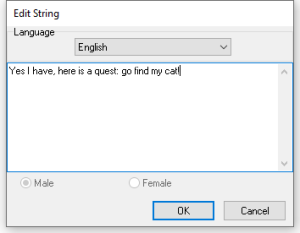
| Edit String in particular language |
| This allows text editing in different languages for the given conversation. It is quite clunky and really a better option is to supply a translated TLK file with your module. For multiplayer it's also limited to having the servers language be used. This won't need a TLK string number being put in since it's meant to replace that kind of usage. |
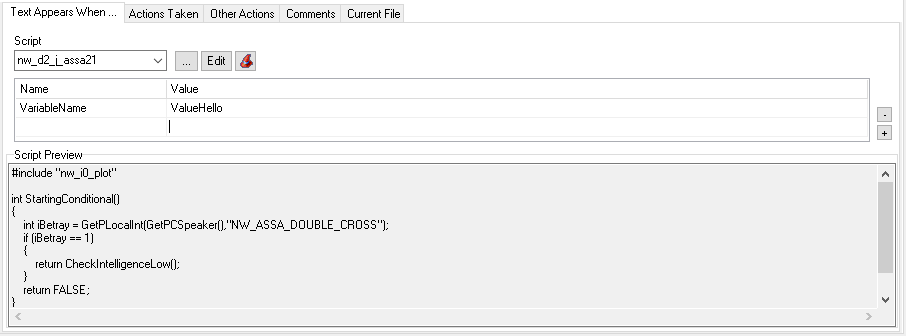
| Text Appears When... |
| This selects a script that starts with int startingConditional() which returns a True or False value. The script is run when evaluating whether or not to show this particular node. The two main use cases are:
NWN:EE added Script Parameters as well which allows arbitrary text script parameters to be added. A tutorial on this will be put elsewhere since it can get a bit in depth and but save you a lot of time reusing scripts. |
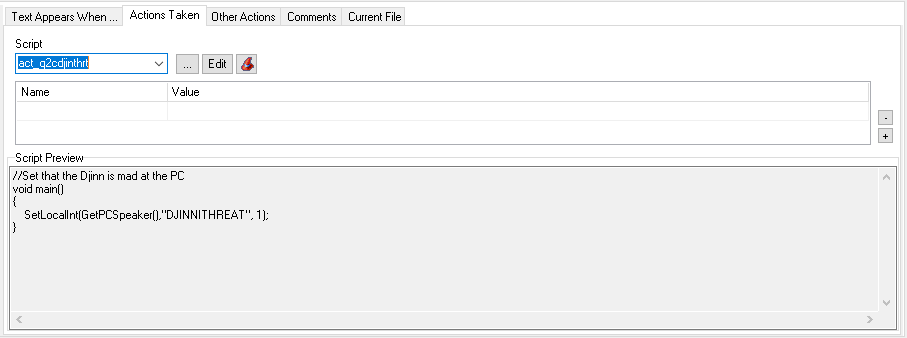
| Actions Taken |
| This selects a script that is a usual void main() script that does an action when the node is said. When it is on an NPC node it will instantly fire when that node is loaded and text displayed to the player. When it is on a PC node it will fire it only if that particular choice is chosen. |
| Other Actions |
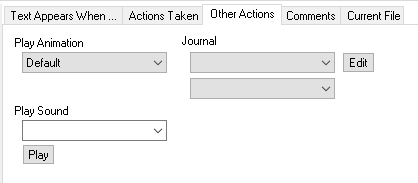
| These 3 options are time savers and bypass the need to use scripts for doing basic things in the conversation. Play Animation This will, for the current node owner (if it's the PC, the PC will do it), play the given animation. One off animations will go back to talking when the NPC starts talking again, and persistent ones can be changed back to talking using Talk Normal (the default one). Default just "keeps the current animation". Journal This allows you to select a journal entry and the state it should be set to. The Edit button opens the Journal Editor. Play Sound This will play a mono sound effect from the current node owner. This means NPCs can play dialogue files and PCs can play sound effects. If the node is quickly skipped the sound stops playing. |
| Comments |
| A basic comments field for the current node. Describe what should be going on, put developer notes in, etc. - this will not be displayed to the player. |
| Current File |
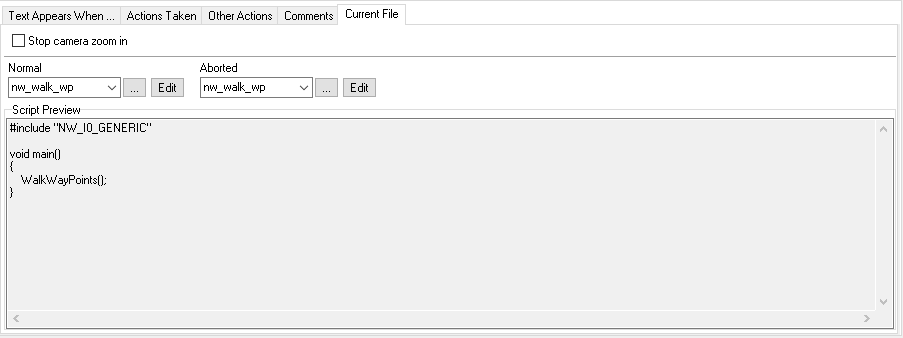
| These are options that affect the entire conversation as a whole. The tickbox for Stop camera zoom in allows you to stop the camera zooming in. Players can disable this themselves game-wide but it helps to disable this in many situations. The Normal and Aborted script options - which default to the nw_walk_wp file - are the scripts that fire when the conversation ends normally, and when it is aborted. Aborted states occur when the player unnaturally exits the conversation;
You can force a PC to stay in a conversation with cutscene mode, which disables escape (which goes instead to the "Cancel Cutscene" script which can also ignore it) and stops movement. The usage of each script event can differ on the situation:
|


...