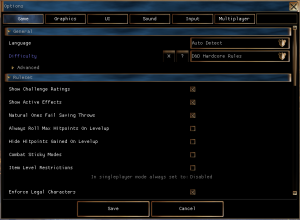

This is a summary of what the different game options do. Most are accessible in game as of later NWN:EE patches, if not then the settings.tml file in the documents folder will contain the settings which is simply a text file.
The Options Menu has a search box in the top left for finding any setting named below.
settings.tml is generated by the game on first load with some sane defaults (noted below). The structure is a simple formatted file with all the headers to options being in square brackets, and setting elements underneath with tabs indenting them. For instance it should look like this:
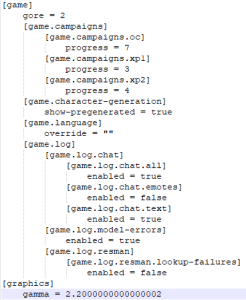
Below the "settings.tml name" is not formatted with all the relevant whitespace since some settings include a lot of whitespace.
Several of these settings are actually there primarily for servers, but may affect singleplayer as well. Others are singleplayer only.
| In Game Setting Name | settings.tml name | Default Value | Options Panel Values | settings.tml values | Description and Notes |
|---|---|---|---|---|---|
| General | |||||
| Language | [game] [game.language] override = "" | Auto Detect | Auto Detect English French German Spanish Italian Polish | "" en fr de es it pl | Auto detect should detect the OS language and use that. Some languages change the audio, text and subtitles on movies. Some just change the text and subtitles on movies and keep English voices. Needs a game restart to fully take effect. Relates to the games \steamapps\common\Neverwinter Nights\lang\XX folder name if you want to find the files it swaps out. |
| Difficulty | [ruleset] difficulty = 1 | 1 (Easy) | Very Easy (not singleplayer accessible - server only) Easy Normal D&D Hardcore Rules Very Difficult | 0 1 2 3 4 | See NWN Difficulty Settings page for more information. Note servers have this set on the server end of course overriding this setting. In singleplayer you can change it at anytime during gameplay. |
| General - Advanced | |||||
| Show Pregenerated Characters | [game] [game.character-generation] show-pregenerated = true | true | Enabled (Ticked) Disabled (Unticked) | true false | Shows the .BIC files referenced in pregen.2da if ticked/true, else will not disaply them |
| Violence Level | [game] gore = 1 | 1 (Full) | Low Full Special | 0 1 2 | Low - removes blood VFX (see visualeffects.2da) and replaces some placeables with "lower violence" versions (see placeables.2da) Full - usual setting, normal visuals and placeables Special - Certain deaths are now "gory" and explode the creature into chunks with additional blood VFX Note the 1.69 "Violence Password" is no longer accessible in the game options panel. |
| Ruleset | |||||
| Show Challenge Ratings | true | Shows the challenge rating of monsters. This is calculated as:
If false the CR is hidden, making it harder for players to assess monster difficulty but may help RP / being more thematic especially if CR is not used for anything else. | |||
| Show Active Effects | true | Shows active effects (as per effecticons.2da) on creature descriptions. If false it will hide them (making it more difficult for players to see what spells and immunities are on them). | |||
| Natural Ones Fail Saving Throws | true | If true it will mean a saving throw can fail on a 1 regardless of the positive values. If false then it will save. This being true does make a 1 in 20 chance anyone will fail a particular save - in higher levels this means instant death saving throws can fail if you roll one on average 20 times. | |||
| Always Roll Max Hitpoints On Levelup | false | This will make it so a character who would roll, say, 1d10 to get HP that level, instead just gets 10. Since you can see the roll before cancelling the levelup, this is a timesaver in SP and in many cases can be enabled in MP as well to balance PCs who roll badly versus those who don't. | |||
| Hide Hitpoints Gained on Levelup | false | This will hide the notification of what HP is gained during a levelup, so it can't be cancelled and started again if too low, if you really want random HP on a MP server. | |||
| Combat Sticky Modes | false | Determines whether combat modes are turned off by movement. The standard behaviour is false, movement turns off combat modes. When the value is true, combat modes become sticky and not interrupted by movement. Combat modes are things like Power Attack, Expertise, etc. and this can help streamline combat. | |||
| Ruleset - Advanced | |||||
| Encounters Always Reset | |||||
| Validate Spells | This will check the servers list of spells ie spells.2da against what the client is saying. For instance if the client says that their Wizard can cast Harm, can they really? Should always be left enabled and is even set by default. | ||||
| Combat Max Attack Bonus | |||||
| Combat Max Damage Bonus | |||||
| Combat Max Saving Throw Bonus | |||||
| Combat Max Ability Bonus | |||||
| Combat Max Ability Penalty | |||||
| Combat Max Skill Bonus | |||||
| Logging | |||||
| Logging - Advanced | |||||
| Scripts - Advanced | |||||
| Vm Runtime Limits Instructions | 524288 | 131072 - 16777216 | This raises or lowers the instructions limit for scripts. It's recommended to keep this at the default value to stop any unrulely | ||
| Log Script Execution | Off | On Off | 1 0 | This will log to nwclientLog1.txt each and every script execution as a new log entry, eg: [0] Object: "Summoned Elder Air Elemental", Running Script: nw_ch_ac2 This is obviously very much going to spam the log file and should not be used in a production environment, but can be used to figure out rogue scripts you don't expect or the script execution order in a pinch in smaller test modules. | |
| Vm Profiling | Off | On Off | 1 0 | This will log to nwclientLog1.txt a list of the scripts in the module that were run, and their run count and total execution time, when the server is shut down. It is used to debug what scripts may cause hiccups and lag and usually only used on servers. | |
| Debugger Address | 127.0.0.1 | IP address | The IP address of of the debugger server, ie DebugServer.exe, for use with SpawnScriptDebugger. In the modern day with 2 monitors and easy alt-tab without crashing, leaving this as localhost (127.0.0.1) should be sufficient. | ||
| Debugger Port | 5122 | Integer | The port of the debugger server, ie DebugServer.exe, for use with SpawnScriptDebugger. You'd usually leave this on the default port which matches the default in DebugServer.exe | ||
| SQLite Tracing - Advanced | Added in 1.84.8193.23 | ||||
| Profile | Off | On Off | 1 0 | If enabled then the game will write to nwclientLog1.txt every time a nwscript sqlStep() takes more then the Profile Threshold Msec amount of time to run. | |
| Profile Threshold Msec | 800 | 0 - 60000 | If the time taken by a statement is over this amount it will log it to nwclientLog1.txt. Setting to 0 doesn't display every statement, only those taking 1ms or higher. | ||
| Stmt | Off | On Off | 1 0 | Enable all Sqlite Statement logging. This will print every SQL statement run through sqlStep() to nwclientLog1.txt prefixed with "stmt: ". Do not enable in a production environment, but it can be handy to quickly trace malformed SQL in a pinch. | |
| Other | |||||
| Campaign Progress | [game] [game.campaigns] [game.campaigns.oc] progress = 7 [game.campaigns.xp1] progress = 3 [game.campaigns.xp2] progress = 4 | OC - up to 7 XP1 - up to 3 XP2 - up to 4 | This is how you unlock progress without actually ending the modules. If you want to access the last chapter of the OC set the progress to 7. The example settings.tml has them all unlocked. |
| Option Panel Name | settings.tml name | Default Value | Options Panel Values | settings.tml values | Description and Notes |
|---|---|---|---|---|---|
| Frame Limiter | |||||
| Enabled | Off | On, Off | If enabled the FPS limiter settings below are used. If disabled it'll use the most FPS possible. | ||
| Foreground Target Fps | 60 | 1 - 255 | FPS limit when the game is in the foreground and no radials or menus are open | ||
| Background Target Fps | 10 | 1 - 255 | FPS limit when the game is in the background - eg; you've clicked on your web browser (this usually pauses in SP) | ||
| Non Interactive Target Fps | 48 | 1 - 255 | FPS limit when:
It'd be recommended to set this to the same as Foreground Target FPS to keep a consistent FPS. |
| Option Panel Name | settings.tml name | Default Value | Options Panel Values | settings.tml values | Description and Notes |
|---|---|---|---|---|---|
| Option Panel Name | settings.tml name | Default Value | Options Panel Values | settings.tml values | Description and Notes |
|---|---|---|---|---|---|
| Voices Volume | [sound.voices] volume = 0.50000000000000000 | 0.50 | 0.0 - 1.0 | 0.0 - 1.0 | Volume of voices in the game. These are sound effects played during conversation dialog with the player and the voicesets that are used by creatures. |
| Music Volume | [sound.music] volume = 0.50000000000000000 | 0.50 | 0.0 - 1.0 | 0.0 - 1.0 | Volume of music in the game. See Sounds and Music. |
| main-menu-theme = "mus_theme_main" | mus_theme_main | Music file name | Not available in the Options panel, setting this can change the default music played by the main menu - it should be a bmu file name (without the file extension). Examples that may be suitable in the NWN:EE files (find them in the "mus" directory and play with any MP3 software to listen in advance):
It's not probably a good idea to use a battle theme here, those tend to get loud. | ||
| Sound Effects Volume | [sound.effects] volume = 0.50000000000000000 | 0.50 | 0.0 - 1.0 | 0.0 - 1.0 | Volume of sounds played in the game. Presumably also UI elements as well. See Sounds and Music. |
| 2D/3D Bias | [sound.3d] bias=1.0000000000 | 1.00 (as of 8193.18) | 0.10 - 1.90 | 0.10 - 1.90 | There are two types of sound sources in the game, and they're kind of like the two different models in the game, there's the 3d models, like game objects, that are positioned in a space that you can detect while you move the camera because of the illusion of depth, and 2d models in the game, like the UI elements, which are frozen front-facing and flat.(edited) The "3d" sounds are "environmentalized", and "imaged" to reflect their world positions relative to the camera, usually. Slider is volume bias of Environmental sounds (like voice lines, spell sounds etc) - the "3D" versus more direct sounds (UI Button clicks) which are "2D". |
Note for keybindings see the separate Change Key Settings option menu.
| Option Panel Name | settings.tml name | Default Value | Options | settings.tml values | Description and Notes |
|---|---|---|---|---|---|
While you'd think "server" under this section meant "must be multiplayer" really the game will start a "singleplayer server" when you load a singleplayer module. Some of these settings apply equally to that environment and hopefully will note below if it is only a MP server.
In the latest versions of NWN:EE many of these are now available in the Options menu making it a lot easier to tinker with the core settings.tml for your server - you can do it on the client and copy the file over to your server. It also makes doing simple co-op runs a lot easier.
This section has the most "settings.tml only" options, listed at the end of this bit in a separate section.
Also note: Many settings that are not in this section do affect servers, weird isn't it? See sections above for more info.
| Option Panel Name | settings.tml name | Default Value | Options | settings.tml values | Description and Notes |
|---|---|---|---|---|---|
| Client | |||||
| Player Name | "" | Text field | Text field | Your player name to join servers with | |
| Server | |||||
| Server Name | "" | Text field | Text field | Sets the server name | |
| Post Game To Internet | true | Enabled (Ticked) Disabled (Unticked) | true false | If ticked (on) it will post the game to Beamdogs centralised server list. | |
| Server Port | 5121 | 1 - 65535 | 1 - 65535 | The TCP port your server will initiate connections on. UDP firewall punching is used as well by the game. | |
| Player Pausing | allow-player-pausing | false | Enabled (Ticked) Disabled (Unticked) | true false | If true it will allow players to have DM-like powers to pause a server. In singleplayer mode always set to: Enabled |
| Server Restore Spell Uses On Login | false | Enabled (Ticked) Disabled (Unticked) | true false | If disabled (default) a players spells and feats used will be saved and will be reapplied on login for server vault characters. If enabled, it will act as if the player had rested if they rejoin and restore all their limited spell and feat uses. It's not recommended to enable this usually on a normal server. | |
| Only One Party | true | Enabled (Ticked) Disabled (Unticked) | true false | All players will join the first players party (first real player - DMs cannot run a party). Very useful for DM or coop playthroughs where there is only one expected party. Obviously disable this on any server where there may be more than one party travelling around. | |
| PVP Setting | 1 - Party | None Party Full | 0 1 2 | Changes the Player versus Player setting allowing or disallowing what you can attack with a hostile action. This is still dependant on the area PvP settings. Full PvP: When full PvP is in effect, a PC can take hostile actions against any other PC. This includes outright attacks, pick pocket attempts, and (presumably accidentally) affecting party members with harmful area of effect spells that do not specifically exclude friends (such as fireball). That is, the full range of Player versus Player actions are available. This setting is only available under the "D&D hardcode rules" and "very difficult" difficulty settings. Party PvP: When party PvP is in effect, a PC can take hostile actions against any PC not in the same party. This is similar to the full PvP setting, but protects party members from hostile actions. This setting is only available under the "D&D hardcode rules" and "very difficult" difficulty settings. No PvP: When no PvP is in effect, a PC cannot take hostile actions against any other PC. | |
| Item Level Restrictions | false | Enabled (Ticked) Disabled (Unticked) | true false | If enabled it enforces Item Level Restrictions, ie the character level can only equip things based on the value limit set in itemvalue.2da In singleplayer mode always set to: Disabled | |
| Enforce Legal Characters | true | Enabled (Ticked) Disabled (Unticked) | true false | Known as "ELC". In multiplayer if enabled it checks that suibmitted characters (new and levelups) adhere to the game rules, since both character generation and levelup are technically done client side and sent to the server for validation. It is highly recommended to leave this enabled and use NWNX to alter its behaviour for special things, unless you run a friends only game. In singleplayer mode always set to: Disabled | |
| Ruleset Min Character Level | 1 | 1 - 40 | 1 - 40 | Minimum level to play on the the server. This only realistically works with Local Vault characters, since all Server Vault characters created start at level 1. In singleplayer mode always set to: Disabled | |
| Ruleset Max Character Level | 40 | 1 - 40 | 1 - 40 | Maximum level to play on the server and presumably an enforced maximum level you can obtain on any one character by levelling - once there it won't award any more XP. In singleplayer mode always set to: Disabled | |
| Server - Advanced | |||||
| Server Disallow Shouting | false | Enabled (Ticked) Disabled (Unticked) | true false | Stops the yellow-coloured server wide shouts from being possible to do. You can also do a similar thing with OnPlayerChat which can alter the volume of a sent message (so you can convert it to a normal chat). | |
| Server Show Dm Join Messages | true | Enabled (Ticked) Disabled (Unticked) | true false | If enabled it will show in grey a message "So and so joined as a DM." to all players. Set to false to hide this. | |
| Server Tweaks Use Threaded Timers | true | Enabled (Ticked) Disabled (Unticked) | true false | If enabled it...seems to make combat messages kinda go a bit wonky, with damage messages commonly appearing before the attack rolls. This needs further testing or developer insight since disabling it helps in singleplayer. Disable this and let us know if you have any further information - post it here! | |
| Server Tweaks Threaded Timers Resolution | 100 | 1 - 1000 | 1 - 1000 | Presumably the resolution (timing) of the tweak above, maybe in milliseconds? | |
| Server Tweaks resman Max Memory Usage | 0.125 | 0.01 - 0.8 | 0.01 - 0.8 | The memory assigned to resman - the games memory cache of objects. Obviously servers don't load textures or models but they do load a lot of other things. This should be a % of system memory, and given the game is now 64bit could be increased to suitably use more memory on a server. Also note while the default value is 0.125 (12.5%) the in game options panel displays only 0.XX increments meaning it gets rounded to 0.13. | |
| Server Tweaks 2da Engine Cache Size | 11 | 1 - 1000 | 1 - 1000 | Why are there two similar settings? No idea! The amount of non-engine 2das cached for use with Get2DAString. All the engine 2da files (eg; spells.2da, or classes.2da) are automatically cached at game load. This would affect servers with a lot of custom 2da files, perhaps used for storing treasure generation tables or metadata. You may need to alter Server Tweaks resman Max Memory Usage if you increase this value significantly. | |
| Server Tweaks 2da User Cache Size | 10 | 1 - 1000 | 1 - 1000 | Why are there two similar settings? No idea! The amount of non-engine 2das cached for use with Get2DAString. All the engine 2da files (eg; spells.2da, or classes.2da) are automatically cached at game load. This would affect servers with a lot of custom 2da files, perhaps used for storing treasure generation tables or metadata. You may need to alter Server Tweaks resman Max Memory Usage if you increase this value significantly. | |
| Server Tweaks Game Object Cache Size | 16 | 12 - 20 | 12 - 20 | Not sure what this does, but increasing it might improve performance on higher memory systems (which nowadays is everything). You may need to alter Server Tweaks resman Max Memory Usage if you increase this value significantly. | |
| Server Tweaks Power Saving Clients Required To Disable | 1 | 1 - 255 | 1 - 255 | Do not increase this number. The old server would sleep for 10ms each game update. This was fine on small servers but caused severe performance issues on large servers. We added a new config option called Clients Required To Disable CPU Sleep (under Game Options) with an integer value which can be used to toggle this behaviour back on. By default, the server will retain the old behaviour until one or more players join, then it will enter high performance mode without any sleeping. You can change this value to something that is greater than the maximum players allowed on your server if you never want the server to enter high performance mode. It is recommended this is set to 1 in the modern age of processors else can cause server lag and stuttering for players. | |
| Server Net accept Relayed Connections | true | Enabled (Ticked) Disabled (Unticked) | true false | Not sure - relayed connections via. ActivatePortal or just the usual UDP firewall punching? Probably the latter. Leave it on for maximum benefits for connectivity. | |
| Login | |||||
| Player Password | Text field | Text field | The password needed to join if a player, or blank if no password. | ||
| DM Password | Text field | Text field | The password needed to join if a DM, or blank if no password. For proper servers you also may want to do validation of DM logins (or log it's happening) OnClientEnter or using NWNX. | ||
| Max Players | 6 | 1 - 255 | 1 - 255 | ||
| Autosave | |||||
| Enabled | false | Enabled (Ticked) Disabled (Unticked) | true false | This will make the game autosave as per the below setting timer. Possibly useful for DM run or coop games where you might forget to save for a bit and lose progress due to a crash or lots of dying. In singleplayer mode always set to: Disabled | |
| Interval | 5 | 1 - 30 | 1 - 30 | Amount of minutes between autosaves, if enabled above. | |
| Vault Characters | |||||
| Vault Characters | [server.vault] mode | 1 | Local Server | 1 0 | Set to 0 for server vault, which is where the BIC files are stored on the server, and a new player has to create a new character to join. In singleplayer mode always set to: 1 |
| Vault Characters - Advanced | |||||
| Suppress Base | false | Enabled (Ticked) Disabled (Unticked) | true false | Determines if characters in the root server vault directory are made available to players (in addition to characters in their subdirectories). An odd setting you'll probably never enable unless in a DM run game (where you provide some characters to all players to pick from). | |
| Sticky Player Names | false | Enabled (Ticked) Disabled (Unticked) | true false | Not sure of details | |
| By Player Name | false | Enabled (Ticked) Disabled (Unticked) | true false | Not sure of details | |
| Backup Server Characters | false | Enabled (Ticked) Disabled (Unticked) | true false | Not sure of details | |
| Privacy | |||||
| Client Privacy Advertise Device Capabilities | true | Enabled (Ticked) Disabled (Unticked) | true false | Client only setting - if unticked then the client won't send information such as game version, window size and other pertinent information to the server for use in newer EE features. |